









Creating Your First Windows Forms Application with C#

This tutorial walks through creating a Windows Forms application with TX Text Control .NET for Windows Forms in C# on .NET 6. It covers installing the SDK via NuGet, adding TextControl from the toolbox, and attaching ButtonBar, StatusBar, and ruler controls using the Smart Tag wizard.

Disclaimer
This article was first published in 2020 and is recently updated.
Prerequisites
Create Your Application
-
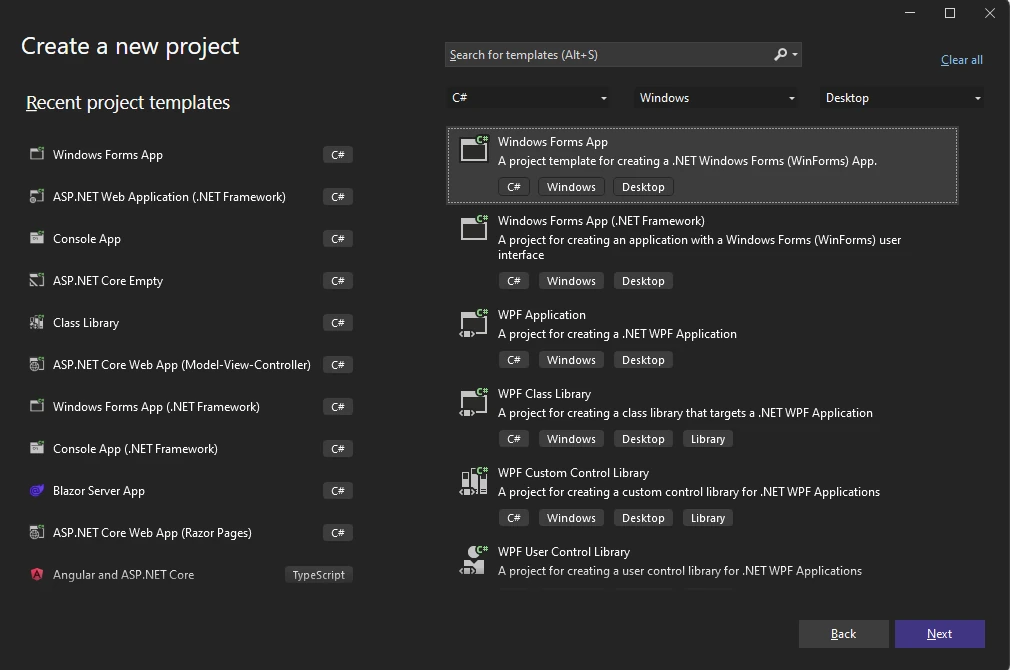
Start Visual Studio .NET and create a new project. Select C# as a project type and Windows Forms App as a template. Specify a project name and confirm with Next.
-
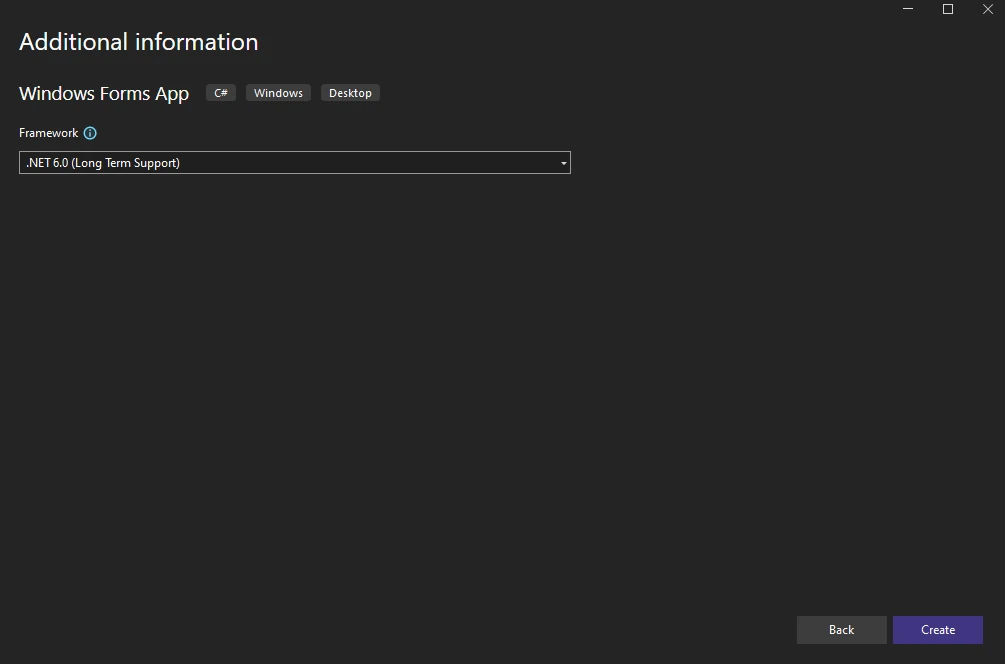
Select your preferred Framework version such as .NET 6 (Long-term support) and confirm with Create.
-
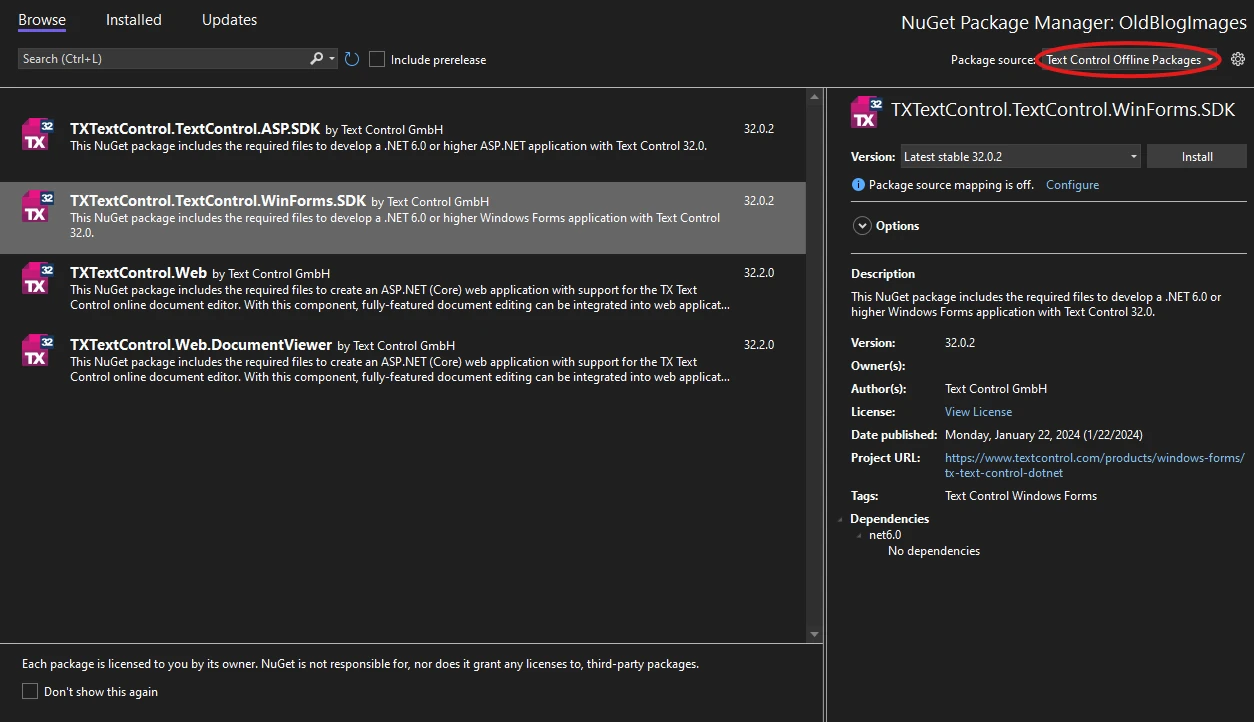
Open your project in Solution Explorer and go to Manage NuGet Packages from the main menu. Choose Text Control Offline Packages as the package source, search for TXTextControl.TextControl.WinForms.SDK under the Browse tab, and click Install.
-
Find the TX Text Control 32.0 toolbox tab that has been created automatically. All usable TX Text Control controls or components are listed in this tab.
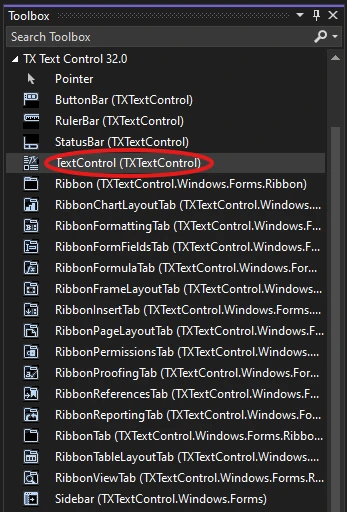
Choose the TextControl icon and draw it on the Windows Form.
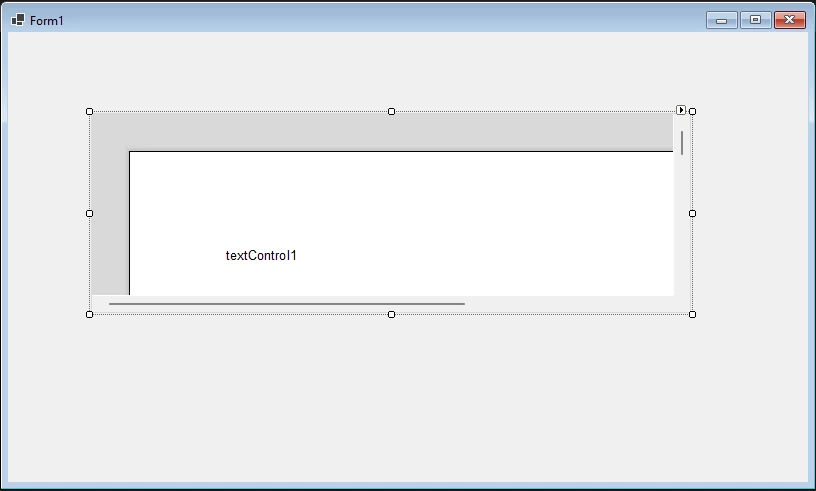
-
Now, click on the Smart Tag in the upper right corner of TextControl. In the Wizards group, click on Add a Button Bar, Add a Status Bar, Add a Ruler Bar, and Add a Vertical Ruler. Finally, click on Arrange Controls Automatically.
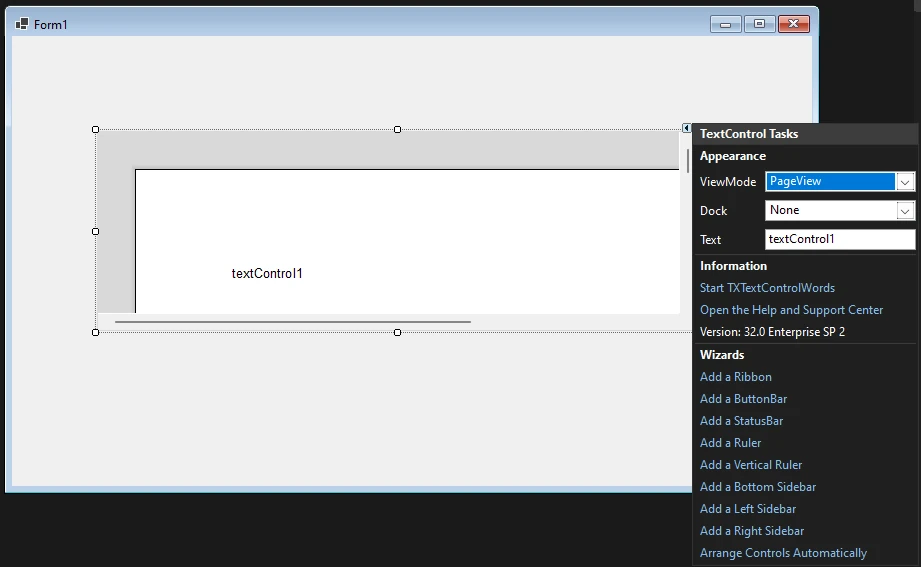
The controls are now connected and docked to fill the container:
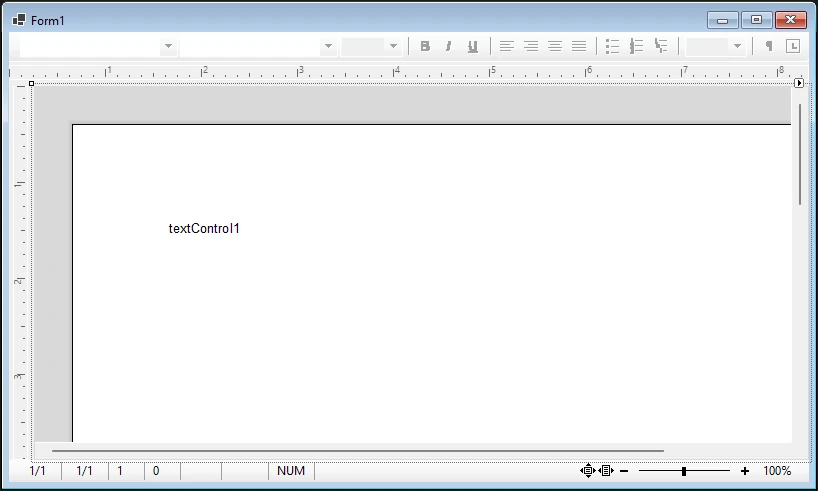
- Build and start your Windows Forms C# application to see the first results.
Windows Forms
Text Control combines the power of a reporting tool and an easy-to-use WYSIWYG word processor - fully programmable and embeddable in your Windows Forms application. TX Text Control .NET for Windows Forms is a royalty-free, fully programmable rich edit control that offers developers a broad range of word processing features in a reusable component for Visual Studio.
Related Posts
Windows FormsGetting StartedTutorial
Windows Forms Tutorial: Create Your First Windows Forms C# Application
This tutorial shows how to create your first Windows Forms application with C# using TX Text Control .NET for Windows Forms in Visual Studio 2022.
Windows FormsGetting Started.NET 4.8
Getting Started with Windows Forms (.NET Framework)
This article shows how to use the TX Text Control .NET for Windows Forms TextControl class within a .NET Framework (4.8) application in Visual Studio 2022.
Windows FormsGetting Started.NET 6
Getting Started with Windows Forms (.NET 5 and better)
This article shows how to use the TX Text Control .NET for Windows Forms TextControl class within a .NET 6 application in Visual Studio 2022.
New Getting Started Article Hub Launched
We just launched a new getting started article hub that helps to find articles, samples, and tutorials by filtering by types, technologies and Text Control components.
Creating A Windows Forms Ribbon Application
This tutorial walks through building a Windows Forms ribbon application with TX Text Control .NET for Windows Forms, covering ribbon tab configuration, contextual tab groups for table and frame…