









Creating Your First WPF Application

This tutorial covers building a WPF rich text editor with TX Text Control .NET for WPF. It walks through adding ButtonBar, RulerBar, StatusBar, and TextControl to a DockPanel, setting dock positions and vertical ruler alignment, and connecting all controls via XAML property bindings.

Creating the project and controls
-
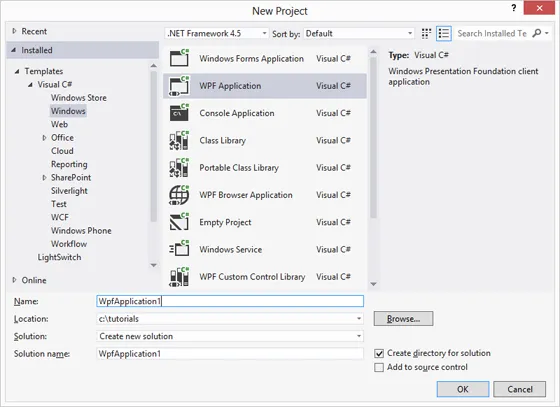
Start Microsoft Visual Studio and create a new project. Select either Visual Basic or Visual C# as the project type and WPF Application as the template.
-
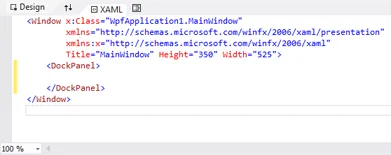
In the XAML view, replace the Grid with a DockPanel control as shown in the below screenshot:
-
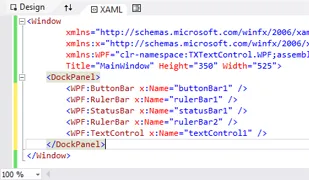
Double-click the ButtonBar in the toolbox to add it to the Window. Repeat this for the RulerBar, StatusBar, a second RulerBar and finally TextControl. In the XAML, remove the Height and the Width properties for all added elements. The XAML should look like this:
-
Select the secondly added RulerBar rulerBar2 using the mouse in the Design view to change the properties in the Properties window. Browse for the DockPanel.Dock property and change it to Left.
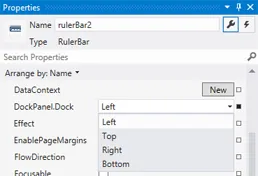
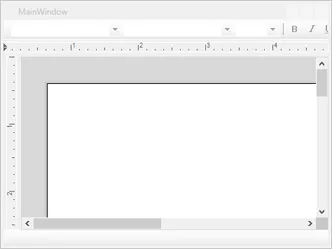
Additionally, set the HorizontalAlignment to Left and the VerticalAlignment to Stretch. The Design view should look like this:
-
Now, the controls must be connected. Therefore, select textControl1 to open it's properties in the Properties window of Visual Studio. First, look for the ButtonBar property and type in the name of the added ButtonBar: buttonBar1.
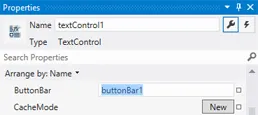
Set the RulerBar property to rulerBar1, StatusBar to statusBar1 and VerticalRulerBar to rulerBar2.
-
In the XAML, add the textControl1_Loaded event handler to the TextControl element as a parameter, so that the line looks like this:
<my:TextControl Name="textControl1" Loaded="textControl1_Loaded"
    ButtonBar="buttonBar1" StatusBar="statusBar1" RulerBar="rulerBar1" VerticalRulerBar="rulerBar2"/>
Now, right-click on textControl1_Loaded and choose Navigate to Event Handler from the opened context menu. Add the following code to the event handler:
private void textControl1_Loaded(object sender, RoutedEventArgs e)
{
   textControl1.Focus();
}
private void textControl1_Loaded(ByVal sender As Object, ByVal e As RoutedEventArgs) { TextControl1.Focus } -
Now, press F5 to compile and start the application.
WPF
Text Control combines the power of a reporting tool and an easy-to-use WYSIWYG word processor - fully programmable and embeddable in your WPF application. TX Text Control .NET for WPF is a royalty-free, fully programmable rich edit control that offers developers a broad range of word processing features in a reusable component for Visual Studio.
Related Posts
Creating a WPF Ribbon Application
This chapter shows you how to create a small word processor with a ribbon interface from scratch with just a few lines of code.
Windows Forms and WPF: End a List on Return when Line is Empty
In TX Text Control, numbered and bulleted lists continue into each new paragraph by default. Handling the KeyPress event and detecting Enter on an empty line allows list formatting to be removed…
Using IFormattedText Objects to Access Elements Across All TextParts in a…
TX Text Control documents contain separate text areas including headers, footers, and text frames. TextPartCollection exposes them all as IFormattedText objects, enabling document-wide operations…
TX Text Control 34.0 SP5 is Now Available: What's New in the Latest Version
TX Text Control 34.0 Service Pack 5 is now available, offering important updates and bug fixes for all platforms. If you use TX Text Control in your document processing applications, this service…
TX Text Control 34.0 SP4 is Now Available: What's New in the Latest Version
TX Text Control 34.0 Service Pack 4 is now available, offering important updates and bug fixes for all platforms. If you use TX Text Control in your document processing applications, this service…