









Flow Type Layout Reporting Series: Using Repeating Blocks

Repeating blocks in TX Text Control handle master-detail relationships by cloning formatted content for each data row. This tutorial walks through inserting a merge block from an Excel source and configuring BlockStart and BlockEnd bookmark naming for the MailMerge class.


Creating powerful hierarchical reports is the strength of TX Text Control. Nested repeating blocks with master-detail relationship views can be easily inserted. It doesn't matter what's repeated in the block: A table row, paragraphs, images or text frames. There are no limits.
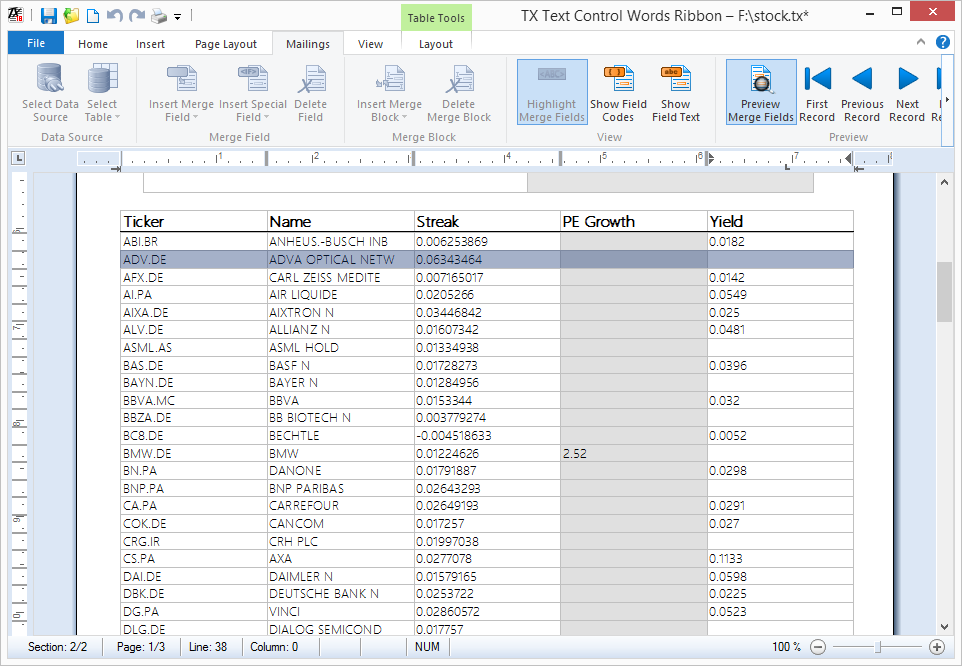
Thanks to the powerful, but easy-to-use designer, you can easily add a repeating block into your template.
The following tutorial shows how to use the sample address.xlsx database to insert a repeating block.
-
Open TX Text Control Words and open the sample database like described in this tutorial from step 1 to 3.
-
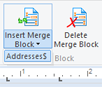
Click the Insert Merge Block drop-down button to open the list of available tables. Select Addresses$ from the list.
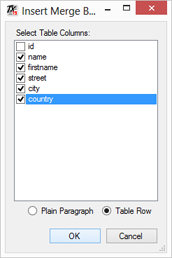
In the opened dialog box, select the columns you would like to include in the data and select Table Row as the presentation form.
TX Text Control Words automatically inserts a table row with the required bookmarks to define the beginning and the end of a repeating block.
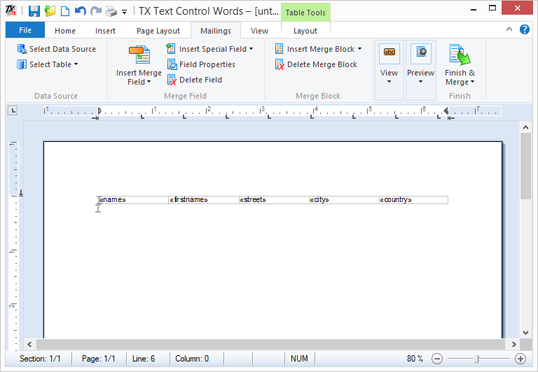
The bookmarks have a special naming, so that TX Text Control's MailMerge class can find the blocks and connected data. The start bookmark begins with BlockStart_ + the name of the merge block. Sample: BlockStart_Addresses$. The same is valid for the end bookmark: BlockEnd_Addresses$
-
You can apply some formatting to the text and the table. The whole block is cloned including it's formatting and style.

-
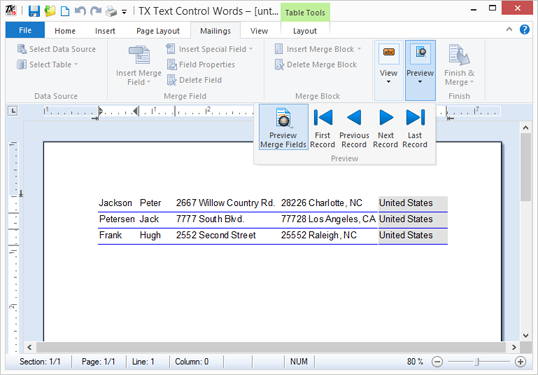
Finally, click the Preview button in the Mailings ribbon tab. The report is previewed based on the connected data source.
Related Posts
Windows FormsGetting StartedTutorial
Windows Forms Tutorial: Create Your First Windows Forms C# Application
This tutorial shows how to create your first Windows Forms application with C# using TX Text Control .NET for Windows Forms in Visual Studio 2022.
How to Mail Merge MS Word DOCX Documents in ASP.NET Core C#
Mail merge is the process of merging data, such as Json or IEnumerable objects, into a template document, such as a DOC or DOCX file. This tutorial is a walkthrough of the steps necessary to…
Creating an Angular Document Editor Application with a Node.js WebSocket Server
This tutorial shows how to create an Angular application that uses the Document Editor with a Node.js WebSocket server.
Adding SVG Watermarks to Documents
This article shows how to add SVG images to document section headers that repeat automatically on each page. This watermark will be inserted vertically and horizontally centered on each section page.
Using MailMerge in ASP.NET Core 6 Web Applications
This article shows how to use the TX Text Control ASP.NET MailMerge class to merge templates with JSON data within a .NET 6 application in Visual Studio 2022.