


Checked and Unchecked Check Boxes with IF Fields

IF fields in TX Text Control templates render check boxes in reports by mapping conditional expressions to Wingdings font characters. When a specified data condition is met, the field outputs a checked glyph; otherwise it renders an unchecked box, avoiding legacy form fields entirely.

In reports and forms, check boxes are a commonly used element to visualize boolean values. Using TX Text Control, legacy form fields from MS Word or content control fields can be used to handle check boxes. But for simple check boxes based on a specific value in your data, there is a much easier way to solve this: IF fields.
The following animated screenshot shows a basic sample template and the results of an IF field that checks for a specific condition:

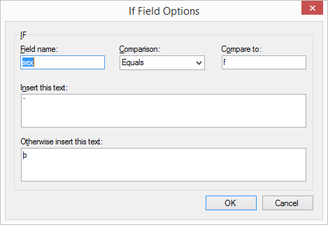
The IF field renders a specified text when a condition is fulfilled. In our sample: If the field sex equals "f", then the character '¨' is rendered. The field gets formatted with the font 'Wingdings' which results in an unchecked box in that specific font. If the condition is not fulfilled, the "false" text is rendered which is a checked box.
You can download the sample template and a very simply XML data source for your own tests in TX Text Control Words. At least a trial version of TX Text Control .NET for Windows Forms is required.
Reporting
The Text Control Reporting Framework combines powerful reporting features with an easy-to-use, MS Word compatible word processor. Users can create documents and templates using ordinary Microsoft Word skills. The Reporting Framework is included in all .NET based TX Text Control products including ASP.NET, Windows Forms and WPF.
Related Posts
Creating Your First ASP.NET Reporting Application
The MailMerge and ServerTextControl components of TX Text Control .NET Server for ASP.NET enable server-side reporting in Web Forms. A template.docx merges with XML data via a button click…
New Online Sample: Build your First Report
A new interactive online demo walks through building a report with TX Text Control in three steps: preparing JSON data in a live editor, creating a template with merge fields and repeating blocks,…
ReportingDocumentationReportingCloud
Create your First Document with ReportingCloud
ReportingCloud documentation now includes interactive tutorials for creating documents without code. Users enter an API key, choose a format such as PDF or DOCX, customize the merge data payload,…
MailMerge: Starting Each Merge Block on a New Page
Merge blocks in TX Text Control repeat based on matching data rows. Applying ParagraphFormat.PageBreakBefore to the first paragraph of a block forces each repetition onto a new page. Section…
Using MailMerge with JSON Data
Merge document templates with JSON data using TX Text Control MailMerge by converting nested JSON strings into DataSet objects via Newtonsoft.Json. The JSON is first transformed to XML, then…