


Text Control Web - Fundamental Concepts: The Data Source

The most typical application is the creation of templates for the Text Control Reporting engine DocumentServer.MailMerge. The ribbon tab Mailings is designed to insert merge fields and merge blocks compatible to the reporting classes of TX Text Control. The drop-down buttons Select Master Table, Insert Merge Field and Insert Merge Block are pre-filled with items of a specific Database Excerpt XML file that can be loaded programmatically. This XML database file contains table definitions,…

The most typical application is the creation of templates for the Text Control Reporting engine DocumentServer.MailMerge. The ribbon tab Mailings is designed to insert merge fields and merge blocks compatible to the reporting classes of TX Text Control.

The drop-down buttons Select Master Table, Insert Merge Field and Insert Merge Block are pre-filled with items of a specific Database Excerpt XML file that can be loaded programmatically.
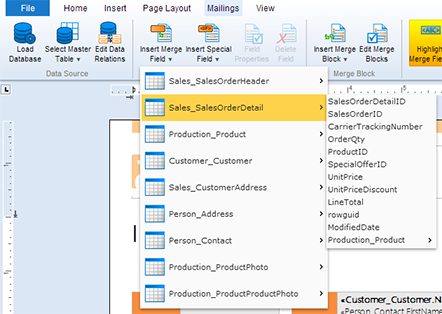
This XML database file contains table definitions, relations and row excerpts to provide a preview of the report. This XML file can be easily created using the Windows version of the template designer TX Text Control Words. To create such an XML file, follow the next easy steps:
-
Open TX Text Control Words that is located in your Windows start menu or start screen.

-
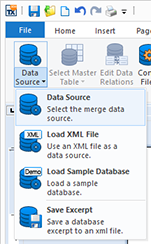
Open the Mailings tab and choose Data Source from the Data Source drop-down button.
-
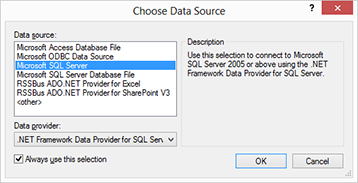
Follow the next steps and instructions of the Choose Data Source dialog to open your preferred data source.
-
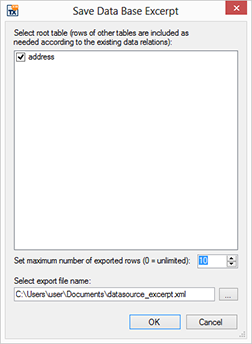
If your data source has been added successfully, you can save the excerpt using the Save Excerpt menu item of the Data Source drop-down button. In the opened dialog Save Data Base Excerpt, select the root table and set the maximum number of exported rows. Then select an export file name and confirm with OK.
-
This XML file can be loaded using the LoadXMLDatabase method of Web.TextControl:
[C#]
TextControl1.LoadXMLDatabase("datasource_excerpt.xml")
[VB.NET] TextControl1.LoadXMLDatabase("datasource_excerpt.xml")
Additionally, the data source can be also loaded from an XMLDocument or FileStream and a DataSet can be directly loaded using the LoadDataSet method.
Reporting
The Text Control Reporting Framework combines powerful reporting features with an easy-to-use, MS Word compatible word processor. Users can create documents and templates using ordinary Microsoft Word skills. The Reporting Framework is included in all .NET based TX Text Control products including ASP.NET, Windows Forms and WPF.
Related Posts
Creating Your First ASP.NET Reporting Application
This tutorial shows how to use the MailMerge component in an ASP.NET Web application to merge a template with data to create an Adobe PDF document.
New Online Sample: Build your First Report
We published a new online demo that shows how to create a report including preparing data, creating a template to merging them together.
ReportingDocumentationReportingCloud
Create your First Document with ReportingCloud
As part of our new ReportingCloud documentation, we published a guided tutorial that shows how to create a document without programming.
MailMerge: Starting Each Merge Block on a New Page
A merge block is repeated based on the number of matching data rows in the hierarchical data object. The complete merge block is cloned and inserted under the original location in the template.…
Using MailMerge with JSON Data
In the last article, we explained how to create an ASP.NET Web API to merge templates with JSON data in the payload body of an HTTP request. The focus of this article was on the Web API and…