


Reporting: Removing Empty Table Rows

The BlockRowMerged event in TX Text Control Reporting enables runtime manipulation of merged output. This tutorial demonstrates using NEXT fields to create alternating table row colors and programmatically removing empty trailing rows that appear when data counts are uneven.

A valuable advantage of the Text Control Reporting Framework is the flexibility through programmability. Developers can use the power of the TX Text Control API during the merge process. While merge fields are populated, an event is fired for each merge field, data row or block row. This gives you the flexibility to manipulate the merge process, to inject formatted text or to remove unnecessary elements.
In this sample, NEXT fields are used to realize alternate row colors. The advantage of this concept is that you can have not only 2 rows with different styles, but unlimited number of table rows with a different background color for instance. The following screenshot shows the template with the NEXT field at the end of the first row of the block (light gray row):
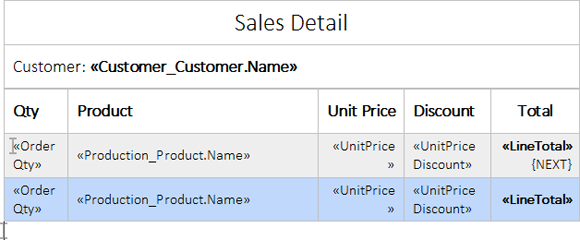
The two table rows have the same merge fields. During the merge process, the NEXT field increases the current data row by 1 which results in alternating row colors:
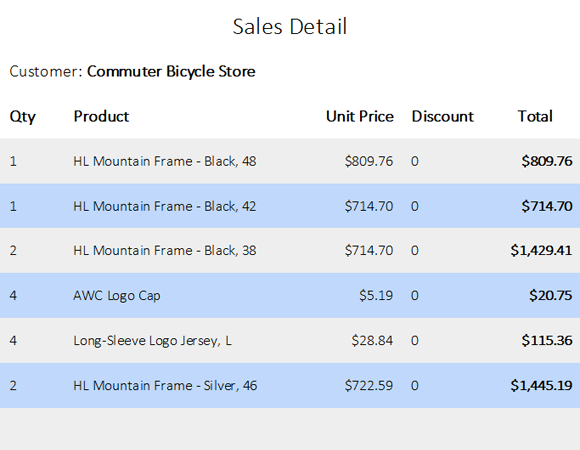
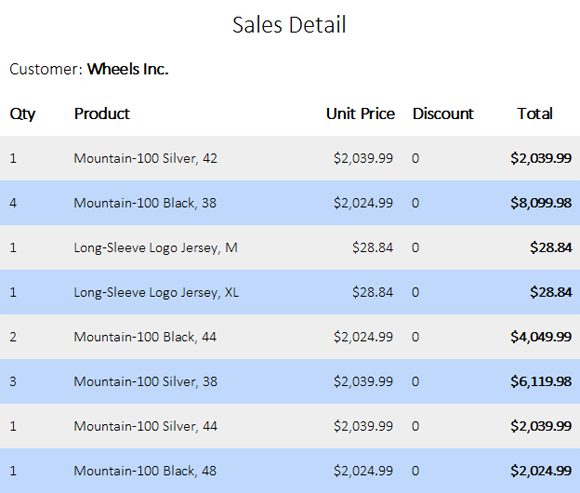
As you can see in the above screenshot, this concept might insert an empty row at the end of the table in case the row count is uneven.
Thanks to the flexibility, this row can be removed in the BlockRowMerged event:
private void mailMerge1_BlockRowMerged(object sender,
    TXTextControl.DocumentServer.MailMerge.BlockRowMergedEventArgs e)
{
    byte[] data;

    // create a temporary ServerTextControl to access API
    using (ServerTextControl tx = new ServerTextControl())
    {
        tx.Create();
        tx.Load(e.MergedBlockRow, BinaryStreamType.InternalUnicodeFormat);

        if (tx.Tables.GetItem() == null)
            return;

        Table table = tx.Tables.GetItem();

        // loop through row and remove empty rows
        foreach (TableRow row in table.Rows)
        {
            row.Select();
            if (tx.Selection.Length == table.Columns.Count)
            {
                tx.Selection.Length = 0;
                table.Rows.Remove();
            }
        }

        tx.Save(out data, BinaryStreamType.InternalUnicodeFormat);
    }

    // return the manipulated merged block
    e.MergedBlockRow = data;
}
You can download the Visual Studio 2012 sample project and test this on your own. At least, a trial version of TX Text Control .NET for Windows Forms X11 is required.
Reporting
The Text Control Reporting Framework combines powerful reporting features with an easy-to-use, MS Word compatible word processor. Users can create documents and templates using ordinary Microsoft Word skills. The Reporting Framework is included in all .NET based TX Text Control products including ASP.NET, Windows Forms and WPF.
Related Posts
Creating Your First ASP.NET Reporting Application
The MailMerge and ServerTextControl components of TX Text Control .NET Server for ASP.NET enable server-side reporting in Web Forms. A template.docx merges with XML data via a button click…
New Online Sample: Build your First Report
A new interactive online demo walks through building a report with TX Text Control in three steps: preparing JSON data in a live editor, creating a template with merge fields and repeating blocks,…
ReportingDocumentationReportingCloud
Create your First Document with ReportingCloud
ReportingCloud documentation now includes interactive tutorials for creating documents without code. Users enter an API key, choose a format such as PDF or DOCX, customize the merge data payload,…
MailMerge: Starting Each Merge Block on a New Page
Merge blocks in TX Text Control repeat based on matching data rows. Applying ParagraphFormat.PageBreakBefore to the first paragraph of a block forces each repetition onto a new page. Section…
Using MailMerge with JSON Data
Merge document templates with JSON data using TX Text Control MailMerge by converting nested JSON strings into DataSet objects via Newtonsoft.Json. The JSON is first transformed to XML, then…