


Reporting: Merge Blocks and Structured Numbered Lists

TX Text Control Reporting supports structured numbered lists as alternatives to tables in merge blocks. Nested blocks at different list levels render hierarchical data such as sales transactions and their products, with automatic numbering and paragraph frame formatting applied.

The document element that is used to render a list in a report is typically a table. And that makes a lot of sense when tabular data should be presented. But Text Control Reporting is not limited to tables when it comes to repeating merge blocks to generate lists.
Consider a list of sold products per transaction. The structure element should be a numbered list instead of a table which gives us the option to display row or items numbers automatically.
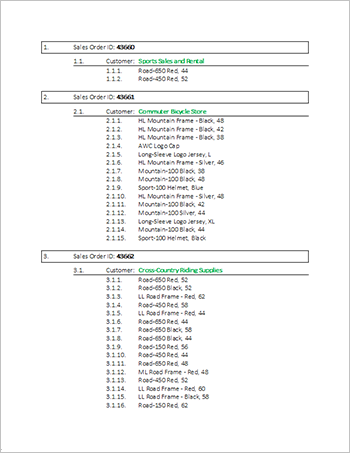
The template is shown in the screenshot below:
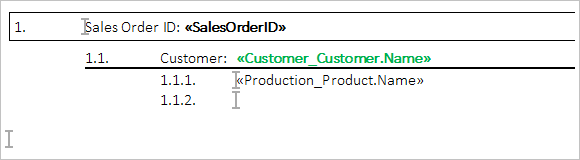
The outer merge block (start and end positions shown as bookmark markers  ) is the parent table Sales_SalesOrderHeader that represents the transaction and the inner block lists all sold products.
The inner block has a structured numbered list at level 3 - for each product, a new list item is added. For the complete transaction, a new level 1 item is inserted which results in a nice and clean structured numbered list for all sales transactions and their associated sold products.
The boxes and horizontal lines are paragraph frames that are repeated as part of the block automatically.
- Start TX Text Control Words, the template designer that comes with the installation package of TX Text Control.
- Download the template and load it into TX Text Control Words.
-
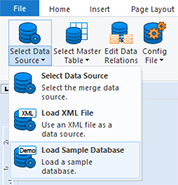
Choose Load Sample Database from the Data Source ribbon group in the Mailings ribbon tab.
-
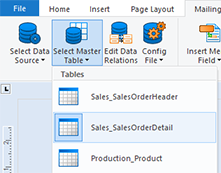
Choose Sales_SalesOrderDetail as the master table from the Select Master Table drop-down button.
- Press the Preview Merge Fields button to start the merge process.
At least a trial version of TX Text Control .NET for Windows Forms is required to test this on your own.
Reporting
The Text Control Reporting Framework combines powerful reporting features with an easy-to-use, MS Word compatible word processor. Users can create documents and templates using ordinary Microsoft Word skills. The Reporting Framework is included in all .NET based TX Text Control products including ASP.NET, Windows Forms and WPF.
Related Posts
Creating Your First ASP.NET Reporting Application
The MailMerge and ServerTextControl components of TX Text Control .NET Server for ASP.NET enable server-side reporting in Web Forms. A template.docx merges with XML data via a button click…
New Online Sample: Build your First Report
A new interactive online demo walks through building a report with TX Text Control in three steps: preparing JSON data in a live editor, creating a template with merge fields and repeating blocks,…
ReportingDocumentationReportingCloud
Create your First Document with ReportingCloud
ReportingCloud documentation now includes interactive tutorials for creating documents without code. Users enter an API key, choose a format such as PDF or DOCX, customize the merge data payload,…
MailMerge: Starting Each Merge Block on a New Page
Merge blocks in TX Text Control repeat based on matching data rows. Applying ParagraphFormat.PageBreakBefore to the first paragraph of a block forces each repetition onto a new page. Section…
Using MailMerge with JSON Data
Merge document templates with JSON data using TX Text Control MailMerge by converting nested JSON strings into DataSet objects via Newtonsoft.Json. The JSON is first transformed to XML, then…