


Image Merging in Text Control Reports

Image placeholders in TX Text Control reporting templates accept binary byte arrays, System.Drawing.Image objects, file paths, hex strings, or Base64-encoded data at merge time. Each placeholder scales automatically to match the width dimensions defined in the template layout.

Images can be merged in the same way like merge fields in a reporting template. Placeholders are added at design-time and merged with data from files, databases or memory.
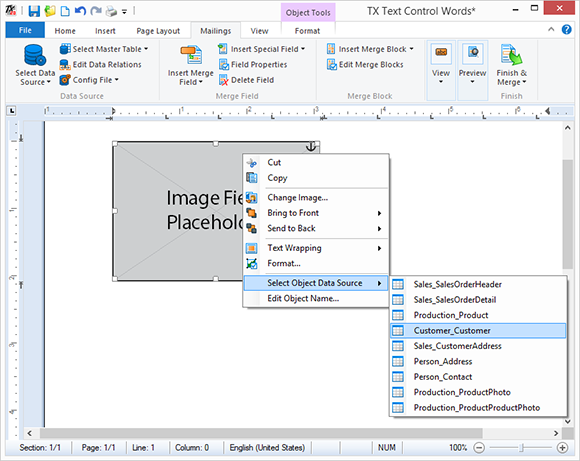
An image object can be added to the template with a given name. The data column must contain either the binary image data as a byte array, an object of type System.Drawing.Image, a file name, a hex or Base64 encoded string. These options cover most typical image representations in databases. Merged images are scaled up or down to match the width of the placeholder image in the template.
The following steps show how to insert such placeholders and merge them with images from the shipped sample database.
-
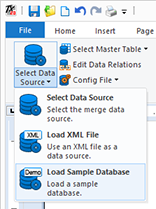
In TX Text Control Words, click on Load Sample Database from the Select Data Source drop-down button in the Mailings ribbon tab.
-
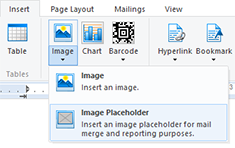
Find the Image drop-down button in the Insert ribbon tab and choose Image Placeholder.
-
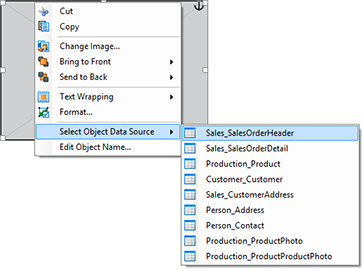
Right-click the inserted image placeholder Sales_SalesOrderDetail from the Select Object Data Source context menu item.
-
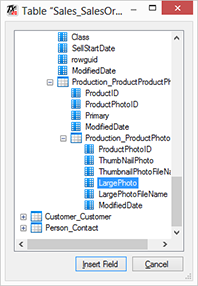
In the opened dialog box, expand the data table relation nodes and select LargePhoto from this path:
Sales_SalesOrderDetail -> Production_Product -> Production_ProductProductPhoto -> Production_ProductPhoto
Confirm with Insert Field.
-
In the Mailings ribbon tab, choose Preview Merge Fields to start the merge process.
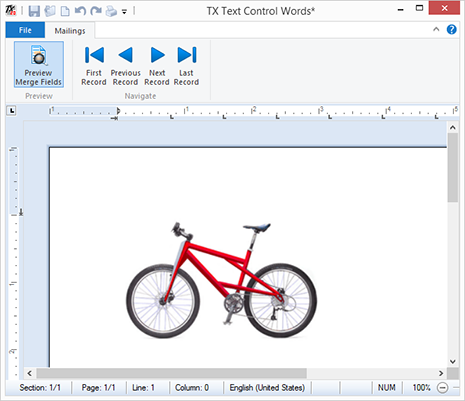
Using this easy-to-use data connection of images, you can create product lists, inventory listings or similar reports effortlessly.
Reporting
The Text Control Reporting Framework combines powerful reporting features with an easy-to-use, MS Word compatible word processor. Users can create documents and templates using ordinary Microsoft Word skills. The Reporting Framework is included in all .NET based TX Text Control products including ASP.NET, Windows Forms and WPF.
Related Posts
Creating Your First ASP.NET Reporting Application
The MailMerge and ServerTextControl components of TX Text Control .NET Server for ASP.NET enable server-side reporting in Web Forms. A template.docx merges with XML data via a button click…
New Online Sample: Build your First Report
A new interactive online demo walks through building a report with TX Text Control in three steps: preparing JSON data in a live editor, creating a template with merge fields and repeating blocks,…
ReportingDocumentationReportingCloud
Create your First Document with ReportingCloud
ReportingCloud documentation now includes interactive tutorials for creating documents without code. Users enter an API key, choose a format such as PDF or DOCX, customize the merge data payload,…
MailMerge: Starting Each Merge Block on a New Page
Merge blocks in TX Text Control repeat based on matching data rows. Applying ParagraphFormat.PageBreakBefore to the first paragraph of a block forces each repetition onto a new page. Section…
Using MailMerge with JSON Data
Merge document templates with JSON data using TX Text Control MailMerge by converting nested JSON strings into DataSet objects via Newtonsoft.Json. The JSON is first transformed to XML, then…