









RegEx Based Inline Styling in TX Text Control Using JSON Rules

In this article, we demonstrate how to apply inline styling to text in TX Text Control using regular expressions defined in JSON format. This approach allows for dynamic and flexible text formatting based on specific patterns.

Sometimes, you don't need a complete document template with predefined styles and placeholders. Maybe you have plain text or imported content and want to automatically highlight important parts, such as email addresses, dates, identifiers, or sensitive data.
This sample solves exactly that problem. The idea is simple. Define a set of rules in a JSON file, where each rule contains a regular expression and an associated TX Text Control InlineStyle. Then, scan the document and apply the matching style to each element found.
The result is a lightweight "document formatter" that can be used for reports, audit logs, technical output, and generated documents where consistency matters.
The Concept: Rules → RegEx → InlineStyle
The core of this solution is a JSON file containing an array of rules. At a high level, the flow looks like this:
- Load a JSON file that contains a list of inline styles and rules
- Create the required TX Text Control Inline
Style objects once - Parse the document paragraph by paragraph
- Run each regex against the paragraph text
- Select the match in the document and apply the matching Inline
Style
The result is a document that remains fully editable while specific content stands out visually in a controlled manner.
Example: JSON Rules and Styles
Here is an example of a JSON file defining some rules and styles. The rules.json defines two things:
Inline styles, for example:
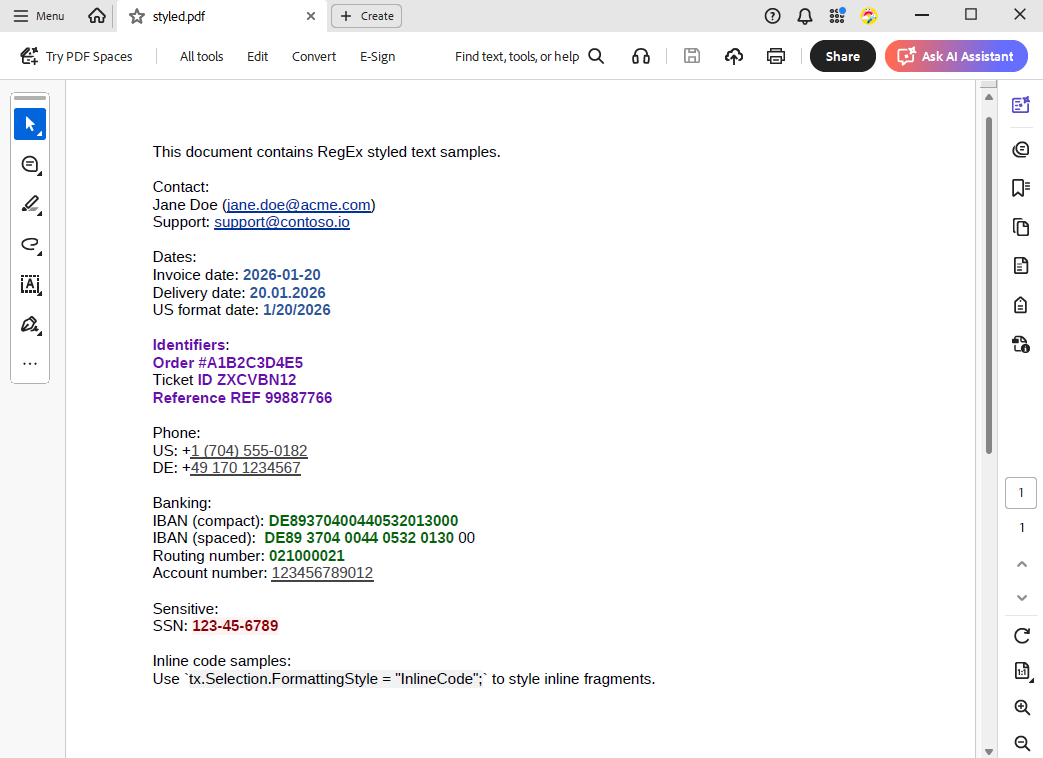
- Email (underlined blue)
- Date (bold blue)
- SensitiveData (bold red with background)
- InlineCode (Consolas with a light background)
And rules, where each regex points to an inline style name. For example, this is the email rule:
{
  "name": "Email address",
  "pattern": "\\b[A-Z0-9._%+-]+@[A-Z0-9.-]+\\.[A-Z]{2,}\\b",
  "inlineStyleName": "Email",
  "priority": 20,
  "startOffset": 0
}
Creating InlineStyles in TX Text Control
Before applying any rules, the formatter verifies that all JSON styles exist in the document. The interesting part of this concept is that: Styles are dynamically created based on the JSON file, which allows for great flexibility.
This is pure TX Text Control logic:
var style = new InlineStyle(def.Name);
ApplyStyleDefinition(style, def);
tx.InlineStyles.Add(style);
Inline styles are lightweight and ideal for formatting elements within a paragraph, such as an email address or date.
Why Paragraph Based Matching Matters
Offset drift is a common issue when applying RegEx matches to formatted documents. Line breaks, paragraph separators, and the internal representation of the document may cause the indices to shift compared to the raw .Text string.
This is why the sample processes the document paragraph by paragraph.
foreach (Paragraph p in tx.Paragraphs)
{
    string pText = p.Text ?? string.Empty;
    ...
}
Each match uses the paragraph start position as a stable base index:
Start: p.Start + m.Index - 1This keeps selections consistent even in multi paragraph documents.
Applying the InlineStyle to Matches
After a regular expression match is found, the formatter selects the exact text range and applies the style by name.
tx.Selection.Start = h.Start;
tx.Selection.Length = h.Length;
tx.Selection.FormattingStyle = h.StyleName;
This is the key Text Control call: Applying an InlineStyle to a selection using Selection.
Running the Formatter: Full Example
In the sample, we load some demo text, run the formatter, and export to PDF. Here is the complete code:
using var tx = new ServerTextControl();
tx.Create();

tx.Text = """
This document contains RegEx styled text samples.

Contact:
Jane Doe (jane.doe@acme.com)
Support: support@contoso.io

Dates:
Invoice date: 2026-01-20
Delivery date: 20.01.2026
US format date: 1/20/2026

Identifiers:
Order #A1B2C3D4E5
Ticket ID ZXCVBN12
Reference REF 99887766

Phone:
US: +1 (704) 555-0182
DE: +49 170 1234567

Banking:
IBAN (compact): DE89370400440532013000
IBAN (spaced):  DE89 3704 0044 0532 0130 00
Routing number: 021000021
Account number: 123456789012

Sensitive:
SSN: 123-45-6789

Inline code samples:
Use `tx.Selection.FormattingStyle = "InlineCode";` to style inline fragments.
""";

var formatter = new JsonRegexInlineStyleFormatter();
int applied = formatter.Apply(tx, "rules.json");

tx.Save("styled.pdf", StreamType.AdobePDF);

Console.WriteLine($"Applied {applied} inline style matches.");
The result is a nicely formatted document in which important elements stand out visually:
Conclusion
This approach provides a flexible way to style documents, eliminating the need to hardcode formatting rules into your application. Everything is driven by a JSON configuration.
- Styles define how matches should appear.
- Rules use RegEx to define what to detect.
- The formatter applies inline styles directly through TX Text Control's selection logic.
This practical solution highlights important elements, such as dates, emails, IDs, bank accounts, phone numbers, and sensitive data, in generated documents while keeping the content editable and the implementation clean.
Feel free to explore the full sample on GitHub and adapt it to your needs. Contact us if you have any questions or need assistance.

Download and Fork This Sample on GitHub
We proudly host our sample code on github.com/TextControl.
Please fork and contribute.
Requirements for this sample
- TX Text Control .NET Server 34.0
- Visual Studio 2026
ASP.NET
Integrate document processing into your applications to create documents such as PDFs and MS Word documents, including client-side document editing, viewing, and electronic signatures.





- Angular
- Blazor
- React
- JavaScript
- ASP.NET MVC, ASP.NET Core, and WebForms
Related Posts
Advanced Smart Search with Regular Expressions in .NET C#
This article shows how to extend the smart search feature of TX Text Control .NET with regular expressions. This allows you to search for complex patterns in documents such as email addresses,…
Text Control Proudly Sponsors .NET Conf 2026
Text Control is proud to sponsor .NET Conf 2026, the annual virtual conference bringing together developers, Microsoft engineers, and industry experts from around the world. Taking place November…
Introducing TX Sheet Control: Excel Compatible Spreadsheets and Interactive…
We are pleased to introduce TX Sheet Control, the latest addition to the Text Control product family. TX Sheet Control brings together Excel-compatible spreadsheet editing, a powerful calculation…
ASP.NETASP.NET CoreDocument Conversion
Convert DOCX to PDF, PDF/A and PDF/UA in C# Using TX Text Control
Learn how to convert Word DOCX documents to PDF in C# using TX Text Control .NET Server. This tutorial covers file-based and in-memory conversion, PDF/A export, document metadata, font deployment,…
ASP.NETASP.NET CoreContent Controls
How to Extract Structured Data from Word Documents in C#
Learn how to extract tables, content controls, legacy form fields, and document metadata from Word documents with TX Text Control. This generic C# sample preserves the structure of documents and…