









Reporting: Merge Blocks Rendered As Numbered Lists

Merge blocks can render numbered lists from data sources by placing merge fields inside list items and converting the selection to a merge block. The template requires a blank trailing list item for row repetition, and multiple lists need Restart Numbering set via the dialog.

A merge block repeats the content based on the number of data rows or instances in an IEnumerable object. Typically, a merge block is a table row or a table. But a merge block is also perfect to create numbered lists based on database content.
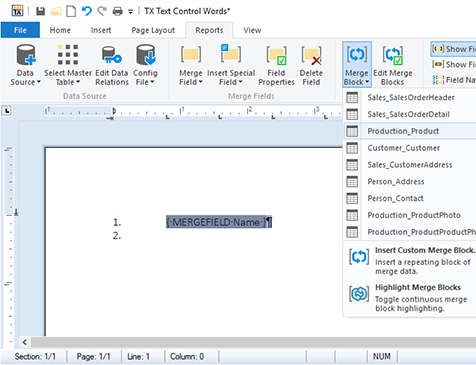
Consider the following template that should list all products followed by all customers:
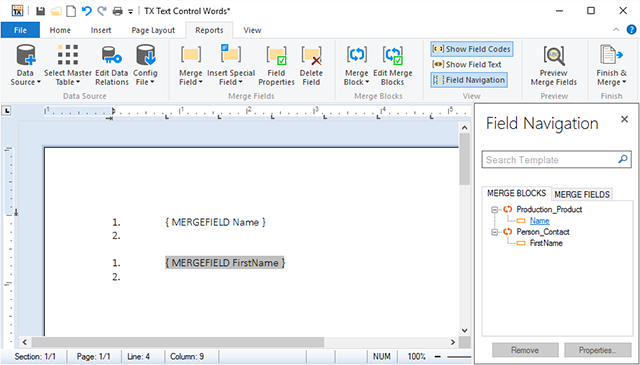
As you can see in the template, there is a blank list item under each numbered list. This is required, so that the next item from the data source is also added as a numbered list item.
In order to insert such a repeating block, follow these steps:
-
Insert your desired merge field into a new line.
-
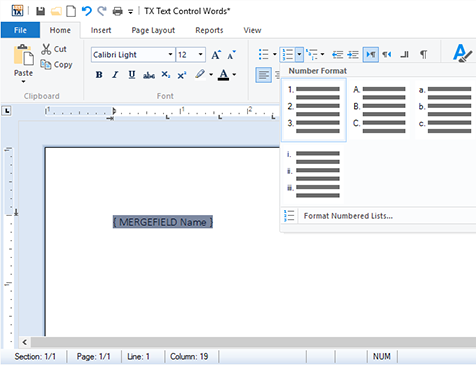
Then select the paragraph and convert the selection into a numbered list using the Number Format button from the Paragraph ribbon group:
-
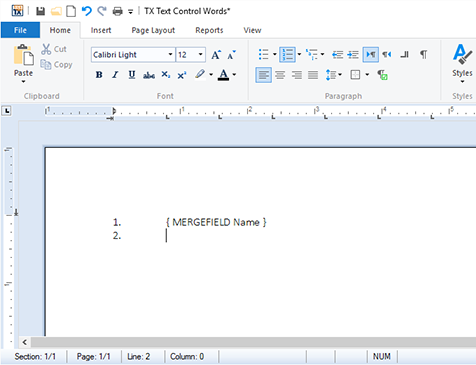
Set the input position after the field and press ENTER to insert a new line:
-
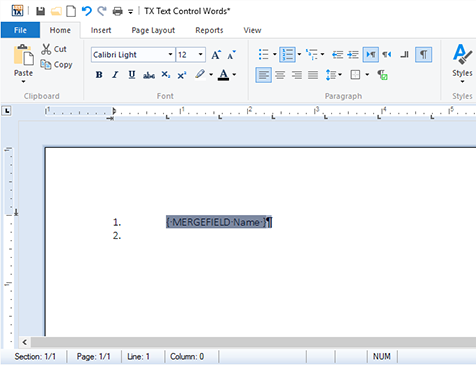
Select the block from the new blank list item position to the beginning of the inserted merge field. If you enable the control characters (¶), the carriage return after the first list item should be part of the selection:
-
Now, this selection can be converted to a merge block by choosing the desired block name from the Merge Block drop-down in the Reports ribbon tab.
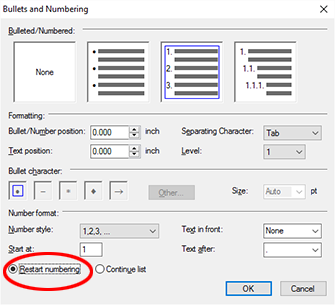
When inserting a second list, make sure that this list is set to Restart Numbering using the Bullets and Numbering dialog:
Reporting
The Text Control Reporting Framework combines powerful reporting features with an easy-to-use, MS Word compatible word processor. Users can create documents and templates using ordinary Microsoft Word skills. The Reporting Framework is included in all .NET based TX Text Control products including ASP.NET, Windows Forms and WPF.
Related Posts
C# Document Generation: A Developer's Guide for .NET
Document generation refers to the automatic creation of documents from application data. The success or complexity of a document generation workflow often depends on a single early architectural…
Convert SSRS RDL Reports to DOCX and TX Text Control Templates in .NET C#
This article introduces TXTextControl.Rdl2Tx, a reusable .NET C# converter that imports SSRS RDL report definitions and creates editable DOCX and TX Text Control templates. It explains the RDL…
.NET C# PDF Generation Techniques: Which Method is Right for Your Project?
This article explains the distinct advantage TX Text Control offers with its true WYSIWYG (What You See Is What You Get) template system, where templates are designed visually, similar to…
Best Practices for Mail Merge and Form Field Processing in ASP.NET Core C#…
This article provides best practices for mail merge and form field processing in ASP.NET Core C# applications using TX Text Control .NET Server. It shows how to use the Document Editor to create…
Advantages of Flow Type Layout Reporting vs. Banded Reporting or PDF…
This article shows the advantages of flow type layout reporting compared to banded reporting or populating PDF placeholders in .NET C#. It explains the differences and the benefits of using a flow…