









Convert SSRS RDL Reports to DOCX and TX Text Control Templates in .NET C#

This article introduces TXTextControl.Rdl2Tx, a reusable .NET C# converter that imports SSRS RDL report definitions and creates editable DOCX and TX Text Control templates. It explains the RDL format, the move away from SSRS as a future SQL Server reporting platform, and the conversion from fixed report items to flowing document content.

Many companies still have large collections of SSRS reports that were created over years of operational reporting. These reports are usually stored as RDL files and often contain a valuable description of a business document: invoices, delivery notes, order confirmations, inventory lists, and internal reports.
When those documents should become editable templates in a document processing workflow, the RDL file is useful input, but it is not a document template. The layout model is different. RDL describes a fixed report page. TX Text Control templates are editable documents with paragraphs, tables, headers, footers, merge fields, and merge blocks.
RDL to TX Text Control
The TXTextControl.Rdl2Tx repository contains a reusable .NET conversion library that reads SSRS RDL files and generates editable TX Text Control templates in DOCX or native TX format.
Example: Complex Invoice RDL
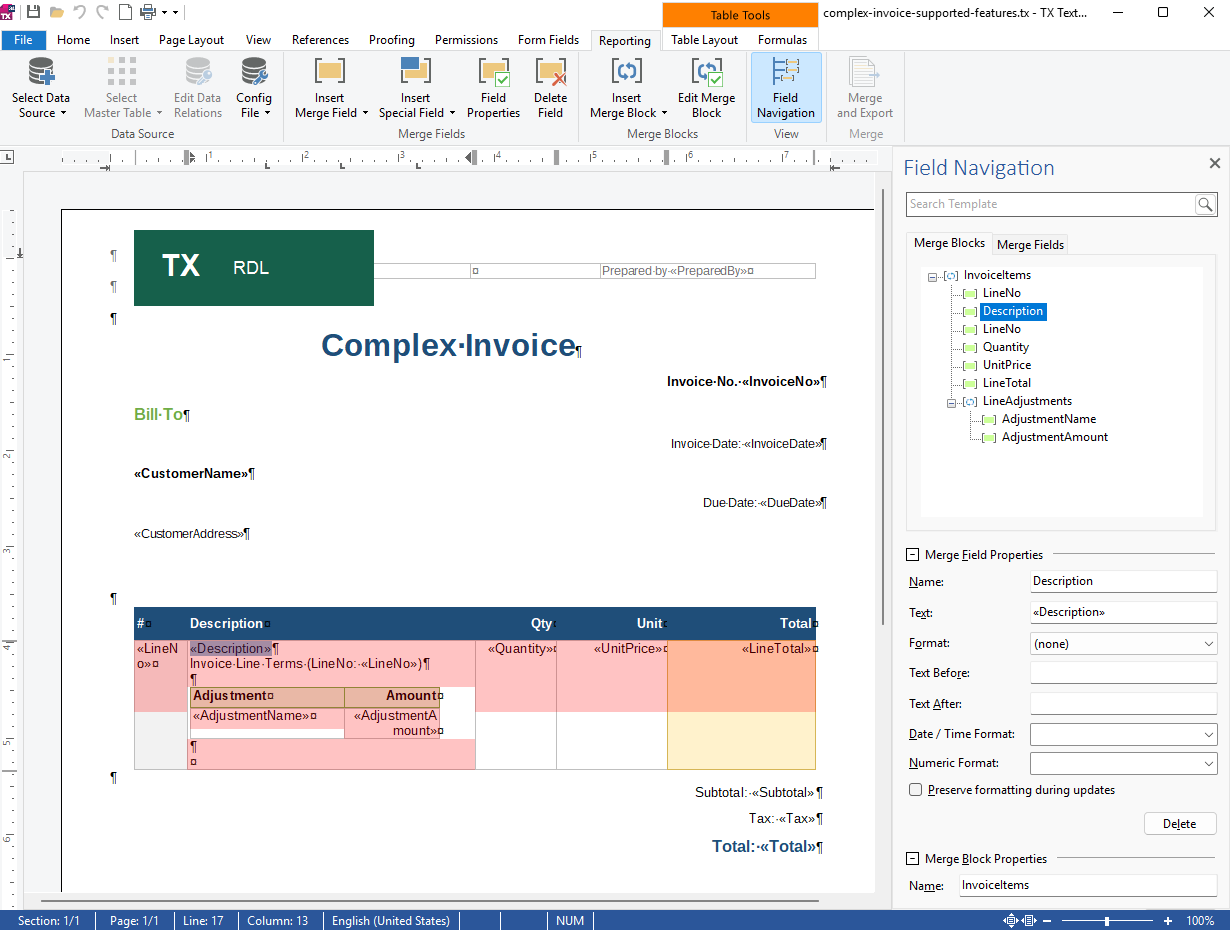
The test project contains a sample called complex-invoice-supported-features.rdl. It combines several supported RDL features in one report: report sections, an embedded logo, headers and footers, styled text, table cell colors, nested tablix regions, and fields that are converted to merge fields.
The following excerpt shows the structure of the RDL file. The data sets define the available fields, text boxes define fixed report items, and tablix regions describe repeating table data.
<Report xmlns="http://schemas.microsoft.com/sqlserver/reporting/2016/01/reportdefinition">
  <ReportParameters>
    <ReportParameter Name="PreparedBy">
      <DataType>String</DataType>
    </ReportParameter>
  </ReportParameters>

  <DataSets>
    <DataSet Name="Invoice">
      <Fields>
        <Field Name="InvoiceNo" />
        <Field Name="CustomerName" />
        <Field Name="Total" />
      </Fields>
    </DataSet>
    <DataSet Name="InvoiceItems">
      <Fields>
        <Field Name="Description" />
        <Field Name="Quantity" />
        <Field Name="UnitPrice" />
        <Field Name="LineTotal" />
      </Fields>
    </DataSet>
    <DataSet Name="LineAdjustments">
      <Fields>
        <Field Name="AdjustmentName" />
        <Field Name="AdjustmentAmount" />
      </Fields>
    </DataSet>
  </DataSets>

  <ReportSections>
    <ReportSection>
      <Body>
        <ReportItems>
          <Textbox Name="Title">
            <Top>0.25in</Top>
            <Left>2.2in</Left>
            <Width>2.8in</Width>
            <Height>0.45in</Height>
            <Paragraphs>
              <Paragraph>
                <TextRuns>
                  <TextRun>
                    <Value>Complex Invoice</Value>
                    <Style>
                      <FontFamily>Georgia</FontFamily>
                      <FontSize>24pt</FontSize>
                      <FontWeight>Bold</FontWeight>
                      <Color>#1F4E79</Color>
                    </Style>
                  </TextRun>
                </TextRuns>
              </Paragraph>
            </Paragraphs>
          </Textbox>

          <Tablix Name="InvoiceItemsTable">
            <DataSetName>InvoiceItems</DataSetName>
            <!-- Detail rows become a TX Text Control merge block. -->
            <!-- Nested tablix regions become nested merge blocks. -->
          </Tablix>
        </ReportItems>
      </Body>
    </ReportSection>
  </ReportSections>
</Report>
After conversion, the document can be loaded into TX Text Control. The imported merge fields are visible as TX Text Control ApplicationFields, using the familiar «FieldName» notation.
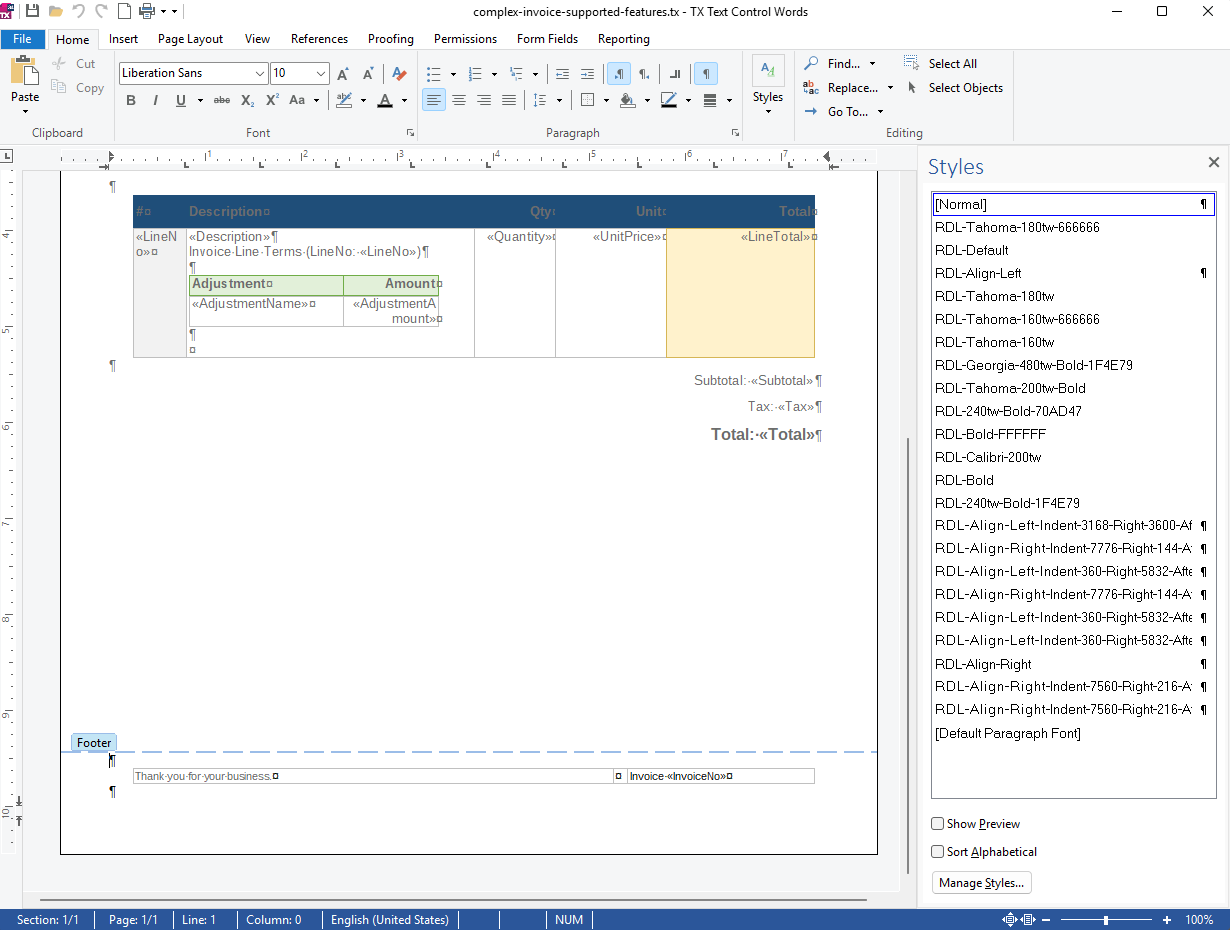
The converter also creates formatting styles based on the RDL style information. This keeps repeated formatting reusable in the generated template instead of applying everything as unrelated direct formatting.
What Is SSRS?
SQL Server Reporting Services, commonly known as SSRS, is Microsoft's on-premises reporting platform for creating, deploying, and managing paginated reports. A paginated report is designed for page-oriented output such as PDF, print, and fixed business reports where page size, margins, headers, footers, and repeating tables matter.
Microsoft is consolidating on-premises reporting under Power BI Report Server for SQL Server 2025. According to Microsoft, no new SSRS version is released for SQL Server 2025, while SSRS 2022 remains supported until January 11, 2033. This makes existing SSRS report collections an important migration topic for many applications.
More details are available in the Microsoft articles about SQL Server 2025 reporting services and the Reporting Services consolidation FAQ.
What Is RDL?
Report Definition Language, or RDL, is an XML representation of a paginated report definition. Microsoft describes it as containing data retrieval and layout information for a report. In practice, an RDL file contains report items such as text boxes, tables, images, headers, footers, parameters, data sets, expressions, and styles.
A simplified RDL text box looks like this:
<Textbox Name="InvoiceNumber">
<Top>0.7in</Top>
<Left>5.2in</Left>
<Width>2in</Width>
<Height>0.25in</Height>
<Paragraphs>
<Paragraph>
<TextRuns>
<TextRun>
<Value>="Invoice No. " & Fields!InvoiceNo.Value</Value>
</TextRun>
</TextRuns>
</Paragraph>
</Paragraphs>
</Textbox>The important part is that the report item is positioned by coordinates. It says where the text box is placed on a page, but it does not describe a document paragraph that should naturally flow with the surrounding content.
Why Convert RDL to Templates?
The intention of this repository is not to create an SSRS renderer. It does not execute the report, query the database, evaluate the complete SSRS expression language, or reproduce every pixel of the original report. Instead, it extracts the template intent from an RDL file and creates an editable TX Text Control template.
This distinction is important. A report renderer keeps the fixed layout model. A document template should be useful for editing, mail merge, and document generation. That means the converter tries to transform fixed report elements into document structures:
- RDL text boxes become paragraphs where possible.
- Fields become TX Text Control ApplicationFields with visible merge field text such as «InvoiceNo».
- Tablix regions become document tables.
- Detail rows and group rows become TX merge blocks.
- Headers and footers become section headers and footers.
- Embedded images are inserted inline or as fixed-position images depending on the RDL definition.
- Subreports are converted to INCLUDETEXT fields.
Fixed Text Boxes and Floating Text
RDL uses fixed report items. A text box has Top, Left, Width, and Height values. That is perfect for a report renderer, but it is often inconvenient for editable document templates because a small change in text length can require manual repositioning.
The converter therefore uses a practical compromise. Text boxes that behave like document content are converted to paragraphs with indentation and spacing. Several text boxes on the same row can be represented as layout tables when that better preserves the author's intent. Explicitly positioned images can remain fixed on the page.
This makes the generated template easier to maintain than a collection of floating text boxes while still preserving the visual structure of typical business reports.
Supported RDL Features
The converter currently supports the report elements that are most relevant for document templates:
- RDL 2016 report sections, page size, and margins.
- Page headers and footers including merge fields.
- Text boxes with simple expressions and concatenation.
- Paragraph alignment, font family, font size, text color, bold, italic, underline, and strikeout.
- Tables with column widths, row heights, borders, padding, background colors, and vertical alignment.
- Nested tablix regions and nested merge blocks.
- Embedded images, inline images, and fixed-position images.
- Subreports as INCLUDETEXT fields.
- A JSON conversion report with warnings, unsupported features, and a quality score.
Unsupported or partial areas are reported explicitly. This includes full SSRS expression evaluation, charts, maps, gauges, conditional visibility, drillthrough behavior, and full subreport expansion.
Using the Converter
The reusable conversion engine is located in the TextControl.RdlImport project. It can be used from file paths, streams, or byte arrays. The file-based API is useful for tools, migration utilities, and test workflows:
using TextControl.RdlImport;

var converter = new RdlToTxConverter();

RdlConversionResult result = converter.Convert(new RdlConversionOptions
{
    InputFile = @"C:\Reports\invoice.rdl",
    OutputFile = @"C:\Reports\invoice.tx",
    ReportFile = @"C:\Reports\invoice.json",
    OutputFormat = TxTemplateFormat.InternalUnicode
});

Console.WriteLine(result.ConversionReport.QualityScore);
For web applications, uploaded files, database blobs, or cloud storage scenarios, the converter can work completely in memory. This avoids temporary files and makes it easier to integrate the conversion into services:
using TextControl.RdlImport;

byte[] rdlBytes = File.ReadAllBytes(@"C:\Reports\invoice.rdl");

var converter = new RdlToTxConverter();

RdlMemoryConversionResult result = converter.ConvertToMemory(
    rdlBytes,
    TxTemplateFormat.Docx,
    "invoice");

byte[] document = result.Document;
byte[] conversionReport = result.ReportJson;
The stream API follows the same idea when the input and output are already represented as streams:
using TextControl.RdlImport;

using Stream rdlInput = GetUploadedRdlStream();
using MemoryStream txOutput = new();
using MemoryStream reportJson = new();

var converter = new RdlToTxConverter();

converter.Convert(new RdlStreamConversionOptions
{
    InputStream = rdlInput,
    OutputStream = txOutput,
    ReportStream = reportJson,
    ReportName = "invoice",
    OutputFormat = TxTemplateFormat.InternalUnicode
});

byte[] txTemplate = txOutput.ToArray();
byte[] report = reportJson.ToArray();
Output Formats
The converter can generate DOCX files for inspection and compatibility checks, or native TX Text Control files for production template workflows. Native TX format is recommended when the template uses TX-specific concepts such as merge blocks represented by SubTextParts.
The TX Text Control generator uses Server
Merge Fields and Merge Blocks
RDL field expressions such as Fields!InvoiceNo.Value are converted to TX Text Control Application
Repeating table data is represented as merge blocks. In TX Text Control, the converter creates merge blocks as Sub
Test Fixtures
The test project contains RDL samples that exercise the supported features. The test output folder contains generated DOCX, TX, and JSON files, which makes it easier to inspect the result visually and compare the conversion report with the source RDL.
dotnet test .\tx-rdl2tx.slnxThe samples include invoices, tabular inventory reports, headers and footers, styled table cells, embedded images, nested tables, text decorations, report sections, and subreports.
Conclusion
RDL files describe paginated reports with fixed-position report items. TX Text Control templates are editable documents that work best with paragraphs, tables, fields, headers, footers, and merge blocks. The goal of TXTextControl.Rdl2Tx is to bridge these two models in a practical way.
The converter helps reuse existing report definitions as a starting point for modern document generation workflows. It keeps the business structure of the report, translates common layout and formatting information, and creates templates that can be edited and merged with TX Text Control.
You can download the complete sample project from our GitHub repository below.
Frequently Asked Questions
SQL Server Reporting Services, or SSRS, is Microsoft's on-premises reporting platform for creating, deploying, and managing paginated reports. These reports are designed for page-oriented output such as PDF, print, invoices, statements, and operational reports.
RDL stands for Report Definition Language. It is an XML format that describes a paginated report, including data sources, data sets, parameters, report items, tables, images, headers, footers, expressions, and layout information.
Microsoft is not releasing a new SSRS version for SQL Server 2025 and is consolidating on-premises reporting under Power BI Report Server. Existing SSRS 2022 installations remain supported until January 11, 2033, according to Microsoft's Reporting Services consolidation FAQ.
TXTextControl.Rdl2Tx imports SSRS RDL report definitions and creates editable TX Text Control templates. It converts common report elements such as text boxes, tables, fields, headers, footers, images, and merge blocks into document structures that can be used with TX Text Control.
No. The converter is not intended to execute SSRS reports or render them pixel-perfectly. It reads the report definition and transforms the template intent into an editable document template.
RDL positions report items using coordinates such as Top, Left, Width, and Height. Editable document templates are easier to maintain when text can flow naturally. The converter therefore turns many text boxes into paragraphs with indentation and spacing, while preserving layout tables or fixed-position objects where they better represent the original intent.
Simple RDL field expressions such as Fields!InvoiceNo.Value are converted to TX Text Control ApplicationFields. The visible field text uses the common merge field notation, for example «InvoiceNo».
Repeating table rows and groups are converted to TX Text Control merge blocks. The converter creates these blocks as SubTextParts with names that start with txmb_ followed by the block name.
Subreports are converted to INCLUDETEXT fields. Parameter mappings are emitted as adjacent merge fields so that applications can use this information when assembling the final document workflow.
Yes. The public API supports file paths, streams, and byte arrays. This makes it suitable for desktop tools, web uploads, database blobs, cloud storage, and service-based document conversion workflows.

Download and Fork This Sample on GitHub
We proudly host our sample code on github.com/TextControl.
Please fork and contribute.
Requirements for this sample
- TX Text Control .NET Server 34.0
- Visual Studio 2026
ASP.NET
Integrate document processing into your applications to create documents such as PDFs and MS Word documents, including client-side document editing, viewing, and electronic signatures.





- Angular
- Blazor
- React
- JavaScript
- ASP.NET MVC, ASP.NET Core, and WebForms
Related Posts
C# Document Generation: A Developer's Guide for .NET
Document generation refers to the automatic creation of documents from application data. The success or complexity of a document generation workflow often depends on a single early architectural…
Best Practices for Mail Merge and Form Field Processing in ASP.NET Core C#…
This article provides best practices for mail merge and form field processing in ASP.NET Core C# applications using TX Text Control .NET Server. It shows how to use the Document Editor to create…
Advantages of Flow Type Layout Reporting vs. Banded Reporting or PDF…
This article shows the advantages of flow type layout reporting compared to banded reporting or populating PDF placeholders in .NET C#. It explains the differences and the benefits of using a flow…