









How to Extract Structured Data from Word Documents in C#

Learn how to extract tables, content controls, legacy form fields, and document metadata from Word documents with TX Text Control. This generic C# sample preserves the structure of documents and the values of fields in JSON without requiring template-specific mappings.

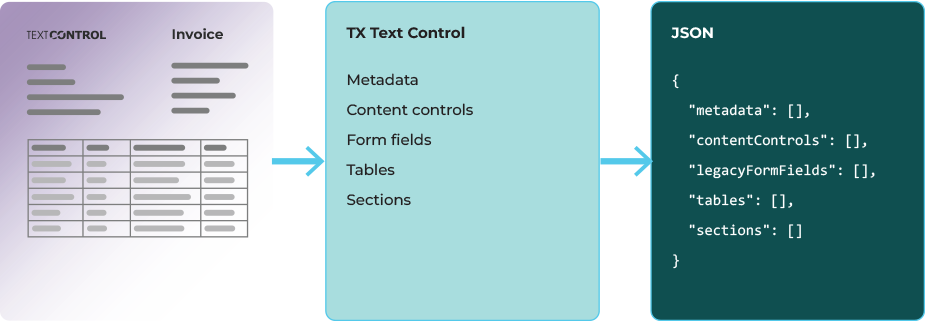
Word documents contain more than just paragraphs. Tables preserve the relationships between rows and columns. Content controls carry titles and tags. Form fields store values, such as text, dates, selections, and checkbox states. Document properties, sections, headers, and footers provide additional context useful to an application.
In this article, we use TX Text Control .NET Server to extract elements from a DOCX file in C# and combine them into a single JSON result. The downloadable console application is generic in that it enumerates document elements without requiring specific field names, column headings, or business mappings.
The included Word document is a practical example that contains customer information, delivery preferences, line items, and legacy form fields. The same extraction code processes other forms, reports, and ordinary documents as well. Each result describes the contents of the document.
Understanding Structured Data in Word Documents
Extracting plain text provides an application with a sequence of characters. Structural extraction identifies the elements to which those characters belong. For instance, a table retains its row and column coordinates, and a content control retains its title, tag, type, and current value.
| Document element | Information available to the application |
|---|---|
| Tables | Rows, columns, cell text, header flags, widths, and merged continuation cells |
| Content controls | Original IDs, titles, tags, text, checkbox states, dates, and choices |
| Legacy Word form fields | Field names, text input, checkbox states, and dropdown choices |
| Document properties | Author, title, subject, keywords, creation date, and custom properties |
| Sections, headers, and footers | Section text, boundaries, orientation, repeated information, and section-specific content |
Our extraction pipeline loads the document once, reads the collections, creates C# records, and uses System.Text.Json to serialize the records. Text values remain available alongside the structural information.
Typical Applications
A generic structural export is a useful starting point for several document workflows.
- Form intake: Collect the entered values, dates, selected options, and checkbox states from application forms, customer questionnaires, or supplier onboarding documents. Preserve the original field identifiers for subsequent processing.
- Document indexing: Add document titles, authors, keywords, custom properties, and reference information from headers to a search or archive index. Section text can accompany those properties as searchable content.
- Table imports: Transfer tables from reports, schedules, or order documents into a staging area. Row and column coordinates preserve their organization while the application applies any later interpretation or validation.
- Legacy form migration: Inventory existing Word forms and their stored values before introducing a new data-entry system. The export includes legacy dropdown choices and checkbox states as well as text.
- Editor round trips: Let users edit a DOCX in Microsoft Word or the TX Text Control Document Editor, save their changes, and extract the updated values using the same service.
- Document-aware processing: Supply structured elements to a review tool, reporting pipeline, or retrieval system. Keeping field identities and table coordinates makes the source of a value easier to inspect.
These applications can share the extraction layer. The consuming application makes decisions about what a particular field means, how to validate a price, and where to store a record.
Getting Started with the Console Application
Extract the source download and open the directory containing tx-extract-data-docx.csproj. This project is targeted at .NET 10 and already references TXTextControl.TextControl.Core.SDK version 34.0.5. Restore the package using the package source and licensing configuration for your Text Control SDK installation.
dotnet restore
dotnet run -- Samples/customer-order.docx --output document.json
dotnet run -- "C:/Documents/application-form.docx" --compact
The first extraction command writes formatted JSON to document.json. Without the --output argument, JSON is written to standard output. The --compact argument removes indentation. Running the program without arguments loads the included sample document. Diagnostics are written to standard error.
The reusable DocumentExtractor service accepts either a file path or DOCX bytes. Its loading code creates and disposes a ServerTextControl instance for each extraction:
using TXTextControl;
using TXTextControl.DocumentServer.Fields;

byte[] docx = File.ReadAllBytes("Samples/customer-order.docx");

using var tx = new ServerTextControl();
tx.Create();
tx.Load(docx, BinaryStreamType.WordprocessingML, new LoadSettings
{
    ApplicationFieldFormat = ApplicationFieldFormat.MSWord
});
The byte-array overload uses BinaryStreamType.WordprocessingML. When loading a file path directly through Text Control, the corresponding format is StreamType.WordprocessingML. Microsoft Word does not need to be installed.
Exploring the Example Document
The two-page example includes 11 content controls, six legacy form fields, two Word tables, two sections, and one merge field. It also contains core and custom document properties. Different extraction cases are demonstrated by checked and unchecked boxes, an empty text control, empty cells, and merged cells.
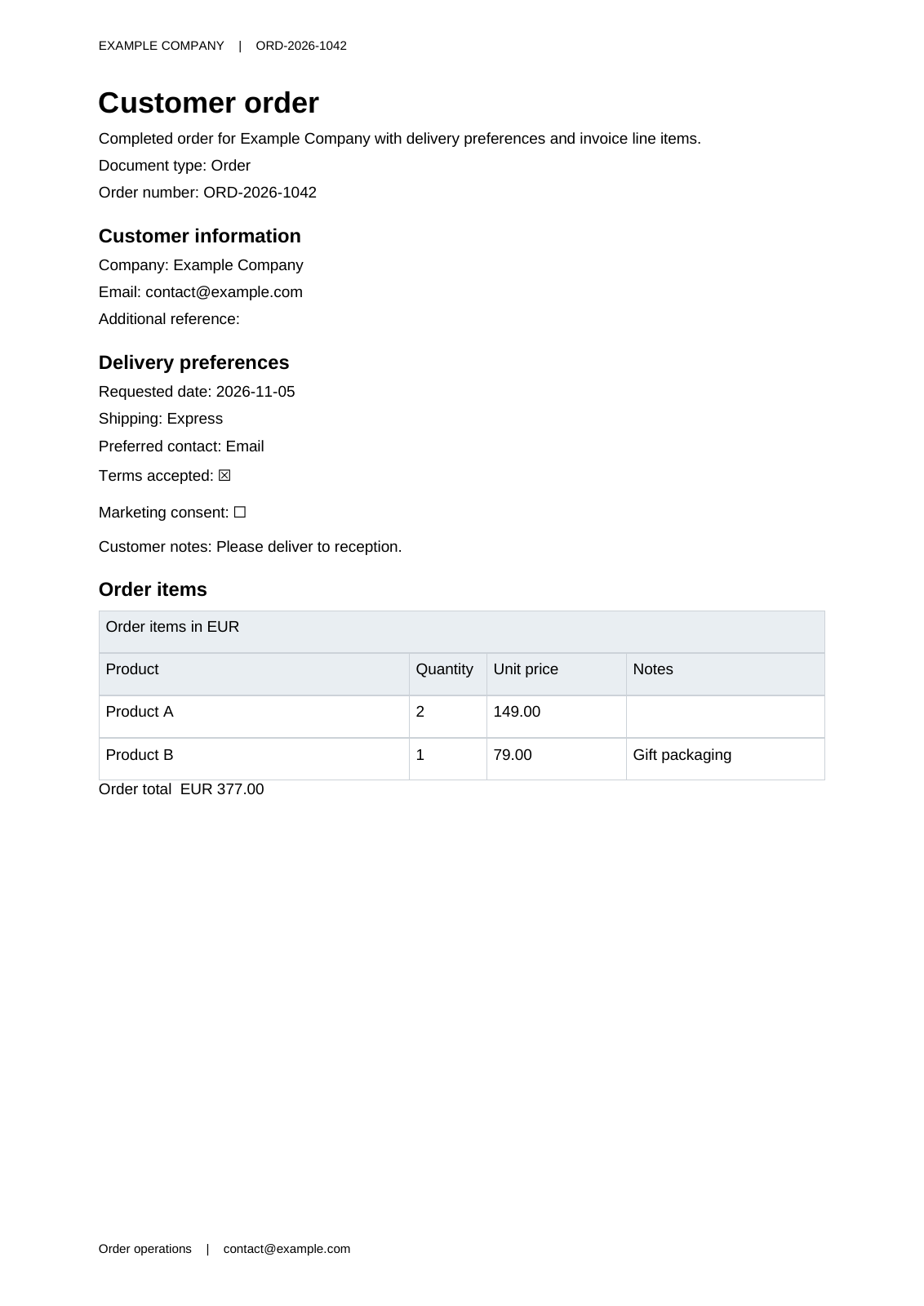
Content controls and a table on the first page.
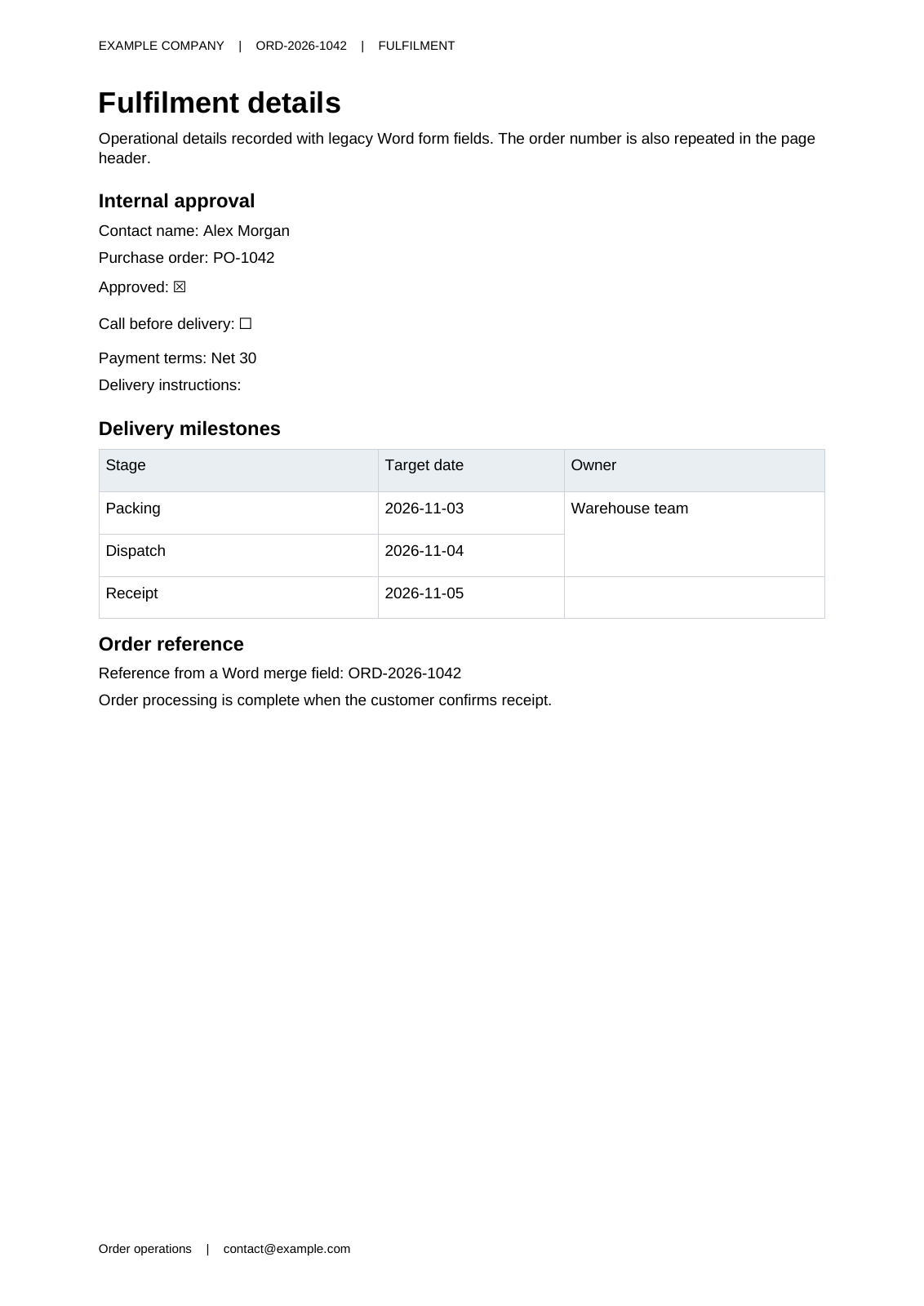
Legacy fields and fulfilment details on the second page.
Extracting Document Metadata
The DocumentSettings property exposes general information about the loaded document. The sample collects the title, author, subject, keywords, creation date, creator application, and all available custom properties:
var settings = tx.DocumentSettings;
var custom = new Dictionary<string, object?>();
if (settings.UserDefinedDocumentProperties is { } properties)
    foreach (string key in properties.Names)
        custom[key] = properties[key];
var metadata = new DocumentMetadata(settings.DocumentTitle, settings.Author, settings.DocumentSubject,
    settings.DocumentKeywords ?? [], settings.CreationDate == DateTime.MinValue ? null : settings.CreationDate,
    settings.CreatorApplication, custom);
The custom-property collection is optional, so the code checks for its presence before enumerating property names. Documents without custom properties produce an empty dictionary. An unavailable creation date is represented as null.
For the included document, the resulting metadata object is:
{
  "title": "Customer order ORD-2026-1042",
  "author": "Example Company",
  "subject": "Structured DOCX extraction sample",
  "keywords": [
    "order",
    " DOCX",
    " structured data"
  ],
  "created": "2026-10-22T09:00:00Z",
  "creatorApplication": "Structured DOCX extraction sample",
  "customProperties": {
    "OrderNumber": "ORD-2026-1042",
    "DocumentType": "Order"
  }
}
The keys inside customProperties come from the document. They are not predefined extractor properties. Keyword whitespace is retained as returned by the engine, which also illustrates that extraction does not normalize the source values.
Reading Content Controls
Modern Word content controls can contain plain or rich text, as well as dates, checkboxes, dropdown lists, and combo boxes. A title provides a readable label for a control, and a tag can carry an identifier chosen by the document author. Both are useful when an application has no prior knowledge of the template.
The sample sets LoadSettings.ApplicationFieldFormat to MSWord. This preserves controls as ApplicationField objects so that the DocumentServer field adapters can expose their original metadata:
var controls = new List<ContentControlData>();

foreach (ApplicationField field in tx.ApplicationFields)
{
    if (!field.TypeName.StartsWith("SDT", StringComparison.OrdinalIgnoreCase))
        continue;

    var control = ContentControlFieldAdapter.CreateContentControl(field);
    var choices = control switch
    {
        DropDownListContentControl dropdown => dropdown.ListItems
            .Select(i => new ChoiceData(i.DisplayText, i.Value)).ToArray(),
        ComboBoxContentControl combo => combo.ListItems
            .Select(i => new ChoiceData(i.DisplayText, i.Value)).ToArray(),
        _ => Array.Empty<ChoiceData>()
    };

    controls.Add(new(
        "body", control.Id, control.Title, control.Tag,
        control.GetType().Name, field.Text,
        control is CheckBoxContentControl check ? check.Checked : null,
        control is DateContentControl date && !string.IsNullOrWhiteSpace(field.Text)
            ? DateOnly.FromDateTime(date.Date) : null,
        choices));
}
Word content-control fields have an SDT type name. ContentControlFieldAdapter.CreateContentControl returns the appropriate adapter. The sample exports the adapter type, Word ID, title, tag, and current text. A text control therefore appears as:
{
  "location": "body",
  "id": 103,
  "title": "Customer name",
  "tag": "CustomerName",
  "type": "PlainTextContentControl",
  "text": "Example Company",
  "checked": null,
  "date": null,
  "choices": []
}
CustomerName is simply the tag found in this document. The extractor stores it as data; it does not turn it into a customer property or require another document to contain the same tag.
Checkboxes, Dates, and Selections
Use the typed adapter properties for checkbox and date values. CheckBoxContentControl.Checked provides a Boolean independently of the displayed symbol. DateContentControl.Date provides the date, which this sample exports as a DateOnly. List controls provide their available display texts and values, while field.Text retains the current displayed selection.
[
  {
    "location": "body",
    "id": 106,
    "title": "Requested delivery date",
    "tag": "DeliveryDate",
    "type": "DateContentControl",
    "text": "2026-11-05",
    "checked": null,
    "date": "2026-11-05",
    "choices": []
  },
  {
    "location": "body",
    "id": 107,
    "title": "Shipping method",
    "tag": "ShippingMethod",
    "type": "DropDownListContentControl",
    "text": "Express",
    "checked": null,
    "date": null,
    "choices": [
      {
        "displayText": "Standard",
        "value": "Standard"
      },
      {
        "displayText": "Express",
        "value": "Express"
      },
      {
        "displayText": "Collection",
        "value": "Collection"
      }
    ]
  },
  {
    "location": "body",
    "id": 109,
    "title": "Terms accepted",
    "tag": "TermsAccepted",
    "type": "CheckBoxContentControl",
    "text": "\u2612",
    "checked": true,
    "date": null,
    "choices": []
  }
]
The unchecked marketing checkbox is likewise exported with checked: false. An empty text control remains in the collection with an empty text value. Properties that do not apply to a control, such as a checkbox state on a text field, remain null.
Reading Legacy Word Form Fields
Legacy Word fields use the FORMTEXT, FORMCHECKBOX, and FORMDROPDOWN field types. With the same MSWord import setting, the FormText, FormCheckBox, and FormDropDown adapters expose their original names and values:
var legacy = new List<LegacyFormFieldData>();

foreach (ApplicationField field in tx.ApplicationFields)
{
    switch (field.TypeName.ToUpperInvariant())
    {
        case "FORMTEXT":
            var text = new FormText(field);
            legacy.Add(new("body", text.Name, "Text", field.Text, null, []));
            break;

        case "FORMCHECKBOX":
            var check = new FormCheckBox(field);
            legacy.Add(new("body", check.Name, "CheckBox",
                field.Text, check.Checked, []));
            break;

        case "FORMDROPDOWN":
            var dropdown = new FormDropDown(field);
            legacy.Add(new("body", dropdown.Name, "DropDown",
                field.Text, null, dropdown.ListEntries.ToArray()));
            break;
    }
}
The following excerpt shows a text value, a selected checkbox, and a dropdown together with its available entries:
[
  {
    "location": "body",
    "name": "ContactName",
    "type": "Text",
    "text": "Alex Morgan",
    "checked": null,
    "items": []
  },
  {
    "location": "body",
    "name": "Approved",
    "type": "CheckBox",
    "text": "\u2612",
    "checked": true,
    "items": []
  },
  {
    "location": "body",
    "name": "PaymentTerms",
    "type": "DropDown",
    "text": "Net 30",
    "checked": null,
    "items": [
      "Net 14",
      "Net 30",
      "Due on receipt"
    ]
  }
]
An alternative import setting is ApplicationFieldFormat.MSWordTXFormFields, which converts supported modern controls and legacy form fields into TX Text Control FormFields. This example uses the native Word adapters to preserve titles, tags, and legacy names in one pass. The content controls article explains these import options in more detail.
Extracting Tables
Table extraction enumerates every table exposed by the relevant collection. Each table contains row records, and each row contains cell records. The following method preserves row and column numbers, header flags, cell text, widths, and merged-continuation indicators:
private static void ReadTables(IEnumerable<Table> source, string location, List<TableData> result)
    {
        foreach (var table in source)
        {
            // Enumerate physical cells. The engine normalizes horizontal merges and marks
            // vertically merged continuation cells with Length == -1; reading their Text throws.
            var cells = table.Cells.Cast<TableCell>().Select(cell => new TableCellData(cell.Row, cell.Column,
                cell.Length < 0 ? null : cell.Text, cell.Width, cell.Length < 0)).ToArray();
            var rows = table.Rows.Cast<TableRow>().Select(row => new TableRowData(row.Row, row.IsHeader,
                cells.Where(cell => cell.Row == row.Row).ToArray())).ToArray();
            result.Add(new(result.Count + 1, location, table.ID, table.NestedLevel, table.Rows.Count, table.Columns.Count, rows));
        }
    }
This is a data row from the example's line-item table:
{
  "number": 2,
  "isHeader": false,
  "cells": [
    {
      "row": 2,
      "column": 1,
      "text": "Product A",
      "widthTwips": 4000,
      "isMergedContinuation": false
    },
    {
      "row": 2,
      "column": 2,
      "text": "2",
      "widthTwips": 1000,
      "isMergedContinuation": false
    },
    {
      "row": 2,
      "column": 3,
      "text": "149.00",
      "widthTwips": 1800,
      "isMergedContinuation": false
    },
    {
      "row": 2,
      "column": 4,
      "text": "",
      "widthTwips": 2560,
      "isMergedContinuation": false
    }
  ]
}
The quantity and price are still strings, and the empty notes cell is still an empty string. A report with different column labels or localized number formatting uses the same code. Header flags describe document formatting. The extractor does not infer headers from particular words.
TX Text Control normalizes certain table layouts during import. For example, a horizontally merged title row becomes a separate table, resulting in three TX table objects from the two Word tables. Exported table numbers are local ordinals, whereas imported table IDs may be zero or repeated.
Vertically merged continuation cells have a negative length in the imported object model. Since reading their text would fail, the method exports a null value with an explicit flag.
{
  "row": 3,
  "column": 3,
  "text": null,
  "widthTwips": 3360,
  "isMergedContinuation": true
}
This preserves the distinction between a continuation cell and an ordinary empty cell. The export describes the imported layout, rather than reconstructing original OOXML grid spans. For an additional layer that interprets column semantics, see the domain-aware table extraction article and the Structured Table Extraction live demo.
Reading Sections, Headers, and Footers
Headers and footers are separate text parts. Enumerating only the main body would omit their reference numbers or repeated contact information. The sample reads each section and then its associated headers and footers:
var sections = new List<SectionData>();

foreach (Section section in tx.Sections)
{
    tx.Selection.Start = section.Start - 1;
    tx.Selection.Length = section.Length;
    var text = tx.Selection.Text;
    var headers = new List<HeaderFooterData>();

    foreach (HeaderFooter hf in section.HeadersAndFooters)
    {
        hf.Selection.Start = 0;
        hf.Selection.Length = -1;
        headers.Add(new(hf.Type.ToString(), hf.ConnectedToPrevious,
            hf.Selection.Text));
    }

    sections.Add(new(section.Number, section.Start, section.Length,
        text, section.Format.BreakKind.ToString(),
        section.Format.Landscape, headers));
}
Section starts are one-based, while selection offsets are zero-based, which explains the subtraction. A header selection with length -1 reads its entire text. The second section produces these header and footer records:
[
  {
    "type": "Header",
    "connectedToPrevious": false,
    "text": "EXAMPLE COMPANY    |    ORD-2026-1042    |    FULFILMENT"
  },
  {
    "type": "Footer",
    "connectedToPrevious": false,
    "text": "Order operations    |    contact@example.com"
  }
]
The full extractor also reads fields and tables in these text parts. Their location strings, such as section:2/Header, distinguish them from body elements. Shared headers may therefore appear in more than one section context.
Combining the Results into One JSON Object
All collections belong to one strongly typed result. These records describe document structure and do not depend on the example's business content:
public sealed record ExtractionResult(
    string SourceFile,
    DocumentMetadata Metadata,
    IReadOnlyList<ContentControlData> ContentControls,
    IReadOnlyList<LegacyFormFieldData> LegacyFormFields,
    IReadOnlyList<ApplicationFieldData> ApplicationFields,
    IReadOnlyList<TableData> Tables,
    IReadOnlyList<SectionData> Sections,
    IReadOnlyList<string> Warnings);
The command line entry point calls the extractor and serializes the result with camel-case property names:
using System.Text.Json;
using DocxExtraction;

var result = new DocumentExtractor().Extract("Samples/customer-order.docx");

var json = JsonSerializer.Serialize(result, new JsonSerializerOptions
{
    PropertyNamingPolicy = JsonNamingPolicy.CamelCase,
    WriteIndented = true
});

Console.WriteLine(json);
The complete JSON contains sourceFile, metadata, contentControls, legacyFormFields, applicationFields, tables, sections, and warnings. Other Word application fields, including the example's merge field, retain their current text and parameters.
Handling Real Documents
Since the extractor does not select a preferred occurrence, repeated names and tags remain as separate array entries. Missing fields and tables result in empty collections. Documents without custom properties are also supported. Therefore, plain documents can return useful section text and metadata without form elements.
Table text is preserved without numeric parsing or business validation. A value such as 149,50, 00123, or free is exported unchanged. Deciding whether it represents an amount, identifier, or invalid input requires context outside this generic sample.
If a field adapter cannot interpret a field, the service records an adaptation warning and retains the field in the application field collection. The example's integration checks exercise renamed controls, repeated identifiers, changed headings, headerless tables, and a TX load/edit/save/extract round-trip.
The sample includes the main body, as well as the headers and footers of each section. It does not include text frames, images, comments, footnotes, or arbitrary embedded objects. Cached formula and merge-field text are read as loaded. Extraction does not query external sources or calculate new business values.
Using the Extractor in ASP.NET Core
The same byte-array overload can sit behind an HTTP endpoint. Reference the extraction code and the licensed Text Control SDK from the ASP.NET Core host project. This minimal example accepts a DOCX as the raw request body and returns the generic result:
using DocxExtraction;

var builder = WebApplication.CreateBuilder(args);
var app = builder.Build();

app.MapPost("/extract", async (HttpRequest request, CancellationToken cancellationToken) =>
{
    using var buffer = new MemoryStream();
    await request.Body.CopyToAsync(buffer, cancellationToken);

    var result = new DocumentExtractor().Extract(buffer.ToArray(), "uploaded.docx");
    return Results.Ok(result);
});

app.Run();
For example, send the file to the address configured by the API host:
curl --request POST "https://localhost:5001/extract" \
  --header "Content-Type: application/vnd.openxmlformats-officedocument.wordprocessingml.document" \
  --data-binary "@Samples/customer-order.docx"
This endpoint is an integration example rather than a separate application in the download. It uses a binary body, not multipart form data. Add the upload limits, authorization, and error responses appropriate to the surrounding application. Each extractor call owns and disposes its document instance.
Conclusion
TX Text Control provides the necessary document elements to convert a DOCX file into an inspectable JSON file, including metadata, controls, form fields, tables, sections, headers, and footers. Preserving these elements provides applications with access to contextual information that would otherwise be difficult to reconstruct from plain text alone.
Frequently Asked Questions
The sample exports tables and cells, modern content controls, legacy Word form fields, other application fields, core and custom document properties, sections, and section headers and footers. Each collection preserves the identities and values exposed by the TX Text Control object model.
No. It enumerates document elements and exports their names, tags, titles, types, and values. Table cells remain text, and repeated field identifiers remain separate entries. It does not require specific column labels or create an order or customer business object.
The sample sets LoadSettings.ApplicationFieldFormat to MSWord. ContentControlFieldAdapter exposes modern control metadata and typed values, while FormText, FormCheckBox, and FormDropDown expose legacy names and values. MSWordTXFormFields is an alternative import mode that converts supported controls into TX Text Control FormFields.
No. The application uses ServerTextControl to load and process the DOCX file. The downloadable sample targets .NET 10 and references TXTextControl.TextControl.Core.SDK 34.0.5; an appropriate Text Control SDK and licensing setup are required.
Table values are exported as text without guessing number formats. Empty cells retain an empty string. Vertically merged continuation cells have a null text value and a separate continuation flag. Horizontal merges may be normalized into multiple TX tables, so the export describes the imported layout rather than original OOXML grid spans.
Yes. DocumentExtractor accepts a byte array as well as a file path and creates and disposes its own ServerTextControl for each call. An endpoint can read an uploaded DOCX, call the service, and return the same generic JSON result.

Download and Fork This Sample on GitHub
We proudly host our sample code on github.com/TextControl.
Please fork and contribute.
Requirements for this sample
- TX Text Control .NET Server 34.0
ASP.NET
Integrate document processing into your applications to create documents such as PDFs and MS Word documents, including client-side document editing, viewing, and electronic signatures.





- Angular
- Blazor
- React
- JavaScript
- ASP.NET MVC, ASP.NET Core, and WebForms
Related Posts
ASP.NETASP.NET CoreDocument Conversion
Convert DOCX to PDF, PDF/A and PDF/UA in C# Using TX Text Control
Learn how to convert Word DOCX documents to PDF in C# using TX Text Control .NET Server. This tutorial covers file-based and in-memory conversion, PDF/A export, document metadata, font deployment,…
ASP.NETASP.NET CoreClassification
From Classification to Data Extraction: New Document Analysis Samples
Three new TX Text Control live samples demonstrate practical document analysis workflows for classification, structured table extraction, and form field mapping. Each sample includes an…
AI Natural Language Document Generation with MCP and TX Text Control .NET
This article explains how AI agents can use natural language to create documents through an MCP server. Instead of letting a language model generate documents directly, the AI translates prompts…
How to Extend the Default Style Mapping when Converting DOCX to Markdown in…
Learn how to customize the default style mapping when converting DOCX documents to Markdown format using Text Control's .NET C# libraries. This article provides step-by-step instructions and code…
DOCX Meets Markdown: Preparing Enterprise Documents for AI
Discover why Markdown is a game-changer for document creation in the age of AI. Explore how this lightweight markup language can enhance collaboration, version control, and integration with AI…