









Introducing TX Sheet Control: Excel Compatible Spreadsheets and Interactive Dashboards

We are pleased to introduce TX Sheet Control, the latest addition to the Text Control product family. TX Sheet Control brings together Excel-compatible spreadsheet editing, a powerful calculation engine, and interactive dashboards. Designed for integration into business applications, TX Sheet Control offers a combination of familiar spreadsheet functionality and new ways to organize, explore, and present workbook data.
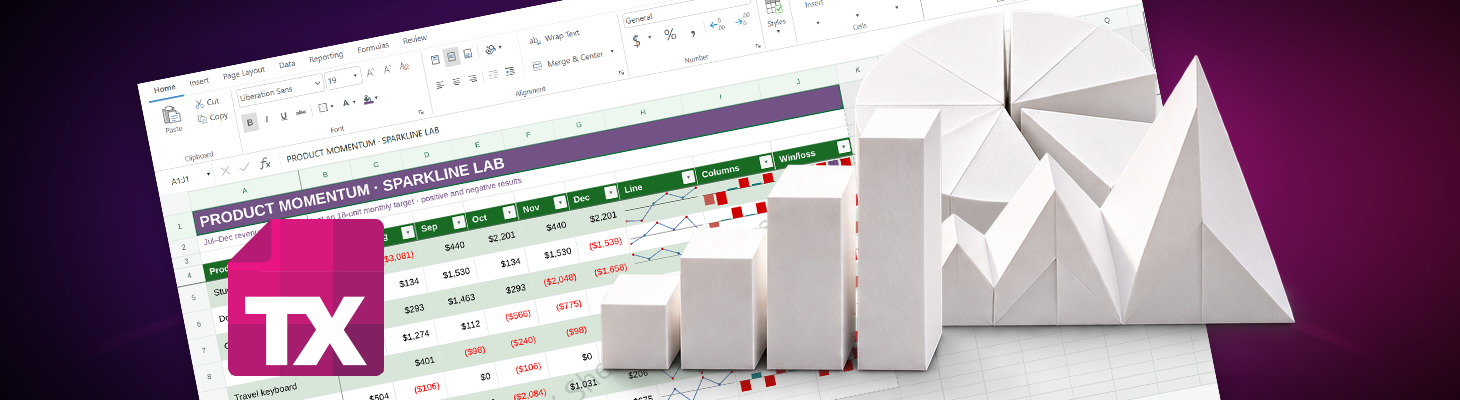
We are excited to announce the introduction of TX Sheet Control, a new addition to the Text Control product family. This new offering combines Excel compatible spreadsheet editing, a robust calculation engine, and interactive dashboards. TX Sheet Control is designed for integration into business applications. It combines the functionality of a spreadsheet with new ways to organize, explore, and present workbook data.
Beta Preview
TX Sheet Control is still in development and is not yet available for download or evaluation in your own applications. However, you can already explore the current development version in our public technical demos and experience how it looks and feels directly in your browser.
Bringing Spreadsheets into Your Applications
Spreadsheets are a common tool for managing business data. These tools are essential for users, as they facilitate crucial tasks such as budget preparation, quotation calculation, forecast comparison, and information organization, which in turn supports informed daily decision-making. These activities are often closely connected to the data and processes already managed by a business application.
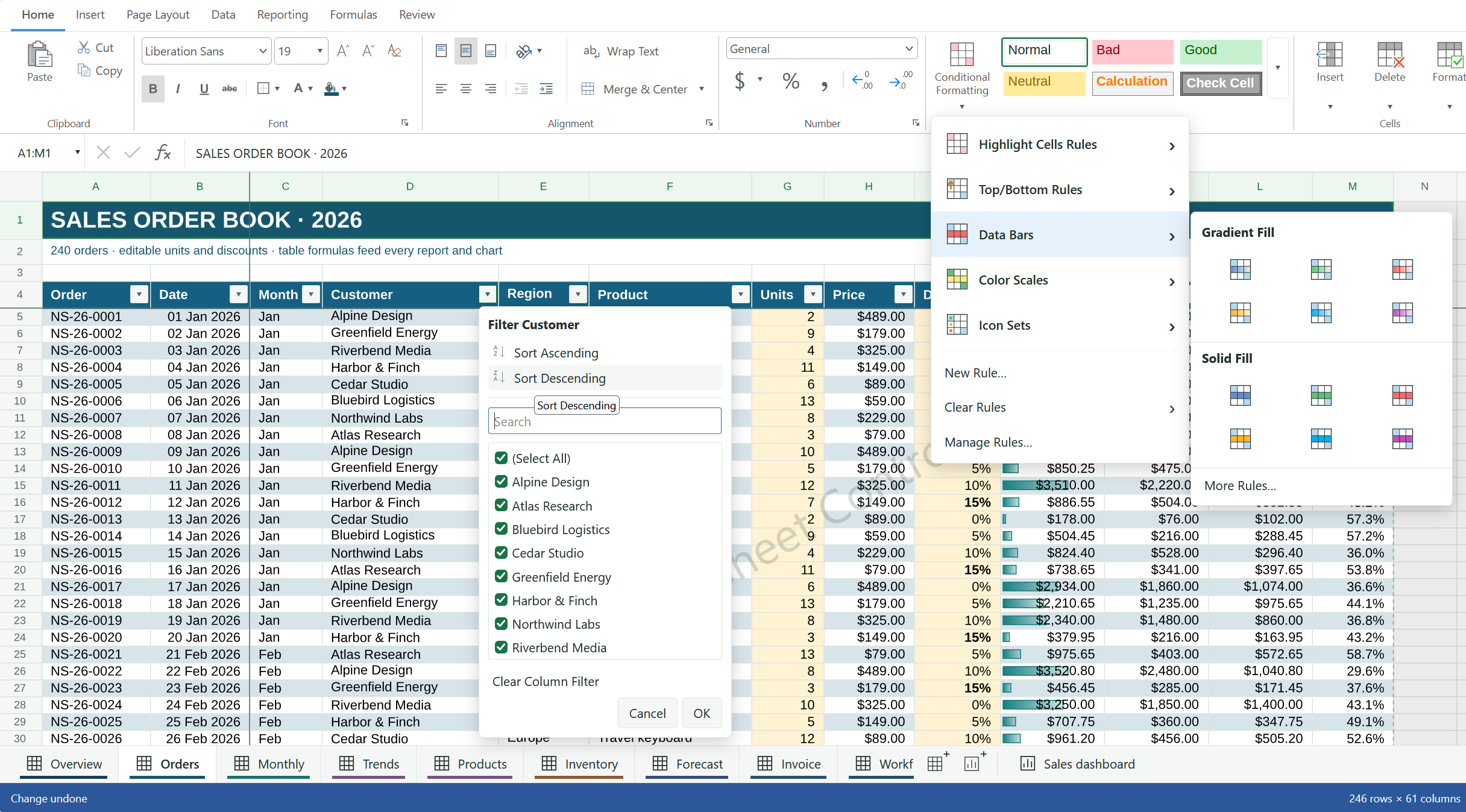
With TX Sheet Control, we are integrating the functionality of spreadsheets directly into the application. It enables users to work with multiple worksheets, enter and format data, build formulas, and visualize information with charts, all within an environment designed to become part of your software.
The browser editor provides a ribbon, formula bar, contextual commands, and familiar editing dialogs. Copy and paste options support essential workflows, such as transferring values, formulas, or formatting. Fill operations facilitate extending formulas and numeric or date sequences. The software provides support for everyday editing, as well as frozen panes that help to keep headings visible while users scroll through larger worksheets.
The Excel file import and export feature integrates this experience with existing workbook workflows. TX Sheet Control supports XLSX exchange for its supported spreadsheet features, allowing applications to build on documents with which users are already familiar.
Upcoming Technologies and Integration Options
TX Sheet Control will provide dedicated integration packages for ASP.NET Core, JavaScript, TypeScript, and Angular applications. The spreadsheet editor runs entirely on the client side, including rendering, formula calculation, and dashboard visualization, without requiring server-side processing. For applications that need automated workbook processing, calculations, mail merge, or document generation, independent server-side components will also be available.
| Technology | Distribution | Component | Integration |
|---|---|---|---|
| ASP.NET Core | NuGet | Editor | Embed the client-side spreadsheet editor and interactive dashboards into ASP.NET Core applications without server-side rendering or calculation. |
| JavaScript / TypeScript | npm | Editor | Integrate spreadsheet editing, formulas, charts, and interactive dashboards into browser-based applications. |
| Angular | npm | Editor | Integrate the client-side spreadsheet editor and dashboards using Angular components. |
| ASP.NET Core / .NET | NuGet | Server-side Processing | Process workbooks, execute calculations, populate templates using mail merge, and export XLSX and PDF documents without a browser editor. |
| Node.js | npm | Server-side Processing | Automate workbook processing, calculations, template merging, and file export in Node.js applications. |
Formulas and Calculations for Business Data
Calculations effectively transform a worksheet into a functional business tool. A quotation can calculate line totals and discounts, a budget can compare planned and actual spending, and a forecast can bring inputs from several worksheets together.
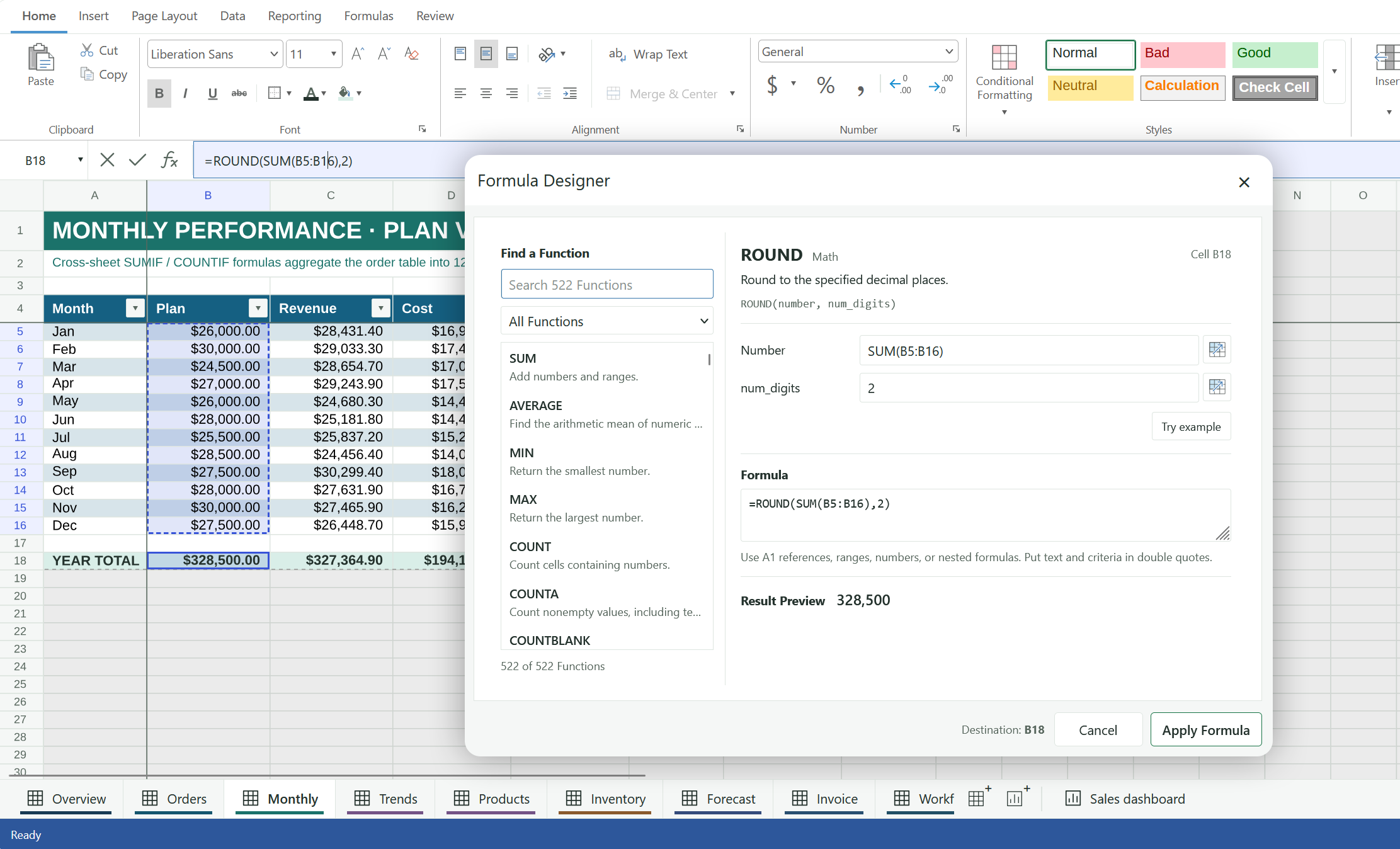
TX Sheet Control supports 500+ formulas with worksheet references, named ranges, and structured table references. Support for dynamic-array formulas enables the retrieval of results across neighboring cells, thus offering enhanced methods for working with calculated data.
The integrated Formula Designer assists users in identifying functions and constructing formulas. Users can search by function name or category, inspect the function signature, enter arguments or select worksheet ranges, and review a result preview before applying the formula.
Formula inspection tools also help users understand existing calculations. Tracing precedents and dependents facilitates the identification of contributing cells and their application in other parts of the workbook.
For application-specific calculations, developers can register custom functions and supply application data through the calculation APIs. This feature enables the integration of spreadsheet formulas with business logic managed by the host application.
Formatting That Makes Data Easier to Read
A spreadsheet that is to be of use must communicate its information clearly. TX Sheet Control provides cell formatting for fonts, alignment, borders, fills, and number display, including currency, accounting, percentages, dates, and supported custom formats.
Named cell styles and workbook themes help maintain a consistent appearance across worksheets. Rich text supports different formatting within a single cell, while the Format Cells dialog brings related settings together in one place.
Conditional formatting provides a visual indication that corresponds to the data. Users can highlight values that meet a condition, identify top and bottom results, compare amounts with data bars, or show performance bands with color scales and icon sets.
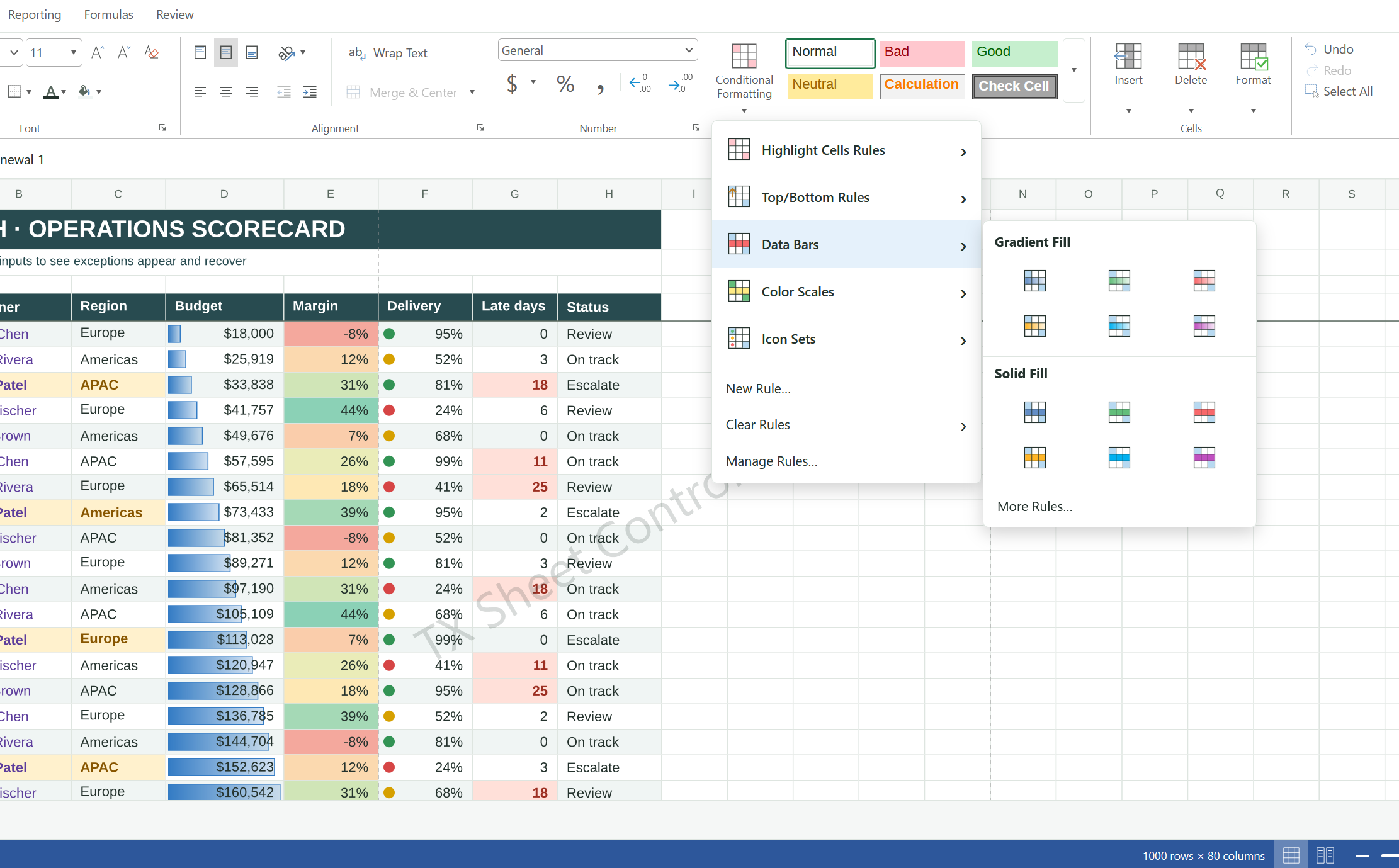
For instance, a sales worksheet can employ data bars to compare revenue, highlight accounts above a defined threshold, and display progress icons against a target. As the underlying values change, the conditional appearance is updated accordingly.
Structured Tables and Guided Data Entry
TX Sheet Control includes Excel-style tables with named columns, header and totals rows, calculated columns, and configurable table styles. Structured references facilitate the comprehension of formulas, while calculated columns apply a formula across the table's data rows.
Sorting and filtering facilitate the identification of relevant records. Additional data tools include text-to-columns, duplicate removal, and consolidation of supported ranges, with previews available to review the intended transformation before applying it.
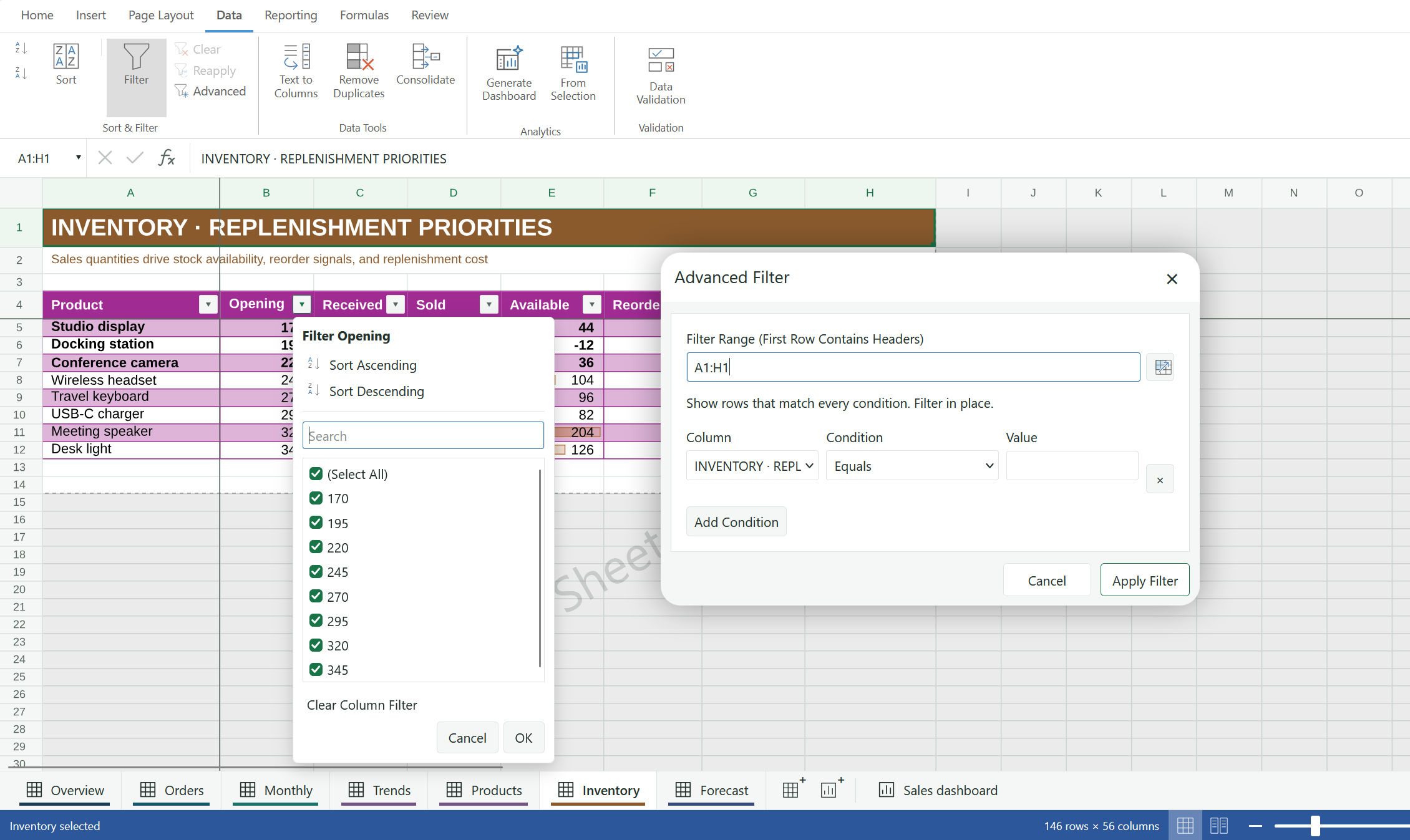
For applications that depend on consistent input, data validation provides dropdown choices, numeric and date limits, and supported custom conditions. Input prompts and error messages can provide clear instructions for what users should enter.
Worksheet protection is an integral component of these entry workflows. Developers have the option of allowing the editing of intended input cells while restricting changes to calculated cells and other worksheet areas. This feature is particularly useful for planning forms, quotation templates, and other workbooks where users should modify selected inputs while retaining the surrounding structure.
Charts and Compact Trends Inside the Worksheet
Charts facilitate the interpretation of worksheet data without the need to navigate away from the spreadsheet. TX Sheet Control provides worksheet charts based on source ranges or supported explicit series, with contextual commands for changing the chart type and selecting its data.
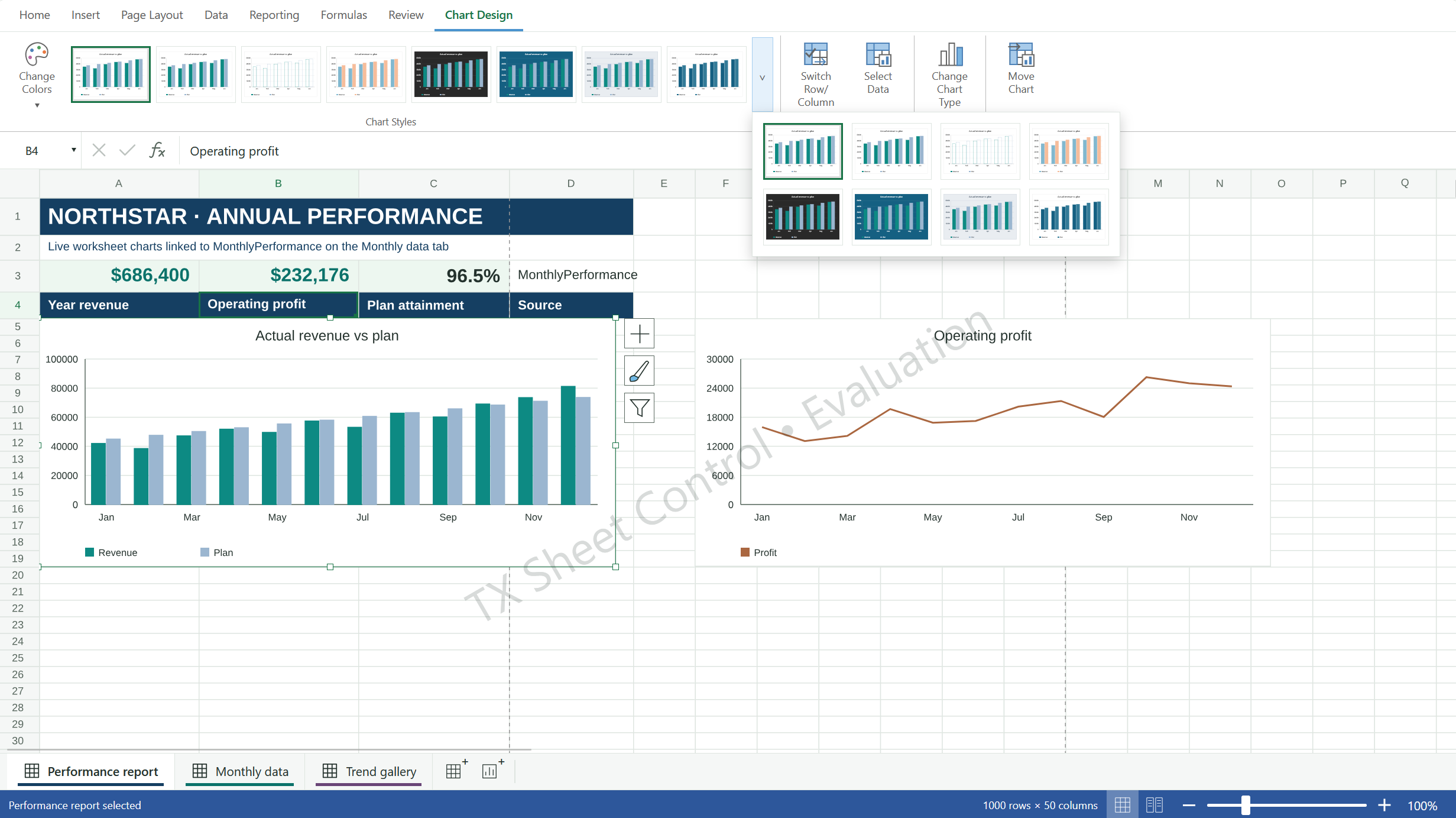
Before inserting a chart into a worksheet, users can review a chart preview. They can then adjust the chart's placement and size. A regional comparison can be displayed alongside a sales table, while a line chart can illustrate the development of monthly results over time.
Sparklines offer a compact alternative for displaying trends within cells. They are particularly useful when a table must present both detailed values and a quick visual indication of movement, such as monthly performance for each account or product.
Think Beyond the Sheet
A worksheet provides a detailed view of your data, while a dashboard helps bring relationships and results into focus. TX Sheet Control integrates these perspectives into a unified workbook, providing users with a cohesive environment for managing and interpreting numerical data.
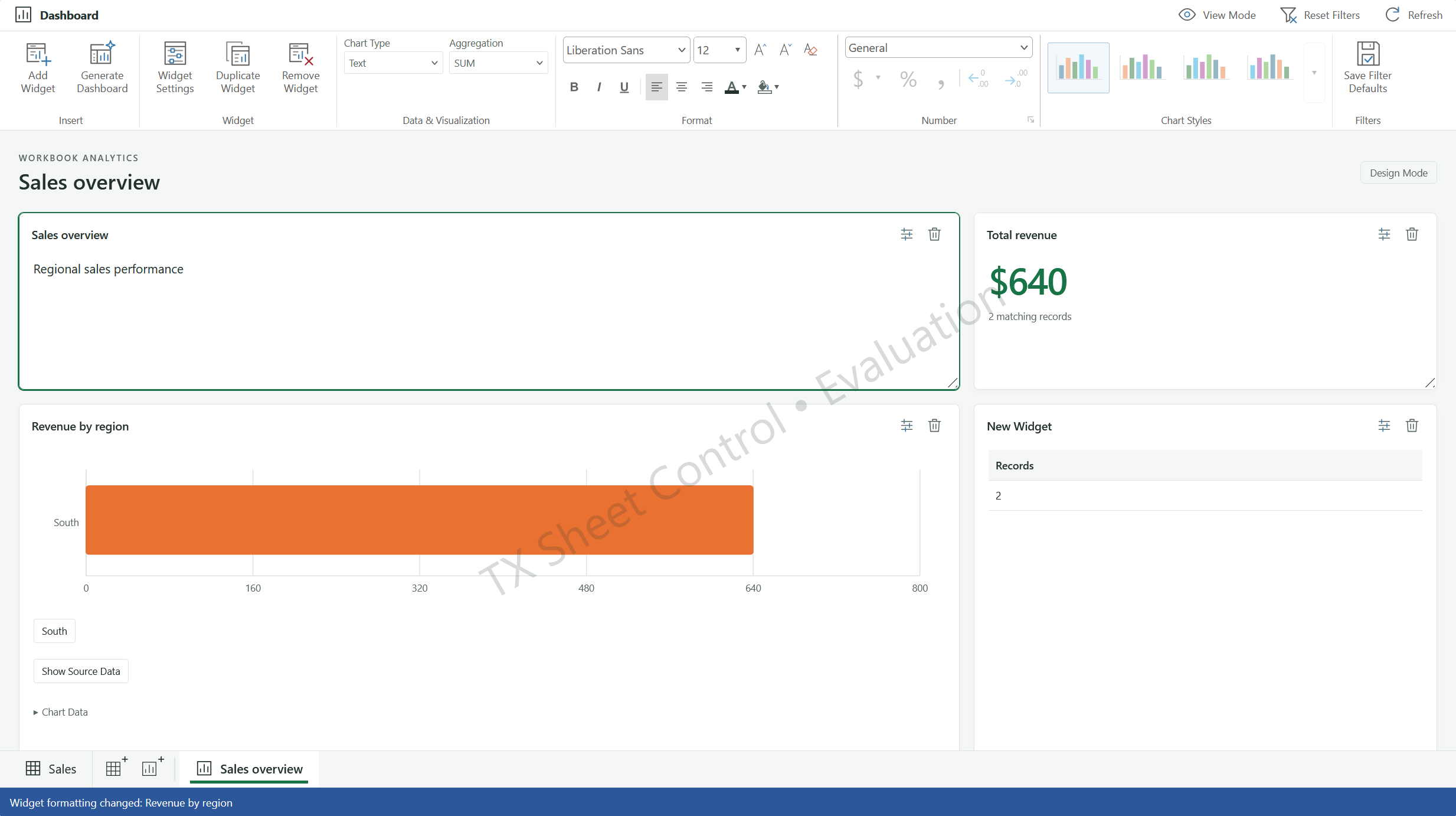
In addition to traditional worksheets, TX Sheet Control introduces a dedicated dashboard canvas. Dashboard layouts are independent of the worksheet grid, allowing for the arrangement of visualizations around the information users need to understand.
Dashboards can use worksheet tables, named ranges, or explicit ranges as data sources. A workbook containing sales figures, expenses, and forecasts can provide the foundation for a visual overview of business performance.
Users can seamlessly navigate between worksheets and dashboards using a shared tab bar within the same control. The detailed data, calculations, and visual presentation are seamlessly integrated, facilitating a fluid transition between spreadsheet work and a comprehensive view of the results.
Build Dashboards with Configurable Widgets
The dashboard features key metrics, charts, tables, filters, date filters, and explanatory text. When combined, these elements can present headline figures, comparisons, trends, and supporting detail.
The Widget Settings dialog combines data configuration with a live preview. Users have the ability to select the source, define grouping fields and measures, and select an aggregation such as sum, count, average, minimum, or maximum. For instance, grouping by Region and summing Revenue produces a regional sales comparison.
Presentation settings control typography, card backgrounds and borders, titles, chart palettes, legends, data labels, and number display. This feature ensures that dashboards are consistently formatted and clearly presented, enhancing the clarity and professionalism of the reports and analyses.
Widgets can be moved and resized on a responsive canvas. The layout adapts to narrower containers by stacking widgets vertically, supporting dashboard experiences within different application layouts.
TX Sheet Control can also generate an editable starting dashboard from worksheet sources. Developers can use this as a foundation and refine the widget selection and calculations for the intended business scenario.
Explore Data with Filters and Drill-Down
Dashboards are more useful when readers can explore the information behind a summary. TX Sheet Control supports filter widgets, date selections, chart interactions, and configured drill-down hierarchies.
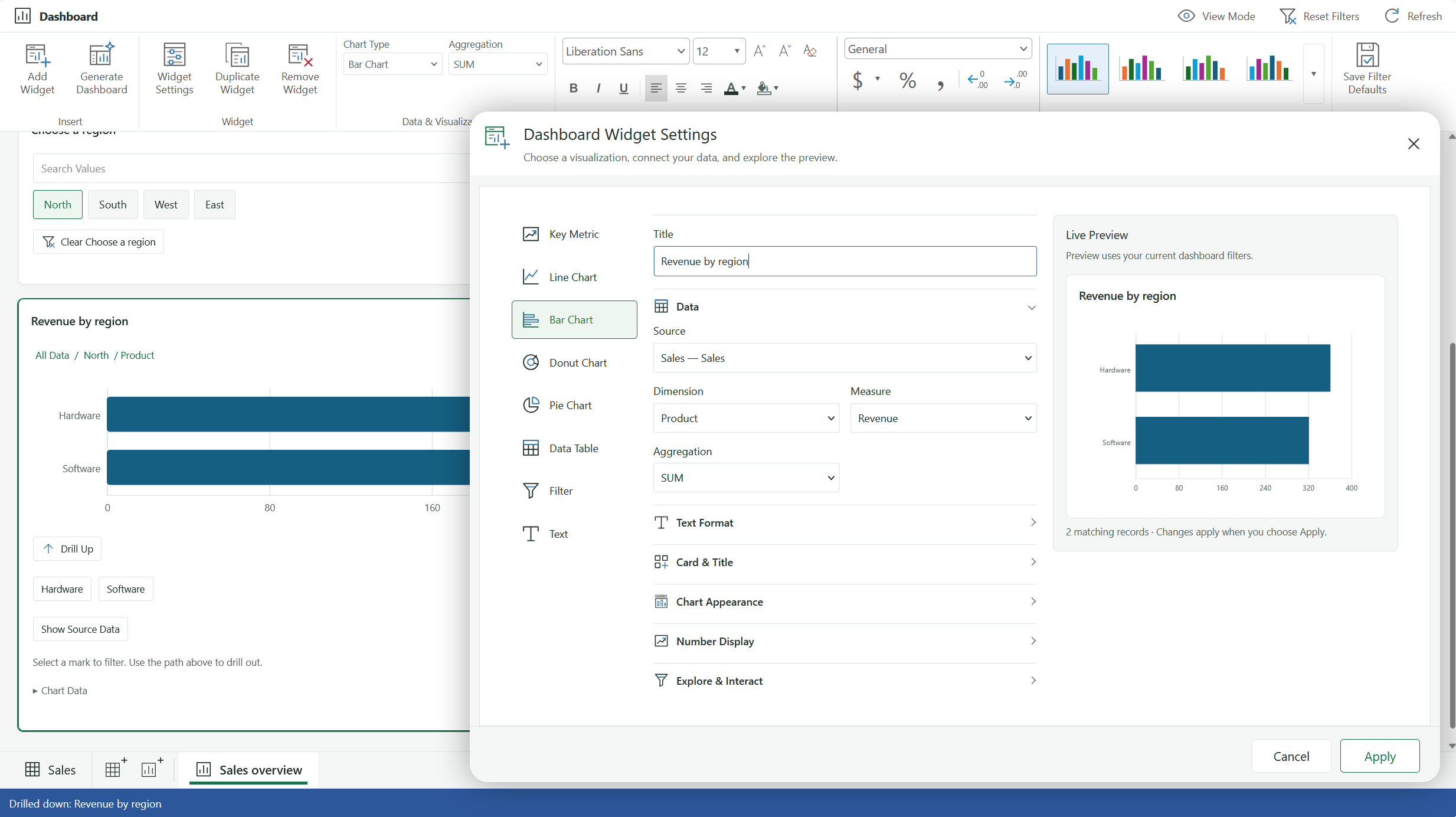
Please note that selecting a region will narrow the related metrics and charts to that region. A date filter enables users to focus the dashboard on a chosen reporting period. These interactions modify the dashboard's analytical context while maintaining the integrity of the underlying worksheet values.
Drill-down paths provide a structured route into more detail. A chart configured with Region followed by Product allows users to move from a regional overview to the products within the selected group, then navigate back up.
Where applicable, users can access the underlying source records of a visualization. This establishes a direct connection between the headline result and the worksheet data that supports it.
For applications focused on dashboard consumption, a dedicated viewer mode hides authoring controls while retaining permitted filtering, drill navigation, and source-data interactions.
Create Reports from Workbook Templates
TX Sheet Control also supports document workflows built around reusable workbook templates. JSON-based mail merge can populate fixed fields and expand repeating row blocks for collections such as invoice lines or quotation items.
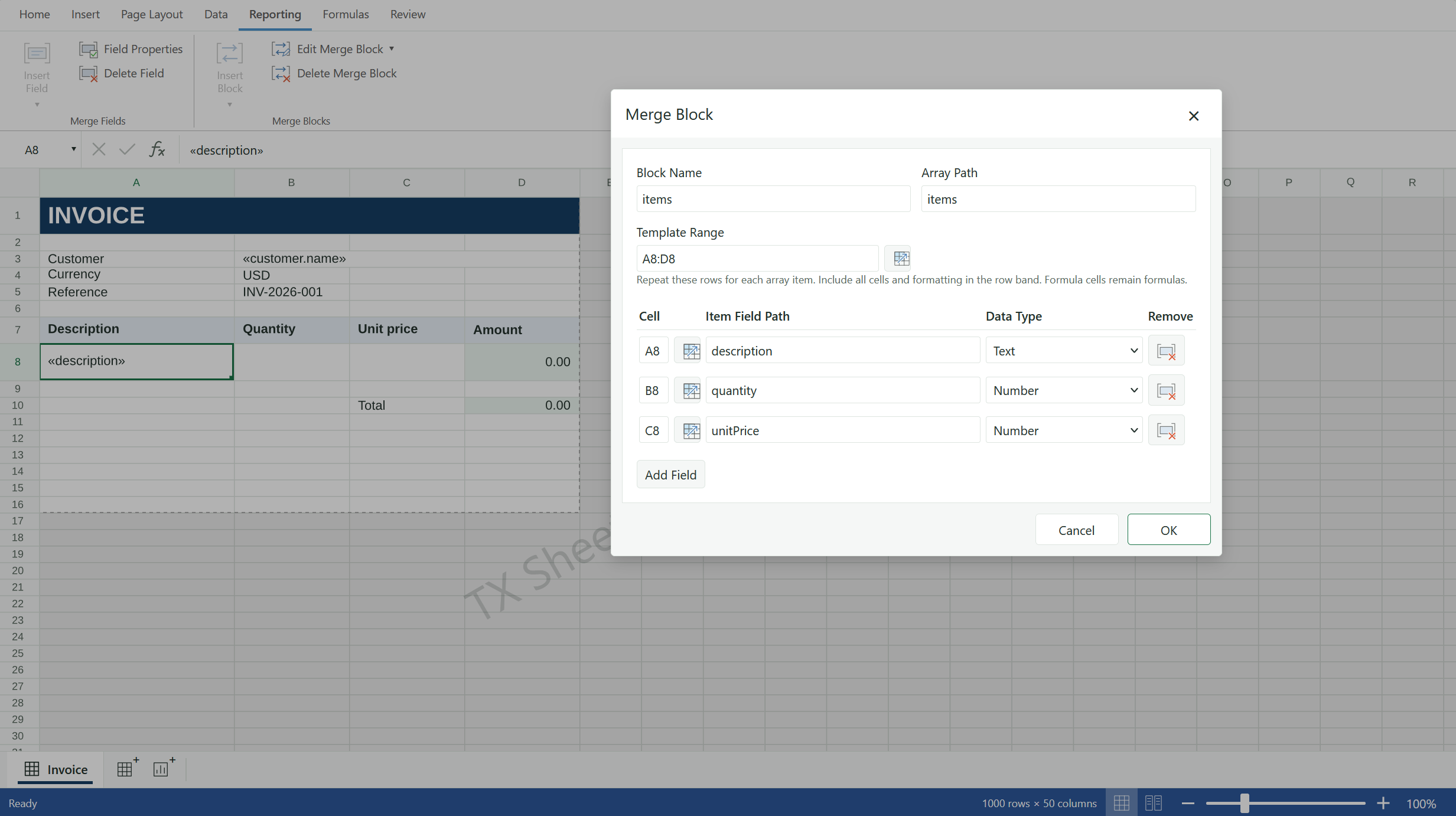
A template can contain customer details, item descriptions, quantities, and prices, while worksheet formulas calculate line amounts and totals after the repeating rows are expanded.
This integrates spreadsheet design with application-generated documents. Developers can prepare a formatted template, populate it with business data, and produce a completed workbook or worksheet PDF.
Page layout settings control paper size, orientation, margins, print areas, scaling, and headers and footers. The Page Layout view allows users to review how worksheet content will appear on the printed page before export.
XLSX supports spreadsheet exchange, while TXWB retains TX Sheet Control dashboard definitions and supported report-template metadata. PDF export produces fixed pages from worksheet content, including supported worksheet charts. Interactive dashboards remain in TXWB.
Built for Application Developers
TX Sheet Control follows the component approach at the heart of our products, providing developers with the technology to bring sophisticated editing and processing capabilities into their own applications.
At the core of the browser experience is a JavaScript spreadsheet engine with canvas rendering. Spreadsheet editing, calculations, and dashboard visualization all work around the same workbook data.
The integration model encompasses JavaScript and TypeScript applications, Angular, and ASP.NET Core. Independent .NET and Node.js server components facilitate document processing without requiring a browser editor, encompassing workbook updates, calculations, template merging, and file export.
These capabilities provide a foundation for budget planning, quotation calculations, operational reporting, and interactive analysis. Further technical details about the APIs and integration workflows will be shared in upcoming articles.
Experience It in Our Technical Demos
The most effective method to gain an initial understanding of TX Sheet Control is to interact with it directly. Our public technical demonstrations offer a valuable opportunity to explore the current development version and discover how worksheets and dashboards fit together.
Beta Preview
Test the current development version of TX Sheet Control in our public technical demos. Experience the editing capabilities and explore the integration possibilities.
Please take some time to navigate the available examples, experiment with the editing experience, and explore the relationship between workbook data and its visual presentation.
We invite you to share your scenarios with us. Whether you are developing a planning tool, working with existing Excel files, generating reports, or combining data entry with visual analysis, your feedback will help us understand what matters most in your projects.
Providing Feedback
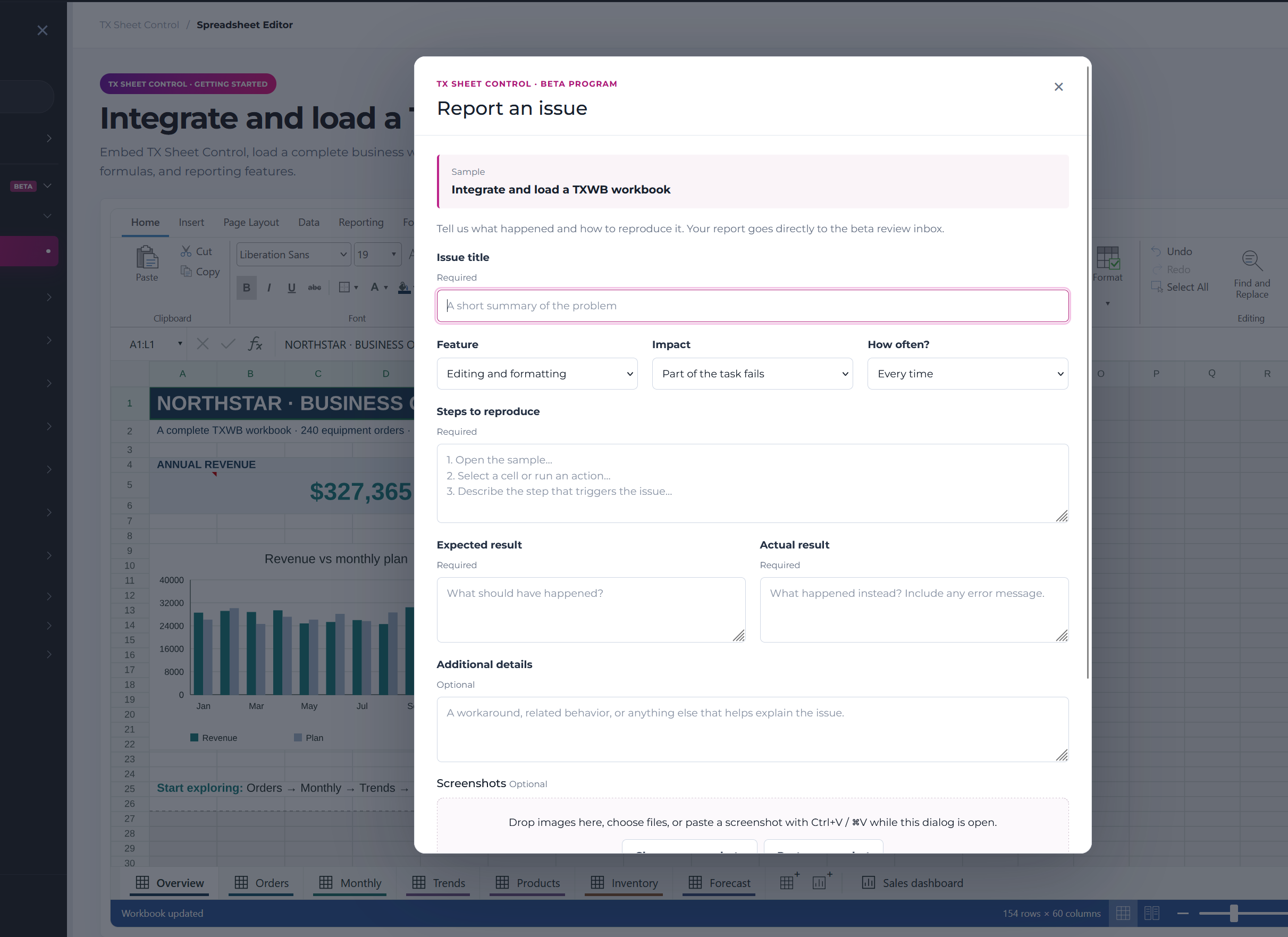
The TX Sheet Control beta demos now include a built-in feedback tool. Click Report a beta issue to describe the problem, outline the steps to reproduce it, and explain the expected and actual results. Screenshots can be uploaded, dragged into the form, or pasted directly from the clipboard. Each report includes the sample context, helping our team investigate and improve TX Sheet Control throughout the beta program.
A First Look, with More to Come
This announcement marks the first public unveiling of TX Sheet Control. The product has not been released, and downloadable SDKs and evaluation packages are not currently available. The public technical demos are currently the recommended method for trying out TX Sheet Control.
Further information regarding its capabilities, technical architecture, and availability will be shared in subsequent articles. At this time, we invite you to explore the demos, familiarize yourself with the product, and share your ideas for potential uses.
Frequently Asked Questions
TX Sheet Control is an upcoming component for integrating Excel compatible spreadsheet editing, calculations, interactive dashboards, and workbook reporting into business applications. It combines multiple worksheets, formulas, formatting, tables, and charts with a dedicated dashboard canvas that uses the same workbook data.
Not yet. TX Sheet Control is still in development, and downloadable SDKs and evaluation packages are not currently available. You can explore the current development version through the public technical demos and experience the spreadsheet and dashboard functionality directly in your browser.
TX Sheet Control supports XLSX import and export for its supported spreadsheet features. The native TXWB format retains dashboard definitions and supported report-template metadata. PDF export creates fixed pages from worksheet content, including supported worksheet charts. Interactive dashboards remain in TXWB.
The calculation engine supports 500+ formulas, worksheet references, named ranges, structured table references, and dynamic-array formulas. The Formula Designer helps users find functions, select arguments, and preview results. Developers can register custom functions and supply application data through the calculation APIs.
Worksheets and dashboards share the same workbook. Dashboards use worksheet tables, named ranges, or explicit ranges as data sources and display metrics, charts, tables, filters, and text on a responsive canvas independent of the worksheet grid. Users switch between worksheets and dashboards through a shared tab bar. TX Sheet Control can also generate an editable starting dashboard from worksheet sources.
Yes. Filter widgets, date selections, chart interactions, and configured drill-down hierarchies let users explore data without changing the underlying worksheet values. A dedicated viewer mode hides authoring controls while retaining permitted filtering, drill navigation, and source-data interactions.
Yes. Data validation supports dropdown choices, numeric and date limits, and supported custom conditions, with input prompts and error messages. Worksheet protection lets developers allow changes to selected input cells while restricting edits to calculated cells and other worksheet areas.
Yes. JSON-based mail merge populates fixed fields and expands repeating row blocks for collections such as invoice lines or quotation items. Worksheet formulas calculate amounts and totals after the rows are expanded. The result can be exported as a completed workbook or worksheet PDF.
The integration model covers JavaScript and TypeScript applications, Angular, and ASP.NET Core. The browser editor uses a JavaScript spreadsheet engine with canvas rendering, with spreadsheet editing, calculations, and dashboard visualization working around the same workbook data.
Yes. TX Sheet Control includes independent .NET and Node.js server components for workbook updates, calculations, template merging, and file export without a browser editor. The product is still in development and is not yet available for download.
ASP.NET
Integrate document processing into your applications to create documents such as PDFs and MS Word documents, including client-side document editing, viewing, and electronic signatures.





- Angular
- Blazor
- React
- JavaScript
- ASP.NET MVC, ASP.NET Core, and WebForms
Related Posts
Import and Manipulate Excel Spreadsheets by Converting Cells into Merge…
You can import Microsoft Excel spreadsheets and convert them into smart tables, complete with formulas and formatting. This article shows how to import a spreadsheet and programmatically convert…
Importing Excel XLSX Spreadsheets into TX Text Control in ASP.NET Core and…
TX Text Control is able to import Excel documents by converting spreadsheets into tables. This article shows how to import spreadsheets programmatically.