


Creating Avery Labels Using Text Control Reporting

TX Text Control Reporting prints Avery labels using MS Word-compatible templates with table rows as merge blocks and NEXT fields to advance data rows across label columns. Pre-built templates for standard Avery sizes produce pixel-perfect output when merged with a data source.


AveryTM labels provide ready to use, peel-off address labels and full-sheet mailing labels for laser and inkjet printers. The different available sizes of Avery labels became the de facto standard for printing labels.
With Text Control Reporting, printing on Avery labels is very easy. Thanks to the fact that TX Text Control is compatible to MS Word, you can reuse the available MS Word templates and use them as the reporting template.
In order to use the MailMerge features including repeating merge blocks, we published some sample templates for standard Avery labels. The tables and margins are designed to fit perfectly onto the Avery label sheets.
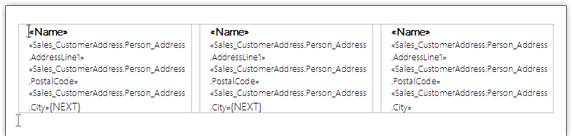
The template consists of one table row with three content columns. The complete table row is repeated as part of a merge block and at the end of the first two cells, a NEXT field is used to increase the current data row.
-
Open the shipped template designer TX Text Control Words and load one of the published templates (see table at the end of this article).
-
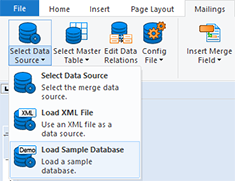
Select Load Sample Database from the Data Source group of the Mailings ribbon tab.
-
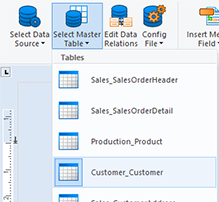
Select Customer_Customer as the master table using the drop-down button Select Master Table.
-
Click on Preview Merge Fields to start the merge process.
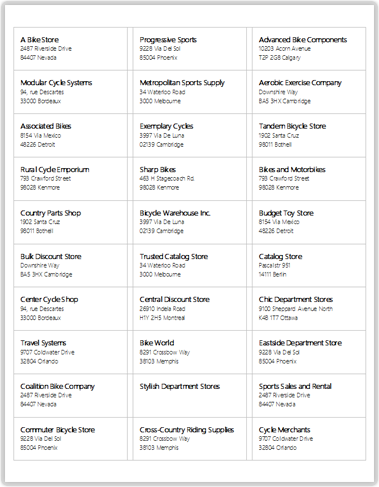
The resulting, pixel-perfect document can be printed directly using TX Text Control or exported to PDF or any other supported format. Below is a screenshot of the resulting full page label document:
The following table lists the prepared sample templates for Avery label sheets:
| Avery Item # | Labels Size | Description | Preview | Download |
| 5160 | 4" x 1" | Address |  |
template_avery_5160.doc |
| 5161 | 2.625" x 1" | Address |  |
template_avery_5161.doc |
| 5162 | 4" x 1.33" | Address |  |
template_avery_5162.doc |
| 5163 | 4" x 2" | Address |  |
template_avery_5163.doc |
| 5167 | 1.75" x 0.5" | Return Address | 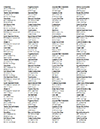 |
template_avery_5167.doc |
| 5193 | 1.67" Circle | Return Address | 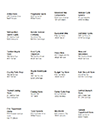 |
template_avery_5193.doc |
Reporting
The Text Control Reporting Framework combines powerful reporting features with an easy-to-use, MS Word compatible word processor. Users can create documents and templates using ordinary Microsoft Word skills. The Reporting Framework is included in all .NET based TX Text Control products including ASP.NET, Windows Forms and WPF.
Related Posts
Creating Your First ASP.NET Reporting Application
The MailMerge and ServerTextControl components of TX Text Control .NET Server for ASP.NET enable server-side reporting in Web Forms. A template.docx merges with XML data via a button click…
New Online Sample: Build your First Report
A new interactive online demo walks through building a report with TX Text Control in three steps: preparing JSON data in a live editor, creating a template with merge fields and repeating blocks,…
ReportingDocumentationReportingCloud
Create your First Document with ReportingCloud
ReportingCloud documentation now includes interactive tutorials for creating documents without code. Users enter an API key, choose a format such as PDF or DOCX, customize the merge data payload,…
MailMerge: Starting Each Merge Block on a New Page
Merge blocks in TX Text Control repeat based on matching data rows. Applying ParagraphFormat.PageBreakBefore to the first paragraph of a block forces each repetition onto a new page. Section…
Using MailMerge with JSON Data
Merge document templates with JSON data using TX Text Control MailMerge by converting nested JSON strings into DataSet objects via Newtonsoft.Json. The JSON is first transformed to XML, then…