


Reporting: Merging Images from Files Using SearchPath

Merging images with Text Control Reporting is a very easy job: A placeholder is added at design-time to the template and merged with data from files, databases or memory. The placeholder object gets a name that should match a data column in your data source. The data column must contain either the binary image data as a byte array, an object of type System.Drawing.Image, a file name, a hex or Base64 encoded string. These options cover most typical image representations in databases. When the…

Merging images with Text Control Reporting is a very easy job: A placeholder is added at design-time to the template and merged with data from files, databases or memory.
The placeholder object gets a name that should match a data column in your data source. The data column must contain either the binary image data as a byte array, an object of type System.Drawing.Image, a file name, a hex or Base64 encoded string. These options cover most typical image representations in databases.
When the template designer TX Text Control Words is directly connected to a database to provide the proper field names, image placeholders can be directly bound to database fields using the context menu. But this article shows what happends behind the scenes and how to use the SearchPath property of MailMerge to define the image location.
Consider the following XML file as the data source for our merge process:
<?xml version="1.0" encoding="utf-8" ?>
<report>
  <customer>
    <company>Microsoft Corporation</company>
    <company_logo>microsoft_logo.png</company_logo>
  </customer>
  <customer>
    <company>Text Control, LLC</company>
    <company_logo>textcontrol_logo.png</company_logo>
  </customer>
</report>
Each customer entry has two fields: The company name and the file name of a company logo.
In order to create a very simple template for this data source, the following steps are required.
-
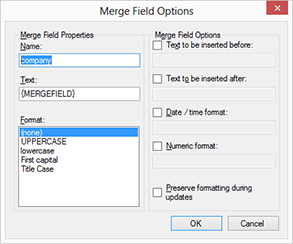
Open TX Text Control Words and click the Insert Merge Field button (make sure that you don't open the drop-down button) from the Mailings ribbon tab.
In the opened dialog box, type in the name of the first field "company" into the Name text box and confirm with OK.
-
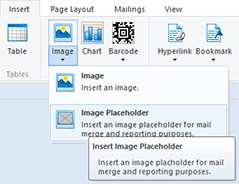
Now, choose Image Placeholder from the Image drop-down button in the Insert ribbon tab. Resize the object to your desired dimension.
-
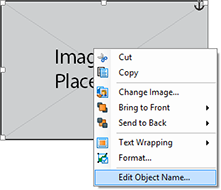
Right-click the image, and choose Edit Object Name... from the context menu.
-
In the opened dialog box, type in the name of the image field in our data source company_logo and confirm with OK.
Given that you created a .NET application and connected an instance of MailMerge with TextControl as described in our quick start tutorial, you can use the SearchPath property to define the location of the images.
-
Open the properties Windows of MailMerge, find the SearchPath property and type in the location of your images.
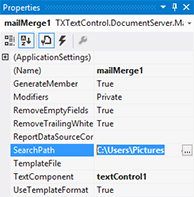
In this example, TX Text Control is trying to load the images from these locations:
- C:\Users\Pictures\microsoft_logo.png
- C:\Users\Pictures\textcontrol_logo.png
If the SearchPath is empty, the images are expected to be located in the application's root folder.
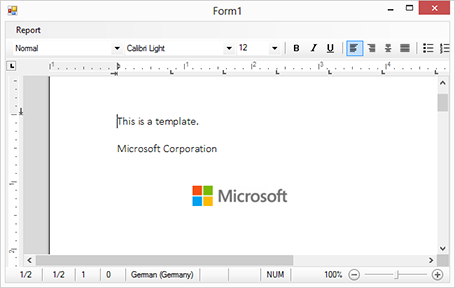
You can download this simple Visual Studio project and test it on your own. All you need is a trial version of TX Text Control .NET for Windows Forms or TX Text Control Server for ASP.NET. If your run the sample and choose Merge from the Report main menu, you will see the results shown below:
Reporting
The Text Control Reporting Framework combines powerful reporting features with an easy-to-use, MS Word compatible word processor. Users can create documents and templates using ordinary Microsoft Word skills. The Reporting Framework is included in all .NET based TX Text Control products including ASP.NET, Windows Forms and WPF.
Related Posts
Creating Your First ASP.NET Reporting Application
This tutorial shows how to use the MailMerge component in an ASP.NET Web application to merge a template with data to create an Adobe PDF document.
New Online Sample: Build your First Report
We published a new online demo that shows how to create a report including preparing data, creating a template to merging them together.
ReportingDocumentationReportingCloud
Create your First Document with ReportingCloud
As part of our new ReportingCloud documentation, we published a guided tutorial that shows how to create a document without programming.
MailMerge: Starting Each Merge Block on a New Page
A merge block is repeated based on the number of matching data rows in the hierarchical data object. The complete merge block is cloned and inserted under the original location in the template.…
Using MailMerge with JSON Data
In the last article, we explained how to create an ASP.NET Web API to merge templates with JSON data in the payload body of an HTTP request. The focus of this article was on the Web API and…