


Using Sub-templates in Text Control Reporting

Sub-templates in TX Text Control Reporting allow developers to reuse shared document sections such as page headers, footers, and address blocks across multiple templates. Using the IncludeText field, changes to a sub-template file propagate automatically to every referencing report.

Using sub-templates is a powerful feature to reuse text parts such as consistent page headers and footers, terms of business or address areas. Those parts can be modified separately without changing them in each and every template. During the merge process, the sub-templates are evaluated separately and inserted into the currently merged template.
In Text Control, those sub-templates can contain all elements such as merge fields, repeating blocks or sub-templates itself (don't panic, Text Control takes care of potential endless loops).
This tutorial shows how to insert a page header using sub-templates.
-
Open the shipped template designer TX Text Control Words.
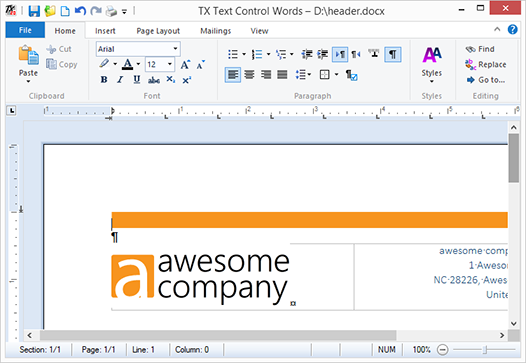
Start a design for a header with typical elements that should be displayed in your page header including a company logo and the address details.
-
Important: Create the header design in the main text of the document, not in the header:
-
Save this document and name the file header.docx.
-
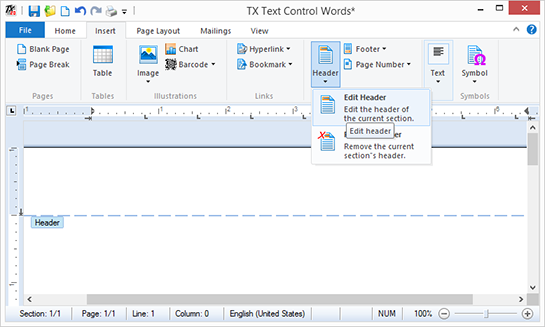
Create a new document and choose Edit Header from the Header drop-down button:
-

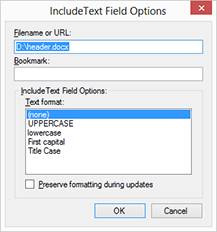
From the Insert Special Field drop-down button, insert an IncludeText field.
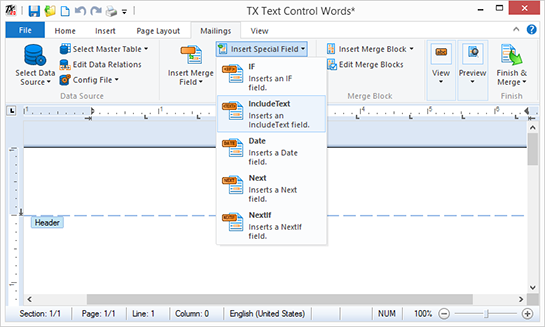
In the opened dialog box, type in the name of the header file created in step 2.
-
From the Select Data Source drop-down button, select Load Sample Database and choose Preview Merge Fields.
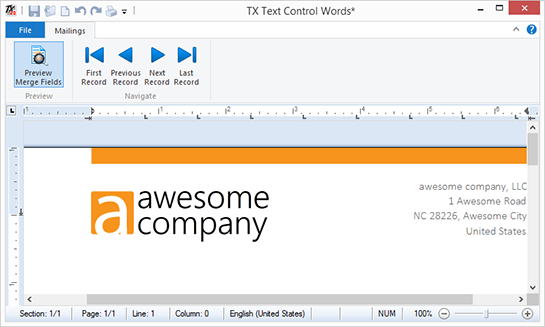
If you modify the header.docx template, these changes are applied to all templates where this header is included.
You can download both templates here.
Reporting
The Text Control Reporting Framework combines powerful reporting features with an easy-to-use, MS Word compatible word processor. Users can create documents and templates using ordinary Microsoft Word skills. The Reporting Framework is included in all .NET based TX Text Control products including ASP.NET, Windows Forms and WPF.
Related Posts
Creating Your First ASP.NET Reporting Application
The MailMerge and ServerTextControl components of TX Text Control .NET Server for ASP.NET enable server-side reporting in Web Forms. A template.docx merges with XML data via a button click…
New Online Sample: Build your First Report
A new interactive online demo walks through building a report with TX Text Control in three steps: preparing JSON data in a live editor, creating a template with merge fields and repeating blocks,…
ReportingDocumentationReportingCloud
Create your First Document with ReportingCloud
ReportingCloud documentation now includes interactive tutorials for creating documents without code. Users enter an API key, choose a format such as PDF or DOCX, customize the merge data payload,…
MailMerge: Starting Each Merge Block on a New Page
Merge blocks in TX Text Control repeat based on matching data rows. Applying ParagraphFormat.PageBreakBefore to the first paragraph of a block forces each repetition onto a new page. Section…
Using MailMerge with JSON Data
Merge document templates with JSON data using TX Text Control MailMerge by converting nested JSON strings into DataSet objects via Newtonsoft.Json. The JSON is first transformed to XML, then…