









TX Text Control ASP.NET MVC Document Viewer 34.5.1

TX Text Control ASP.NET MVC Document Viewer 34.5.1. Review the changes from 34.5.0, including in-process processing, signing completion hooks, viewer API migrations, annotation updates, and server and browser font deployment.

Today, we released TX Text Control ASP.NET MVC Document Viewer 34.5.1. The following changes apply when upgrading from 34.5.0. Review the processing defaults, signing integration, viewer APIs, and font deployment requirements before updating your application.
NuGet Packages
| NuGet package | Target frameworks |
|---|---|
TXTextControl.Web.DocumentViewer |
net8.0 for ASP.NET Core |
TXTextControl.Web.DocumentViewer.Classic |
net45 for ASP.NET MVC 5 and net8.0 for ASP.NET Core on Windows |
Update the package used by your application to version 34.5.1. For example, use the following command for the ASP.NET Core package:
dotnet add package TXTextControl.Web.DocumentViewer --version 34.5.1Document Processing and Hosting
In isolated mode, the ASP.NET Core host starts the Supervisor and initializes its Workers before accepting requests. The pool defaults to one Worker per logical processor. Set options.Process.WorkerPool.Count to size the pool for your deployment. The Supervisor replaces failed Workers, and an interrupted connection allows unrelated jobs to continue.
In-process processing is now the default for ASP.NET Core. If your Core deployment relies on process isolation, explicitly set
options.Process.Mode=DocumentProcessingMode.IsolatedProcessinAddTXDocumentViewer(). Classic processes documents in the web application process.
Large documents load, render, and export faster. Document analysis and text extraction also use less temporary managed memory.
ASP.NET Core applications can handle categorized processing failures through IExceptionHandler. Invalid request payloads return HTTP 400 with kind: "InvalidInput", including oversized requests and malformed Base64 signature images.
Signing
Use ISignatureCompletionService.CompleteAsync to process a document after native signing. The service receives the original signing data and the signed document and can return a replacement document. The viewer's submit callback receives the completion data and the resulting document.
For custom signing integrations, migrate from ISignatureService to ISignatureCompletionService. Native signing and the execution gateway are now internal. Applications that injected IExecutionGateway or supplied a gateway to the controller should configure processing through AddTXDocumentViewer().
Signature boxes are restored when a document is loaded. Legacy signing redirects preserve all fields returned by the application.
Viewer Changes
Search and Selection
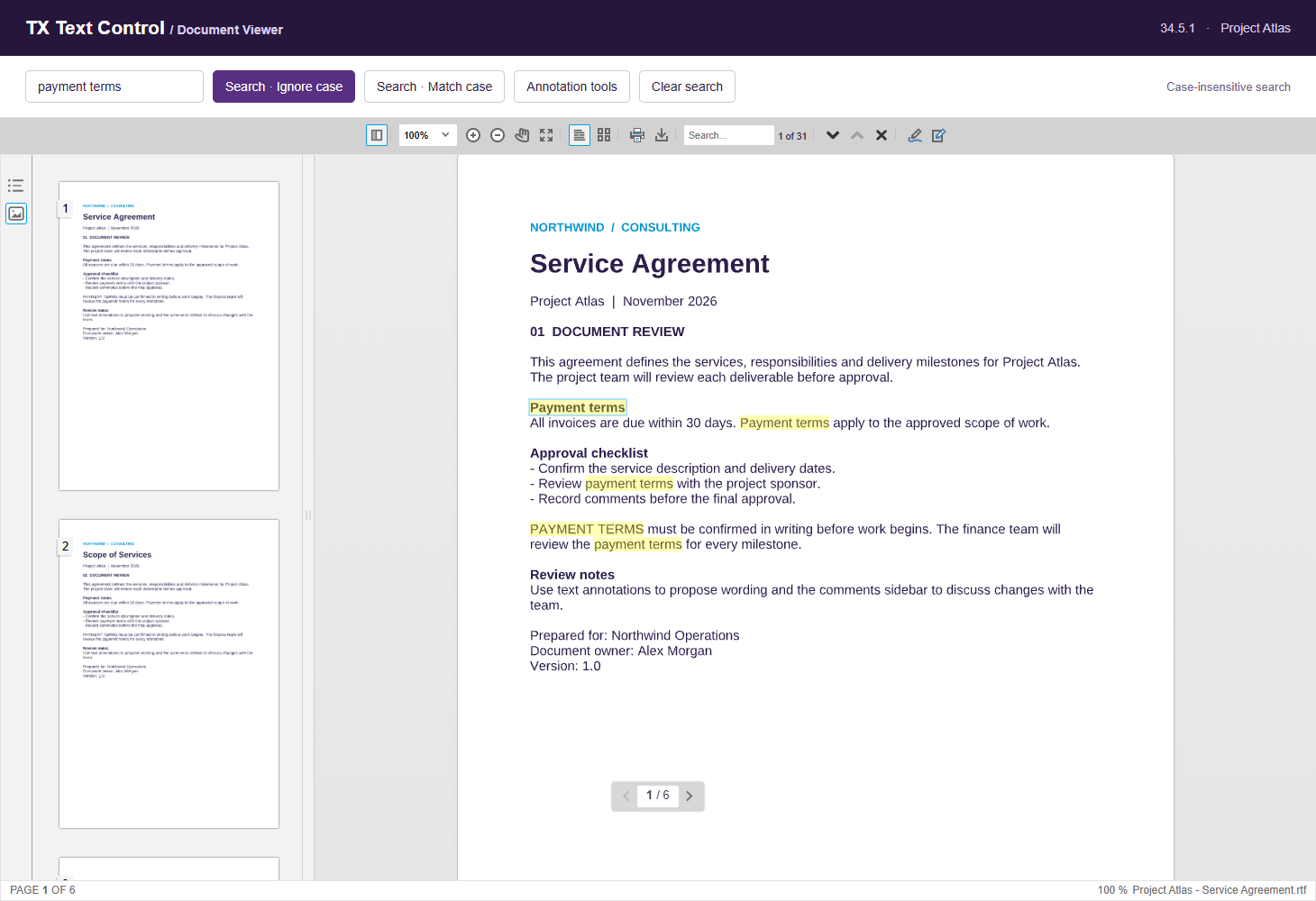
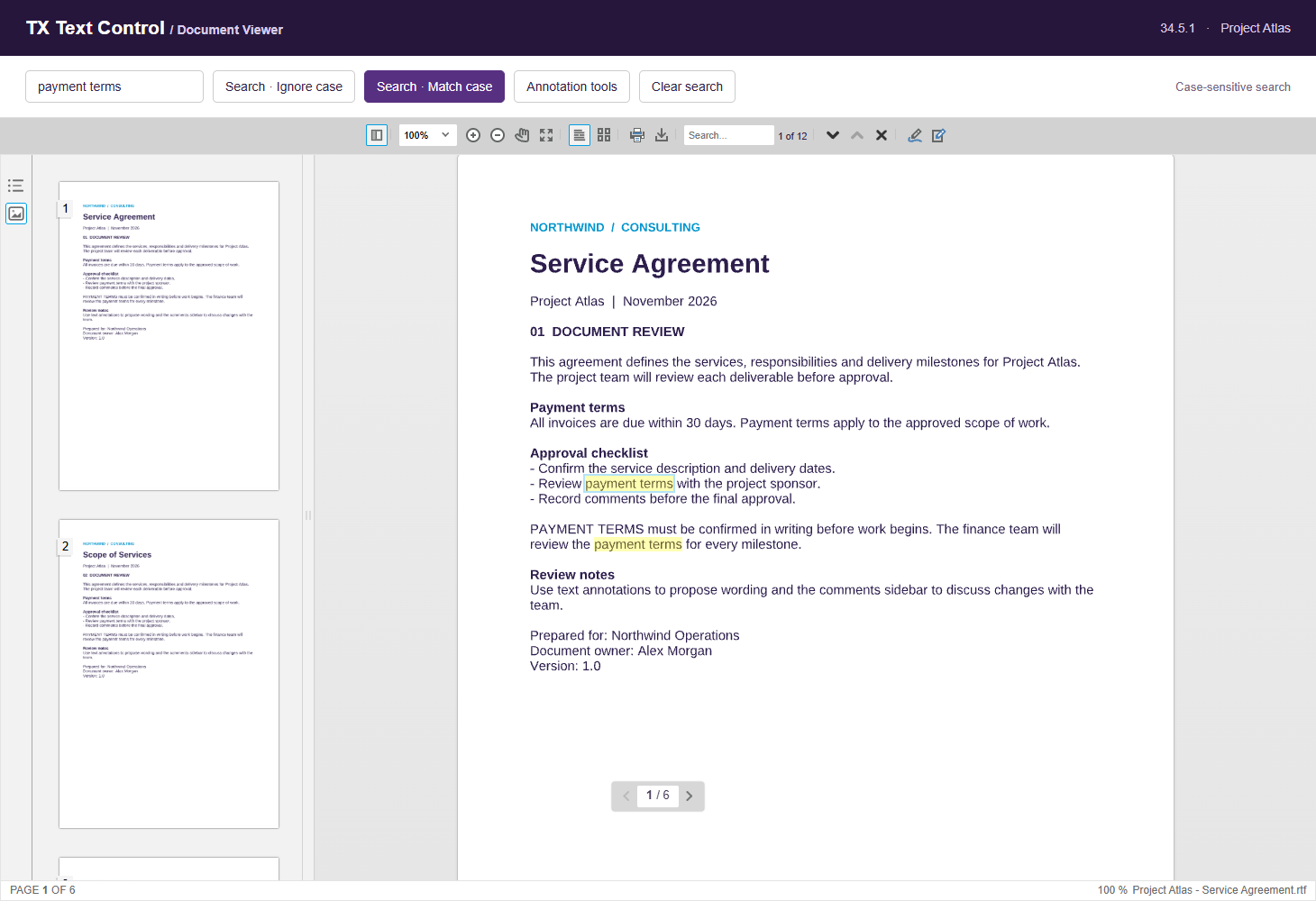
Search ignores letter case by default. Use viewer.find(text, { matchCase: true }) for a case-sensitive search. The viewer honors isSelectionActivated at startup and preserves the user's selection mode when loading another document.
Text Annotations and Comments
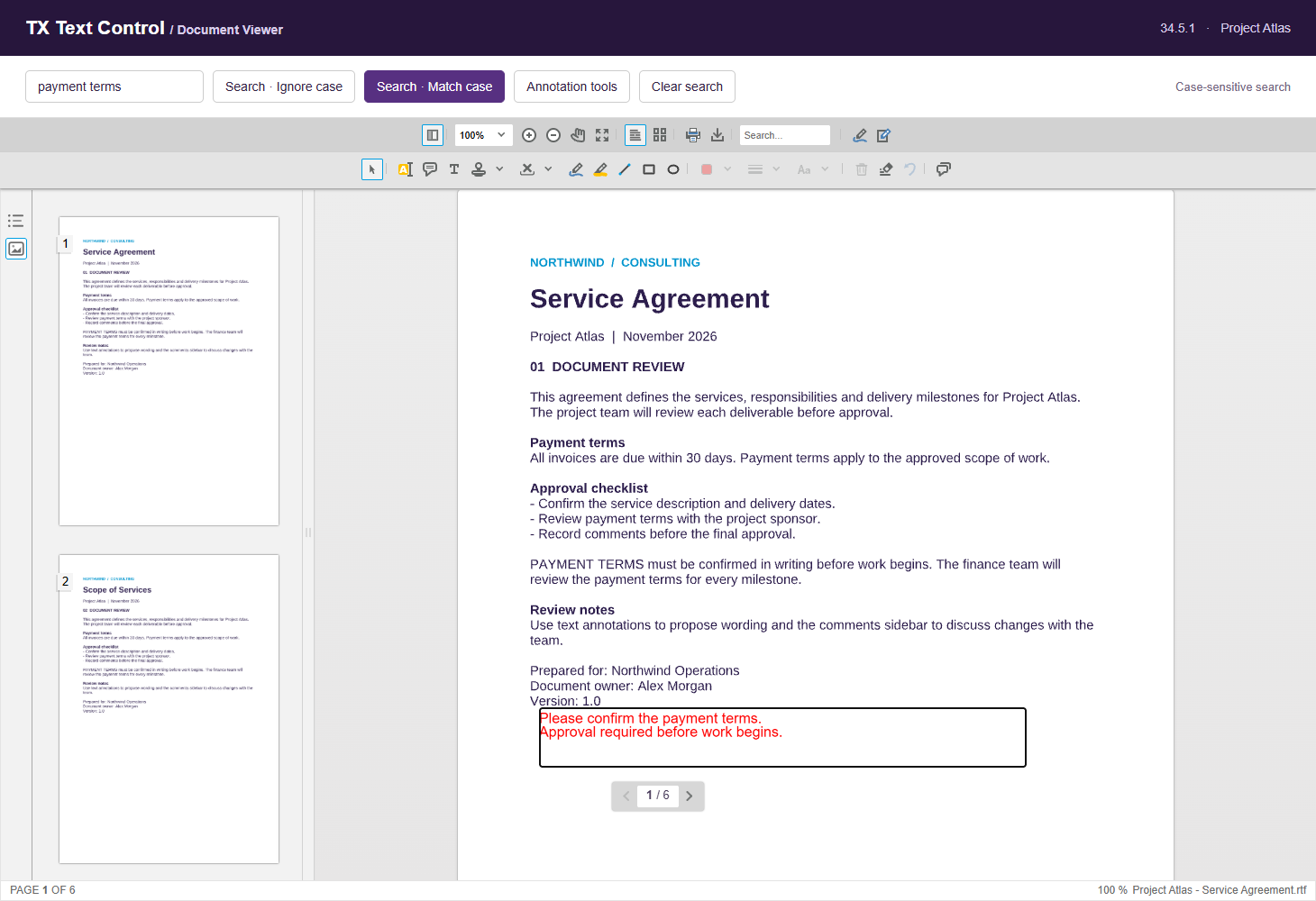
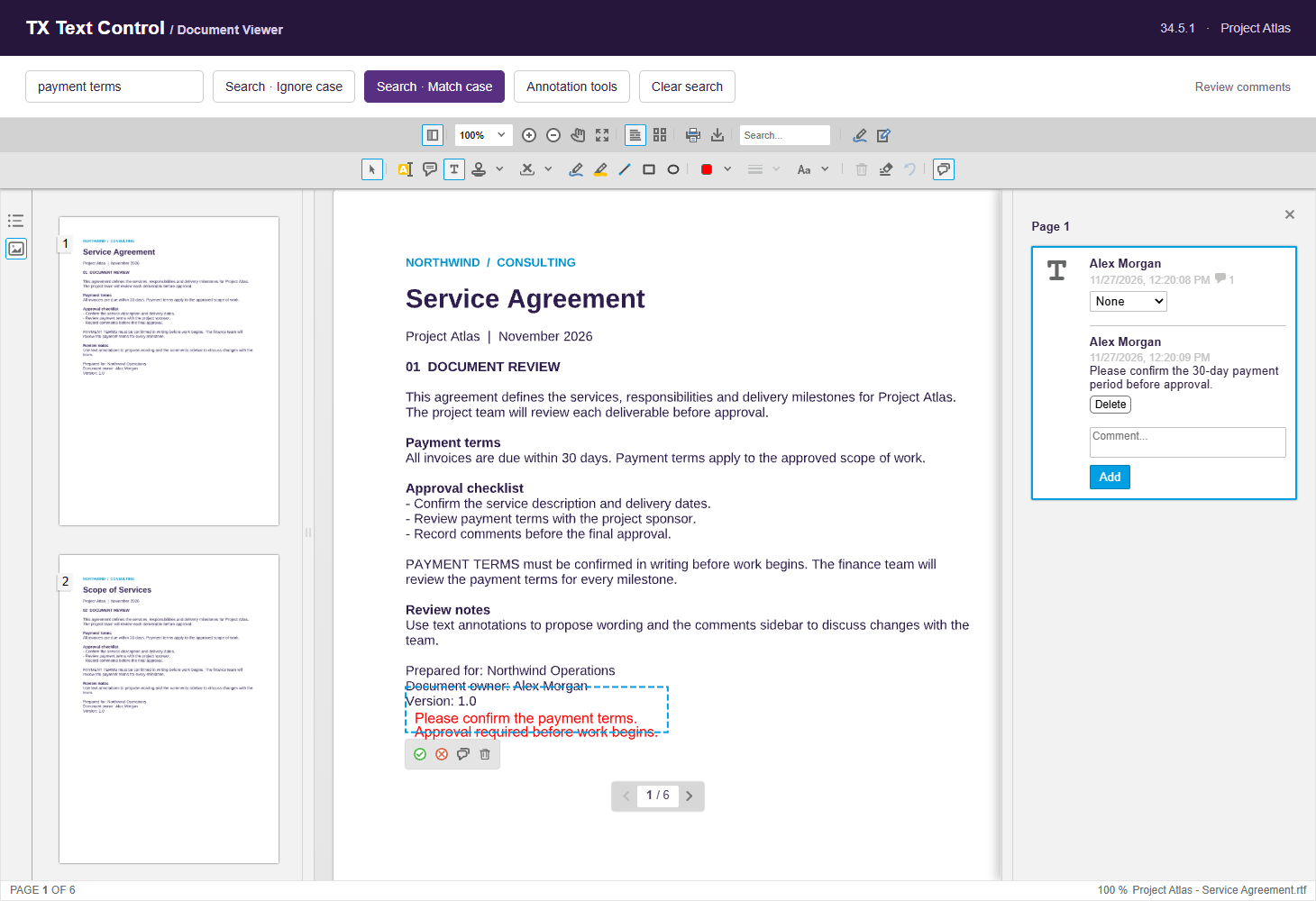
Text annotations preview edits as you type or paste, including line breaks. Pressing Escape discards the pending edit. The selection frame resizes immediately when you change the font, size, bold, or italic style. Use the comments button or sidebar to read annotation comments.
Multi-Page View
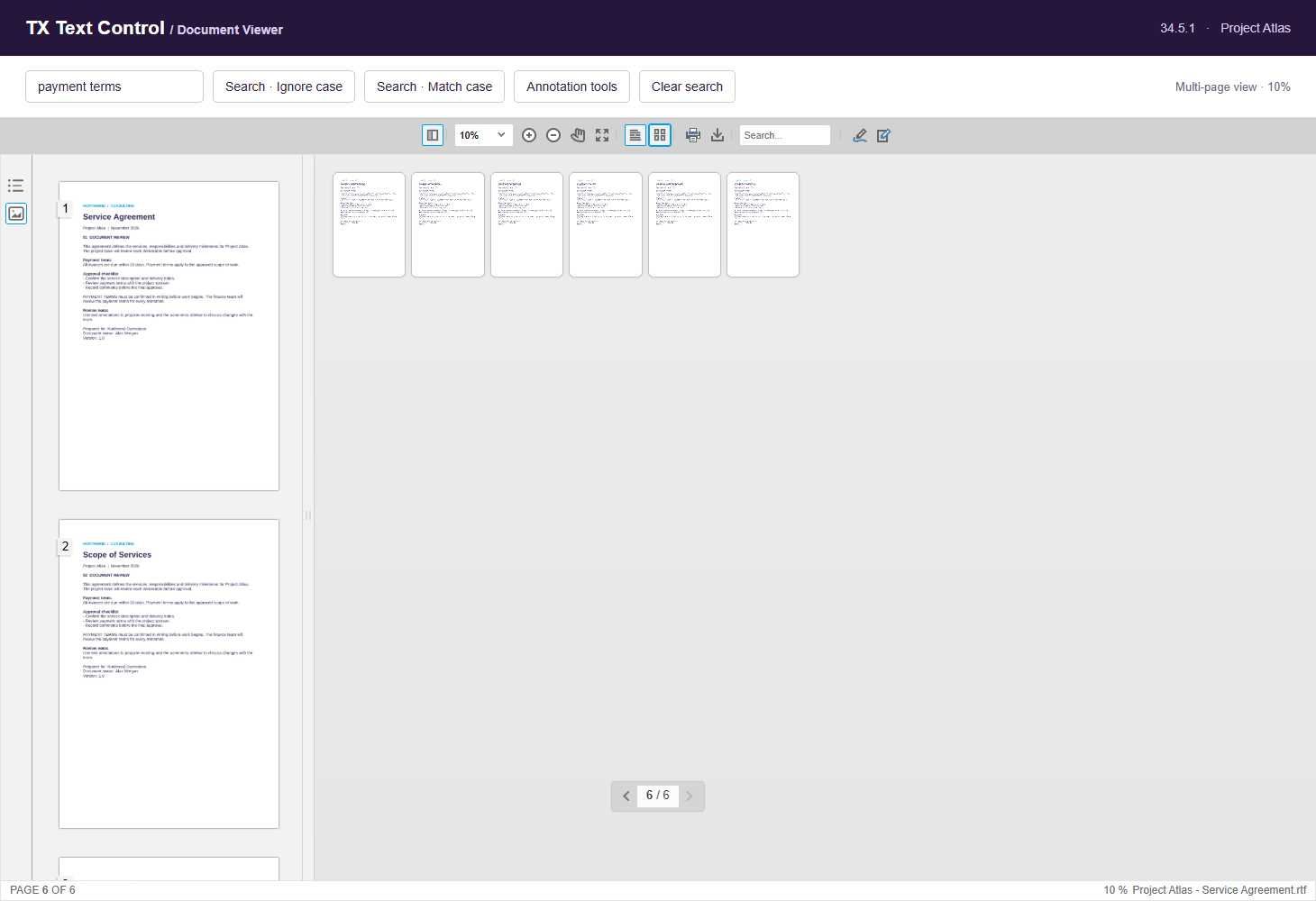
The multi-page button uses a four-page grid icon. Activating it sets zoom to 10 percent. Leaving multi-page view keeps the current zoom. In custom toolbars, replace DefaultItemTypes.TwoPageViewButton with DefaultItemTypes.MultiPageViewButton.
Native DOM Events
On <tx-document-viewer>, replace addViewerEventListener() and removeViewerEventListener() with the native addEventListener() and removeEventListener(). Public viewer events bubble, and canceling a link event prevents the viewer's default navigation.
Document Loading, PDF.js, and Mobile Browsers
The viewer can start with an empty document. Configuring PDF.js explicitly selects it as the provider. If PDF.js cannot open a document, the viewer reports the failure. Mobile toolbar styling is corrected for Safari and Firefox on iPadOS 16.7.16 and newer.
Font Deployment
The server-side font discovery, custom font-directory setting, and font download endpoint have been removed. Install the fonts required for document processing on the server and make the required display fonts available to the browser.
Try the Sample Application
The ASP.NET Core MVC sample uses Document Viewer 34.5.1 and creates a six-page service agreement with mixed-case search text. Run it locally to compare search modes, edit text annotations, read comments, and switch to multi-page view. The screenshots above were captured from this application.
Download the sample application. The included README describes the .NET 10 SDK and TX Text Control Core SDK requirements and the steps to run the sample.
Upgrade Checklist
- Update your NuGet package to
34.5.1. - If your ASP.NET Core deployment requires process isolation, set
DocumentProcessingMode.IsolatedProcessexplicitly and review the Worker pool size. - Migrate custom signing integrations to
ISignatureCompletionServiceand configure processing throughAddTXDocumentViewer(). - Update custom toolbar items and event listeners to the replacement APIs. Review case-sensitive search requirements.
- Install processing fonts on the server and provide display fonts to the browser.
Related Posts
ASP.NETASP.NET CoreDocument Viewer
High-Performance Text Replacement in Large DOCX Files using C# .NET
Learn how to efficiently replace text in large DOCX files using C# .NET and the ServerTextControl component from Text Control. This article demonstrates the performance benefits of using the…
ASP.NETASP.NET CoreDocument Viewer
Document Viewer 33.2.1 Released: New Event and Bug Fixes
This service pack includes important bug fixes and improvements to enhance the stability and performance of the Document Viewer. In addition, a new event has been introduced to provide developers…
ASP.NETASP.NET CoreDocument Viewer
Document Viewer: Long Polling Support for Loading Documents
The Document Viewer now supports long polling for loading documents. This allows an asynchronous loading of documents and is especially useful for large documents or slow connections.
ASP.NETASP.NET CoreDocument Viewer
Use PDF.js to Render PDF Documents within the Document Viewer
With the release of the latest release candidate of the Document Viewer, we released the ability to use PDF.js to render PDF documents. This article shows how to use this new feature.
ASP.NETASP.NET CoreDocument Viewer
Document Viewer 31.2.2 RC1 Released with New Features
We have just released the first release candidate (RC) of the next version of the Document Viewer. This article lists the new features and improvements in this major release.