


This blog post contains outdated information.
The cited code snippets may be workarounds, and be part of the official API in the meantime.
HTML5: Display and Handle FormCheckBox Fields

MS Word FormCheckBox fields render in Web.TextControl by iterating ApplicationFields server-side and displaying Unicode checked or unchecked characters. The TextFieldClicked JavaScript event captures clicks and triggers an AJAX round-trip to toggle the checkbox state in the document.

The Text Control Reporting engine MailMerge can populate fields automatically during the merge process. These fields can be also combined with MS Word compatible form fields such as checkboxes.
This sample project shows how to display checkbox fields in the HTML5 based Web.TextControl and how to handle the Javascript event TextFieldClicked.
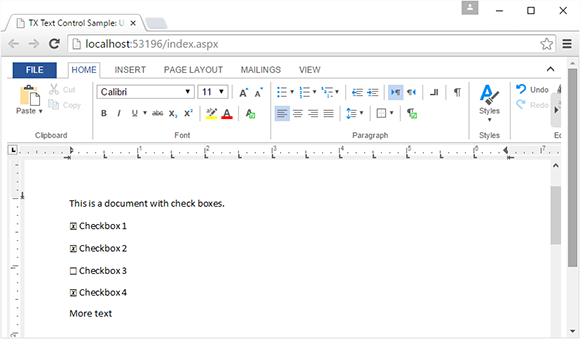
The following method loads the document into a temporary ServerTextControl to loop through all ApplicationFields. When FormCheckBoxes are found, a Checked or Unchecked Unicode character is set based on the checked status of the field.
/********************************************************
 * ProcessCheckboxFields method
 * desc:        Sets the Unicode characters for all
 *              checkbox fields
 * parameter:   document - the document in the internal
 *              Text Control format
********************************************************/
private byte[] ProcessCheckboxFields(byte[] document)
{
    // create a new temporary ServerTextControl
    using (TXTextControl.ServerTextControl tx =
      new TXTextControl.ServerTextControl())
    {
        // load the document
        tx.Create();
        tx.Load(document,
          TXTextControl.BinaryStreamType.InternalUnicodeFormat);

        // loop through all ApplicationFields
        foreach (IFormattedText textPart in tx.TextParts)
        {
            foreach (ApplicationField field in textPart.ApplicationFields)
            {
                if ((field.TypeName != "FORMCHECKBOX"))
                    return null;

                // create a new adapter field
                FormCheckBox checkboxField = new FormCheckBox(field);

                // select the field to change the font name
                textPart.Selection.Start = checkboxField.Start - 1;
                textPart.Selection.Length = checkboxField.Length;

                textPart.Selection.FontName = "Arial Unicode MS";

                // set the text (state)
                checkboxField.Text =
                    checkboxField.Checked == true ? CHECKED : UNCHECKED;
            }
        }

        tx.Save(out document, BinaryStreamType.InternalUnicodeFormat);
        return document;
    }
}
In the client-side Javascript, the TX Text Control event TextFieldClicked is used to update the AJAX UpdatePanel with the clicked field name as a parameter:
<script type="text/javascript">
    // attach the 'textFieldClicked' event
    TXTextControl.addEventListener("textFieldClicked", function (e) {
        fieldClicked(e.fieldName, e.fieldType, e.typeName);
    });

    // do an AJAX postback on the UpdatePanel
    function fieldClicked(fieldName, fieldType, typeName) {
        __doPostBack('<%= UpdatePanel1.ClientID %>', fieldName);
    }
</script>
In the code-behind, the AJAX call is processed and based on the argument, the clicked checkbox field is toggled.
protected void Page_Load(object sender, EventArgs e)
{
    // handle the AJAX postback
    string eventTarget =
        Convert.ToString(Request.Params.Get("__EVENTTARGET"));
    string eventArgument =
        Convert.ToString(Request.Params.Get("__EVENTARGUMENT"));

    // if the event argument is set, toggle the checkbox
    if (eventArgument != null)
    {
        ToggleCheckBox(eventArgument);
    }
}
Try the complete sample by cloning the repository from GitHub. Happy coding!

Download and Fork This Sample on GitHub
We proudly host our sample code on github.com/TextControl.
Please fork and contribute.
Requirements for this sample
- Visual Studio 2012 or better
- TX Text Control .NET Server (trial sufficient)
ASP.NET
Integrate document processing into your applications to create documents such as PDFs and MS Word documents, including client-side document editing, viewing, and electronic signatures.





- Angular
- Blazor
- React
- JavaScript
- ASP.NET MVC, ASP.NET Core, and WebForms
Related Posts
ASP.NET MVC: Implementing a Simplistic, Custom Button Bar
This ASP.NET MVC sample replaces the Web.TextControl ribbon bar with a custom button bar built in HTML, CSS, and JavaScript. Toggle buttons apply formatting commands like bold, while the…
ASP.NET MVC: Adding Protected Sections to Documents
SubTextParts in TX Text Control mark document regions as non-editable in Web.TextControl. An MVC controller method converts selected text into a SubTextPart using ServerTextControl, and…
ASP.NETReportingElectronic Signature
ASP.NET: Adding Electronic Signatures to Documents
An ASP.NET MVC sample demonstrates electronic signatures using an HTML5 canvas-based JavaScript signature pad. The captured signature image is sent to a controller action, which merges it into a…
Creating Your First ASP.NET Reporting Application
The MailMerge and ServerTextControl components of TX Text Control .NET Server for ASP.NET enable server-side reporting in Web Forms. A template.docx merges with XML data via a button click…
Automatically Reconnect to the Server and Recover the Document
When a WebSocket connection drops, the TX Text Control editor automatically reconnects and recovers the document using browser local storage. The implementation saves document state client-side…