


Web.TextControl: Can't Connect to the Server?

Web.TextControl communicates with the server through WebSockets for real-time synchronization. Connection failures can stem from missing Internet connectivity, firewalls with deep packet inspection on port 80, incorrect WebSocketHandler entries in web.config, or wrong MVC path settings.

TX Text Control's HTML5 web editor is updated and synchronized with the server automatically using WebSockets. WebSockets is a protocol providing full-duplex communication channels using a single TCP connection.
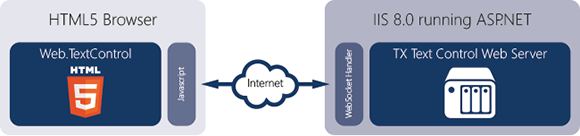
If this connection is somehow failing or the handshake fails, you will see the below message:
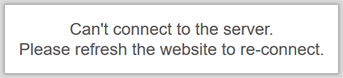
This article shows possible reasons and ways to fix it.
-
No Internet connection
TextControl.Web requires an active Internet connection. Make sure that the client-machine has full Internet connectivity.
-
Client browser doesn't support WebSockets
All modern, HTML5-based browsers support WebSockets including Google Chrome, Firefox, Safari, Internet Explorer and Edge. You can test the compatibility on our HTML5 test page:
-
Firewalls: Deep packet inspection
WebSockets uses port 80, the same port like normal HTTP traffic (browser). Port 80 is usually open on networks and is not blocked. Some older firewalls block WebSockets by checking the packets of port 80. In this case, adding SSL support (port 443) solves this problem.
-
Missing WebSocketHandler in web.config
The WebSocketHandler is handling the incoming WebSocket traffic from the client (Javascript). This handler must be added to the web.config file which is done automatically when using the drag and drop functionality of the Visual Studio toolbox. Check your web.config for the following entries:
<system.webServer> <handlers> <add name="TXWebSocketHandler" verb="*" path="TXWebSocketHandler.ashx" type="TXTextControl.Web.WebSocketHandler, TXTextControl.Web, Version=22.0.200.500, Culture=neutral, PublicKeyToken=6B83FE9A75CFB638" /> <add name="TXPrintHandler" verb="*" path="TXPrintHandler.ashx" type="TXTextControl.Web.TXPrintHandler, TXTextControl.Web, Version=22.0.200.500, Culture=neutral, PublicKeyToken=6B83FE9A75CFB638" /> </handlers> </system.webServer> -
MVC: Set the WebSocketHandlerPath
In ASP.NET MVC, the ASPX page including the editor can be in a different folder than the current view location. In this case, set the WebSocketHandlerPath property to the same folder like the ASPX page. If the ASPX page is located in the root folder, set the property to "\".
The F12 Developer Tools provide an elegant way to analyze your HTML code, your Javascript and CSS. But it also provides information about errors on the executed page. If you are seeing the above error, press F12 and check the console for errors:
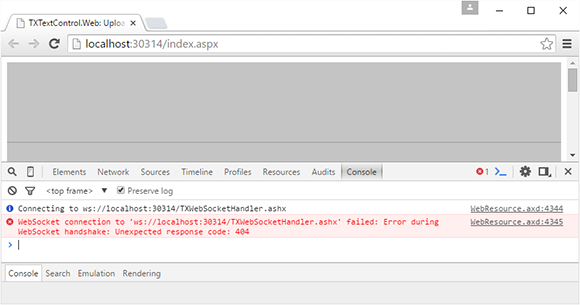
If all of the above doesn't help, simply contact our support engineers. We will find the reason.
Reporting
The Text Control Reporting Framework combines powerful reporting features with an easy-to-use, MS Word compatible word processor. Users can create documents and templates using ordinary Microsoft Word skills. The Reporting Framework is included in all .NET based TX Text Control products including ASP.NET, Windows Forms and WPF.
Related Posts
Creating Your First ASP.NET Reporting Application
The MailMerge and ServerTextControl components of TX Text Control .NET Server for ASP.NET enable server-side reporting in Web Forms. A template.docx merges with XML data via a button click…
Automatically Reconnect to the Server and Recover the Document
When a WebSocket connection drops, the TX Text Control editor automatically reconnects and recovers the document using browser local storage. The implementation saves document state client-side…
JavaScript API: Working with Merge Fields
The TX Text Control JavaScript API enables inserting, deleting, and manipulating merge fields in the HTML5-based document editor. Developers create MergeField objects, add them at specific…
Technology Preview: Embeddable HTML Widget to integrate Document Editing to…
TX Text Control offers a technology preview of an embeddable JavaScript widget that adds document editing to Angular, React, and other web frameworks. Developers add a script tag and create a…
Embedding TXTextControl.Web in non-.NET Framework applications like .NET…
The HTML5-based Web.TextControl editor can run inside an IFrame to embed it in non-.NET Framework applications such as .NET Core or AngularJS sites. The hosting page sends structured JSON commands…