









Alternate Row Colors Using NEXT Fields

The TX Text Control MailMerge engine supports alternating row colors by using NEXT fields within merge blocks. Placing a NEXT field at the end of a table row advances to the next data record mid-page, allowing two differently styled rows to repeat as visual pairs in the output.

It is important to adjust the display of your tabular data in order to improve the readability. Reading large sets of numbers in long tables can be hard and there are easy ways to improve that. A smart way to accomplish this task are alternating row colors.
Using TX Text Control's reporting engine MailMerge, you can design your table including the style for alternating rows in the template designer. The following screenshot shows how the template looks like:
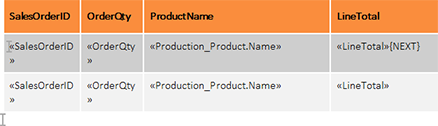
The merge block range includes two table rows that contain identical merge fields. The background color of the second table row is different. In fact, you could also have different merge fields in those rows. At the end of the first row, a NEXT field has been added which switches to the next data record in the middle of a page.
In this sample, the next record is merged into the second table row before a new block is merged. Thanks to the flexibility of MailMerge, you can also define more than 2 different rows. The following screenshot shows how the resulting table looks like after the data has been merged:
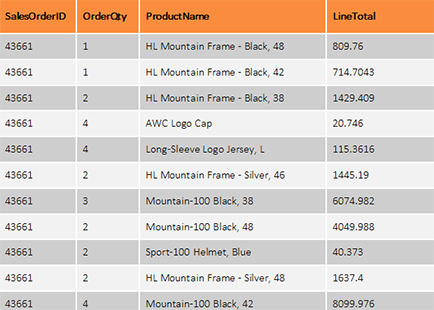
You can test this feature in the shipped template designer TX Text Control Words.
Test Alternating Row Colors
- Download the sample template.
- Open TX Text Control Words and load the template.
- In the Mailings ribbon tab, click on Load Sample Database from the Select Data Source drop-down button.
- Click on Preview Merge Fields from the Preview ribbon group.
Reporting
The Text Control Reporting Framework combines powerful reporting features with an easy-to-use, MS Word compatible word processor. Users can create documents and templates using ordinary Microsoft Word skills. The Reporting Framework is included in all .NET based TX Text Control products including ASP.NET, Windows Forms and WPF.
Related Posts
Creating Conference Badges with Text Control Reporting
TX Text Control Reporting generates double-sided conference badges using merge blocks and XML data sources. Each badge template includes attendee names, ticket types, badge numbers, and…
Reporting: Merging MS Word Documents with DocVariables
TX Text Control can merge MS Word documents containing DOCVARIABLE fields by converting them to MERGEFIELD types. The code iterates through all ApplicationFields, changes the TypeName from…
Mail Merge: Suppress Lines with Empty Merge Fields
Address blocks in mail merge output can contain blank lines when merge fields have no data. Setting RemoveEmptyFields to false and then iterating through ApplicationFields after merging allows…
Creating Reports with TX Text Control
The linked newsletter article provides a fully illustrated tutorial on building a report generation program with TX Text Control. Complete Visual Basic source code and project files are included,…
C# Document Generation: A Developer's Guide for .NET
Document generation refers to the automatic creation of documents from application data. The success or complexity of a document generation workflow often depends on a single early architectural…