









How to Embed a DOCX Editor in a Web Application (ASP.NET Core)

This tutorial shows how to embed a DOCX editor in an ASP.NET Core web application with TX Text Control. It covers setting up the editor, loading a DOCX document, and editing it with true WYSIWYG rendering, without any dependency on Microsoft Word.

Embedding a DOCX editor in your web application requires a component that edits Word documents in the browser and keeps their formatting and structure intact. TX Text Control is a DOCX Editor SDK built on a page-based word processing engine. Its Document Editor offers true WYSIWYG editing for DOCX documents. It integrates into ASP.NET Core, Angular, React, Blazor, and JavaScript applications, and its engine runs inside your own application, so documents are processed on your own servers.
The following steps show how to embed DOCX editing into your application using TX Text Control, without any dependency on Microsoft Word.
Prerequisites
- Visual Studio 2026 with the .NET 10 SDK.
- TX Text Control .NET Server trial: download and install the trial version. The setup installs the backend files and the offline NuGet packages used in this tutorial.
Already have a TX Text Control license?
You can install all packages from the Text Control private NuGet feed. The TXTextControl.Web.DocumentEditor.Backend package includes a ready-made hosted service that starts the backend, so you can skip step 2 and register that service in step 4 instead. For the full setup, read ASP.NET Core Document Editor with Backend via the Text Control Private NuGet Feed.
Step 1: Create the ASP.NET Core Project
- In Visual Studio 2026, choose Create a new project.
- Select ASP.NET Core Web App (Model-View-Controller) and confirm with Next.
- Enter a project name and confirm with Next.
- Set the framework to .NET 10.0 (Long Term Support).
- Check Enable container support, then set the container OS to Linux and the container build type to Dockerfile (this requires Docker Desktop running Linux containers).
- Confirm with Create.
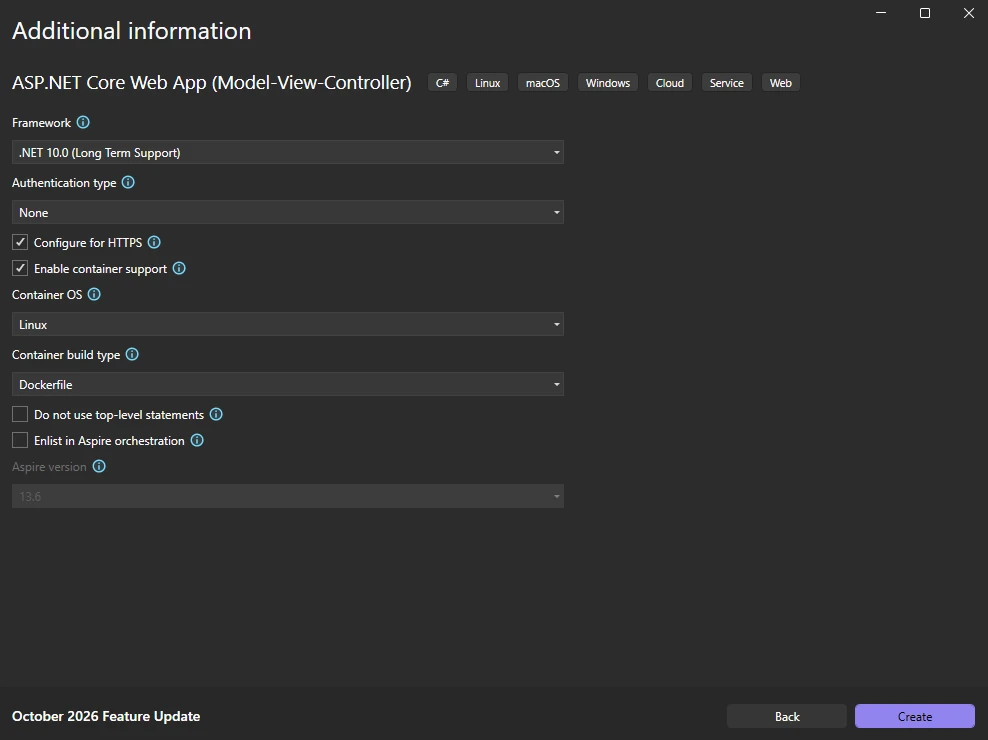
This tutorial runs the application in a Linux container using the default Visual Studio Dockerfile, but the TX Text Control backend runs on both Windows and Linux.
Step 2: Add the Document Editor Backend
The backend is the TX Text Control web server that synchronizes and renders documents for the editor. The TXWebServerProcess class is an ASP.NET Core hosted service that starts the backend when your application starts.
Add a new class named TXWebServerProcess.cs. Right-click the project in Solution Explorer, choose Add -> Class..., and replace its content with the following code:
using System.Diagnostics;
using System.Reflection;

public class TXWebServerProcess : IHostedService
{
    private readonly ILogger<TXWebServerProcess> _logger;

    public TXWebServerProcess(ILogger<TXWebServerProcess> logger) => _logger = logger;

    public Task StartAsync(CancellationToken cancellationToken)
    {
        try
        {
            string? path = Path.GetDirectoryName(Assembly.GetExecutingAssembly().Location);
            string dllPath = Path.Combine(path ?? "", "TXTextControl.Web.Server.Core.dll");

            if (string.IsNullOrEmpty(path) || !File.Exists(dllPath))
                _logger.LogWarning("TX Web Server process could not be started.");
            else
            {
                Process.Start(new ProcessStartInfo("dotnet", $"\"{dllPath}\" &") { UseShellExecute = true, WorkingDirectory = path });
                _logger.LogInformation("TX Web Server process started.");
            }
        }
        catch (Exception ex) { _logger.LogError(ex, "Error starting TX Web Server."); }

        return Task.CompletedTask;
    }

    public Task StopAsync(CancellationToken cancellationToken)
    {
        _logger.LogInformation("Stopping TX Web Server process...");
        return Task.CompletedTask;
    }
}
Then add the backend files to the project. Right-click the project in Solution Explorer, choose Add -> Existing Item..., and browse to the installation folder:
C:\Program Files\Text Control GmbH\TX Text Control 34.0.NET Server for ASP.NET\Assembly\net8.0
Set the file filter to All Files (*.*) and add these files:
- TXTextControl.Web.Server.Core.deps.json
- TXTextControl.Web.Server.Core.dll
- TXTextControl.Web.Server.Core.Process.deps.json
- TXTextControl.Web.Server.Core.Process.dll
- TXTextControl.Web.Server.Core.Process.runtimeconfig.json
- TXTextControl.Web.Server.Core.runtimeconfig.json
- TXTextControl.Web.Server.Core.config.json
Confirm with Add.
Select the added files in Solution Explorer and set Copy to Output Directory to Copy always.
Step 3: Add the TX Text Control NuGet Packages
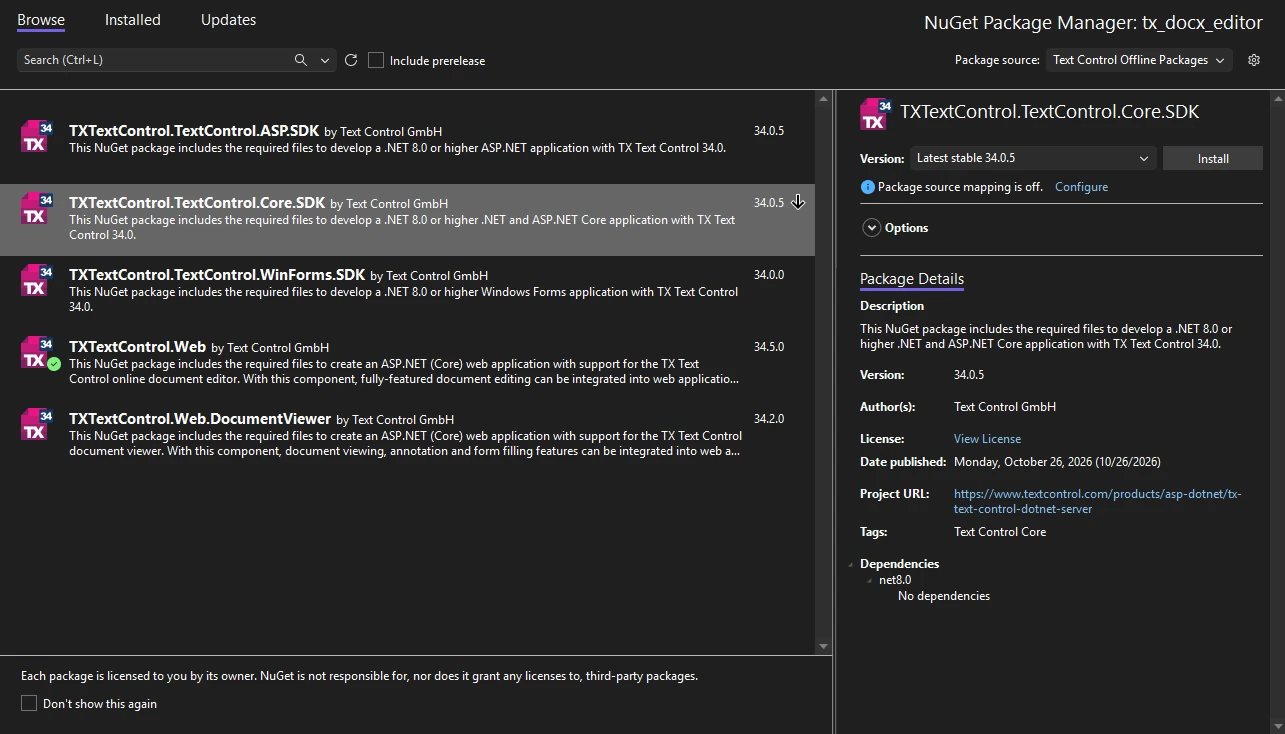
Open Manage NuGet Packages... from the Project menu, select Text Control Offline Packages as the package source, and install:
- TXTextControl.Web
- TXTextControl.TextControl.Core.SDK
Step 4: Configure Program.cs
Open Program.cs and make three changes:
-
At the top of the file, add the following code:
using TXTextControl.Web; -
Register the backend after
builder.Services.AddControllersWithViews();:builder.Services.AddHostedService<TXWebServerProcess>(); -
Enable WebSockets and add the TX Text Control middleware before
app.UseRouting();:// enable WebSockets app.UseWebSockets(); // attach the Text Control WebSocketHandler middleware app.UseTXWebSocketMiddleware();
The complete Program.cs file looks like this:
using TXTextControl.Web;
var builder = WebApplication.CreateBuilder(args);
// Add services to the container.
builder.Services.AddControllersWithViews();
builder.Services.AddHostedService<TXWebServerProcess>();
var app = builder.Build();
// Configure the HTTP request pipeline.
if (!app.Environment.IsDevelopment())
{
app.UseExceptionHandler("/Home/Error");
// The default HSTS value is 30 days. You may want to change this for production scenarios, see https://aka.ms/aspnetcore-hsts.
app.UseHsts();
}
app.UseHttpsRedirection();
// enable WebSockets
app.UseWebSockets();

// attach the Text Control WebSocketHandler middleware
app.UseTXWebSocketMiddleware();
app.UseRouting();
app.UseAuthorization();
app.MapStaticAssets();
app.MapControllerRoute(
name: "default",
pattern: "{controller=Home}/{action=Index}/{id?}")
.WithStaticAssets();
app.Run();Step 5: Add the DOCX Editor to a View
Open Views/Home/Index.cshtml in Solution Explorer and replace its content with the following code. It renders the editor and loads a short welcome text:
@using TXTextControl.Web.MVC

@{
    var sDocument = "<html><body><p>Welcome to <strong>Text Control</strong></p></body></html>";
}

@Html.TXTextControl().TextControl(settings =>
{
    settings.UserNames = new string[] { "Tim Typer" };
}).LoadText(sDocument, TXTextControl.Web.StringStreamType.HTMLFormat).Render()
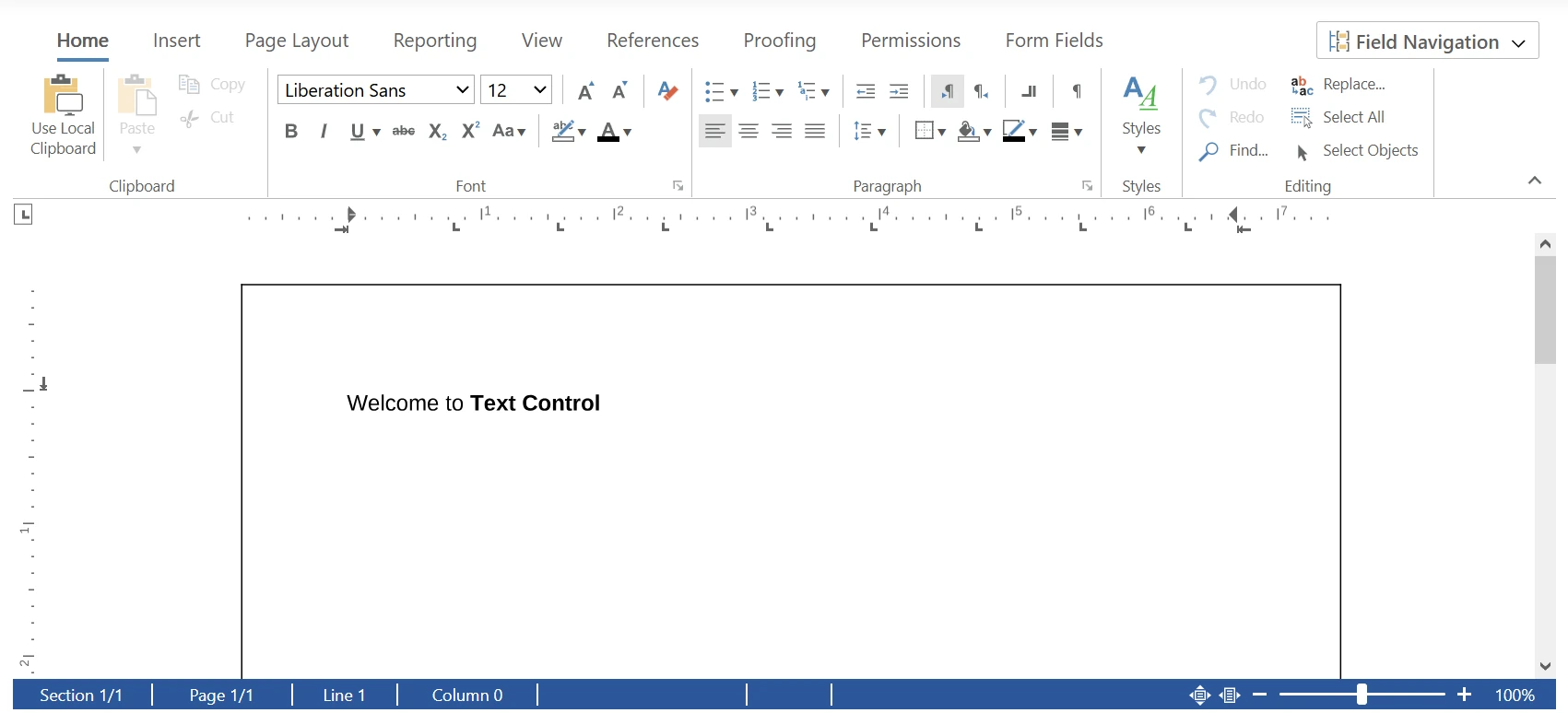
Start the application by pressing F5 or choosing Debug -> Start Debugging from the main menu. The DOCX editor opens in the browser with a Word-like ribbon interface, ready for editing.
Step 6: Load a DOCX Document
In production applications, documents typically come from a database, blob storage, or the file system. In this example, the server reads a DOCX file and sends it to the editor as a Base64 string.
Create a folder named App_Data in the project, add a DOCX file named sample.docx. You can use your own document or download the sample document used in this tutorial. Set its Copy to Output Directory property to Copy always. Then add this action to Controllers/HomeController.cs:
[HttpGet]
public IActionResult LoadDocument()
{
    byte[] data = System.IO.File.ReadAllBytes("App_Data/sample.docx");
    return Content(Convert.ToBase64String(data));
}
In Index.cshtml, add the following script after the editor code from step 5. It waits until the editor is ready, requests the document, and loads it into the editor with the load
<script>
    TXTextControl.addEventListener("textControlLoaded", function () {
        fetch("/Home/LoadDocument")
            .then(response => response.text())
            .then(base64 => {
                TXTextControl.loadDocument(TXTextControl.StreamType.WordprocessingML, base64);
            });
    });
</script>
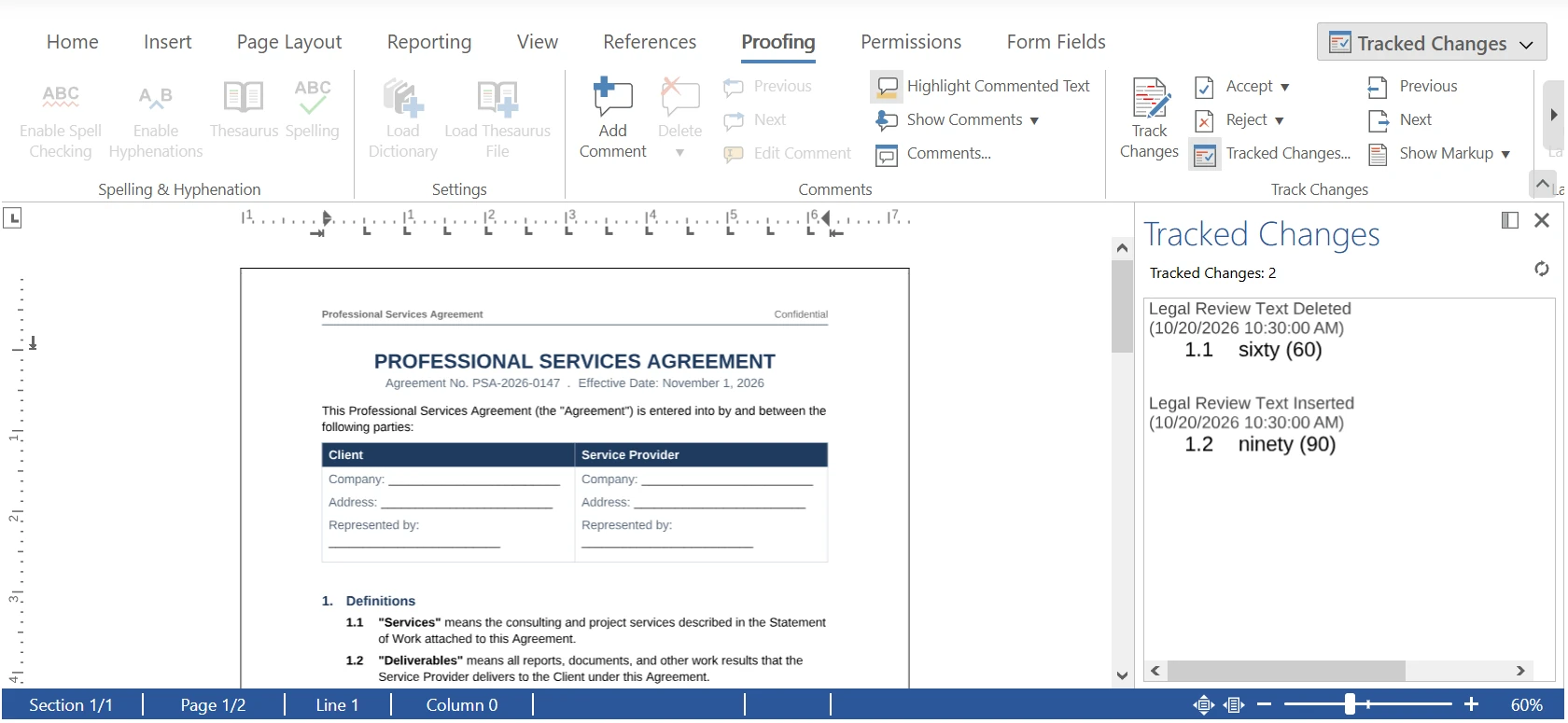
WordprocessingML is the stream type for DOCX. The document is now loaded into the TX Text Control engine and shown in the editor.
Step 7: Edit the Document
Once the document is loaded, users can edit it right away. TX Text Control's DOCX editor offers true WYSIWYG editing, with pixel-perfect rendering that always matches the generated PDF and printed output.
The Microsoft Word-like ribbon interface is built in, so users get the word processing features they already know, with little or no training, including:
- Character and paragraph formatting, styles, and bulleted and numbered lists
- Tables, images, sections, and headers and footers
- Merge fields for designing templates
- Form fields such as checkboxes, drop-downs, and date pickers
- Tracked changes and comments for review workflows
In addition to the built-in interface, you can edit documents programmatically through the JavaScript API. The following example adds a button that inserts a table:
<input type="button" onclick="insertTable()" value="Insert Table" />

<script>
    function insertTable() {
        TXTextControl.tables.add(5, 5, 10, function(e) {
          if (e === true) { // if added
            TXTextControl.tables.getItem(function(table) {
              table.cells.forEach(function(cell) {

                cell.setText("Cell text");

              });
            }, null, 10);
          }
        })
    }
</script>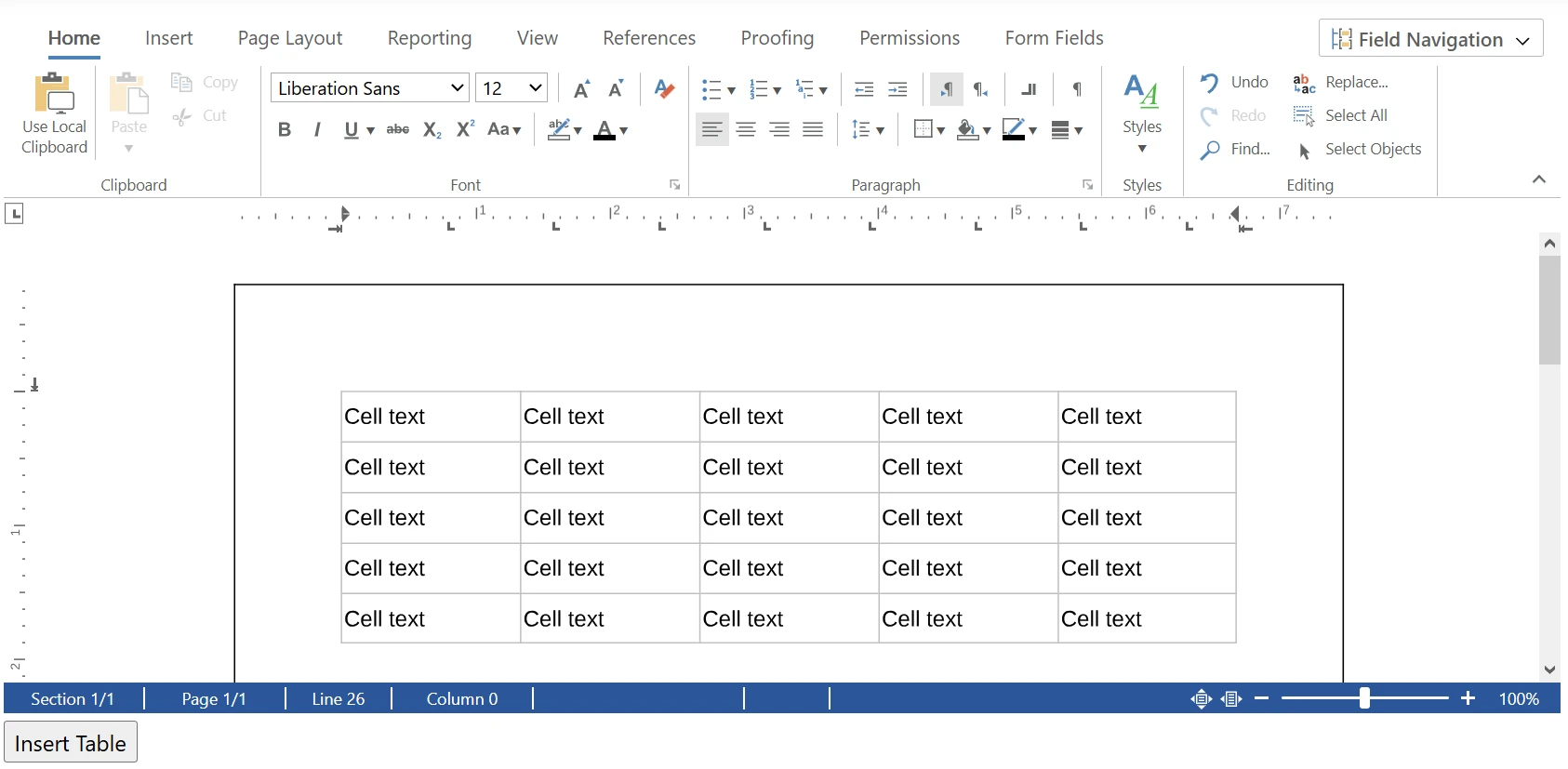
Beyond tables, the JavaScript API also covers formatting, form fields, tracked changes, and more.
Next Steps
Your application now embeds a DOCX editor that loads and edits Word documents. The following resources explain how to extend this integration:
- Use another frontend framework: Angular, React, Blazor, and JavaScript
- Add review workflows: Document Redlining and Approval Workflows with TX Text Control Track Changes in .NET C#
- Control who can edit which parts: Document Protection in ASP.NET with TX Text Control
- Choose the right SDK: DOCX Editor SDK evaluation guide
Frequently Asked Questions
A DOCX Editor SDK is a software development kit that includes a Microsoft Word-like editor component for DOCX documents to your own application, along with APIs for processing them programmatically. TX Text Control is a DOCX Editor SDK, and its Document Editor is available for ASP.NET Core, Angular, React, Blazor, and JavaScript.
Use a DOCX Editor SDK that provides a browser-based editor with true WYSIWYG editing and a backend that processes the documents. With TX Text Control in ASP.NET Core, you can add the NuGet packages, start the Document Editor backend as a hosted service, enable the WebSocket middleware, and render the editor in a Razor view. DOCX files are then loaded with the JavaScript loadDocument method.
Yes. The TX Text Control Document Editor loads, edits, and exports Word documents in DOCX format. Sections, headers and footers, form fields, tracked changes, and comments are preserved when the documents are opened in Microsoft Word.
Yes. The TX Text Control Document Editor is built on a page-based word processing engine, so DOCX documents are edited as real pages with true WYSIWYG editing. Because the same engine powers the editor and the export, what users see always matches the generated PDF and printed output.
Yes. The JavaScript saveDocument method can export the edited document as PDF or save it back as DOCX or other formats, such as HTML and RTF.
Related Posts
DOCX Editor SDK: A Complete Evaluation Guide and Checklist
The right DOCX Editor SDK brings Microsoft Word-like editing into your web application and fits your technical and business requirements. This guide covers the capabilities and business…
JavaScriptASP.NET CoreDocument Viewer
Getting Started: Document Viewer with JavaScript
This article shows how to use the TX Text Control document viewer in a pure HTML and JavaScript environment.
JavaScriptASP.NET CoreDocument Editor
Getting Started: Document Editor with JavaScript
This article shows how to use the TX Text Control document editor in a pure HTML and JavaScript environment.
Build a Custom Backstage View in ASP.NET Core with TX Text Control
This article shows how to build a custom backstage view with a File tab to load your multi-format documents using TX Text Control for ASP.NET Core applications.
5 Document Workflows You Can Automate With JavaScript Rich Text Editor
Enterprise JavaScript rich text editors outperform open source and basic alternatives for document automation. This guide covers five document workflows with TX Text Control: contract generation…