









Adding an AI Sidebar to TX Text Control .NET for Windows Forms

Add AI writing tools to TX Text Control Windows Forms with a reusable sidebar component. Summarize, rephrase, translate, and review grammar in the editor. Clone the sample, download the Qwen3.5-4B GGUF model from Hugging Face, and connect it through the built-in settings dialog.
Writing assistance is most useful when it is available where people work on their documents. For example, a user preparing a customer letter may want to rephrase a paragraph, while someone reviewing a report may need a summary, translation, or list of action items. These tasks can be done directly in the document editor, where the original text and the proposed result are available for comparison.
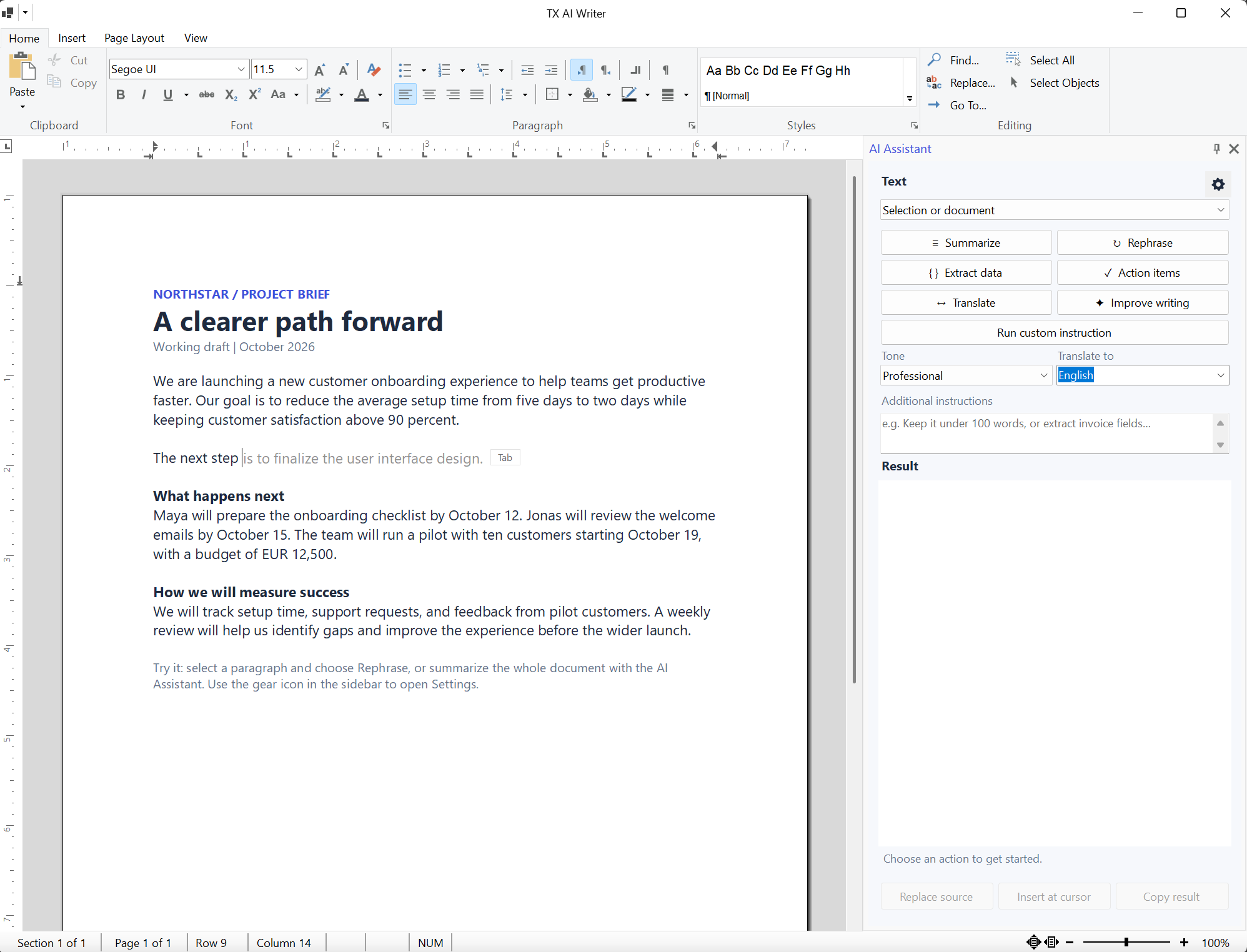
The Windows Forms AI Sidebar sample brings these workflows to TX Text Control .NET for Windows Forms. It includes a reusable TXTextControl.AiAssistant component that connects to an existing editor and creates a native TX Text Control sidebar. The component provides selection actions, typing suggestions, grammar feedback, and a settings dialog for local or hosted inference.
A Reusable Component With Source Code
The repository contains two projects. AISidebar is the reusable class library. The application in tx-winforms-ai/Samples/tx-winforms-ai demonstrates the integration with a TextControl, the native ribbon, horizontal and vertical rulers, and a status bar.
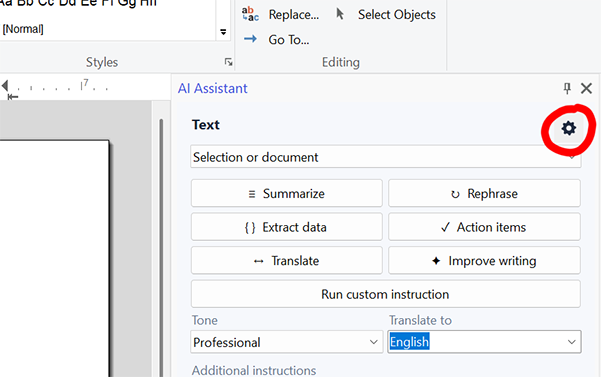
Add the library project to your solution. Then, drag AiAssistant from the toolbox onto your form and set its TextControl property. The component creates its interface at runtime, hosts it in TXTextControl.Windows.Forms.Sidebar, and manages requests and cleanup. Connection settings are accessible via the small gear icon in the upper-right corner of the sidebar.
The sidebar is provided as source code and accessed via a project reference. You can read the implementation, adapt the prompts and actions, and integrate the component into your application's workflow. The project uses the TXTextControl.AI NuGet package for inference, and the sidebar is a separate source project.
Windows Forms AI Sidebar Sample
Get the reusable AISidebar project and the complete Windows Forms sample. Connect AiAssistant to an existing TextControl to add writing actions, selection tools, typing suggestions, and grammar feedback.
When to Use It
This sample serves as a starting point for desktop applications in which users can create, edit, or review business documents. For example:
- Customer correspondence: Rephrase a response in a professional or friendlier tone and review the result before replacing the original.
- Reports and meeting notes: Summarize a passage or extract action items, including owners and deadlines when they are present in the source.
- Multilingual workflows: Translate selected text and read or copy the translation without leaving the editor.
- Data capture: Extract people, organizations, dates, amounts, and facts as structured JSON for review.
- Everyday drafting: Offer sentence continuations and grammar suggestions while users write.
Local inference is useful when document text needs to be processed on the workstation. After installing the model and runtime, these AI requests can run without a public model API. Applications that use an approved AI service can configure an OpenAI-compatible endpoint instead. The same writing interface supports both approaches.
Writing Tools in the Sidebar and Selection Menu
The sidebar provides Summarize, Rephrase, Extract data, Action items, Translate, and Improve writing, as well as custom instructions. Users can work with a selected passage or the document and review the generated result before inserting or replacing text.
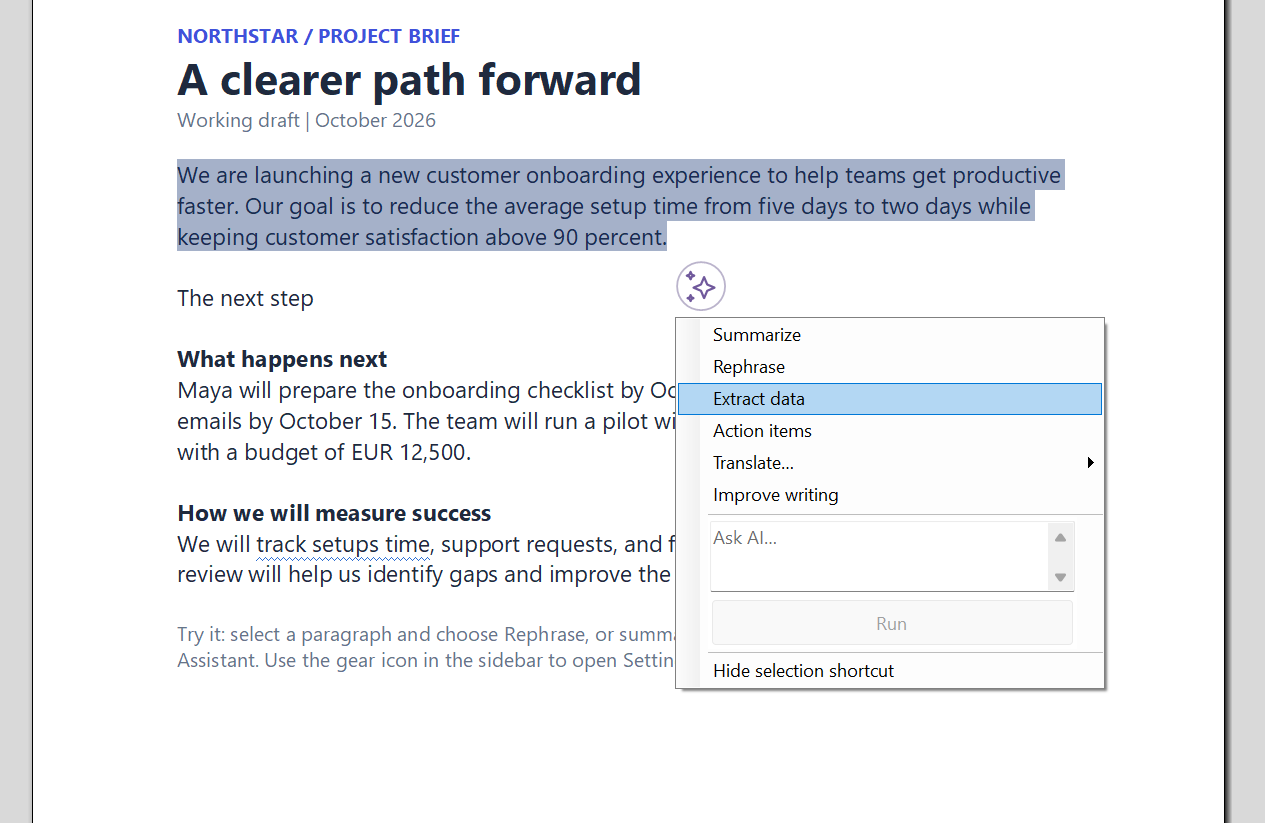
Selecting text reveals a small floating button. This button opens quick actions for the selected text. The editor's right-click menu provides the same tools under AI Assistant. These pop-ups work independently of the sidebar.
For Rephrase and Improve Writing, the pop-up stays open so users can review the suggestion, change the tone, and select Try Again to generate an alternative. The document only changes when they select Apply. Other quick actions, such as translation and summarization, display their results in a read-only text box with a copy option.
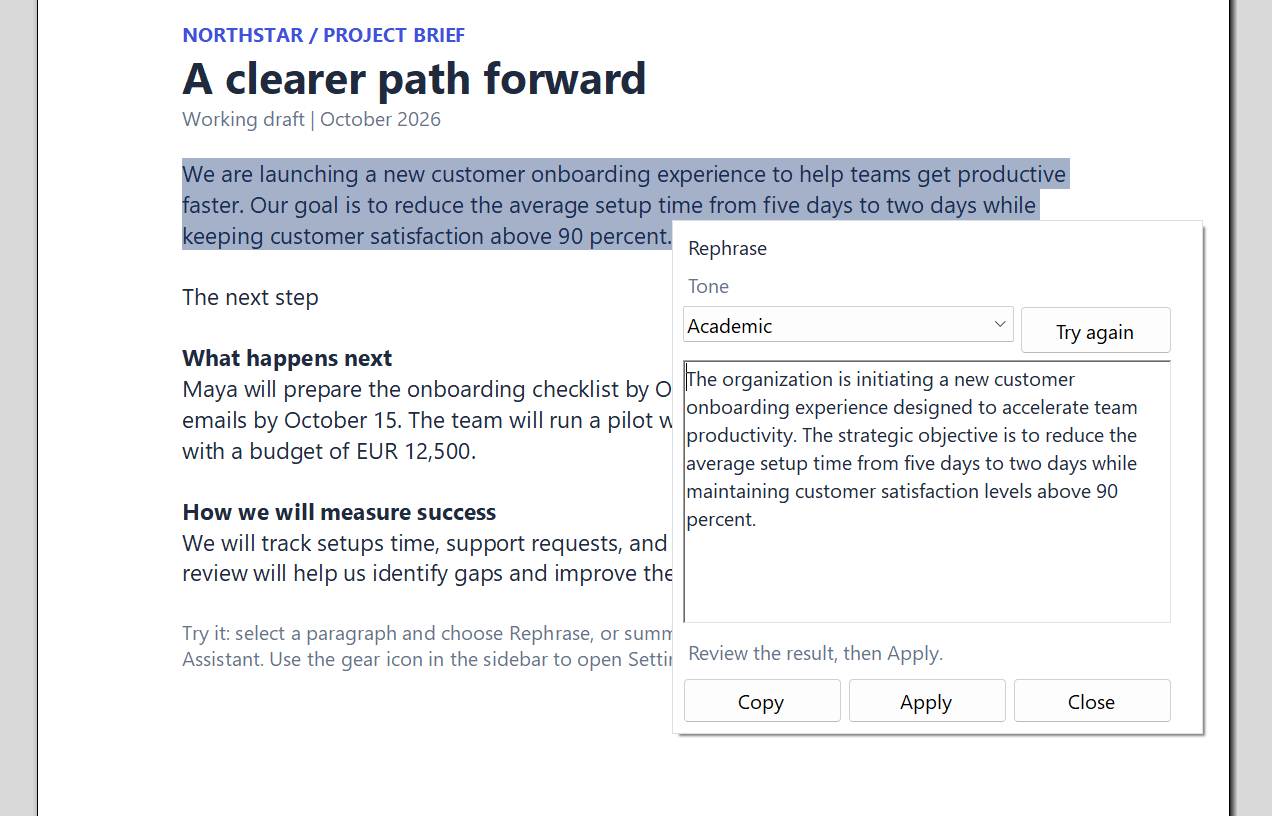
Rephrasing means expressing the same meaning in a different way. Improve Writing focuses on grammar and clarity. Both give users a chance to review the proposed wording.
Suggestions While Typing
After a pause, typing suggestions appear as gray preview text. Pressing Tab accepts a suggestion, while Escape dismisses it. The preview is an overlay that does not become part of the document until it is accepted.

Grammar suggestions appear as blue, wavy underlines. Users can open a finding to inspect the suggested correction and then apply or ignore it. Unchanged sentences with findings remain visible as users continue writing elsewhere. After five seconds of inactivity, an optional idle check gradually examines additional sentences.
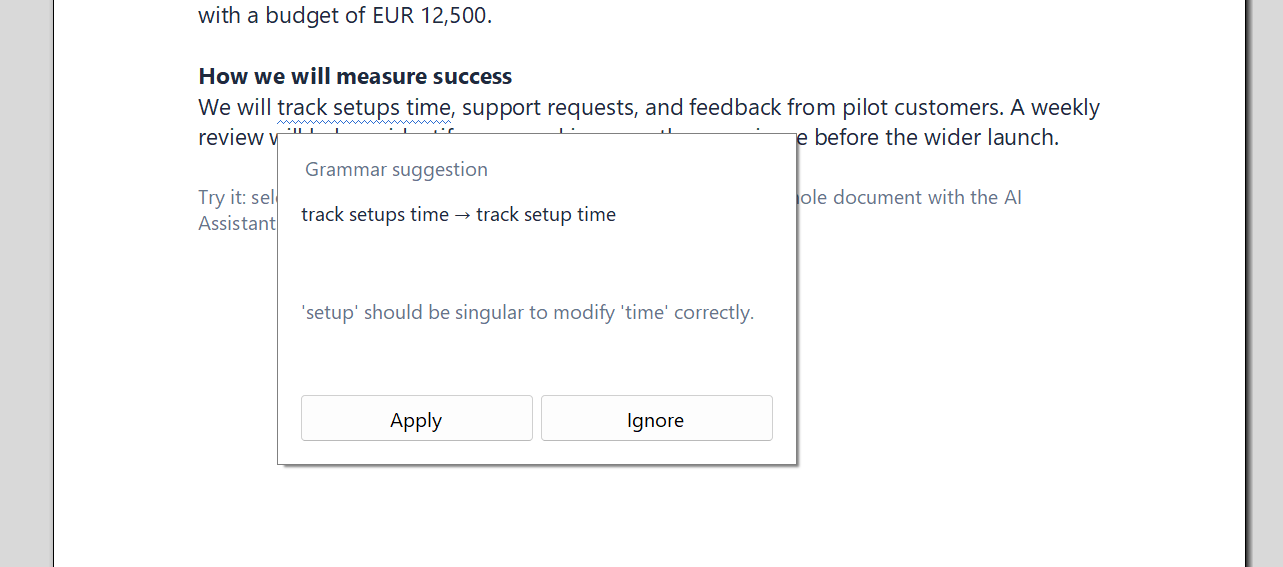
You can enable or disable background suggestions and grammar checks in Settings. The usefulness and response time of these features depend on the selected model, the document's language, and the available hardware.
Getting Started
1. Prepare the Development Environment
Use Windows x64, the .NET 10 SDK, and Visual Studio with .NET 10 Windows Forms support. Configure your licensed TX Text Control Windows Forms SDK package source before restoring the solution.
The sample references TXTextControl.TextControl.WinForms.SDK version 34.0.5, TXTextControl.AI version 0.1.0-beta.3, and Microsoft.Extensions.AI version 10.9.0. The AI dependency is a preview release. Model weights and the native inference runtime are provisioned separately from the managed packages.
2. Clone and Build the Sample
Clone the Windows.Forms.AI.Sidebar repository and build the solution from its root directory:
git clone https://github.com/TextControl/Windows.Forms.AI.Sidebar.git
cd Windows.Forms.AI.Sidebar
dotnet restore tx-winforms-ai.slnx
dotnet build tx-winforms-ai.slnx -c Release
Alternatively, open tx-winforms-ai.slnx in Visual Studio and select tx-winforms-ai as the startup project. The included document gives you text to use for the first writing actions.
3. Download the Local Model
For the local setup, we recommend the same model used with this sample: Qwen3.5-4B in the Q4_K_M GGUF quantization. Download the individual file Qwen_Qwen3.5-4B-Q4_K_M.gguf from its file page on Hugging Face using the Download button. The model card provides information about the conversion, available quantizations, and license.
The file is approximately 3 GB. The running model also needs memory for its context and runtime buffers, so the download size is not the total memory requirement. Download the generation model named above; an embedding model is intended for a different task.
Create a local folder such as C:\Models and place the file there:
C:\Models\Qwen_Qwen3.5-4B-Q4_K_M.ggufThis folder is just a suggested location, not a required project directory. The sidebar allows you to browse to the model and saves its full path. You do not need to add the file to the Visual Studio project or copy it to the application's output directory. Keep the model at the selected location. If you move it later, update the path in Settings. The application does not automatically download model weights.
4. Connect the Model in Settings
Start the application from Visual Studio or run:
dotnet run --project tx-winforms-ai/Samples/tx-winforms-ai/tx-winforms-ai.csproj -c Release-
Click the Settings gear in the sidebar's upper-right corner.
- On the AI provider tab, choose Local GGUF model.
-
Open the Local model tab and browse to C:\Models\Qwen_Qwen3.5-4B-Q4_K_M.gguf in the GGUF model field.
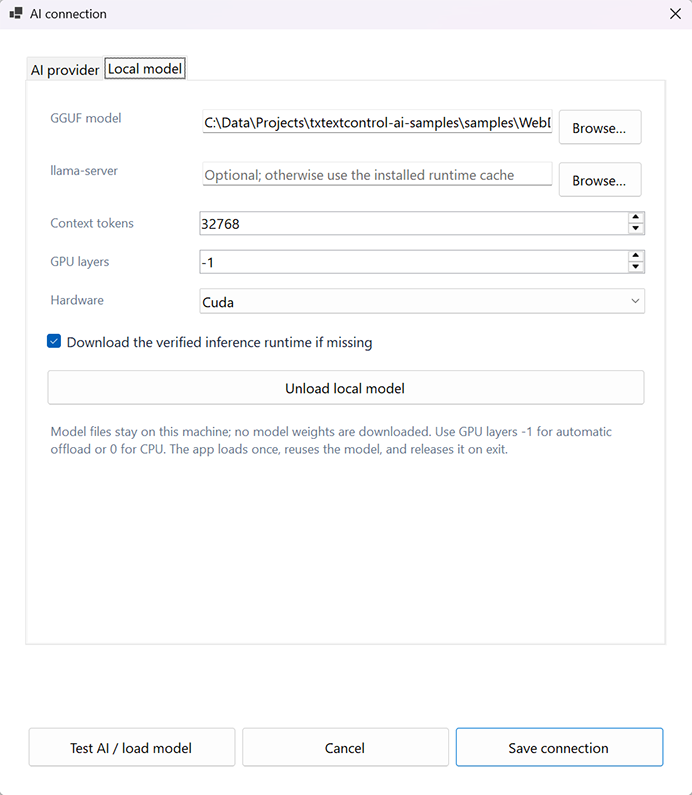
- Choose the hardware backend. For CPU-only evaluation, select Cpu and set GPU layers to 0. With a compatible GPU and drivers, choose the appropriate backend, such as CUDA or Vulkan, and use -1 for automatic layer offload.
- If a compatible runtime is not already installed, enable Download the verified inference runtime if missing. Alternatively, select an existing compatible llama-server.exe and leave that option disabled.
- Choose Test AI / load model. Wait for the model to load and the test to complete, then choose Save connection.
The runtime-download option installs the inference engine, not the model. It requires internet access when a download is needed. The loaded model is reused for later requests and released when unloaded or when the application closes. Local GGUF inference does not require an OpenAI account or API key.
Begin with short selections. If the model cannot load within the available memory, reduce Context tokens or adjust the hardware settings. Keep the output token limit below the context size. CPU inference can be suitable for evaluation, while interactive typing suggestions benefit from lower response latency.
5. Try a Writing Workflow
Select a paragraph in the sample document, open the floating selection button, and choose Rephrase. Review the proposed text, change the tone, and generate another version if needed. Choose Apply to replace the captured selection, then use the editor's Undo command to restore the original.
Next, try Translate to display a translation in the popup, or use Summarize in the sidebar. Enable typing and grammar suggestions in Settings to explore the background features with your own text.
Add the Component to Your Application
Add tx-winforms-ai/AISidebar/AISidebar.csproj to your solution and reference it from your Windows Forms application. Build the solution, open your form designer, and drag AiAssistant onto the form. Set its TextControl property to your editor. If the component is missing from the toolbox, enable Automatically Populate Toolbox, rebuild, and reopen the designer.
The equivalent connection in code uses the form's component container:
using TXTextControl;

components ??= new System.ComponentModel.Container();

var assistant = new AiAssistant(components)
{
    TextControl = textControl1
};
The standard designer-generated form disposes its component container when it closes. The assistant owns its AI controls and inference resources; your application continues to own the editor and its surrounding UI. Keep the TX Text Control SDK package directly referenced by the host executable so its licensing build targets run for that application.
For programmatic configuration, the Settings property accepts an AiConnectionSettings value from TXTextControl.AISidebar.AI. Public commands include ShowSidebar(), HideSidebar(), ShowSettings(), and RunAction(). The component guide describes the settings, properties, and lifecycle in more detail.
Reviewable Changes and Control Over Inference
The integration captures the source text and checks it before applying a generated replacement. Changes are made using Selection.Text inside a native undo action. Since generated text is plain text, replacing a formatted passage may affect the formatting of the surrounding text. Users should review the wording and facts before applying the result.
Selecting an OpenAI-compatible API sends the necessary text for each enabled feature to the appropriate endpoint, including the text used for background checks. Selecting local GGUF inference processes the requests on the workstation. The connection dialog box makes this deployment choice explicit while keeping the writing tools in the editor.
Begin by selecting a representative document and a few useful actions. Then, adapt the source to your application. The Windows Forms AI Sidebar repository provides the component and sample needed to bring these workflows into an existing TX Text Control application.
Conclusion
The TX Text Control AI Sidebar seamlessly integrates AI-powered suggestions and actions to enhance text editing. By following the above steps, developers can ensure their applications maintain control over inference while offering users a rich, interactive writing experience.
For more information, refer to the Windows Forms AI Sidebar documentation and explore the sample projects to get started quickly.

Download and Fork This Sample on GitHub
We proudly host our sample code on github.com/TextControl.
Please fork and contribute.
Requirements for this sample
- TX Text Control .NET for Windows Forms 34.0.5
- .NET 10 SDK
- Windows x64
Windows Forms
Text Control combines the power of a reporting tool and an easy-to-use WYSIWYG word processor - fully programmable and embeddable in your Windows Forms application. TX Text Control .NET for Windows Forms is a royalty-free, fully programmable rich edit control that offers developers a broad range of word processing features in a reusable component for Visual Studio.
Related Post
Running a Local LLM in .NET C# with TX Text Control AI
Build an interactive .NET C# console chat with TX Text Control AI. Download a GGUF model, stream local replies through IChatClient, and retain conversation history without an OpenAI account or API…