


Getting Started: Programming the Angular Document Editor using JavaScript

This tutorial shows how to use the JavaScript API to program the TX Text Control Angular Document Editor.

In a previous tutorial, you learned how to create your first Angular application using the TX Text Control Document Editor.
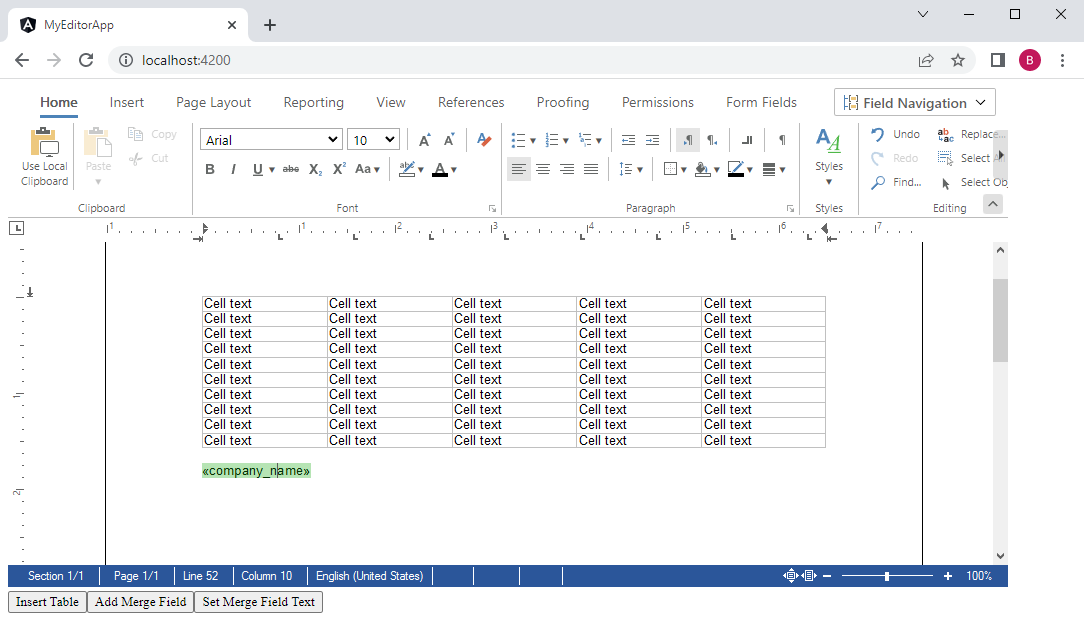
This tutorial shows how to use the JavaScript API to manipulate the document by adding a table and inserting and modifying merge fields.
Creating the Application
-
Create a basic Angular application as described in this tutorial:
Getting Started: Document Editor with Angular CLI -
Create a folder named js in the folder src/assets/ and create a new JavaScript file named custom.js.
function jsInsertTable(rows, cols, id) {
    TXTextControl.tables.add(rows, cols, id, function(e) {
      if (e === true) { // if added
        TXTextControl.tables.getItem(function(table) {
          table.cells.forEach(function(cell) {

            cell.setText("Cell text");

          });
        }, null, 10);
      }
    })
}

function jsAddMergeField(text, name) {
    TXTextControl.applicationFields.add(
                TXTextControl.ApplicationFieldFormat.MSWord,
                "MERGEFIELD",
                text,
                [name],
                af => {
                        var highlightColor = "rgba(9, 165, 2, 0.3)";
                        var highlightMode = TXTextControl.HighlightMode.Always;

                        af.setHighlightColor(highlightColor);
                        af.setHighlightMode(highlightMode);
            af.setDoubledInputPosition(true);
                }
        );
}

function jsSetMergeFieldText(text) {
    TXTextControl.applicationFields.forEach(function(appField) {
        appField.setText(text);
    });
}
The functions in this JavaScript file can access the TXTextControl object and contains the actual API calls to manipulate the document. The JavaScript file contains three functions to execute the following tasks:
-
jsInsertTable
This function inserts a new table at the current input position and fills all table cells with text. -
jsAddMergeField
This function adds a new merge field into the document and sets the highlight mode and color of that inserted field. -
jsSetMergeFieldText
This function loops through all merge fields in order to replace the text with another string.
-
-
Add this JavaScript file to the scripts array of the projects architect/build/options element in the angular.json file:
"scripts": [ "src/assets/js/custom.js" ] -
Add the declaration and the TypeScript methods tsInsertTable, tsAddMergeField and tsSetMergeFieldText to the app.component.ts TypeScript file. These TypeScript wrapper functions call the actual JavaScript functions from the added custom.js file.
import { Component } from '@angular/core'; declare const jsInsertTable: any; declare const jsAddMergeField: any; declare const jsSetMergeFieldText: any; @Component({ selector: 'app-root', templateUrl: './app.component.html', styleUrls: ['./app.component.css'] }) export class AppComponent { title = 'my-editor-app'; // TypeScript wrapper function tsInsertTable(cols: number, rows: number, id: number) { // call JavaScript jsInsertTable(cols, rows, id); } // TypeScript wrapper function tsAddMergeField(name: string, text: string) { // call JavaScript jsAddMergeField(name, text); } // TypeScript wrapper function tsSetMergeFieldText(text: string) { // call JavaScript jsSetMergeFieldText(text); } } -
Finally, add three buttons to the app.component.html with the Angular click handlers:
<tx-document-editor
  width="1000px"
  height="500px"
  webSocketURL="wss://backend.textcontrol.com?access-token=yourtoken">
</tx-document-editor>

<div>
        <button (click)="tsInsertTable(10,5,10)" class="btn btn-primary">Insert Table</button>
        <button (click)="tsAddMergeField('«company_name»','company_name')" class="btn btn-primary">Add Merge Field</button>
        <button (click)="tsSetMergeFieldText('New Text')" class="btn btn-primary">Set Merge Field Text</button>
</div>
After compiling and starting the application, the added buttons can be used to manipulate the document programmatically.
Jump to the other posts in this series:
- Getting Started: Document Editor with Angular CLI
- Getting Started: Loading and Saving Documents using Angular
- Getting Started: Programming the Angular Document Editor using JavaScript
- Getting Started: Angular Document Editor Attributes Explained
Angular
Integrate document processing, editing, sharing, collaboration, creation, electronic signatures, and PDF generation into your Angular Web applications.
Related Posts
Getting Started: Angular Document Editor Attributes Explained
This article explains the possible attributes that can be used when initializing the TX Text Control Document Editor for Angular.
Getting Started: Loading and Saving Documents using Angular
This tutorial shows how to load and save documents using the JavaScript API in Angular applications.
Impressions from Web Developer Conference (WDC) in Hamburg
Text Control exhibited at WDC in Hamburg, presenting the Angular and Node.js technology preview of the document editor. The three-track conference covered modern web development topics, and the…
Loading and Saving Documents using Angular
The TX Text Control JavaScript API enables loading and saving documents in Angular applications via client-side calls. The tutorial covers configuring the Angular component, adding file input…
Technology Preview: Embeddable HTML Widget to integrate Document Editing to…
TX Text Control offers a technology preview of an embeddable JavaScript widget that adds document editing to Angular, React, and other web frameworks. Developers add a script tag and create a…