


ReportingCloud and .NET: Creating Templates with JSON Excerpt Files

Datasource excerpt files populate the ReportingCloud online template editor with merge fields, relations, and preview data. Serializing .NET class instances to JSON via Newtonsoft produces the required format for uploading excerpts and designing templates with merge blocks.

A datasource excerpt file is used to fill the drop-down lists of the template editor with proper merge fields, relations and dummy data for a template preview. A datasource excerpt file is not your actual data that is used to merge your template. It helps you to design your templates and to insert the proper field names.
In this tutorial, you will learn how to create a new template from a class in .NET.
The accepted JSON format in the Merge method of ReportingCloud is a JSON string containing an array of objects.
-
If you don't have a ReportingCloud account, create a new account:
-
Open Visual Studio and create a new application (type and language doesn't matter in this tutorial).
-
Start the Package Manager Console from the NuGet Package Manager menu item of the Tools main menu. Type in the following command to install Newtonsoft Json:
PM> Install-Package Newtonsoft.Json -
Create the required classes for your report. The following sample shows a simple invoice class:
public class Invoice { public string InvoiceNumber { get; set; } public Customer Customer { get; set; } public List<Product> Items { get; set; } } public class Customer { public string Name { get; set; } public string Street { get; set; } public int Zip { get; set; } public string City { get; set; } } public class Product { public string Name { get; set; } public string Description { get; set; } } -
Use the following code to create an instance of your data and use JsonConvert class to serialize the object to a Json string:
List<Invoice> Invoices = new List<Invoice>();

Invoice invoice = new Invoice()
{
    Customer = new Customer() {
        Name = "Peter Thiel",
        City = "Charlotte",
        Street = "123 Microsoft Way",
        Zip = 22282 },

    InvoiceNumber = "I778977622",

    Items = new List<Product>()
    {
        new Product() {
            Name = "Product 1",
            Description = "Product 1 Description"
        },
        new Product() {
            Name = "Product 2",
            Description = "Product 2 Description"
        }
    }
};

Invoices.Add(invoice);

var json = JsonConvert.SerializeObject(Invoices, Formatting.Indented);
Set a breakpoint to line 28 and copy the string from the Text Visualizer to the clipboard:
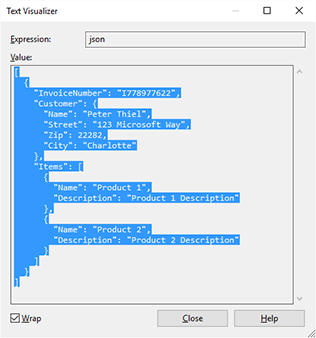
This Json format is exactly the format that is accepted by the Merge method of ReportingCloud and the online template designer.
-
Open a browser and navigate to:
https://portal.reporting.cloud
Log in with your credentials.
-
Click on My Datasource Excerpts and create a new excerpt file by adding a name and pasting the Json string into the Datasource Excerpt text box:
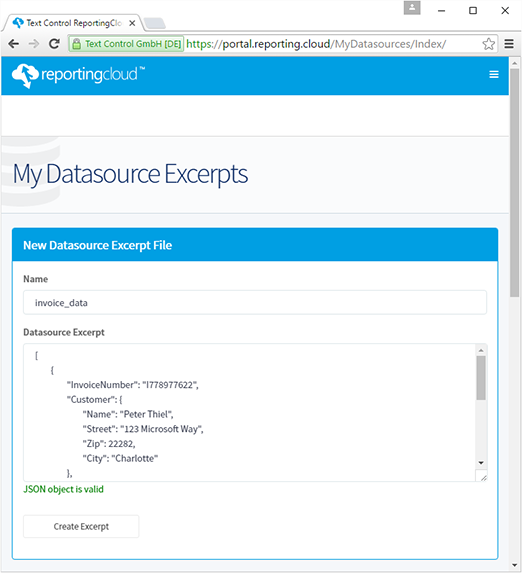
Save the excerpt file by clicking the Create Excerpt button.
-
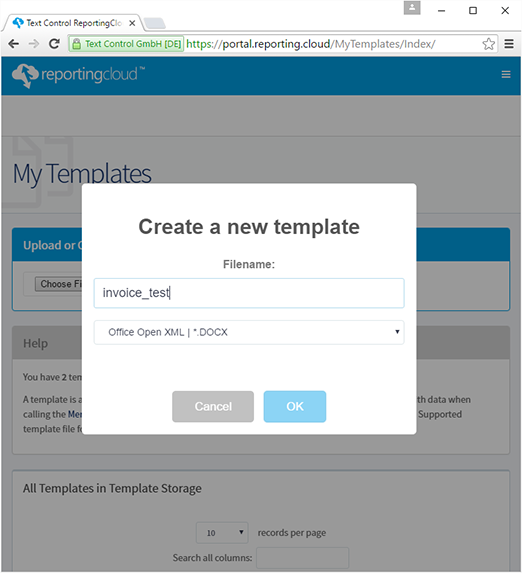
Click on My Templates, choose New Template... and type in a name and choose your preferred template format such as DOCX. Confirm with OK.
-
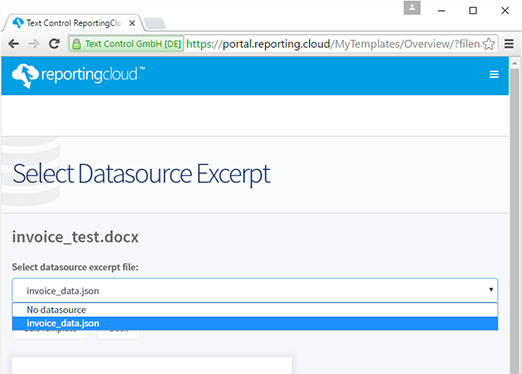
In the next dialog, click on Edit template, choose the created datasource excerpt file from the drop-down box and confirm with Edit Template:
-
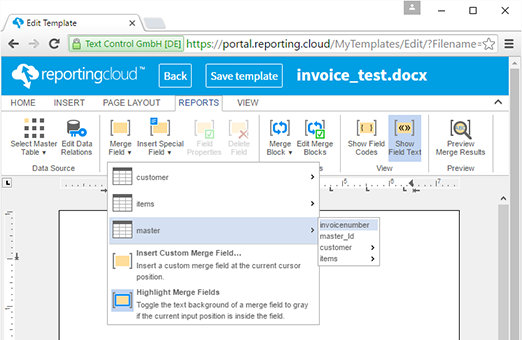
The template editor is opened and you can start designing your template. Open the Merge Field drop-down box from the Merge Fields group of the Reports ribbon tab.
Open the master table and insert the merge field invoicenumber.
-
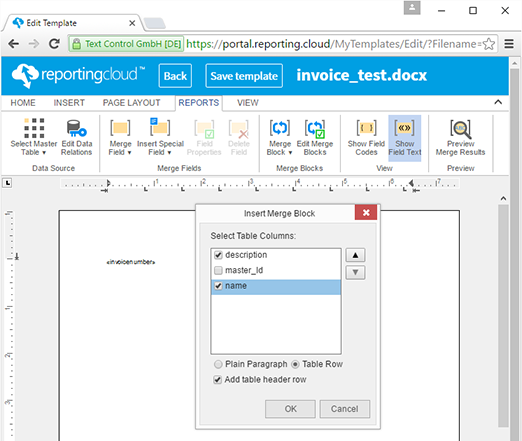
After the merge field has been added, insert some blank lines and then click on Merge Block to select items from the available drop-down items. In the opened dialog box, check description and name and confirm with OK.
-
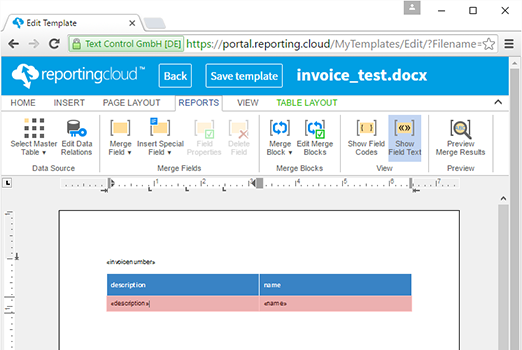
A repeating merge block (marked as red) is inserted into the template:
-
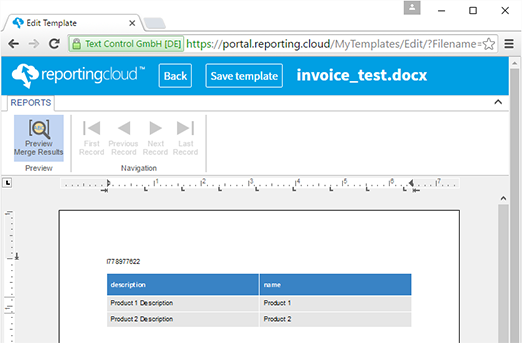
Now, click on Preview Merge Results in the Preview group and confirm the opened dialog box with OK.
-
Finish your template design, save the template and use Back to navigate back to the dashboard.
This template contains the proper field and block names that matches your datasource. When merging the template with the list of Invoice objects, ReportingCloud will populate the merge fields with the public property values of your invoice objects.
Cloud
Are we moving to the cloud? This question is changing from "if" to "when" and "how". Text Control ReportingCloud brings complete reporting functionality to the cloud so all developers can use it, irrespective of the platform or language they're using. Its highly RESTful API can be used to merge Microsoft Word compatible templates with JSON data from all clients including .NET, Javascript, PHP, Node.JS, jQuery, Ruby, Python, Android, Java and iOS.
Related Posts
ReportingCloud Monthly Payment Available
ReportingCloud now supports monthly subscription plans that auto-renew each billing cycle until cancelled. Subscribers manage active plans and view payment invoices through the online store…
Proofing Tools Available As ReportingCloud Web API Endpoints
ReportingCloud introduces three proofing Web API endpoints for cloud-based spell checking. The proofing/check endpoint detects misspelled words and duplicates, proofing/suggestions returns ranked…
All Google Fonts Now Available in ReportingCloud
ReportingCloud now includes over 2000 Google Fonts on its servers, ensuring consistent rendering across merged documents. The fonts/list endpoint returns all available font names for programmatic…
New ReportingCloud MergeSettings Option: Merge HTML Content into Merge Fields
ReportingCloud adds a mergeHtml property to MergeSettings that accepts formatted HTML inside merge field data. Supported tags include strong, em, and u wrapped in an html root element. The…
Retrieving Template Information Using the ReportingCloud Web API
The ReportingCloud template/info endpoint returns a TemplateInfo object containing hierarchical merge field names, format strings, and nested merge block structures. This metadata enables dynamic…