


HTML5: Make Merge Field Lists Scrollable in the Ribbon Bar

When templates have many merge fields, the ribbon dropdown can exceed the viewport. JavaScript monitors the Insert Merge Field button until the database loads, then sets CSS max-height and overflow-y auto on nested ul elements, adding scrollbars when the field list overflows its space.

It is recommended to provide a view for the available merge fields in the MAILINGS ribbon tab which is essentially the most important tab when it comes to the creation of mail merge templates.
But sometimes, a table has simply a lot of fields and the available height for the merge field list is limited. This sample shows how easy it is to customize the ribbon bar and the basic HTML elements such as an unordered list.
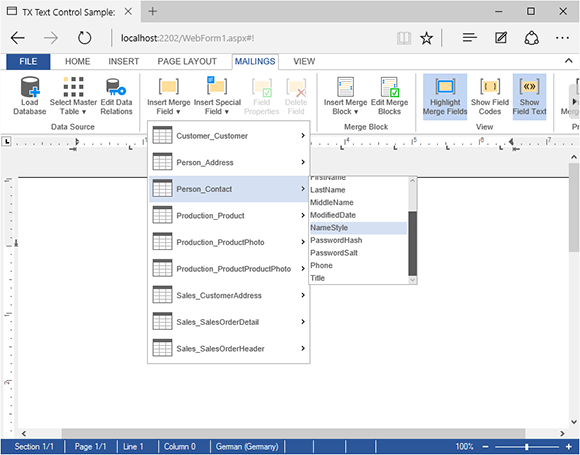
The following Javascript / jQuery is all you need to make the last level of the dropdown menu scrollable:
var interval;

// after the complete ribbon is loaded, "listen" to the
// "Insert Merge Field" drop-down to see whether the
// database is loaded completely
TXTextControl.addEventListener("ribbonTabsLoaded", function (e) {
    interval = setInterval(SetScrollbars, 500);
});

// if button doesn't have the "disabled" class anymore
function SetScrollbars() {
    if (!$("#drpDnBtnInsertMergeField").hasClass("ui-state-disabled")) {

        clearInterval(interval);

        // find the last "ul" element and set the height and
        // overflow properties
        $("#insertMergeFieldDropDown").find("li").each(function () {
            $(this).find("ul").last().css({
                "max-height": "150px",
                "overflow-y": "scroll",
                "width": $(this).width() + 50
            });
        });
    }
};
After the complete ribbon structure is loaded, the dropdown button Insert Merge Field is monitored until it is enabled. This implies that the database is loaded completely.
When loaded, all li elements of the dropdown button element are iterated. For each list element, the last ordered list element (<ul></ul>) is used to make CSS changes. This element is the list where all available merge fields are listed.
The maximum height and the overflow behavior is adjusted to enable the scrollbars when required. Additionally, the width is increased to make some more space for the additional scrollbar.
Download the sample from GitHub and test it on your own.

Download and Fork This Sample on GitHub
We proudly host our sample code on github.com/TextControl.
Please fork and contribute.
Requirements for this sample
- Visual Studio 2012 or better
- TX Text Control .NET Server (trial sufficient)
ASP.NET
Integrate document processing into your applications to create documents such as PDFs and MS Word documents, including client-side document editing, viewing, and electronic signatures.





- Angular
- Blazor
- React
- JavaScript
- ASP.NET MVC, ASP.NET Core, and WebForms
Related Posts
ASP.NET MVC: Implementing a Simplistic, Custom Button Bar
This ASP.NET MVC sample replaces the Web.TextControl ribbon bar with a custom button bar built in HTML, CSS, and JavaScript. Toggle buttons apply formatting commands like bold, while the…
ASP.NET MVC: Adding Protected Sections to Documents
SubTextParts in TX Text Control mark document regions as non-editable in Web.TextControl. An MVC controller method converts selected text into a SubTextPart using ServerTextControl, and…
ASP.NETReportingElectronic Signature
ASP.NET: Adding Electronic Signatures to Documents
An ASP.NET MVC sample demonstrates electronic signatures using an HTML5 canvas-based JavaScript signature pad. The captured signature image is sent to a controller action, which merges it into a…
MVC: Loading Files from the Backstage Menu
An MVC partial backstage view lists available files from a directory using a simple document model. When a user clicks a file, JavaScript sends an AJAX request to an HttpPost controller method…
MVC: Replace the File Menu with a Backstage View Menu
Replace the Web.TextControl File menu with a full-page backstage view using JavaScript and CSS. The tutorial disables the default FILE ribbon handler, renders a vertical navigation panel with…