









TX Text Control X10 Reporting: Using RDSC Files

Report Data Source Configuration files in TX Text Control X10 store database connection strings and table relations. After creating an RDSC file in the TX Text Control Words designer, the MailMerge engine handles all data binding when the Merge method is called on the template.

The Report Data Source Configuration files, introduced in TX Text Control X10, store database connection strings and created data relations. These files can be created in the customizable template designer TX Text Control Words and directly used in the reporting engine MailMerge.
In order to merge a template with data from a database, you simply need to load the template and the RDSC file and to call the Merge method - the rest is done by MailMerge automatically.
TX Text Control's MailMerge component is accessing the database, creating the relations in order to merge the right data into merge fields, blocks, images and barcodes.
This tutorial shows how to create a simple mail merge application with RDSC files.
-
Create a new Windows Forms application and drag and drop a Text Control from the toolbox onto your form. Open the SmartTag in the upper right corner of TextControl and visit each wizard link to add additional controls and to connect them.
-
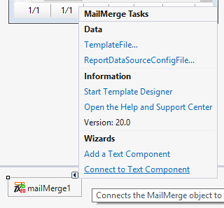
Find the MailMerge component in the toolbox and drag and drop it onto the form. Click the Connect to Text Component wizard link to connect MailMerge to the created TextControl instance.
-
In the same SmartTag, click Start Template Designer.
-
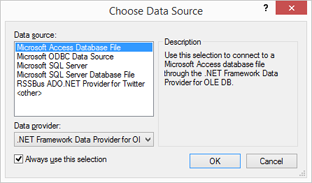
In the Mailings ribbon tab, click the Select Data Source button and follow the steps in the dialog to open your desired database.
-
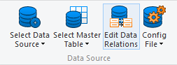
When the database has been opened, click on Edit Data Relations to the open the Data Relations dialog.
-
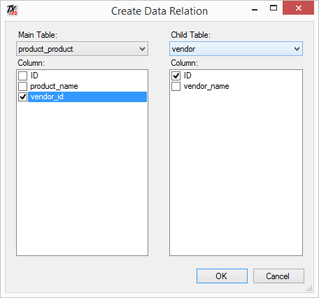
In the dialog, create your data relations by choosing a main and a child table and the column that defines the relation between the two tables.
-
When the dialog is confirmed and closed with OK, the relations are directly usable in the designer. Click on the drop-down button Insert Merge Field and select your main table. In the opened dialog, you will see the fields of your main table and the related fields of your child table. Insert some fields of both tables into your template.
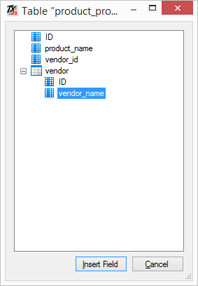
Fields from child tables are divided using a '.' which represents table relations.
-
Make sure that your main table is selected using the Select Master Table drop-down button. From the Config File drop-down button, select Save Configuration and choose a location and name for your configuraton file.
-
Save the template as DOC, DOCX, RTF or the Internal TX Text Control format using the Save As... menu and close the template designer.
-
Back in Visual Studio, open the SmartTag of MailMerge and choose TemplateFile... to select your previously saved template.
-
Now, choose ReportDataSourceConfigFile to browse for your configuration file.
-
Create a menu by adding a MenuStrip to your form with a main menu named Report and menu item Merge. Double-click Merge and add the following code to the event handler:
mailMerge1.Merge();
Compile and start your application in order to choose Merge from the main menu. Your created template is automatically merged with the specified database and relations.
Want to see this in action? Download the trial version of TX Text Control X10 today and test drive the new way of reporting.
Related Posts
TX Text Control 34.0 SP5 is Now Available: What's New in the Latest Version
TX Text Control 34.0 Service Pack 5 is now available, offering important updates and bug fixes for all platforms. If you use TX Text Control in your document processing applications, this service…
TX Text Control 34.0 SP4 is Now Available: What's New in the Latest Version
TX Text Control 34.0 Service Pack 4 is now available, offering important updates and bug fixes for all platforms. If you use TX Text Control in your document processing applications, this service…
TX Spell .NET 11.0 SP1 is Now Available: What's New in the Latest Version
TX Spell .NET 11.0 Service Pack 1 is now available, offering important updates and bug fixes for all platforms. If you use TX Spell .NET in your document processing applications, this service pack…
Announcing TX Text Control DS Server 5.0
We are excited to announce the release of TX Text Control DS Server 5.0. This release focuses on extensibility, plugin integration, and developer productivity while continuing to improve the…
TX Text Control 34.0 SP2 is Now Available: What's New in the Latest Version
TX Text Control 34.0 Service Pack 2 is now available, offering important updates and bug fixes for all platforms. If you use TX Text Control in your document processing applications, this service…