


How to Use the FieldAdapter Classes to Manipulate ApplicationFields

TX Text Control 15.0 introduced FieldAdapter classes that wrap ApplicationFields such as MergeField, DateField, IfField, and form controls with named properties. Developers create and edit MS Word-compatible fields without manually parsing raw parameter arrays or field switch strings.

TX Text Control .NET for Windows Forms 14.0 introduced the ApplicationField class to manipulate MS Word standard fields like MergeField, Date or NumPages. All switches and parameters of these fields are represented by the Parameters property which gets or sets a string array of the available values.
In order to create or edit such fields, you need to know the structure of these standard fields. In version 15.0, we introduced the FieldAdapter classes for the most commonly used fields:
- MergeField
- DateField
- IfField
- IncludeText
- FormCheckbox
- FormDropDown
- FormText
These adapter classes can be used to create or manipulate these MS Word compatible fields without learning the specific switches and possible parameters. All settings can be easily accessed using the available properties.
Let's have a look at a typical MergeField:
{MERGEFIELD company \* Upper \b "Company:" \* MERGEFORMAT}The following illustration shows this field in MS Word with a description of each parameter:
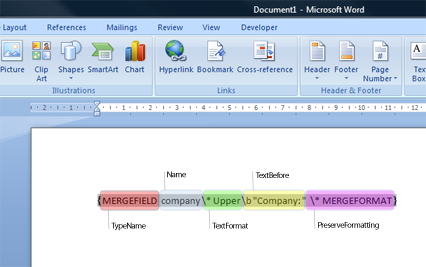
By accesssing this field using the ApplicationFields, the Parameter property would return this string array:
{ "company", "\* Upper", "\b \"Company\"", "\* MERGEFORMAT" }How does the FieldAdapter comes into play?
As the name implies, FieldAdapter is an adapter for the ApplicationFields. It can be only used in combination with these fields. To manipulate a MergeField, the MergeField adapter should be used. To create a new instance of the MergeField, the specific ApplicationField can be passed in the constructor:
foreach (TXTextControl.ApplicationField field in textControl1.ApplicationFields)
{
    if(field.TypeName == "MERGEFIELD")
    {
        TXTextControl.DocumentServer.Fields.MergeField mergeField =
            new TXTextControl.DocumentServer.Fields.MergeField(field);
        mergeField.Name = "companyname";
    }
}
In the above code, we check the TypeName of the field. If it is a MergeField, a new instance of the adapter class is created and the ApplicationField is passed in the constructor. After that, we have access to the specific MergeField properties like the Name. You can use the FieldAdapter to insert new fields as well:
TXTextControl.DocumentServer.Fields.MergeField mergeField =
        new TXTextControl.DocumentServer.Fields.MergeField();
    textControl1.ApplicationFields.Add(mergeField.ApplicationField);
Summary: Using the FieldAdapters, you can easily handle the most commonly used fields of MS Word. You don't need to care about parsing the parameters on your own. You get a full set of properties for each available setting.
Related Posts
Getting Started: ServerTextControl and MailMerge in a .NET 8 Console…
This article shows how to create a .NET 8 console application on Linux using Docker and WSL that uses the ServerTextControl to create a document and MailMerge to merge JSON data into the document.…
Create a Table of Contents in Windows Forms using C#
This article explains how to create a table of contents in Windows Forms using the ribbon or programmatically. Creating a table of contents is required to organize large documents.
Two Ways to Restart Numbered Lists in TX Text Control
In TX Text Control, numbered lists are continued by default and need to be reset when required. There is more than one way if you want to restart numbered lists in a document. In this article, two…
Inserting MS Word Compatible FORMCHECKBOX Fields
TX Text Control .NET for Windows Forms supports MS Word compatible FORMCHECKBOX form fields for inserting and processing interactive checkboxes within documents. A companion GitHub sample project…
Inserting and Processing MS Word Compatible DATE Fields
The DocumentServer FieldAdapter classes in TX Text Control .NET for Windows Forms let developers create, insert, and update MS Word compatible DATE fields. The fields support .NET DateTime format…