


Convert CSV to PDF in .NET C#

Learn how to convert CSV data to a table in C# using the ServerTextControl library with this step-by-step tutorial. Easily generate PDF documents from CSV files in your .NET applications.
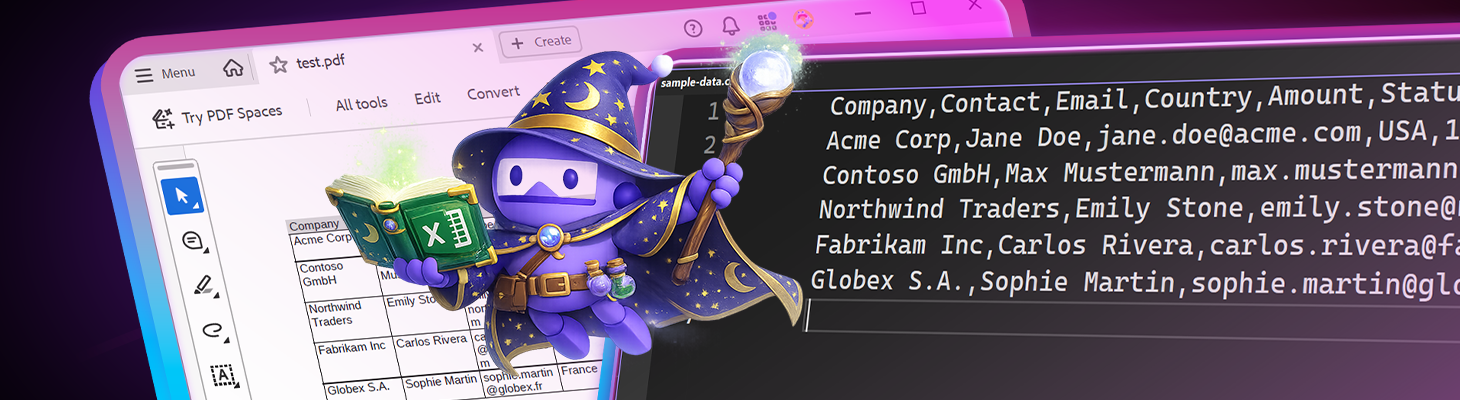
CSV (Comma Separated Values) remains one of the most practical formats for business software. Every system can generate it, every team can open it, and every workflow can manipulate it. However, as soon as you want to create an actual document from that data, the limitations of CSV become apparent.
A CSV file is just plain text separated by commas or other delimiters. It has no understanding of document structure. There are no headers, borders, pagination, repeating column titles, or reliable layout rules. CSV is great for data exchange but not for producing documents to send to customers, archive for compliance purposes, or share internally as clean reports.
That is why converting CSV data into a table within a document is important. With TX Text Control .NET Server (ServerTextControl), you can take a CSV file and turn it into a properly formatted TX Text Control table. Then, you can export it as a PDF that looks like a real business document.
Why CSV-to-Table Support Matters
Most applications already contain tabular data. The challenge is not the data itself, but rather turning it into professional, paginated output.
A TX Text Control table provides a structured document object that supports features that CSV does not, such as styled header rows, cell borders, consistent layout across pages, and full control over the output. This is useful for exports such as order lists, customer overviews, audit reports, and invoice summaries, as well as any type of "data-to-PDF" workflow where a clean, repeatable result is desired.
Sample CSV Input
Here is a typical CSV file that we want to turn into a table:
Company,Contact,Email,Country,Amount,Status,DueDate
Acme Corp,Jane Doe,jane.doe@acme.com,USA,12500.75,Approved,2026-02-15
Contoso GmbH,Max Mustermann,max.mustermann@contoso.de,Germany,9800.0,Pending,2026-03-01
Northwind Traders,Emily Stone,emily.stone@northwind.com,UK,4500.5,Overdue,2026-01-10
Fabrikam Inc,Carlos Rivera,carlos.rivera@fabrikam.com,Spain,15250.0,Approved,2026-02-28
Globex S.A.,Sophie Martin,sophie.martin@globex.fr,France,3200.0,Rejected,2026-04-05
In this example, the first row contains the column titles and is the header row. All subsequent rows contain the actual data.
The Key TX Text Control API Strategy
The importer class reads the CSV file and inserts a table into the document using ServerTextControl. The implementation is elegant because it follows a specific TX Text Control approach. The key steps are:
- Insert the header row first (optional)
- Insert exactly one data row as a "template row"
- Format that template row once
- Insert all remaining rows after it so the formatting is inherited
This prevents the need to format every row manually, keeping the code clean and efficient, even for larger CSV files.
Step 1: Insert the Table Into the Document
Text Control inserts tables at the current input position:
tx.Tables.Add(initialRows, columnCount);Typically, you want to work with the inserted object right after adding the table. One reliable pattern is to first move the selection back, and then fetch the table.
tx.Selection.Start -= 1;
var table = tx.Tables.GetItem();
This gives you a Table reference you can fill and format.
Step 2: Fill and Style the Header Row
When FirstRowIsHeader is enabled, the importer places the first CSV record in row 1 and applies header styling. Here is how that looks:
for (int c = 1; c <= columnCount; c++)
    table.Cells[1, c].Text = (c - 1) < header.Count ? header[c - 1] : string.Empty;

table.Rows[1].CellFormat = new TableCellFormat()
{
    BackColor = System.Drawing.Color.LightGray,
    BottomBorderWidth = 10
};

table.Rows[1].IsHeader = true;
The line IsHeader = true is important. It tells Text Control that this row is a repeating header. When the table spans multiple pages, this header row automatically reappears on the next page, which is ideal for PDF exports.
Step 3: Create a Template Data Row for Formatting
Rather than formatting each row, the importer only formats the template row.
table.Rows[templateDataRow].CellFormat = new TableCellFormat()
{
    BottomBorderWidth = 10,
    TopBorderWidth = 10,
    RightBorderWidth = 10,
    LeftBorderWidth = 10
};
This row defines the border style for all data rows. The important point is that any new rows inserted after this one will automatically inherit its formatting.
Step 4: Insert Remaining Rows
This is one way in which Text Control differs from many other document libraries. Row insertion depends on the current input position. If you insert rows without selecting the correct location, it's easy to end up adding them somewhere other than expected.
That's why the importer explicitly places the selection into the template data row before calling Rows.Add:
table.Cells[templateDataRow, 1].Select();
tx.Selection.Length = 0;

table.Rows.Add(TableAddPosition.After, dataRowCount - 1);
Text Control now knows exactly where to insert additional rows, which inherit the formatting of the template row automatically.
Step 5: Fill the Data Rows
Once the table has the correct number of rows, filling it in is easy. The importer loops through the CSV records and writes each field into the correct cell.
for (int r = 0; r < dataRowCount; r++)
{
    int targetRow = templateDataRow + r;
    var record = records[dataStartRowIndexInRecords + r];

    for (int c = 1; c <= columnCount; c++)
    {
        string value = (c - 1) < record.Count ? record[c - 1] : string.Empty;
        table.Cells[targetRow, c].Text = value;
    }
}
Since we inserted the table with one template row and added the remaining rows all at once, the row indices line up perfectly, and the formatting remains consistent.
End-to-End Sample: CSV to PDF
Once the table is inserted, exporting to PDF is only one line:
using TXTextControl;

const string csvPath = "sample-data.csv";
const string pdfPath = "test.pdf";

using var tx = new ServerTextControl();
tx.Create();

var importer = new CsvToTextControlTableImporter();

var options = new CsvToTextControlTableImporter.Options
{
    FirstRowIsHeader = true,
    Separator = ','
};

importer.InsertTableFromCsvFile(tx, csvPath, options);

tx.Save(pdfPath, StreamType.AdobePDF);
The result is a real PDF document that contains a fully formatted table with a styled header and consistent borders across all rows.

Conclusion
CSV is a universal export format, but not a document format. To turn CSV data into something readable, printable, and professional, you need real document structures.
The cleanest approach with TX Text Control is to build the table in a way that matches the strengths of the API: insert the header row, format a single template row, and then add the remaining rows so that they inherit the formatting. This approach provides a predictable layout, professional appearance, and scalable workflow for small exports and large, multi-page reports.
You can download the complete sample project from our GitHub repository below.

Download and Fork This Sample on GitHub
We proudly host our sample code on github.com/TextControl.
Please fork and contribute.
Requirements for this sample
- TX Text Control .NET Server 34.0
- Visual Studio 2026
ASP.NET
Integrate document processing into your applications to create documents such as PDFs and MS Word documents, including client-side document editing, viewing, and electronic signatures.





- Angular
- Blazor
- React
- JavaScript
- ASP.NET MVC, ASP.NET Core, and WebForms
Related Posts
Why Table Control in Templates is Important for Professional PDF Creation in C#
Controlling how tables behave at page breaks is an important factor in creating professional-looking documents. This article discusses the importance of table control in templates for PDF generation.
ASP.NETWindows FormsASP.NET Core
Splitting Tables at Bookmark Positions and Cloning Table Headers
This article shows how to split tables at bookmark positions and how to clone table headers in TX Text Control .NET for Windows Forms and TX Text Control .NET Server.
Creating Advanced Tables in PDF and DOCX Documents with C#
This article shows how to create advanced tables in PDF and DOCX documents using the TX Text Control .NET for ASP.NET Server component. This article shows how to create tables from scratch,…
Inserting MergeBlocks with the DataSourceManager and Applying Table Styles in C#
This article shows how to insert MergeBlocks with the DataSourceManager and how to apply table styles to those tables. The article uses the DocumentServer class to insert MergeBlocks with the…
Text Control at BASTA! Spring 2026 in Frankfurt
This week, we sponsored the BASTA! Spring 2026 conference in Frankfurt, Germany. We had a booth in the exhibition area and presented our products to the attendees. We also had the opportunity to…