









Document Editor with ASP.NET Core and Docker Support with Linux Containers using Visual Studio 2026 and .NET 10

This article shows how to create a Document Editor ASP.NET Core application using Docker with Linux containers in Visual Studio 2026 and .NET 10. We will create a simple web application that allows users to edit documents directly in their web browser using the Document Editor component from Text Control.
Prerequisites
You need to download and install the trial version of TX Text Control .NET Server to host the Document Editor backend:
- Download Trial Version
Setup download and installation required.
Introduction
This tutorial will walk you through the process of building a simple ASP.NET Core web application that hosts the TX Text Control .NET Server backend. This will enable in-browser document rendering and editing with the TX Text Control Document Editor.
Version 34.0 of TX Text Control provides full support for Visual Studio 2026 and .NET 10. This ensures seamless integration and compatibility with the latest tools, as well as a smooth development experience on the newest Microsoft platform.
Container and Linux Distributions
TX Text Control is compatible with all major Linux distributions and can be deployed in virtual machines, Docker containers, and hyperscaler environments, including Azure App Services, AWS Elastic Beanstalk, and Google Cloud Run. This tutorial will demonstrate how to create an ASP.NET Core web application that hosts TX Text Control in a standard Linux container using the default Visual Studio template.
Creating the Application
Make sure that you have installed the latest version of Visual Studio 2026, including the .NET 10 SDK.
-
In Visual Studio 2026, create a new project by choosing Create a new project.
-
Select ASP.NET Core Web App (Model-View-Controller) as the project template and confirm with Next.
-
Enter a project name and choose a location to save the project. Confirm with Next.
-
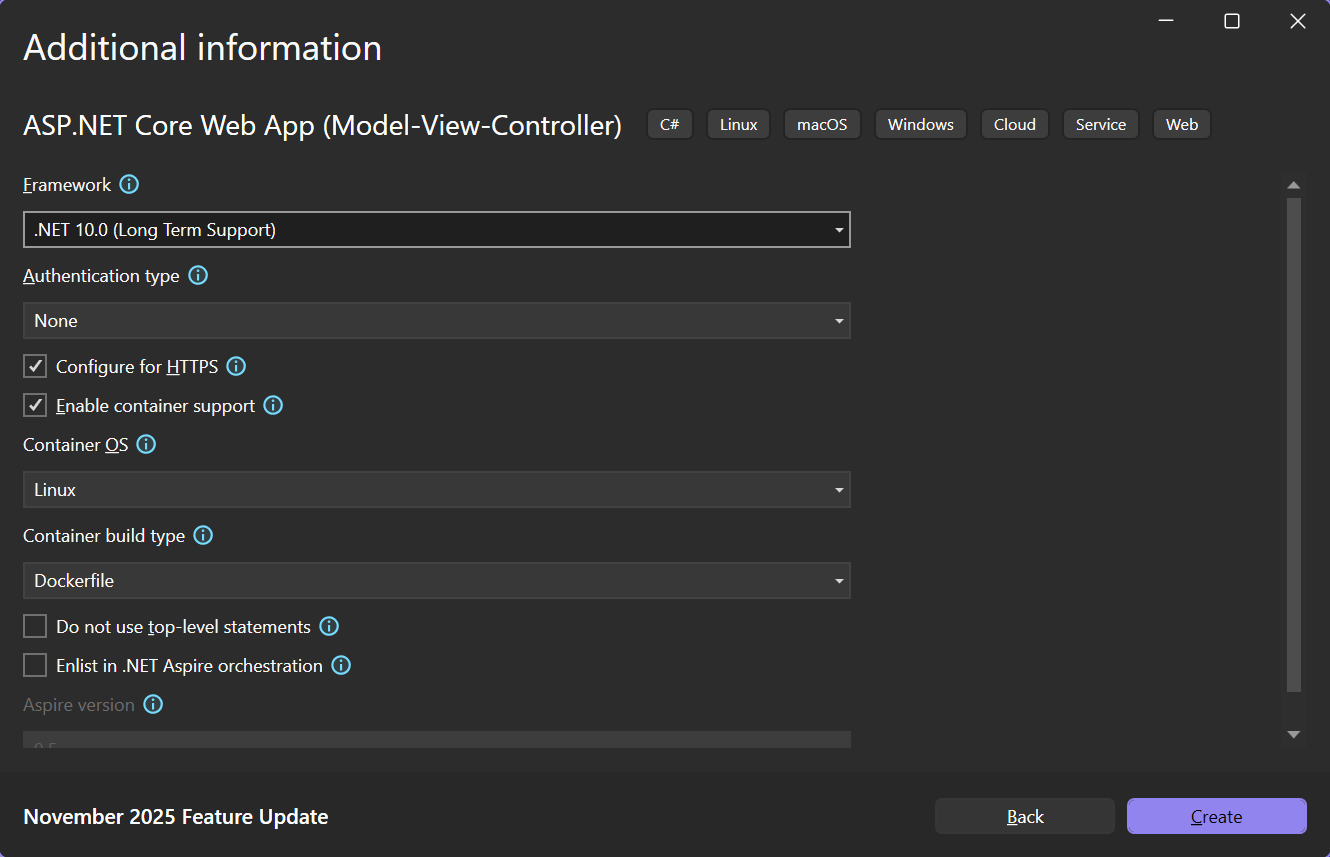
Choose .NET 10.0 (Long Term Support) as the Framework.
-
Enable the Enable container support checkbox and choose Linux as the Container OS.
-
Choose Dockerfile for the Container build type option and confirm with Create.
Adding the Web Server Backend
-
Create a new class by right-clicking the project in the Solution Explorer and choose Add -> Class.... Name the class TXWebServerProcess.cs and confirm with Add. Replace the complete content with the following code:
using System.Diagnostics; using System.Reflection; public class TXWebServerProcess : IHostedService { private readonly ILogger<TXWebServerProcess> _logger; public TXWebServerProcess(ILogger<TXWebServerProcess> logger) => _logger = logger; public Task StartAsync(CancellationToken cancellationToken) { try { string? path = Path.GetDirectoryName(Assembly.GetExecutingAssembly().Location); string dllPath = Path.Combine(path ?? "", "TXTextControl.Web.Server.Core.dll"); if (string.IsNullOrEmpty(path) || !File.Exists(dllPath)) _logger.LogWarning("TX Web Server process could not be started."); else { Process.Start(new ProcessStartInfo("dotnet", $"\"{dllPath}\" &") { UseShellExecute = true, WorkingDirectory = path }); _logger.LogInformation("TX Web Server process started."); } } catch (Exception ex) { _logger.LogError(ex, "Error starting TX Web Server."); } return Task.CompletedTask; } public Task StopAsync(CancellationToken cancellationToken) { _logger.LogInformation("Stopping TX Web Server process..."); return Task.CompletedTask; } } -
Right-click the project in Solution Explorer, select Add → Existing Item…, and then browse to the TX Text Control .NET Server installation directory.
C:\Program Files\Text Control GmbH\TX Text Control 34.0.NET Server for ASP.NET\Assembly\net8.0
Set the file filter to All Files (*.*) and select the following files:
- TXTextControl.Web.Server.Core.deps.json
- TXTextControl.Web.Server.Core.dll
- TXTextControl.Web.Server.Core.Process.deps.json
- TXTextControl.Web.Server.Core.Process.dll
- TXTextControl.Web.Server.Core.Process.runtimeconfig.json
- TXTextControl.Web.Server.Core.runtimeconfig.json
- TXTextControl.Web.Server.Core.config.json
Confirm with Add.
-
Select the added files in the Solution Explorer and set the Copy to Output Directory property to Copy always.
Adding the NuGet Packages
-
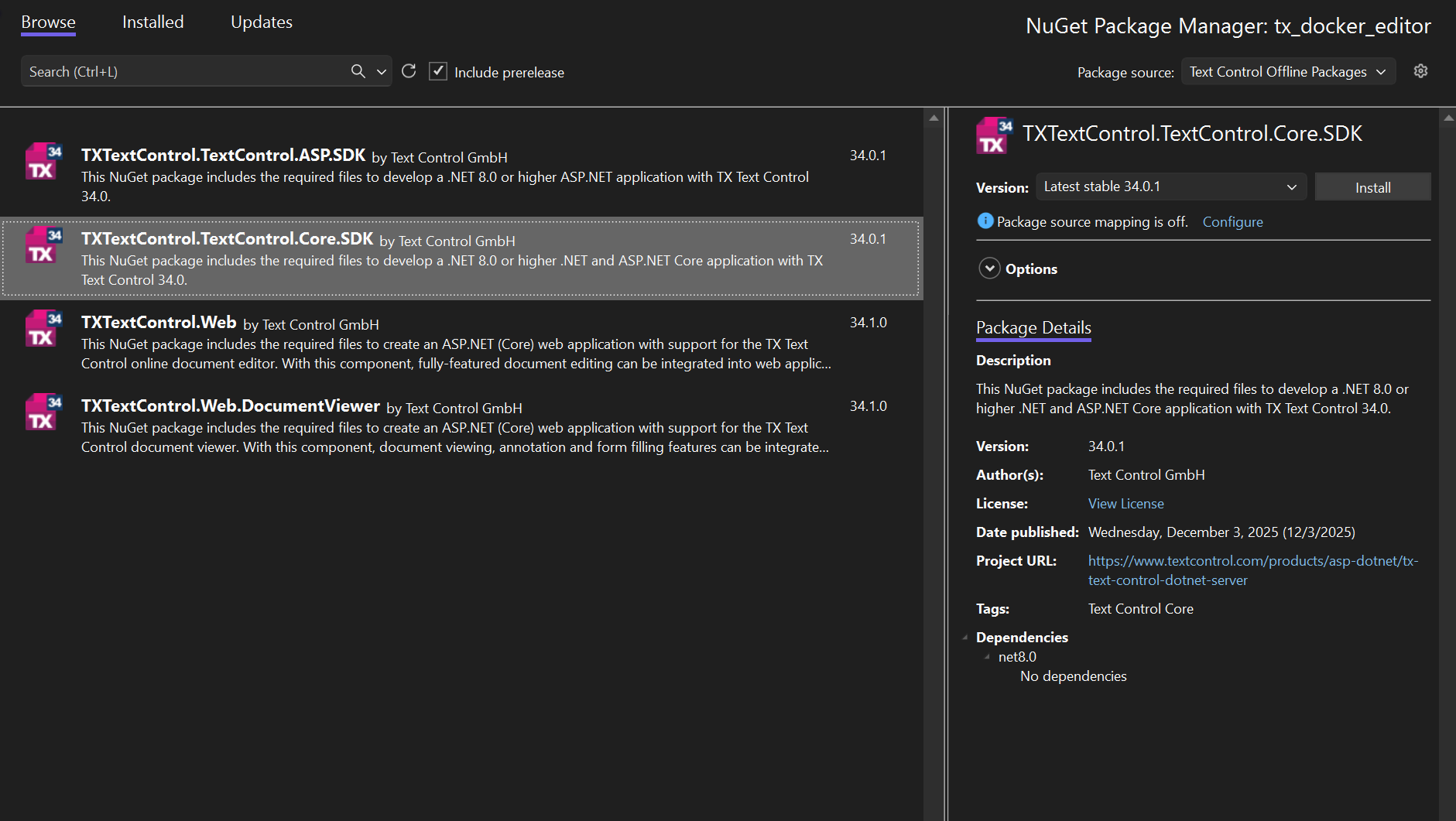
In Solution Explorer, select your project and choose Manage NuGet Packages… from the Project menu. Then set Text Control Offline Packages as the package source.
Install the following packages:
- TXTextControl.Web
- TXTextControl.TextControl.Core.SDK
Configure the Application
-
Open the Program.cs file located in the project's root folder.
After builder.Services.AddControllersWithViews();, add the following code:
builder.Services.AddHostedService<TXWebServerProcess>();At the very top of the file, insert the following code:
using TXTextControl.Web;Add the following code before the entry
app.UseRouting();:// enable Web Sockets app.UseWebSockets(); // attach the Text Control WebSocketHandler middleware app.UseTXWebSocketMiddleware();The overall Program.cs file should look like this:
using TXTextControl.Web;

var builder = WebApplication.CreateBuilder(args);

// Add services to the container.
builder.Services.AddControllersWithViews();
builder.Services.AddHostedService<TXWebServerProcess>();

var app = builder.Build();

// Configure the HTTP request pipeline.
if (!app.Environment.IsDevelopment())
{
    app.UseExceptionHandler("/Home/Error");
    // The default HSTS value is 30 days. You may want to change this for production scenarios, see https://aka.ms/aspnetcore-hsts.
    app.UseHsts();
}

app.UseHttpsRedirection();

// enable Web Sockets
app.UseWebSockets();

// attach the Text Control WebSocketHandler middleware
app.UseTXWebSocketMiddleware();

app.UseRouting();

app.UseAuthorization();

app.MapStaticAssets();

app.MapControllerRoute(
    name: "default",
    pattern: "{controller=Home}/{action=Index}/{id?}")
    .WithStaticAssets();


app.Run();
Adding the Control to the View
-
Find the Index.cshtml file in the Views -> Home folder. Replace the complete content with the following code to add the document editor to the view:
@using TXTextControl.Web.MVC

@{
    var sDocument = "<html><body><p>Welcome to <strong>Text Control</strong></p></body></html>";
}

@Html.TXTextControl().TextControl(settings => {
    settings.UserNames = new string[] { "Tim Typer" };
}).LoadText(sDocument, TXTextControl.Web.StringStreamType.HTMLFormat).Render()

<input type="button" onclick="insertTable()" value="Insert Table" />

<script>
    function insertTable() {
        TXTextControl.tables.add(5, 5, 10, function(e) {
          if (e === true) { // if added
            TXTextControl.tables.getItem(function(table) {
              table.cells.forEach(function(cell) {

                cell.setText("Cell text");

              });
            }, null, 10);
          }
        })
    }
</script>
Starting the Application
We will use the Dockerfile as provided and rely on the default Visual Studio template, which targets a Linux container based on the official Docker Hub image.
-
Start the application by pressing F5 or by choosing Debug -> Start Debugging from the main menu.
ASP.NET
Integrate document processing into your applications to create documents such as PDFs and MS Word documents, including client-side document editing, viewing, and electronic signatures.





- Angular
- Blazor
- React
- JavaScript
- ASP.NET MVC, ASP.NET Core, and WebForms
Related Posts
Reliable Document AI in .NET: LLM Tool Calling vs. LLM-Generated Files
Reliable document AI needs a deterministic engine. With LLM tool calling, the LLM decides what the document should contain, and TX Text Control generates the file.
ASP.NETASP.NET CoreDocument Generation
Building a Production-Ready PDF Generation Pipeline in C# with ASP.NET Core
Learn how to build a reliable PDF generation pipeline with TX Text Control and ASP.NET Core. Use durable background jobs, idempotency, renewable leases, PDF validation, and private artifact…
BASTA! 2026: Why AI Makes Deep Technology More Important Than Ever
This week, we exhibited our latest products and engaged with the developer community at BASTA! 2026. This conference highlighted the importance of AI in driving deep technology forward.
WeAreDevelopers World Congress North America 2026: A Strong Start in the…
This week marked the beginning of the WeAreDevelopers World Congress North America 2026, showcasing innovative technologies and networking opportunities for developers. We exhibited our latest…
Building Legal Document AI with TX Text Control: From RAG and Contract…
Learn how TX Text Control uses AI, RAG, and deterministic document processing to create intelligent workflows for analyzing, summarizing, and reviewing legal documents. Learn how AI can analyze…