


Rendering TX Text Control's Content to a DataGridViewCell

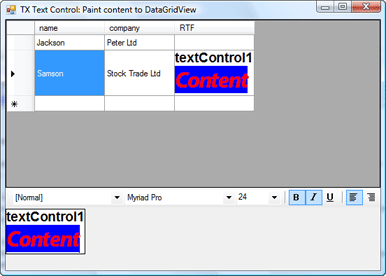
Standard .NET DataGridView cells provide only basic rich text support. This sample uses the CellPainting event with TX Text Control's DrawToBitmap method to render fully formatted document content as a GDI+ bitmap image inside a DataGridViewCell without hosting the control.

The rich text support of the .NET DataGridView or other commercial components are very basic and in most cases limited to the features of the Microsoft RichTextBox.
To enable users to display more advanced rich content in a DataGridViewCell, you can render the text of TXTextControl.TextControl to the Graphics object of a specific cell.
There are also possibilities to insert the control itself to the cell when it is activated. You can build your own DataGridViewColumn that adds another control to the cell. This project shows how to achieve this:
RichTextBox cell in a DataGridView
Anyway, this sample code shows only how to render the content of TX Text Control to the cell. I am using the CellPainting event of the DataGridView to change the painting. We are just drawing the background of the cell. The e.Handled = true; statement avoids further painting of the cell.
The DrawToBitmap method of TX Text Control is used to create an image of the content which is rendered using the GDI+ DrawImage method. It is a very easy, but effective way to provide rich text content in a data grid.
private void dataGridView1_CellPainting(object sender, DataGridViewCellPaintingEventArgs e)
{
    // hardcoded cell index
    if (e.ColumnIndex == 2 && e.RowIndex == 1)
    {
        // draw the background and disable the drawing
        e.PaintBackground(e.ClipBounds, true);
        e.Handled = true;

        // set the size of the cell
        dataGridView1.Rows[1].Height = textControl1.Height;
        dataGridView1.Columns[2].Width = textControl1.Width;

        // create the bitmap
        Bitmap bmp = new Bitmap(textControl1.Width, textControl1.Height);
        textControl1.DrawToBitmap(bmp, new Rectangle(0, 0,
            textControl1.Width, textControl1.Height));

        // draw the bitmap to the cell
        e.Graphics.DrawImage(bmp, new Point(e.CellBounds.X, e.CellBounds.Y));
    }
}Related Posts
Create a Table of Contents in Windows Forms using C#
This article explains how to create a table of contents in Windows Forms using the ribbon or programmatically. Creating a table of contents is required to organize large documents.
Two Ways to Restart Numbered Lists in TX Text Control
In TX Text Control, numbered lists are continued by default and need to be reset when required. There is more than one way if you want to restart numbered lists in a document. In this article, two…
Paste Special: The Easy Way to Implement
TX Text Control version 15.0 introduced a ClipboardFormat parameter on the Paste method, enabling native Paste Special functionality. The GetClipboardFormats method returns all available clipboard…
How to Remove All Section Breaks in a Document?
TX Text Control 15.0 adds per-section page column support alongside existing section breaks. To remove all section breaks programmatically, iterate through SectionCollection using…
Batch Printing: How to Print Documents in One Print Job
Batch printing multiple documents as a single print job using TX Text Control relies on a .NET PrintDocument with PrintPage and QueryPageSettings events. Each page is rendered individually via the…