









Best Practices for Image Compression when Exporting to PDF in .NET C#

When generating PDFs programmatically, one of the most important factors affecting file size and rendering performance is how images are embedded and compressed. This article explores best practices for image compression in .NET C# applications.

TX Text Control implements all technically feasible strategies to automatically minimize PDF output size. For example, instead of embedding an entire font file into the PDF, font subsetting only includes the characters (glyphs) used in the document. For instance, if a document contains only numbers and a few letters, TX Text Control extracts and embeds just those glyphs. This dramatically reduces the file size while ensuring the text remains selectable, searchable, and accessible. Combined with intelligent image compression, resolution scaling, and support for vector graphics, the exported PDFs are optimized to be as compact as possible without sacrificing quality.
When generating PDFs programmatically, how images are embedded and compressed is one of the most important factors affecting file size and rendering performance. With TX Text Control, you can precisely control image compression with settings such as Image
Understanding How Images Are Stored in PDFs
PDFs embed images as Image XObjects, which can be compressed using different filters:
- /DCTDecode JPEG: Lossy compression, perfect for photos and scans.
- /FlateDecode ZIP/Deflate compression (similar to PNG): Lossless compression, great for diagrams, line art, or screenshots.
TX Text Control automatically selects the appropriate filter based on the quality you choose:
- ImageCompressionQuality = 100: Lossless (FlateDecode)
- ImageCompressionQuality < 100: JPEG (DCTDecode)
This means that, depending on the use case, you can decide whether to store an image as a perfect lossless bitmap or a compressed JPEG.
Example: Compression Quality vs. File Size
We conducted our test using a 10-page document containing two images: One JPEG (2.9 MB) and one PNG (5.7 MB). Each image was 2400x1350 pixels at 96 DPI.
| Quality | File Size (bytes) | File Size (human) | Reduction vs. Lossless |
|---|---|---|---|
| 30 | 922,261 | 0.88 MB | -94% |
| 50 | 1,220,750 | 1.16 MB | -92% |
| 70 | 1,550,169 | 1.48 MB | -90% |
| 90 | 2,544,461 | 2.43 MB | -83% |
| 100 | 15,397,363 | 14.68 MB | baseline |
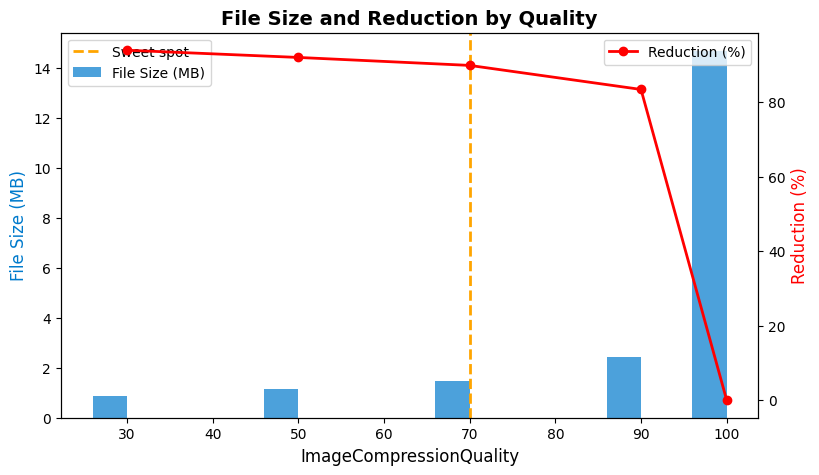
The difference is striking. Quality 90 produces a file that is six times smaller than a lossless file, and in most cases, there is no visible difference.
Test Code
The following C# code shows how to test different levels of image compression when exporting to PDF with TX Text Control.
using TXTextControl;

sealed class CompressionTester
{
    private static readonly int[] Qualities = [30, 50, 70, 90, 100];

    public static void TestPdfImageCompression(string inputFile)
    {
        ArgumentException.ThrowIfNullOrWhiteSpace(inputFile);

        using var textControl = new ServerTextControl();
        textControl.Create();
        textControl.Load(inputFile, StreamType.WordprocessingML);

        Console.WriteLine($"Testing image compression for: {inputFile}");
        Console.WriteLine("Quality  Bytes               Human");
        Console.WriteLine(new string('-', 40));

        foreach (var quality in Qualities)
        {
            var saveSettings = new SaveSettings { ImageCompressionQuality = quality };

            textControl.Save(out byte[] results, BinaryStreamType.AdobePDF, saveSettings);

            long size = results.LongLength;
            Console.WriteLine(
                $"  {quality,3}    {size,15:N0}   {ToHumanReadable(size)}");
        }
    }

    private static string ToHumanReadable(long bytes) =>
        bytes switch
        {
            >= 1L << 30 => $"{bytes / (double)(1L << 30):0.##} GB",
            >= 1L << 20 => $"{bytes / (double)(1L << 20):0.##} MB",
            >= 1L << 10 => $"{bytes / (double)(1L << 10):0.##} KB",
            _ => $"{bytes} bytes"
        };
}

public static class Program
{
    public static void Main(string[] args) =>
        CompressionTester.TestPdfImageCompression(
            args.Length > 0 ? args[0] : "sample_10_pages.docx");
}
This utility saves the same document with different compression qualities and logs the resulting file sizes. This makes it easy to identify the optimal balance of size and quality for your needs.
The following is the output for our test document, which shows the results of running the test.
Testing image compression for: sample_10_pages.docx
Quality  Bytes               Human
----------------------------------------
   30            922,261   900.65 KB
   50          1,220,750   1.16 MB
   70          1,550,169   1.48 MB
   90          2,544,461   2.43 MB
  100         15,397,363   14.68 MB
The following chart provides a dual-axis view of both the absolute file size and the percentage reduction. It also includes a visual marker at the optimal setting.
Reducing Image Resolution
Besides compression, resolution is another major factor. Many images, especially those from cameras or stock libraries, are larger than necessary. For example, a 2400x1350 pixel image at 300 DPI is excessive if the document will only be viewed on a screen.
TX Text Control's ImageMaxResolution lets you scale down images automatically:
- Setting a value between 72 and 150 DPI is often sufficient for online documents.
- For print documents, consider using a higher DPI, such as 300 DPI.
This can reduce file sizes by orders of magnitude while still providing adequate visual quality.
Use SVG for Vector Graphics
Not all images need to be stored as bitmaps. Vector images, such as SVGs, are resolution-independent and are often much smaller than pixel-based formats.
- Logos, charts, icons, and line art should ideally be inserted as SVG.
- When exported, these objects remain true vectors inside the PDF, not rasterized bitmaps.
- This keeps file size small, preserves perfect sharpness, and allows infinite zooming without quality loss.
Since TX Text Control fully supports SVG, prefer SVG over PNG or JPEG for vector artwork whenever possible.
Best Practices Summary
In TX Text Control, you can specify these settings for each individual image or for all images. You will need to find the perfect settings for your documents.
- Match compression to content
- Photos → JPEG (ImageCompressionQuality < 100).
- Graphics, logos → FlateDecode (ImageCompressionQuality = 100).
- Vector graphics → SVG.
- Find the sweet spot
- Start with quality = 70 for JPEGs, adjust if needed.
- Scale down oversized images
- Use ImageMaxResolution to avoid embedding unnecessarily large bitmaps.
- Choose 72-150 DPI for screen, 300 DPI for print.
- Test your output
- Generate samples at different quality levels and compare size vs. readability.
Conclusion
Following these best practices can significantly reduce your documents' file size while maintaining visual quality. Experiment with different settings to find the optimal balance for your needs.
ASP.NET
Integrate document processing into your applications to create documents such as PDFs and MS Word documents, including client-side document editing, viewing, and electronic signatures.





- Angular
- Blazor
- React
- JavaScript
- ASP.NET MVC, ASP.NET Core, and WebForms
Related Posts
Reliable Document AI in .NET: LLM Tool Calling vs. LLM-Generated Files
Reliable document AI needs a deterministic engine. With LLM tool calling, the LLM decides what the document should contain, and TX Text Control generates the file.
ASP.NETASP.NET CoreDocument Generation
Building a Production-Ready PDF Generation Pipeline in C# with ASP.NET Core
Learn how to build a reliable PDF generation pipeline with TX Text Control and ASP.NET Core. Use durable background jobs, idempotency, renewable leases, PDF validation, and private artifact…
BASTA! 2026: Why AI Makes Deep Technology More Important Than Ever
This week, we exhibited our latest products and engaged with the developer community at BASTA! 2026. This conference highlighted the importance of AI in driving deep technology forward.
WeAreDevelopers World Congress North America 2026: A Strong Start in the…
This week marked the beginning of the WeAreDevelopers World Congress North America 2026, showcasing innovative technologies and networking opportunities for developers. We exhibited our latest…
Building Legal Document AI with TX Text Control: From RAG and Contract…
Learn how TX Text Control uses AI, RAG, and deterministic document processing to create intelligent workflows for analyzing, summarizing, and reviewing legal documents. Learn how AI can analyze…