


How to Create Self-Signed Certificates on Windows to Sign PDFs in .NET C#

This article shows how to create self-signed certificates on Windows to sign PDF documents in .NET C#. The article explains how to create a self-signed certificate using PowerShell and how to sign a PDF document using the TX Text Control .NET Server component.

In document workflows, digital signatures provide authenticity and integrity. When working with PDF documents, a self-signed certificate can be used for testing or internal purposes before obtaining a trusted certificate from a Certificate Authority (CA). This blog post walks you through the process of creating a self-signed certificate using PowerShell, converting it to a PFX file, and using it to digitally sign a PDF.
Using PowerShell to Create a Self-Signed Certificate
Windows provides built-in PowerShell cmdlets to create and manage certificates. Open PowerShell as an administrator and run the following command:
$cert = New-SelfSignedCertificate `
  -Subject "CN=MyTXCert" `
  -CertStoreLocation "Cert:\CurrentUser\My" `
  -KeyExportPolicy Exportable `
  -KeySpec Signature `
  -FriendlyName "My PDF Signing Certificate" `
  -NotAfter (Get-Date).AddYears(5)
The command creates a self-signed certificate and stores it in the Personal certificate store of the current user. Here is a description of the parameters used:
| Parameter | Description |
|---|---|
| Subject | Common Name (CN) of the certificate. |
| CertStoreLocation | Certificate store location. The default value is "Cert:\CurrentUser\My". |
| KeyExportPolicy | Exportable: The private key can be exported. |
| KeySpec | Key specification. |
| FriendlyName | A readable name for the certificate. |
| NotAfter | Expiration date of the certificate (5 years in the example). |
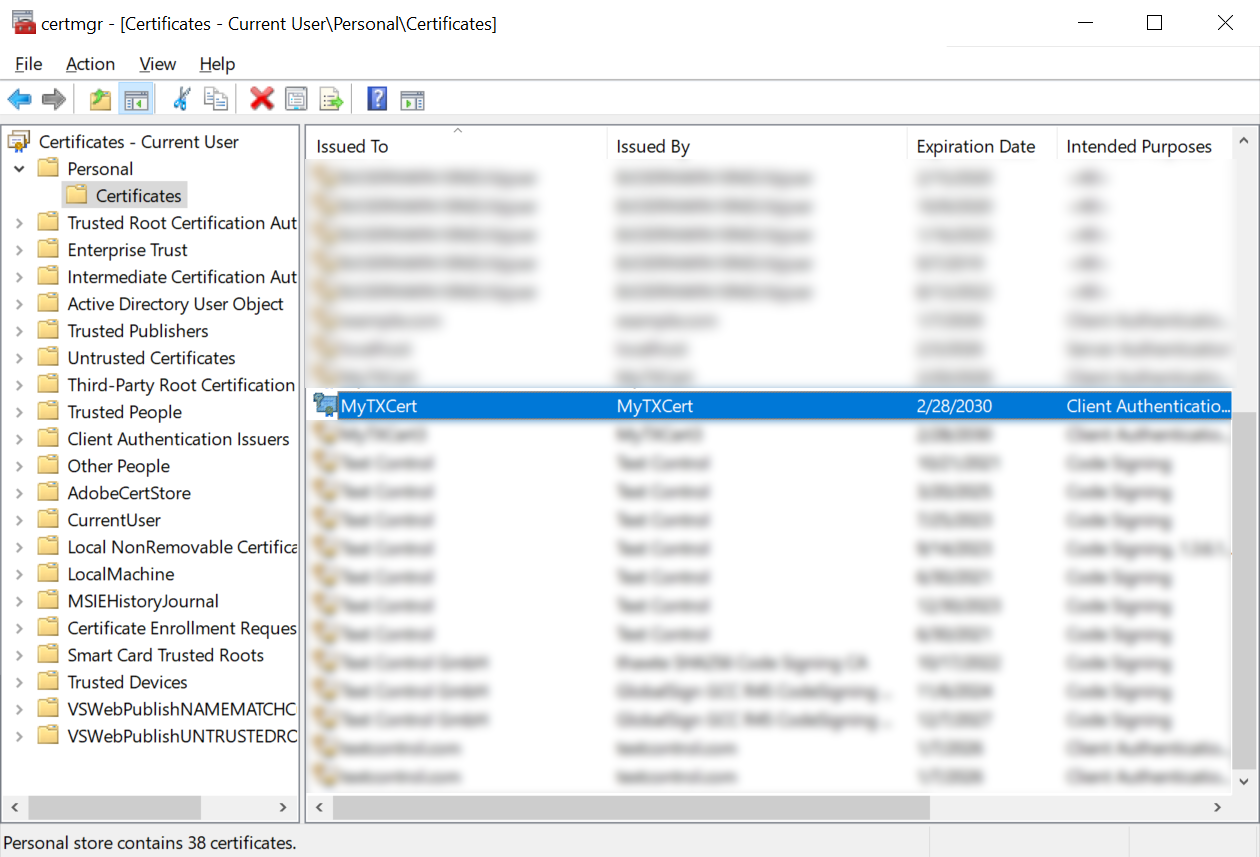
After you run the command, you can view the certificate in the Certificate Manager (certmgr.msc) under Personal > Certificates.
Exporting the Certificate to a PFX File
To use the certificate for digital signing, export it to a Personal Exchange Format (PFX) file. Run the following command in PowerShell:
$Password = ConvertTo-SecureString -String "123" -Force -AsPlainText

Export-PfxCertificate `
    -Cert "Cert:\CurrentUser\My\$($cert.Thumbprint)" `
    -FilePath "C:\Path\To\Certificate.pfx" `
    -Password $Password
This command exports the certificate to a PFX file. Here is a description of the parameters used:
| Parameter | Description |
|---|---|
| ConvertTo-SecureString | Securely defines the password for the PFX file. |
| Export-PfxCertificate | Exports the certificate with the private key. |
| FilePath | Path to the PFX file. |
| Password | Password to protect the PFX file. |
After you run the command, you can view the PFX file in the specified location.
Signing a PDF with the Certificate
Now that we have a PFX file, we can use it to sign a PDF document. In a .NET-based application, such as one that uses TX Text Control .NET, you can apply the digital signature using the Digital
The following code snippet shows how to sign a PDF document using a PFX file:
using System.Security.Cryptography.X509Certificates;
using TXTextControl;

// Define the certificate password and path
const string password = "123";
const string certificatePath = "certificate.pfx";

var cert = new X509Certificate2(certificatePath, password, X509KeyStorageFlags.Exportable);

// Initialize TXTextControl to create and save a document with the digital signature
using (var tx = new ServerTextControl())
{
    tx.Create();
    tx.Text = "Hello, World!";

    // Prepare the digital signature for the document
    var saveSettings = new SaveSettings
    {
        DigitalSignature = new DigitalSignature(cert, null)
    };

    // Save the document as a PDF with the digital signature
    tx.Save("result.pdf", StreamType.AdobePDF, saveSettings);
}
Conclusion
Creating a self-signed certificate is a simple process using PowerShell. This certificate can be used for testing or internal purposes before obtaining a trusted certificate from a CA. The certificate can be exported to a PFX file and used to digitally sign PDF documents in a .NET-based application.
ASP.NET
Integrate document processing into your applications to create documents such as PDFs and MS Word documents, including client-side document editing, viewing, and electronic signatures.





- Angular
- Blazor
- React
- JavaScript
- ASP.NET MVC, ASP.NET Core, and WebForms
Related Posts
Using QR Codes in PDF Documents in C# .NET
QR codes are a powerful tool for embedding machine-readable information in documents. In this article, we will explore how to generate and insert them into PDF documents using C# .NET with TX Text…
ASP.NETASP.NET CoreE-Invoicing
Why Structured E-Invoices Still Need Tamper Protection using C# and .NET
ZUGFeRD, Factur-X, German e-invoicing rules, and how to seal PDF invoices with TX Text Control to prevent tampering. Learn how to create compliant e-invoices with C# and .NET.
Create Fillable PDFs from HTML Forms in C# ASP.NET Core Using a WYSIWYG Template
Learn how to generate PDFs from HTML forms in ASP.NET Core using a pixel-perfect WYSIWYG template. Extract form fields from a document, render a dynamic HTML form, and merge the data server-side…
Why HTML to PDF Conversion is Often the Wrong Choice for Business Documents…
In this article, we explore the challenges of HTML to PDF conversion for business documents in C# .NET and present alternative solutions that offer better performance and reliability. Discover why…
A Complete Guide to Converting Markdown to PDF in .NET C#
Learn how to convert Markdown to PDF in .NET C# using Text Control's ServerTextControl component. This guide covers setup, conversion process, and customization options for generating high-quality…