


How to Secure your PDF Documents with ASP.NET Core C#

TX Text Control not only provides a sophisticated way to create PDF documents, but also to secure those PDF documents to ensure confidentiality and integrity. This article discusses the various options and safeguards for securing PDF documents.

To ensure the confidentiality and integrity of the information contained within, PDF documents can be encrypted. This can be done by specifying a user password and a master password. The reader then needs the user password to open the document and read its contents. If a master password is provided, certain settings and restrictions can be changed. These include content editing, copying, and printing.
Create PDFs Programmatically
This article describes how to programmatically generate PDF documents from HTML content in a .NET Console App.
Prerequisites
The following tutorial requires a trial version of TX Text Control .NET Server.
Preparing the Application
For the purposes of this demo, a .NET 6 console application is built.
-
In Visual Studio, create a new Console App using .NET 6.
-
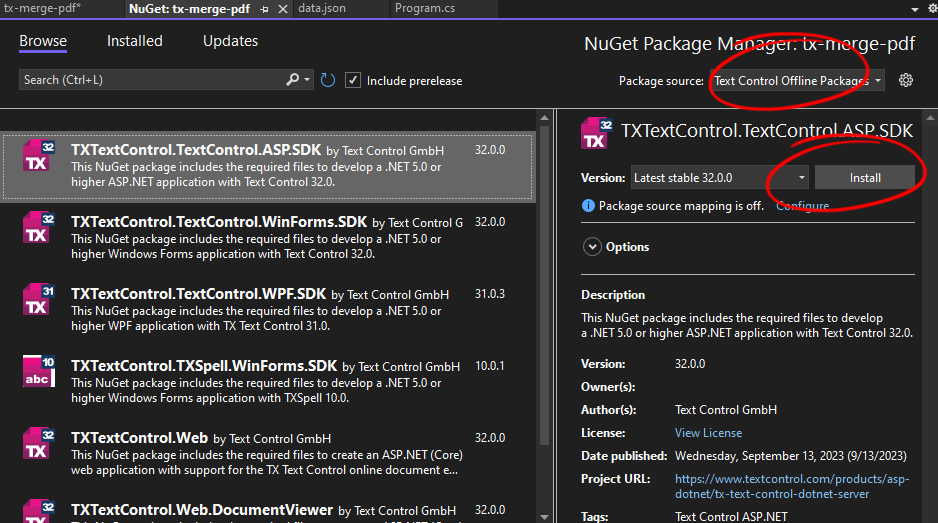
In the Solution Explorer, select your created project and choose Manage NuGet Packages... from the Project main menu.
Select Text Control Offline Packages from the Package source drop-down.
Install the latest versions of the following package:
- TXTextControl.TextControl.ASP.SDK
Adding the Code
-
Open the Program.cs file and add the following code:
using (TXTextControl.ServerTextControl tx = new TXTextControl.ServerTextControl())
{
    tx.Create();

    TXTextControl.Selection selection = new TXTextControl.Selection();
    selection.Text = "Hello PDF!";
    selection.FontSize = 360;
    selection.FontName = "Arial";
    selection.ForeColor = System.Drawing.Color.Red;

    tx.Selection = selection;

    tx.Save("output.pdf", TXTextControl.StreamType.AdobePDFA);
}
Running the Application
-
Run the application and check the output folder for the generated PDF document.
Encrypt with User Password
If a user password is used for document encryption, the user will be prompted for the password in order to open the document. In order to do this, the Save
using (TXTextControl.ServerTextControl tx = new TXTextControl.ServerTextControl())
{
    tx.Create();

    TXTextControl.Selection selection = new TXTextControl.Selection();
    selection.Text = "Hello PDF!";
    selection.FontSize = 360;
    selection.FontName = "Arial";
    selection.ForeColor = System.Drawing.Color.Red;

    tx.Selection = selection;

    TXTextControl.SaveSettings saveSettings = new TXTextControl.SaveSettings()
    {
        UserPassword = "textcontrol"
    };

    tx.Save("output.pdf", TXTextControl.StreamType.AdobePDF, saveSettings);
}
When this document is opened in Acrobat Reader, the user is prompted for the password to open the document.
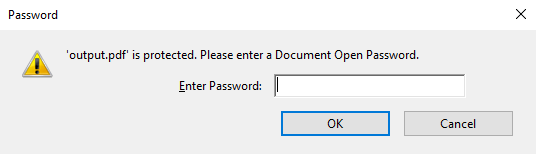
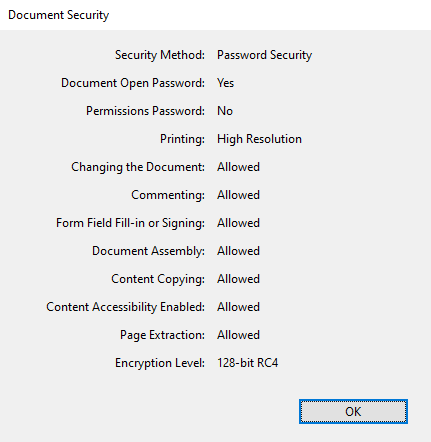
In Acrobat Reader, you can verify document security using the document security settings. These documents will be encrypted and will not be visible to search engines on the web as well.
Encrypt with Master Password
When you specify the master password, you can set a variety of restrictions, such as printing, copying, and editing.
using (TXTextControl.ServerTextControl tx = new TXTextControl.ServerTextControl())
{
    tx.Create();

    TXTextControl.Selection selection = new TXTextControl.Selection();
    selection.Text = "Hello PDF!";
    selection.FontSize = 360;
    selection.FontName = "Arial";
    selection.ForeColor = System.Drawing.Color.Red;

    tx.Selection = selection;

    TXTextControl.SaveSettings saveSettings = new TXTextControl.SaveSettings()
    {
        UserPassword = "textcontrol",
        MasterPassword = "textcontrol",
        DocumentAccessPermissions = TXTextControl.DocumentAccessPermissions.AllowGeneralEditing |
            TXTextControl.DocumentAccessPermissions.AllowLowLevelPrinting |
            TXTextControl.DocumentAccessPermissions.AllowExtractContents
    };

    tx.Save("output.pdf", TXTextControl.StreamType.AdobePDF, saveSettings);
}
These settings will be reflected in the security settings of the Adobe PDF document.
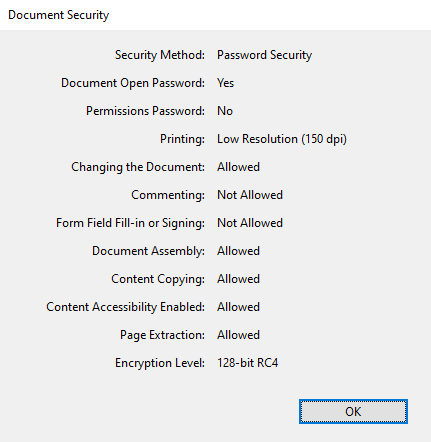
The following restrictions can be set:
AllowAll
After the document has been opened no further document access is restricted.
AllowAuthoring
Allows comments to be added and interactive form fields (including signature fields) to be filled in.
AllowAuthoringFields
Allows existing interactive form fields (including signature fields) to be filled in.
AllowContentAccessibility
Allows content access for the visually impaired only.
AllowDocumentAssembly
Allows the document to be to assembled (insert, rotate or delete pages and create bookmarks or thumbnails).
AllowExtractContents
Allows text and/or graphics to be extraced.
AllowGeneralEditing
Allows the document contents to be modified.
AllowHighLevelPrinting
Allows the document to be printed.
AllowLowLevelPrinting
Allows the document to be printed (low-level).
Learn More
With TX Text Control, adding digital and electronic signatures to documents is a simple task. This article shows how to sign the entire document with a digital certificate and how to sign individual signature fields.
ASP.NET
Integrate document processing into your applications to create documents such as PDFs and MS Word documents, including client-side document editing, viewing, and electronic signatures.





- Angular
- Blazor
- React
- JavaScript
- ASP.NET MVC, ASP.NET Core, and WebForms
Related Posts
Exporting Password Protected Documents to PDF in .NET C#
This article shows how to export password protected documents to PDF in .NET C# using TX Text Control .NET Server. Existing password protected documents can be imported, modified and exported to…
E-Sign: Validating Signature Hashes Generated from Vector Data in ASP.NET…
Storing the raw data of the signature, including point positions, velocity, and acceleration, can help strengthen the evidence. By generating and storing a hash of the raw signature data in the…
Why HTML to PDF Conversion is Often the Wrong Choice for Business Documents…
In this article, we explore the challenges of HTML to PDF conversion for business documents in C# .NET and present alternative solutions that offer better performance and reliability. Discover why…
A Complete Guide to Converting Markdown to PDF in .NET C#
Learn how to convert Markdown to PDF in .NET C# using Text Control's ServerTextControl component. This guide covers setup, conversion process, and customization options for generating high-quality…
ASP.NETASP.NET CoreDocument Creation
Why PDF Creation Belongs at the End of the Business Process
This article discusses why placing PDF creation at the end of the business process is important for ensuring accuracy and efficiency. The most scalable systems delay PDF generation until the…