









New Sample: Implementing a Dark Mode for the Document Editor

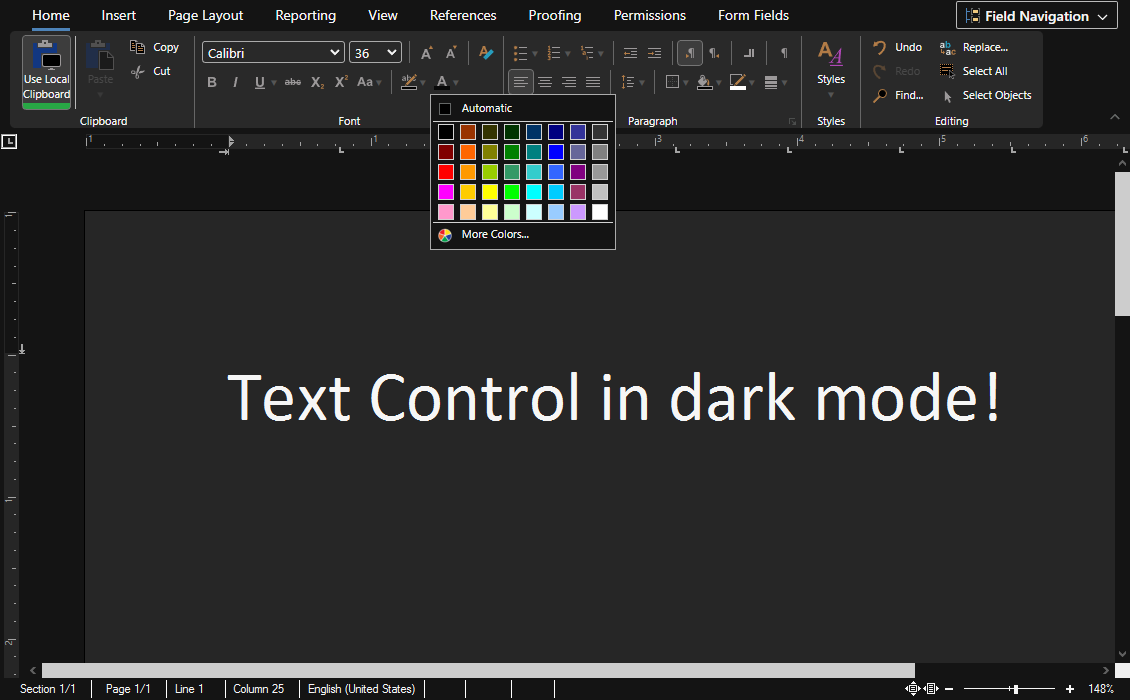
Dark modes are used to reduce blue light exposure and help readers read content in low-light situations. This example shows how to use CSS and JavaScript to implement a dark mode for the document editor.

Dark modes are used to reduce blue light exposure and help readers read content in low-light situations. This example shows how to use CSS and JavaScript to implement a dark mode for the document editor.
JavaScript DisplayColors
All colors of the TX Text Control and the ribbon bar are fully customizable, allowing you to create any UI/UX mode, such as dark modes. The colors of the desktop, status bar and the rulers can be changed using the display
The following JavaScript code sets the background colors of all elements except the ribbon and scrollbars, which can be changed using CSS.
var __main_bg_color = "#141414";
var __main_text_color = "#f6f6f6";
var __document_color = "#262626";

TXTextControl.addEventListener("textControlLoaded", function () {

    TXTextControl.displayColors.setDesktopColor(__main_bg_color);
    TXTextControl.displayColors.setDarkShadowColor(__main_bg_color);
    TXTextControl.displayColors.setLightShadowColor(__main_bg_color);

    TXTextControl.setBackColor(__document_color);
    TXTextControl.selection.setFontName("Calibri");
    TXTextControl.selection.setFontSize(12);
    TXTextControl.selection.setForeColor(__main_text_color);

    TXTextControl.statusBar.displayColors.setForeColor(__main_text_color);
    TXTextControl.statusBar.displayColors.setBackColorTop(__main_bg_color);
    TXTextControl.statusBar.displayColors.setBackColorMiddle(__main_bg_color);
    TXTextControl.statusBar.displayColors.setBackColorBottom(__main_bg_color);

    TXTextControl.verticalRulerBar.displayColors.setBackColor(__main_bg_color);
    TXTextControl.verticalRulerBar.displayColors.setGradientBackColor(__main_bg_color);
    TXTextControl.verticalRulerBar.displayColors.setForeColor(__main_text_color);
    TXTextControl.verticalRulerBar.displayColors.setRulerColor(__document_color);

    TXTextControl.rulerBar.displayColors.setBackColor(__main_bg_color);
    TXTextControl.rulerBar.displayColors.setGradientBackColor(__main_bg_color);
    TXTextControl.rulerBar.displayColors.setForeColor(__main_text_color);
    TXTextControl.rulerBar.displayColors.setRulerColor(__document_color);

});
Ribbon Styles using CSS
The ribbon styles are changed using custom CSS that overrides the default style of the TX Text Control document editor. Basically, the backgrounds, hover and border colors, menu and text colors are changed.
:root {
    --main-bg-color: #141414;
    --main-text-color: #f6f6f6;
    --button-selected: #3d3d3d;
    --button-outline: #757575;
    --divider: #666666;
    --button-hover: #3d3d3d;
    --tab-bg: #292929;
}

#ribbonbar {
    background-color: var(--main-bg-color) !important;
    border-bottom: 1px solid var(--main-bg-color) !important;
}

.ribbon-button img {
    filter: invert(100%);
}

#txTglBtnSideBars {
    border: 1px solid var(--ribbon-border-color);
    background-color: transparent !important;
    color: var(--main-text-color) !important;
}

.tx-btn-icon-chevron svg path {
    fill: var(--main-text-color) !important;
}

#txTemplateDesignerContainer {
    color: var(--main-text-color) !important;
}

    #txTemplateDesignerContainer div.ribbon-button-selected {
        background-color: var(--button-selected);
        outline: 1px solid var(--button-outline) !important;
    }

    #txTemplateDesignerContainer div.ribbon-group:last-child {
        border-right: none !important;
    }


    #txTemplateDesignerContainer div.ribbon-group, #txTemplateDesignerContainer div.ribbon-group-control-group {
        border-right-color: var(--divider);
    }

    #txTemplateDesignerContainer .tab-content {
        background-color: var(--tab-bg);
        margin-left: 10px;
        border-radius: 5px;
    }

.txui-widget-content {
    background-color: var(--main-bg-color) !important;
    color: var(--main-text-color) !important;
}

.txui-widget-header {
    color: var(--main-text-color) !important;
}

.txui-widget-content table {
    color: var(--main-text-color) !important;
}

#txTemplateDesignerContainer .txSidebar .sidebarHeaderTitle {
    color: var(--main-text-color) !important;
}

#txTemplateDesignerContainer .txui-menu div.large-menu-item-long-caption-container {
    color: var(--main-text-color) !important;
}

    #txTemplateDesignerContainer .txui-menu div.large-menu-item-long-caption-container p:last-child,
    #txTemplateDesignerContainer .txui-menu div.large-menu-item-long-caption-container h1 {
        color: var(--main-text-color) !important;
    }

#txTemplateDesignerContainer .txInsertTableWizard {
    background-color: var(--main-bg-color);
}

#txTemplateDesignerContainer select, .txDialog select {
    color: var(--main-text-color) !important;
    background-color: transparent !important;
}

#txTemplateDesignerContainer div.ribbon-group-content input:disabled[type=number], #txTemplateDesignerContainer div.ribbon-group-content input:disabled[type=text] {
    background-color: transparent !important;
    border-color: #ddd;
}

#txTemplateDesignerContainer div.ribbon-group-content input[type=number], #txTemplateDesignerContainer div.ribbon-group-content input[type=text] {
    background-color: transparent !important;
    color: var(--main-text-color) !important;
}

#txTemplateDesignerContainer select {
    border-radius: 3px;
}

#txTemplateDesignerContainer .txui-widget-content a {
    color: var(--main-text-color) !important;
}

#txTemplateDesignerContainer select option {
    background-color: var(--main-bg-color) !important;
}

#txTemplateDesignerContainer ul.txui-menu li.txui-menu-item a.txui-state-focus {
    background-color: var(--button-hover) !important;
}

#txTemplateDesignerContainer div.ribbon-button {
    border-radius: 3px;
    outline: 1px solid transparent;
}

    #txTemplateDesignerContainer div.ribbon-button:not(.txui-state-disabled):hover {
        background-color: var(--button-hover) !important;
    }

#txTemplateDesignerContainer ul.tabs li a {
    color: var(--main-text-color) !important;
}

#txTemplateDesignerContainer ul.tabs {
    background-color: var(--main-bg-color) !important;
}

#txTemplateDesignerContainer div.scroll-button {
    background-color: var(--main-bg-color);
}

#txTemplateDesignerContainer div.scrollbar-wrapper {
    background-color: var(--main-bg-color) !important;
}

#txTemplateDesignerContainer div.txui-slider {
    border-radius: 0;
    position: relative;
    background: none !important;
    border: none !important;
}

#txTemplateDesignerContainer ul.tabs li a:hover {
    background-color: var(--main-bg-color) !important;
}

    #txTemplateDesignerContainer ul.tabs li a:hover:after {
        position: absolute;
        display: block;
        border-bottom-width: 3px;
        border-bottom-style: solid;
        border-bottom-color: var(--divider);
        height: 10px;
        width: calc(100% - 32px);
        bottom: 0;
        left: 16px;
        content: "";
    }
Inverting Icons
The ribbon icons are SVGs, which makes it possible to use a filter to invert all of the images in a single CSS command:
.ribbon-button img {
    filter: invert(100%);
}
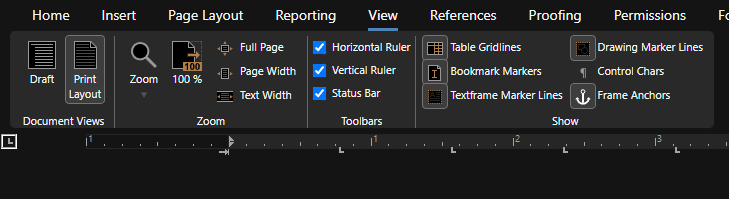
This will invert the icon colors to match the dark mode.
Launch Demo
See this dark mode live with our online technical demos.
ASP.NET
Integrate document processing into your applications to create documents such as PDFs and MS Word documents, including client-side document editing, viewing, and electronic signatures.





- Angular
- Blazor
- React
- JavaScript
- ASP.NET MVC, ASP.NET Core, and WebForms
Related Posts
ASP.NETASP.NET CoreCollaboration
Introducing TX Text Control Web Collaboration Preview for ASP.NET Core
The first preview of TXTextControl.Web.Collaboration adds server-authoritative collaboration rooms, sharing links, presence indicators, and defensive document synchronization to the TX Text…
ASP.NETASP.NET CoreDocument Editor
Beyond WebSockets: A Glimpse into the Future of Document Editing with…
Every major shift in browser technology creates new possibilities for software developers. WebAssembly may be the most significant advancement for document editing since we introduced our…
ASP.NETASP.NET CoreDocument Editor
5 Layout Patterns for Integrating the TX Text Control Document Editor in…
When integrating a document editor into an ASP.NET Core application, the technical setup is only one part of the work. Just as important is the question of how the editor fits into the user…
Introducing Text Control Agent Skills
Text Control Agent Skills are structured definitions that teach AI coding assistants how to build applications with the TX Text Control Document Editor. Each skill contains step-by-step…
ASP.NETApp ServicesASP.NET Core
Deploying the TX Text Control Document Editor from the Private NuGet Feed to…
This tutorial shows how to deploy the TX Text Control Document Editor to Azure App Services using an ASP.NET Core Web App. The Document Editor is a powerful word processing component that can be…