


Custom UI: Drag and Drop Merge Fields into the Document Editor

The document editor UI is customizable and merge fields can be added in many different ways. This example shows how to drag and drop fields from a sidebar into the document.

For many applications, the out-of-the-box Reporting UI may be too complex and require too much training. It is helpful to tailor the UI to the user's level of expertise to enhance the user experience and streamline workflows.
Live Demo
Test this code live in the Drag and Drop Fields sample that is part of the Technical Demos.
Drag and Drop
A very common technical support question is whether it is possible to drag and drop merge fields from a sidebar or tree view. The JavaScript API provides full access to the functionality, including adding merge fields, that allows you to implement such a sidebar.
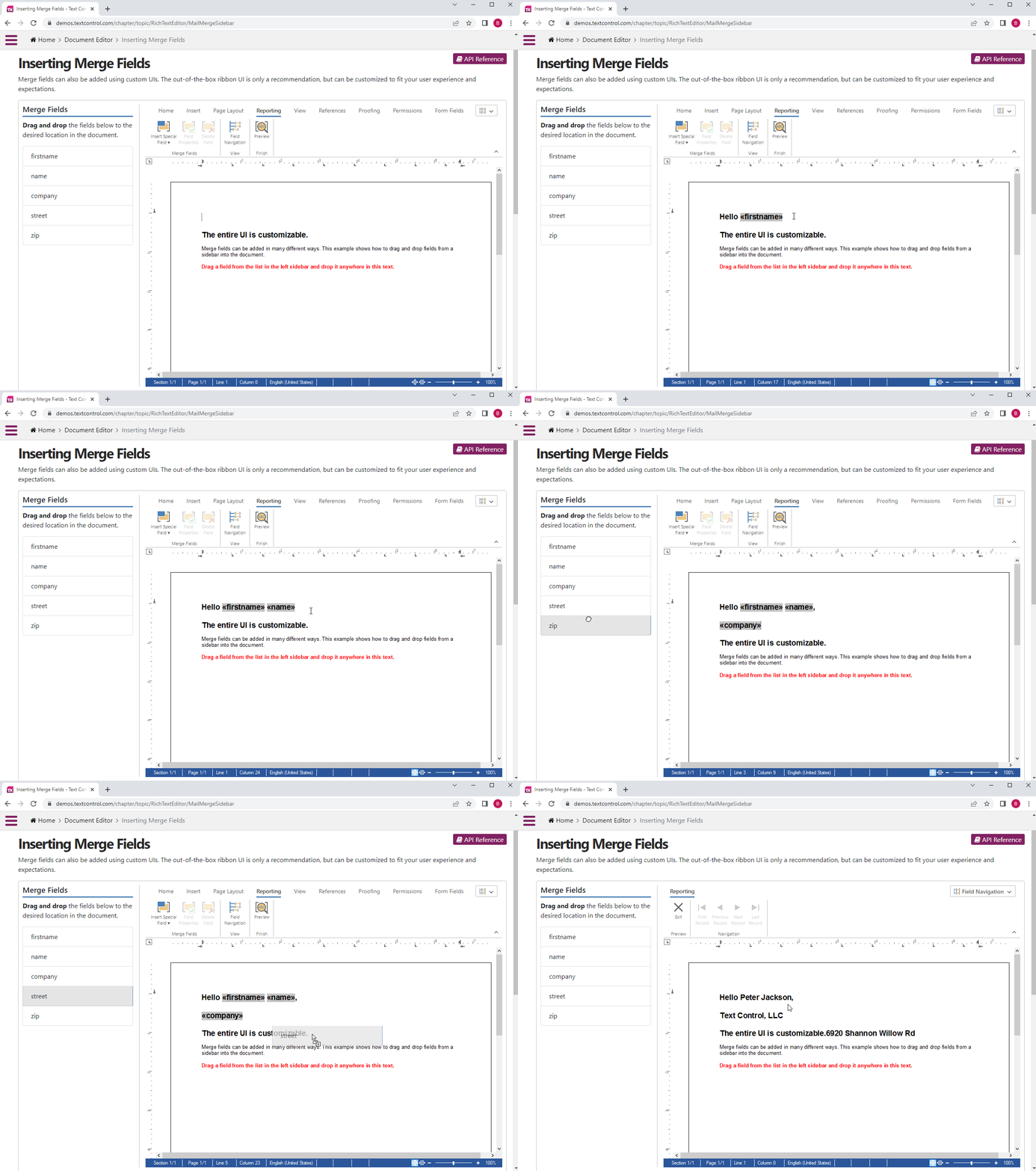
For this example, we will use the following simple data object:
public class SimpleMergeData {
    public string firstname { get; set; }
    public string name { get; set; }
    public string company { get; set; }
    public string street { get; set; }
    public string zip { get; set; }
}
In the Razor view code, a list is created based on the given data object:
<ul class="list-group">

    @{
        Type type = typeof(SimpleMergeData);
        PropertyInfo[] properties = type.GetProperties();
        foreach (PropertyInfo property in properties) {
            <li class="drag list-group-item">@property.Name</li>
        }
    }

</ul>
Event Handler
When the page loads, the following JavaScript code adds the draggable attribute to the elements and attaches an event handler:
document.querySelectorAll(".drag")
  .forEach((function (x) {
      x.setAttribute("draggable", true);
      x.addEventListener("dragstart", function (event) { drag(event); });
  }))
This results in the following HTML:
<ul class="list-group">
  <li class="drag list-group-item" draggable="true">firstname</li>
  <li class="drag list-group-item" draggable="true">name</li>
  <li class="drag list-group-item" draggable="true">company</li>
  <li class="drag list-group-item" draggable="true">street</li>
  <li class="drag list-group-item" draggable="true">zip</li>
</ul>
Transfer Data
The attached event handler drag sets the data transfer data for the drop event in the Text Control editor.
function drag(ev) {
    ev.dataTransfer.setData("fieldname", ev.target.innerText);
}
Input Position
While dragging over the editor, the input position is actively changed, so that the field can be added at the new input position when the drop event is fired.
document.getElementById("mainCanvas").addEventListener("dragover", function (event) {
    event.preventDefault();
    event.stopPropagation();

    var posX = (event.offsetX + _txtViewLoc.x) * 15;
    var posY = (event.offsetY + _txtViewLoc.y) * 15;

    TXTextControl.setInputPositionByLocation({ x: posX, y: posY })
    TXTextControl.focus();
});
The variable _txtViewLoc is updated in the textViewLocationChanged event to provide the scroll offset position to calculate the correct input position.
var _txtViewLoc = { x: 0, y: 0 };

function textViewLocationChangedHandler(e) {
    _txtViewLoc = e.location;
}

function window_load() {
    TXTextControl.addEventListener("textControlLoaded", function () {
        TXTextControl.addEventListener("textViewLocationChanged", textViewLocationChangedHandler);
    });
}

window.addEventListener("load", window_load);
New Merge Field
When the field is finally dropped, a new merge field is created with the name of the data transfer data and is inserted at the current input position.
document.getElementById("mainCanvas").addEventListener("drop", function (event) {
    event.preventDefault();
    event.stopPropagation();

    var fieldName = event.dataTransfer.getData("fieldname");
    var mergeField = new TXTextControl.MergeField;
    mergeField.name = fieldName;
    mergeField.text = "«" + fieldName + "»";
    TXTextControl.addMergeField(mergeField);
});
The complete JavaScript is listed below.
var _txtViewLoc = { x: 0, y: 0 };

function textViewLocationChangedHandler(e) {
    _txtViewLoc = e.location;
}

function window_load() {
    TXTextControl.addEventListener("textControlLoaded", function () {
        TXTextControl.addEventListener("textViewLocationChanged", textViewLocationChangedHandler);
    });
}

window.addEventListener("load", window_load);

document.querySelectorAll(".drag")
    .forEach((function (x) {
        x.setAttribute("draggable", true);
        x.addEventListener("dragstart", function (event) { drag(event); });
    }))

TXTextControl.addEventListener("ribbonTabsLoaded", function () {
    TXTextControl.ribbon.selectedTab = "tabReports";

    document.getElementById("mainCanvas").addEventListener("drop", function (event) {
        event.preventDefault();
        event.stopPropagation();

        var fieldName = event.dataTransfer.getData("fieldname");
        var mergeField = new TXTextControl.MergeField;
        mergeField.name = fieldName;
        mergeField.text = "«" + fieldName + "»";
        TXTextControl.addMergeField(mergeField);
    });

    document.getElementById("mainCanvas").addEventListener("dragover", function (event) {
        event.preventDefault();
        event.stopPropagation();

        var posX = (event.offsetX + _txtViewLoc.x) * 15;
        var posY = (event.offsetY + _txtViewLoc.y) * 15;

        TXTextControl.setInputPositionByLocation({ x: posX, y: posY })
        TXTextControl.focus();
    });

})

function drag(ev) {
    ev.dataTransfer.setData("fieldname", ev.target.innerText);
}ASP.NET
Integrate document processing into your applications to create documents such as PDFs and MS Word documents, including client-side document editing, viewing, and electronic signatures.





- Angular
- Blazor
- React
- JavaScript
- ASP.NET MVC, ASP.NET Core, and WebForms
Related Posts
ASP.NETASP.NET CoreDocument Editor
5 Layout Patterns for Integrating the TX Text Control Document Editor in…
When integrating a document editor into an ASP.NET Core application, the technical setup is only one part of the work. Just as important is the question of how the editor fits into the user…
Introducing Text Control Agent Skills
Text Control Agent Skills are structured definitions that teach AI coding assistants how to build applications with the TX Text Control Document Editor. Each skill contains step-by-step…
ASP.NETApp ServicesASP.NET Core
Deploying the TX Text Control Document Editor from the Private NuGet Feed to…
This tutorial shows how to deploy the TX Text Control Document Editor to Azure App Services using an ASP.NET Core Web App. The Document Editor is a powerful word processing component that can be…
Build a Custom Backstage View in ASP.NET Core with TX Text Control
This article shows how to build a custom backstage view with a File tab to load your multi-format documents using TX Text Control for ASP.NET Core applications.
ASP.NETASP.NET CoreDocument Editor
ASP.NET Core Document Editor with Backend via the Text Control Private NuGet…
This article demonstrates how to create a Document Editor ASP.NET Core application using the Text Control Private NuGet Feed. We will build a basic web application that enables users to edit…