


Deploying the TX Text Control Document Editor from the Private NuGet Feed to Azure App Services (Linux and Windows)

This tutorial shows how to deploy the TX Text Control Document Editor to Azure App Services using an ASP.NET Core Web App. The Document Editor is a powerful word processing component that can be used to create, edit, view and print documents in ASP.NET Core applications.
Private Text Control NuGet Feed
The Text Control private NuGet feed lets developers install licensed TX Text Control .NET packages with automatic license injection. Authentication uses API tokens tied to assigned serials. The feed integrates with Visual Studio and CI/CD pipelines on GitHub, GitLab, and Azure DevOps.
This tutorial shows how to build an ASP.NET Core web application with the TX Text Control Document Editor and deploy it to Azure App Services on Linux.
You will create a new MVC project, install the required NuGet packages, configure the backend services, and integrate the editor into a view.
By following these steps, you get a complete setup that runs locally and is ready to publish to Azure App Services.
Prerequisites
You need to download and install the trial version of TX Text Control .NET Server to get access to the required NuGet packages.
- Download Trial Version
Setup download and installation required.
Learn more
Authentication uses the assigned developer's email address and API token. This email address connects to all the serial numbers assigned to the developer, providing access to their entire license portfolio.
Learn how to create a NuGet token and use the Text Control Private NuGet Feed in your projects.
Creating the Application
Make sure that you downloaded the latest version of Visual Studio 2022 that comes with the .NET 8 SDK.
-
In Visual Studio 2022 or 2026, create a new project by choosing Create a new project.
-
Select ASP.NET Core Web App (Model-View-Controller) as the project template and confirm with Next.
-
Choose a name for your project and confirm with Next.
-
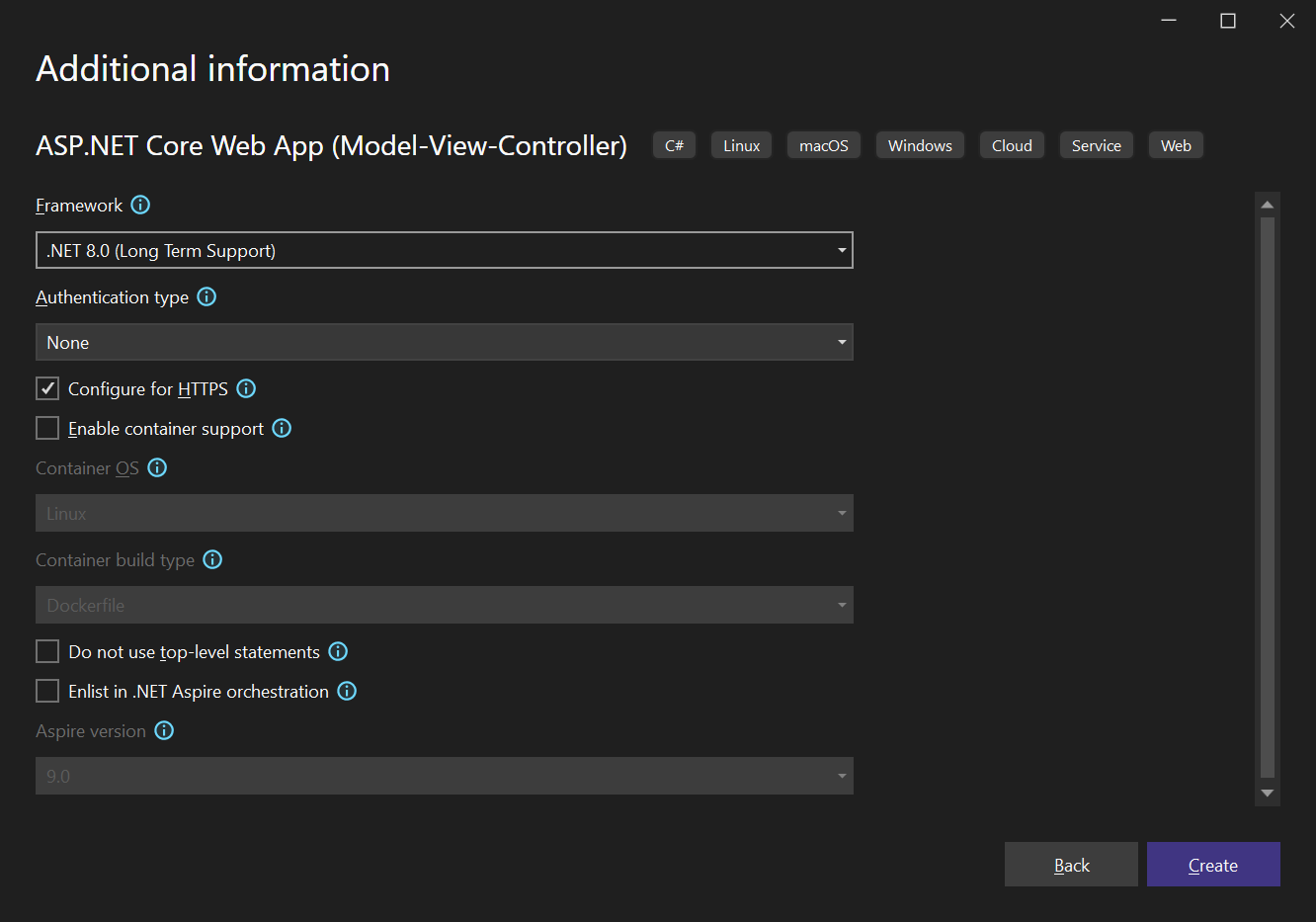
In the next dialog, choose .NET 8 (Long Term Support) (or .NET 10) as the Framework and confirm with Create.
Adding the NuGet Packages
-
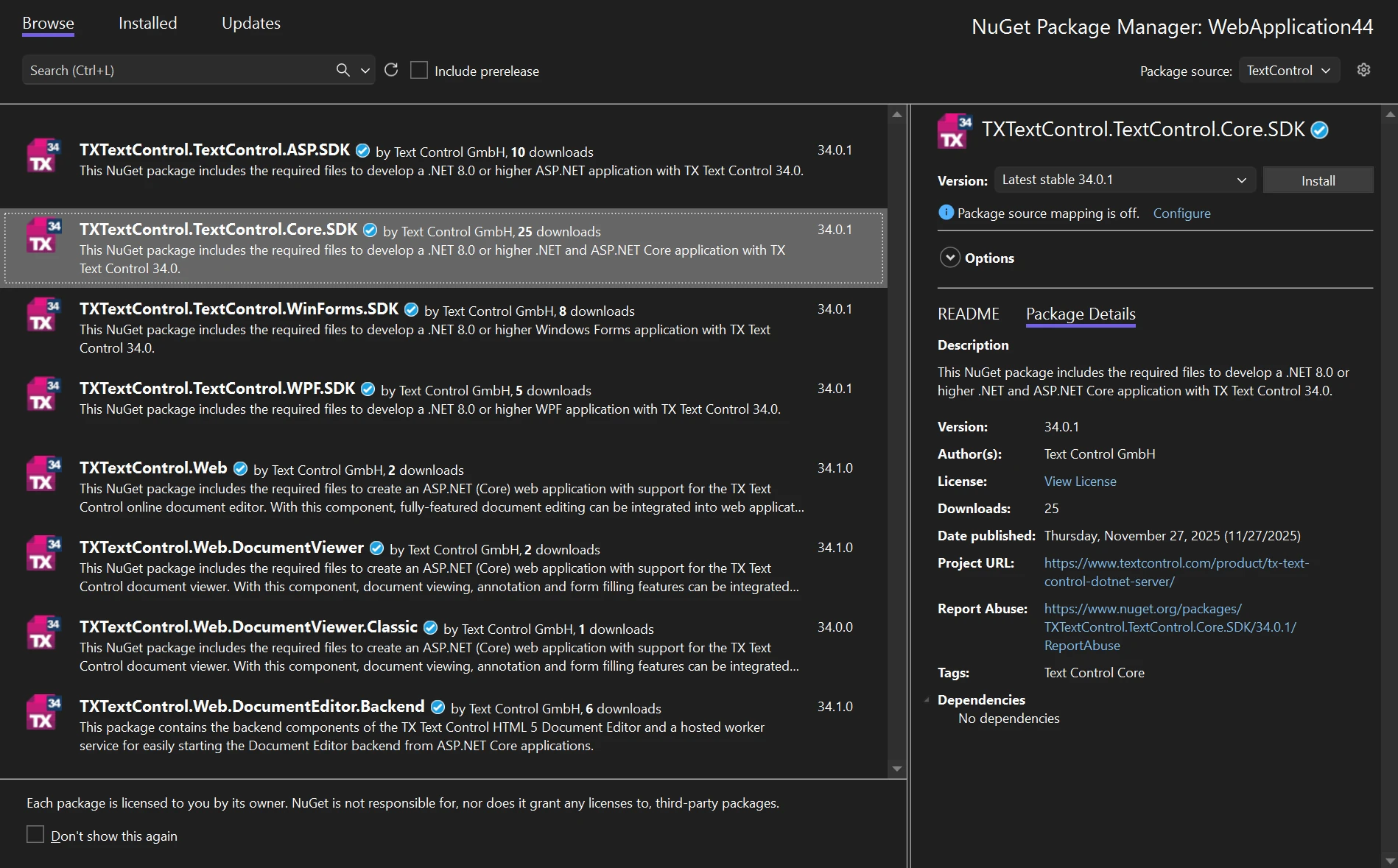
In Solution Explorer, select your project and choose Manage NuGet Packages... from the Project menu. Then set your private NuGet feed (TextControl) as the package source.
Install the following packages:
- TXTextControl.Web
- TXTextControl.TextControl.Core.SDK
- TXTextControl.Web.DocumentEditor.Backend
Configure the Application
-
Open the Program.cs file located in the project's root folder.
At the very top of the file, insert the following code:
using TXTextControl.Web;
using TXTextControl.Web.DocumentEditor.Backend;
After builder.Services.AddControllersWithViews();, add the following code:
builder.Services.AddHostedService<DocumentEditorWorkerManager>();Add the following code before the entry
app.UseRouting();:// enable Web Sockets app.UseWebSockets(); // attach the Text Control WebSocketHandler middleware app.UseTXWebSocketMiddleware();The overall Program.cs file should look like this:
using TXTextControl.Web;
using TXTextControl.Web.DocumentEditor.Backend;

var builder = WebApplication.CreateBuilder(args);

// Add services to the container.
builder.Services.AddControllersWithViews();
builder.Services.AddHostedService<DocumentEditorWorkerManager>();

var app = builder.Build();

// Configure the HTTP request pipeline.
if (!app.Environment.IsDevelopment())
{
    app.UseExceptionHandler("/Home/Error");
    // The default HSTS value is 30 days. You may want to change this for production scenarios, see https://aka.ms/aspnetcore-hsts.
    app.UseHsts();
}

app.UseHttpsRedirection();
app.UseRouting();

app.UseWebSockets();
app.UseTXWebSocketMiddleware();

app.UseAuthorization();

app.MapStaticAssets();

app.MapControllerRoute(
    name: "default",
    pattern: "{controller=Home}/{action=Index}/{id?}")
    .WithStaticAssets();

app.Run();
Adding the Control to the View
-
Find the Index.cshtml file in the Views -> Home folder. Replace the complete content with the following code to add the document editor to the view:
@using TXTextControl.Web.MVC

@{
    var sDocument = "<html><body><p>Welcome to <strong>Text Control</strong></p></body></html>";
}

@Html.TXTextControl().TextControl(settings => {
    settings.UserNames = new string[] { "Tim Typer" };
}).LoadText(sDocument, TXTextControl.Web.StringStreamType.HTMLFormat).Render()

<input type="button" onclick="insertTable()" value="Insert Table" />

<script>
    function insertTable() {
        TXTextControl.tables.add(5, 5, 10, function(e) {
          if (e === true) { // if added
            TXTextControl.tables.getItem(function(table) {
              table.cells.forEach(function(cell) {

                cell.setText("Cell text");

              });
            }, null, 10);
          }
        })
    }
</script>
Deploying the Application
Now, you can deploy the application to Azure App Services.
Azure Subscription
An Azure subscription is required to deploy the application to Azure App Services. If you don't have an Azure subscription, you can create one for free.
-
Right-click the project in the Solution Explorer and choose Publish....
-
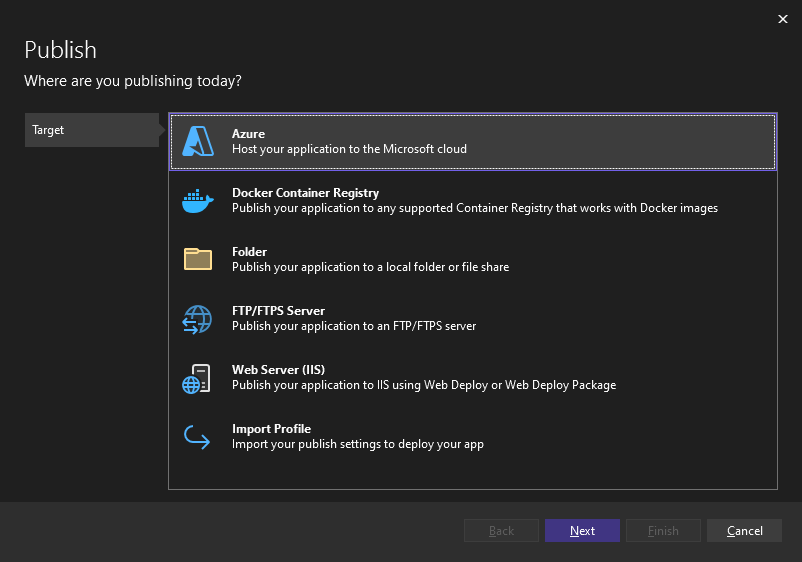
Choose Azure as the target and click Next.
-
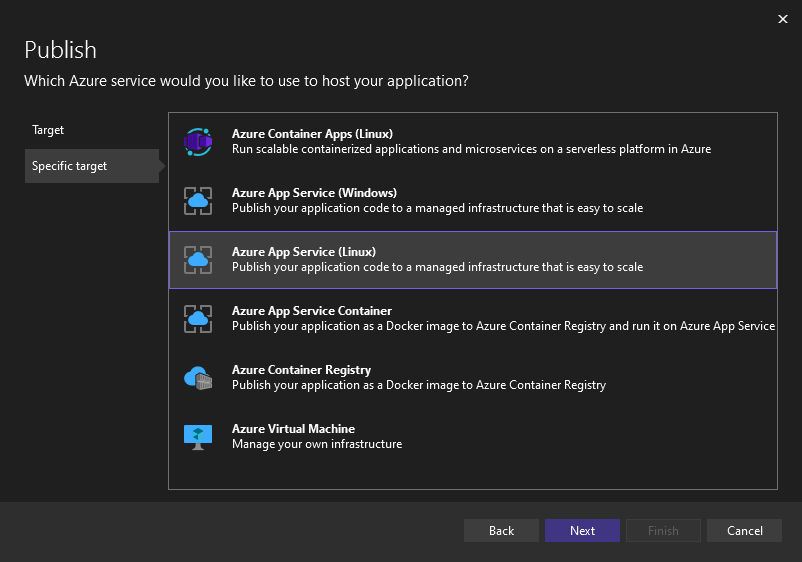
In the next dialog, choose your platform: Linux Azure App Service (Linux) or Windows Azure App Service (Windows), then click Next.
-
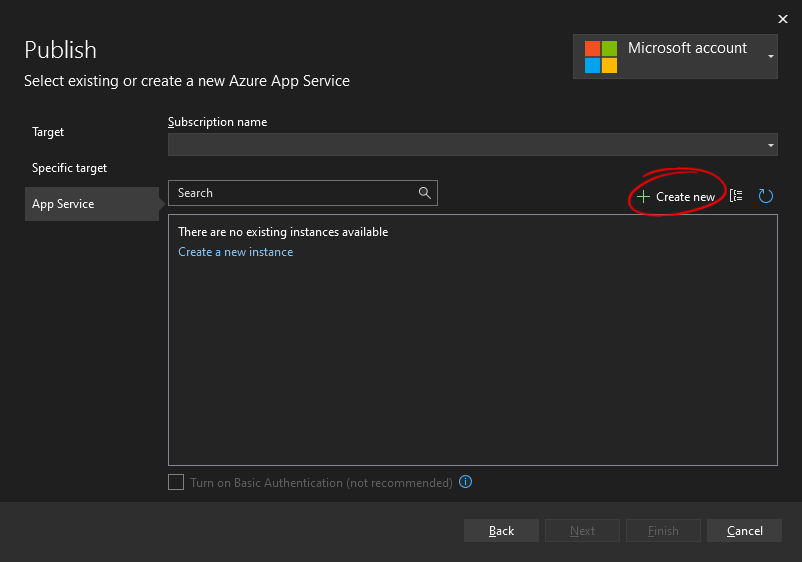
Make sure that you are signed in to your Azure account. If you have a valid subscription, you can select the existing App Service or create a new one.
-
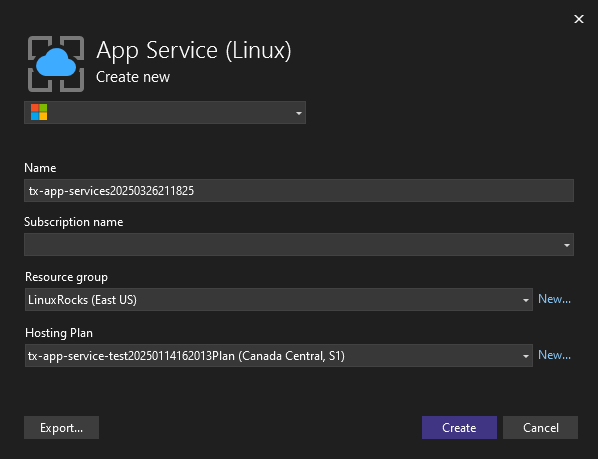
Select a name for the App Service, your subscription plan, the resource group and the hosting plan. Click Create.
-
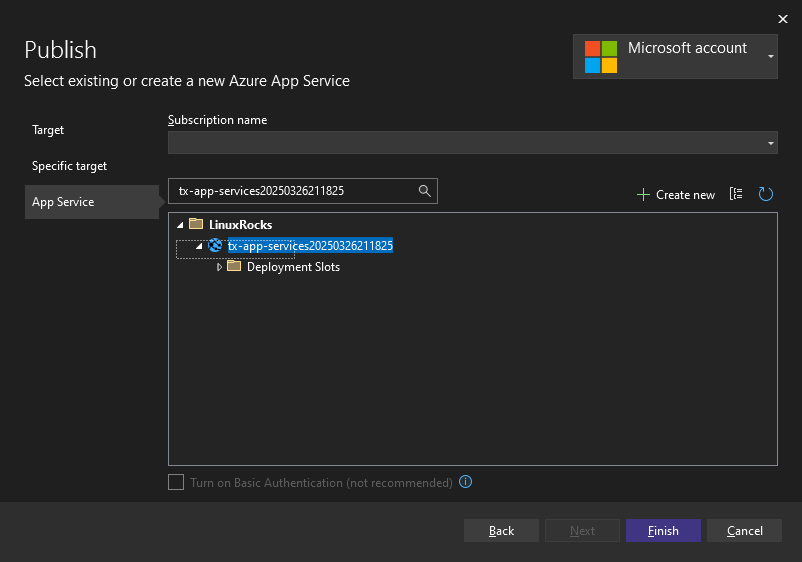
You should see a summary similar to the following. Click Finish to set up the deployment.
-
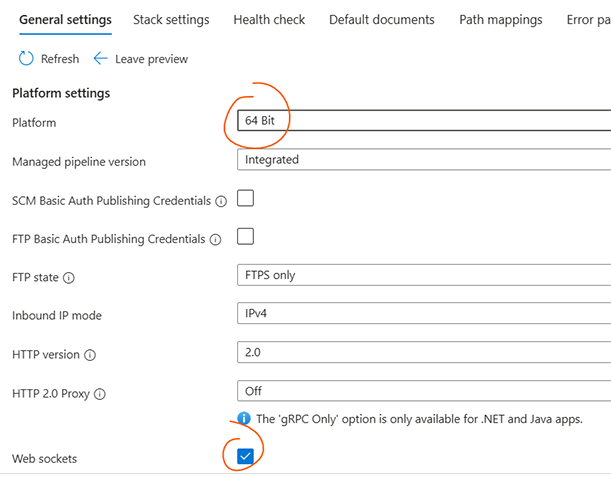
Windows only Open your App Service in the Azure Portal and enable 64-bit and WebSockets in the settings before publishing.
-
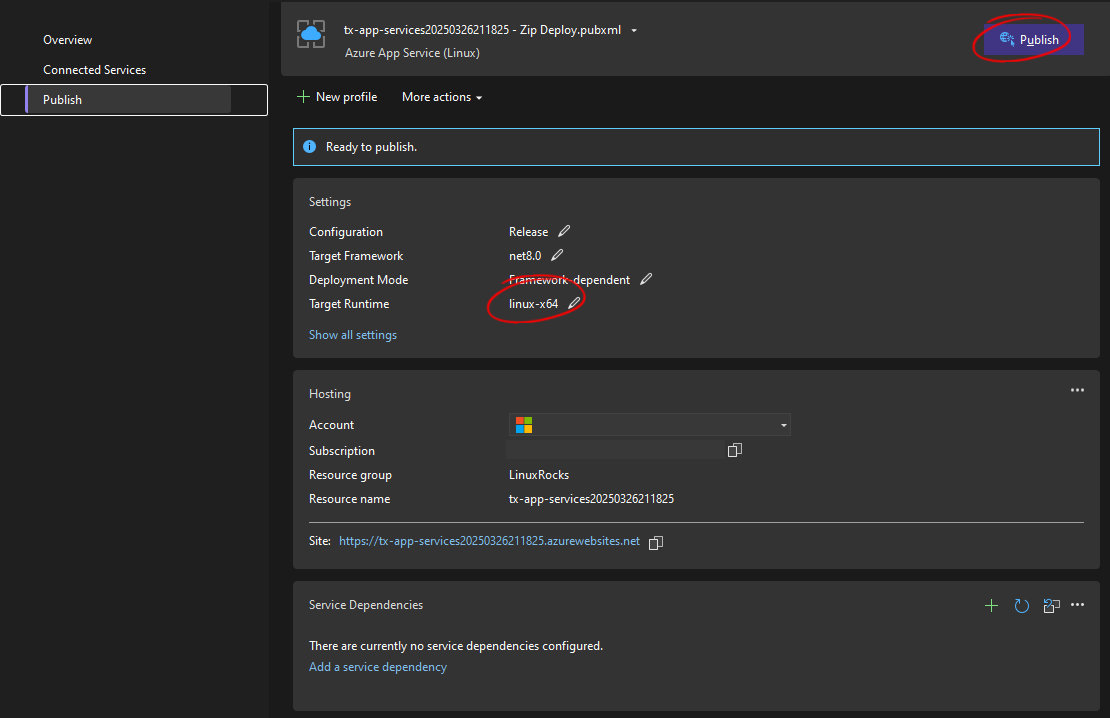
Now you can close the dialog and start the deployment by clicking the Publish button. Set the Target Runtime as follows: Linux linux-x64 | Windows win-x64.
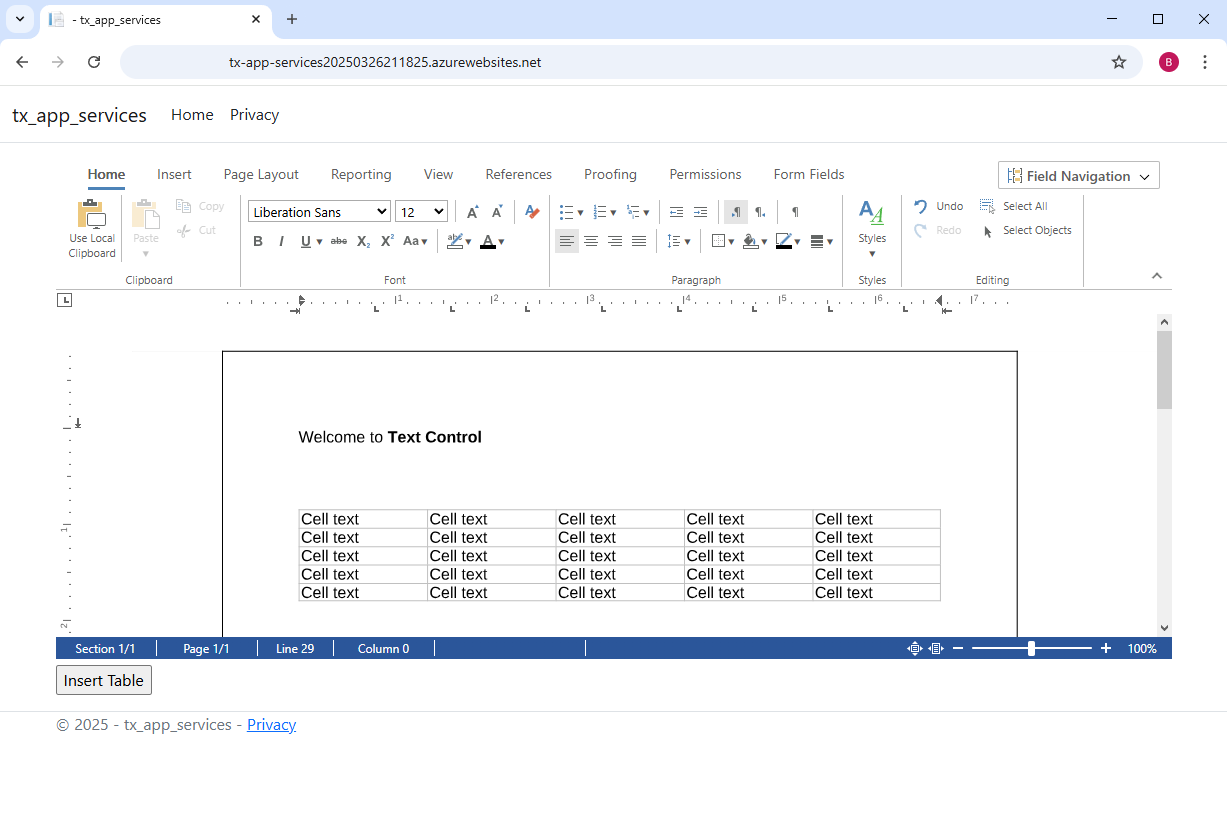
Once deployed, the application runs on Azure App Services and can be accessed through a web browser.
Conclusion
This setup gives you a straightforward way to run TX Text Control in .NET applications on either Linux-based or Windows-based Azure App Services with flexibility and scalability.
ASP.NET
Integrate document processing into your applications to create documents such as PDFs and MS Word documents, including client-side document editing, viewing, and electronic signatures.





- Angular
- Blazor
- React
- JavaScript
- ASP.NET MVC, ASP.NET Core, and WebForms
Related Posts
ASP.NETApp ServicesASP.NET Core
Deploying the TX Text Control Document Editor in an ASP.NET Core Web App to…
This tutorial shows how to deploy the TX Text Control Document Editor to Azure App Services using an ASP.NET Core Web App. The Document Editor is a powerful word processing component that can be…
ASP.NETApp ServicesASP.NET Core
TX Text Control for Linux Preview: Document Processing in ASP.NET Core on…
Our next release of TX Text Control will include support for deploying .NET applications on Linux. This article explains that not only can you deploy the non-UI classes, but you can also easily…
Build a Custom Backstage View in ASP.NET Core with TX Text Control
This article shows how to build a custom backstage view with a File tab to load your multi-format documents using TX Text Control for ASP.NET Core applications.
ASP.NETASP.NET CoreDocument Editor
ASP.NET Core Document Editor with Backend via the Text Control Private NuGet…
This article demonstrates how to create a Document Editor ASP.NET Core application using the Text Control Private NuGet Feed. We will build a basic web application that enables users to edit…
ASP.NETASP.NET CoreDocument Automation
Why Document Processing Libraries Require a Document Editor
A document processing library alone cannot guarantee reliable and predictable results. Users need a true WYSIWYG document editor to design and adjust templates to appear exactly as they will after…