


Text Control Private NuGet Feed

The Text Control private NuGet feed lets developers install licensed TX Text Control .NET packages with automatic license injection. Authentication uses API tokens tied to assigned serials. The feed integrates with Visual Studio and CI/CD pipelines on GitHub, GitLab, and Azure DevOps.
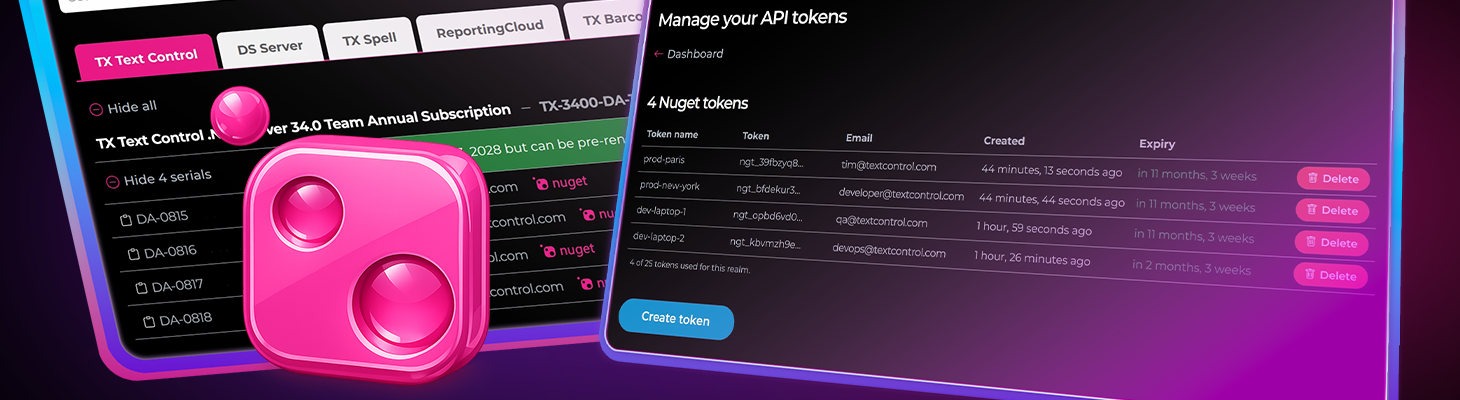
Today we are proud to announce the release of our Private NuGet Feed. Installing a licensed TX Text Control package now works exactly like installing any NuGet package.
Start building in three simple steps:
- Download your custom
nuget.configfile - Execute dotnet add package <package>
- Build and run your application
Your license is automatically embedded in every download. There are no activation dialogs, no license file management, and no additional configuration steps. The package arrives ready to use.
Why we built this
We listened to our customers. The legacy workflow of downloading SDKs, locating license files, and manually configuring each project created unnecessary friction. Development teams told us they wanted the same seamless experience they have with public NuGet packages.
The private NuGet feed delivers exactly that:
| Traditional Approach | With the NuGet Feed |
|---|---|
| Download SDK manually | dotnet add package <package> |
| Configure each project separately | Works everywhere NuGet works |
| Manage multiple license files | One API token, all your packages |
| Hope you have the right version | Only see versions you're licensed for |
The result is that you go from zero to building in under two minutes.
How it works
Authentication uses the assigned developer's email address and an API token. The assigned developer's email connects to all serials assigned to them, aggregating access across their entire license portfolio. For example, a developer with both a TX Text Control .NET Server license and a TX Text Control .NET for WPF license sees all applicable packages in a single feed.
There are two ways to generate API tokens for your developers.
The easiest way to get your developers started is to simply assign a serial number to them. When you assign a NuGet-eligible serial to a developer, the system automatically generates an API token and sends it directly to their email address.
- In your account, navigate to Manage Products.
- Click on Manage Assign next to the serial number you want to assign.
- Enter the developer's email address.
- Click on Assign to complete the assignment.
- The developer receives an email containing both the serial number assignment and a download link for their personalized NuGet configuration file.
The token is valid for 365 days and is automatically extended each time you assign or reassign a serial.
This approach requires no additional steps. Your developer receives everything they need in a single email.
Reassigning a serial to the same or a different developer follows the same process. If the developer already has a valid token, its expiry is automatically extended. If the token has expired or does not exist, a new one is created.
When you unassign a serial from a developer, the system checks whether they have any other NuGet-eligible serials assigned to them. If not, their API token is automatically deleted.
To help you track which developers have active tokens, the Manage Products page provides a visual indicator. Email addresses associated with a NuGet API token are marked with  :
:
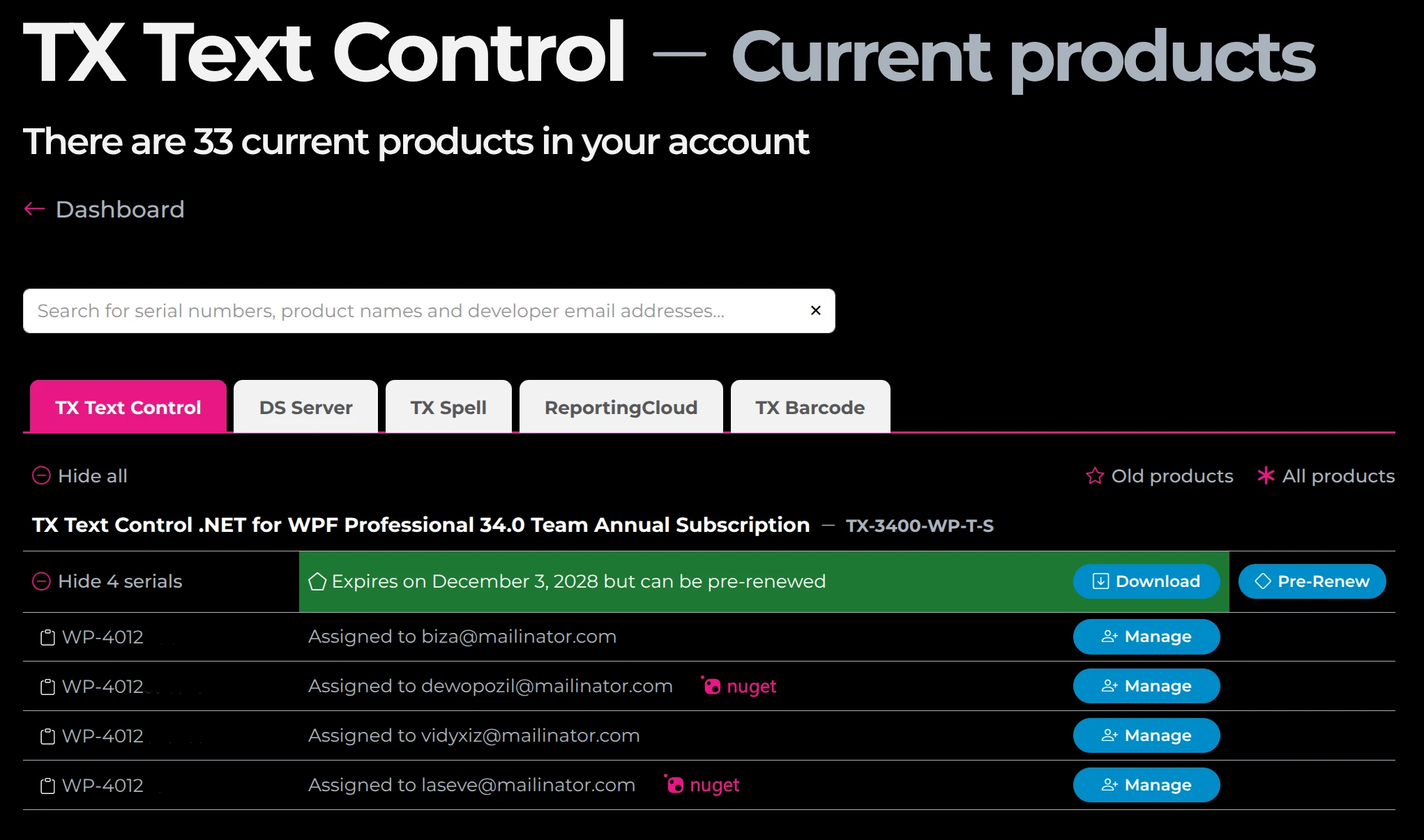
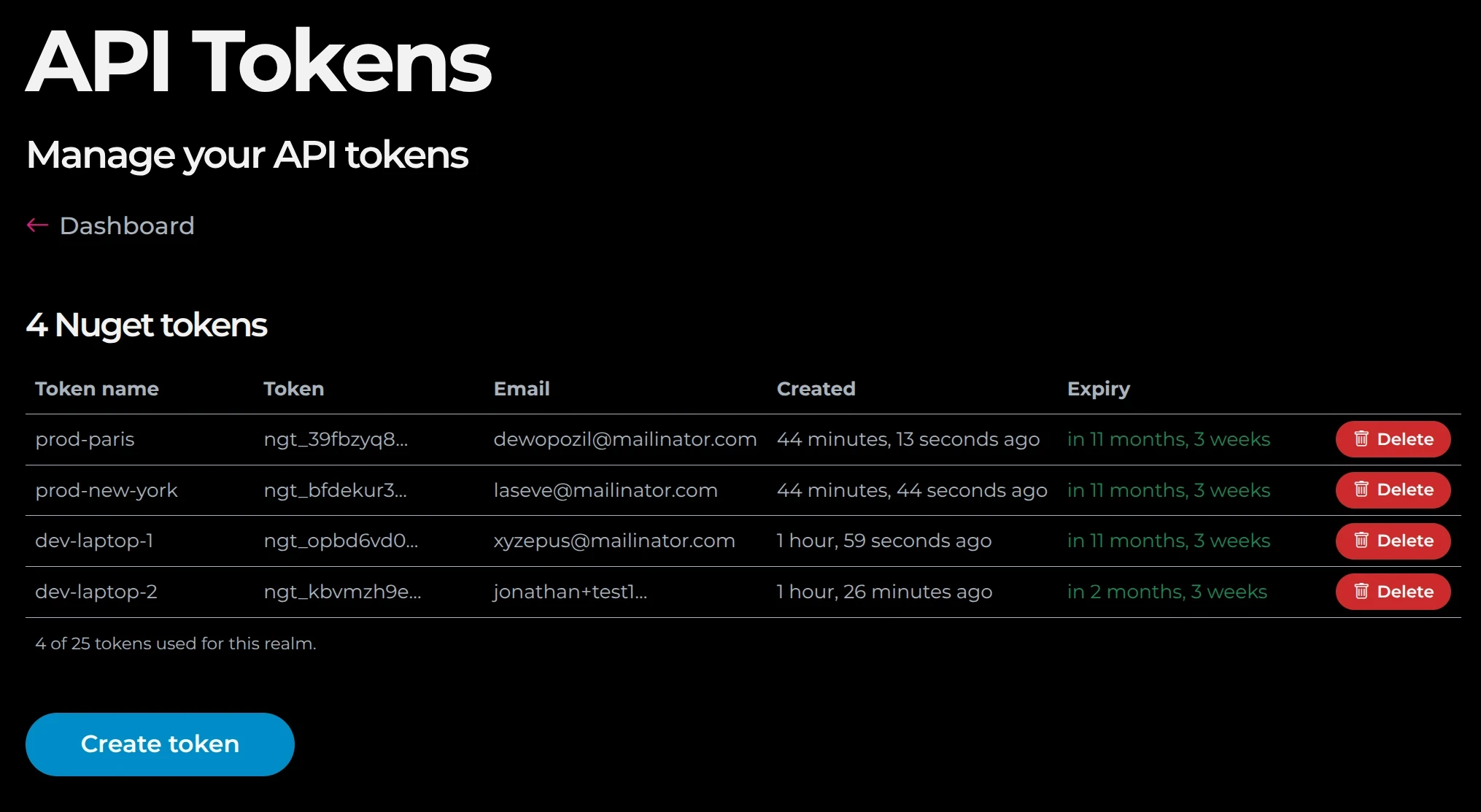
Clicking on navigates directly to the Manage API Tokens page, where you can view, delete, and manage all API tokens in your account.
If you need more control over token names or expiry dates, or if you want to create a token for a developer who already has assigned serials, you can create tokens manually:
- In your account, navigate to Manage API tokens.
- Click on Create token.
- Enter a name for the API token.
If you cannot think of a name, click on Generate to create a random one. - Enter the number of days for which the API token is valid.
The minimum is 1 day and the maximum is 730 days (2 years). - Select the email address of the developer for whom you wish to issue an API token.
Only the email addresses that you have used to assign serial numbers to your developers appear in this list. - Click on Create token again.
- Upon submission, an API token and a corresponding NuGet configuration file are generated. This file contains sensitive credentials and is not displayed. A download link is sent to the assigned developer via email.
The confirmation screen displays the token name and token prefix for your reference. - Finally, click on Proceed to return to the API token management screen (see below).
Installing TX Text Control NuGet Packages in Visual Studio
Follow these instructions to install TX Text Control NuGet packages in different versions of Visual Studio.
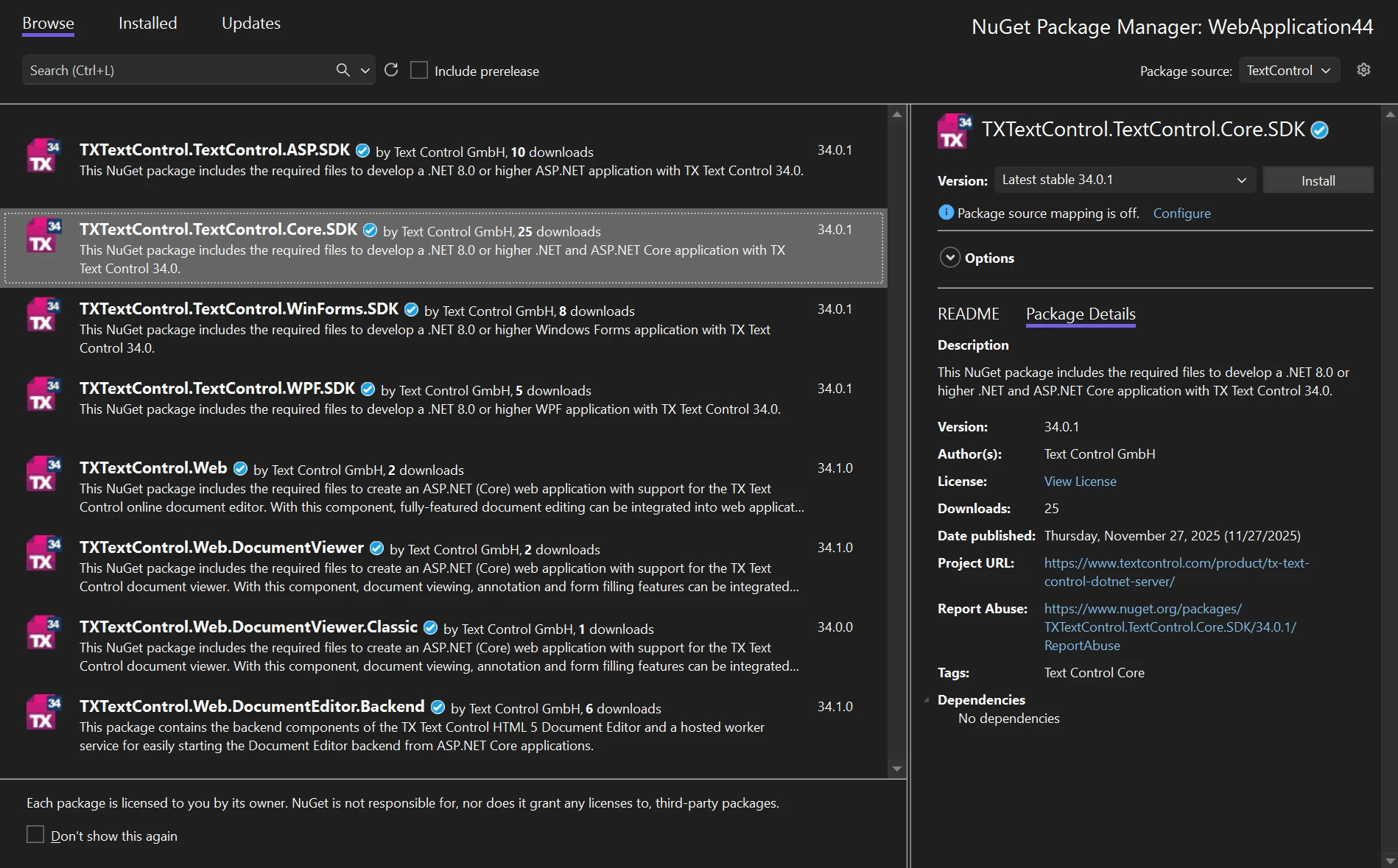
- Copy the
nuget.configfile you downloaded to the root folder of your project. - Open NuGet Package Manager:
- Go to Manage NuGet Packages... from the Project main menu.
- Select the TextControl feed:
- In the Package source dropdown, select TextControl, Browse and install packages as needed.
If Visual Studio doesn't automatically recognize the nuget.config file in your project folder:
- Open NuGet Configuration:
- Go to Tools NuGet Package Manager Package Manager Settings
- Access Configuration Files:
- In Package Manager Settings,
go to Configuration Files Select the NuGet.Config file path Open - Replace the content with your downloaded
nuget.configfile. - Save and close.
- In Package Manager Settings,
- Select the TextControl feed:
- Go to Manage NuGet Packages... from the Project main menu.
- Select TextControl from the package source dropdown.
- Browse and install packages.
Discover and install packages
Once configured, assigned developers can search for packages directly from the command line:
dotnet package search "TXTextControl" --source TextControlThe search results show only packages the assigned developer is authorized to access.
This is by design, so there is no confusion about what they may use.
For example, if you assigned your developer TX Text Control .NET Server and TX Text Control .NET for WPF, they will see only:
****************************************
Source: TextControl (https://www.textcontrol.com/nuget/v3/index.json)
| Package ID                               | Latest Version | Owners        | Total Downloads |
| ---------------------------------------- | -------------- | ------------- | --------------- |
| TXTextControl.TextControl.ASP.SDK        | 34.0.1         | txtextcontrol | 1,255           |
| ---------------------------------------- | -------------- | ------------- | --------------- |
| TXTextControl.TextControl.Core.SDK       | 34.0.1         | txtextcontrol | 426             |
| ---------------------------------------- | -------------- | ------------- | --------------- |
| TXTextControl.TextControl.WPF.SDK        | 34.0.1         | txtextcontrol | 225             |
| ---------------------------------------- | -------------- | ------------- | --------------- |
| TXTextControl.Web                        | 34.1.0         | txtextcontrol | 36              |
| ---------------------------------------- | -------------- | ------------- | --------------- |
| TXTextControl.Web.DocumentViewer         | 34.1.0         | txtextcontrol | 31              |
| ---------------------------------------- | -------------- | ------------- | --------------- |
| TXTextControl.Web.DocumentViewer.Classic | 34.0.0         | txtextcontrol | 28              |
| ---------------------------------------- | -------------- | ------------- | --------------- |
| TXTextControl.Web.DocumentEditor.Backend | 34.1.0         | txtextcontrol | 23              |
| ---------------------------------------- | -------------- | ------------- | --------------- |
Notice that TXTextControl.TextControl.WinForms.SDK does not appear in the results.
Install a package with a single command:
dotnet add package TXTextControl.TextControl.ASP.SDK --version 34.0.1When the package installs, NuGet retrieves it from the private feed using the credentials in nuget.config. Server-side, the license is automatically injected into the package before download. Once the package has been downloaded, it is ready to use immediately.
Available packages
The following packages are available through the private NuGet feed:
| Package | Description |
|---|---|
TXTextControl.TextControl.ASP.SDK |
This NuGet package includes the required files to develop a .NET 8.0 or higher ASP.NET application with TX Text Control 34.0. |
TXTextControl.TextControl.Core.SDK |
This NuGet package includes the required files to develop a .NET 8.0 or higher .NET and ASP.NET Core application with TX Text Control 34.0. |
TXTextControl.Web.DocumentEditor.Backend |
This package contains the backend components of the TX Text Control Document Editor and a hosted worker service for easily starting the Document Editor backend from ASP.NET Core applications. |
TXTextControl.Web |
This NuGet package contains the necessary files for creating an ASP.NET (Core) web application that supports the TX Text Control online document editor. |
TXTextControl.Web.DocumentViewer |
This NuGet package contains the necessary files for creating an ASP.NET (Core) web application that supports the TX Text Control document viewer using the Core version of TX Text Control. |
TXTextControl.Web.DocumentViewer.Classic |
This NuGet package includes the required files to create an ASP.NET (Core) web application with support for the TX Text Control document viewer using the Classic version of TX Text Control. |
TXTextControl.TextControl.WinForms.SDK |
This NuGet package includes the required files to develop a .NET 8.0 or higher Windows Forms application with TX Text Control 34.0. |
TXTextControl.TextControl.WPF.SDK |
This NuGet package includes the required files to develop a .NET 8.0 or higher WPF application with TX Text Control 34.0. |
NuGet Packages for Windows Forms and WPF: Build-Time Only Usage
The NuGet packages for Windows Forms and WPF are intended for compilation purposes only, such as use on build servers or within CI/CD pipelines. While they enable projects to compile successfully, they do not include design-time components. In order to create new applications or work with Visual Studio designers, the complete Text Control setup must be installed on the development machine.
CI/CD integration
The NuGet feed integrates seamlessly into automated build pipelines. The key is to store credentials as secrets in your CI/CD platform and generate the nuget.config file dynamically during the build process. This approach keeps sensitive credentials out of source control while enabling fully automated builds.
GitHub Actions is widely adopted for .NET projects, especially for open-source development and modern cloud-native applications. To configure the Text Control NuGet feed, add your credentials as repository secrets:
- Navigate to your repository on GitHub.
- Go to Settings Secrets and variables Actions.
- Click on New repository secret and add:
TEXTCONTROL_EMAIL The assigned developer's email address.TEXTCONTROL_API_TOKEN The API token generated for that developer.TEXTCONTROL_FEED_URL The NuGet feed URL.
In your workflow file, generate the nuget.config before restoring packages:
name: Build

on: [push, pull_request]

jobs:
  build:
    runs-on: ubuntu-latest

    steps:
      - uses: actions/checkout@v4

      - name: Setup .NET
        uses: actions/setup-dotnet@v4
        with:
          dotnet-version: '8.0.x'

      - name: Create nuget.config
        run: |
          cat > nuget.config << 'EOF'
          <?xml version="1.0" encoding="utf-8"?>
          <configuration>
            <packageSources>
              <clear />
              <add key="nuget.org" value="https://api.nuget.org/v3/index.json" />
              <add key="TextControl" value="${{ secrets.TEXTCONTROL_FEED_URL }}" />
            </packageSources>
            <packageSourceCredentials>
              <TextControl>
                <add key="Username" value="${{ secrets.TEXTCONTROL_EMAIL }}" />
                <add key="ClearTextPassword" value="${{ secrets.TEXTCONTROL_API_TOKEN }}" />
              </TextControl>
            </packageSourceCredentials>
          </configuration>
          EOF

      - name: Restore dependencies
        run: dotnet restore

      - name: Build
        run: dotnet build --no-restore --configuration Release

      - name: Test
        run: dotnet test --no-build --configuration Release
The nuget.config file is generated at runtime using secrets, ensuring credentials never appear in your repository history. The workflow supports both push events and pull requests, enabling continuous integration for all branches.
GitLab CI/CD is popular among teams that prefer an all-in-one DevOps platform. Store your credentials as CI/CD variables in your project settings:
- Navigate to Settings CI/CD Variables.
- Add
TEXTCONTROL_EMAIL,TEXTCONTROL_API_TOKEN, andTEXTCONTROL_FEED_URL(mark as masked and protected).
Configure your .gitlab-ci.yml:
stages:
  - build
  - test

variables:
  DOTNET_VERSION: '8.0'

build:
  stage: build
  image: mcr.microsoft.com/dotnet/sdk:8.0
  before_script:
    - |
      cat > nuget.config << EOF
      <?xml version="1.0" encoding="utf-8"?>
      <configuration>
        <packageSources>
          <clear />
          <add key="nuget.org" value="https://api.nuget.org/v3/index.json" />
          <add key="TextControl" value="${TEXTCONTROL_FEED_URL}" />
        </packageSources>
        <packageSourceCredentials>
          <TextControl>
            <add key="Username" value="${TEXTCONTROL_EMAIL}" />
            <add key="ClearTextPassword" value="${TEXTCONTROL_API_TOKEN}" />
          </TextControl>
        </packageSourceCredentials>
      </configuration>
      EOF
  script:
    - dotnet restore
    - dotnet build --configuration Release --no-restore
  artifacts:
    paths:
      - '**/bin/Release/'

test:
  stage: test
  image: mcr.microsoft.com/dotnet/sdk:8.0
  needs:
    - build
  script:
    - dotnet test --configuration Release --no-build
Azure DevOps is the CI/CD platform of choice for many enterprise .NET teams, particularly those already invested in the Microsoft ecosystem. Azure Pipelines provides native support for NuGet feeds and integrates tightly with Azure Artifacts.
To configure credentials securely, create a variable group in your Azure DevOps project:
- Navigate to Pipelines Library.
- Click on + Variable group.
- Name the group (e.g.,
TextControl-NuGet). - Add the following variables:
TEXTCONTROL_EMAIL The assigned developer's email address.TEXTCONTROL_API_TOKEN The API token (mark as secret).TEXTCONTROL_FEED_URL The NuGet feed URL.
- Save the variable group.
Reference the variable group in your azure-pipelines.yml:
trigger:
  - main
  - develop

pool:
  vmImage: 'ubuntu-latest'

variables:
  - group: TextControl-NuGet
  - name: buildConfiguration
    value: 'Release'

steps:
  - task: UseDotNet@2
    displayName: 'Setup .NET SDK'
    inputs:
      version: '8.0.x'
      includePreviewVersions: false

  - script: |
      cat > nuget.config << 'EOF'
      <?xml version="1.0" encoding="utf-8"?>
      <configuration>
        <packageSources>
          <clear />
          <add key="nuget.org" value="https://api.nuget.org/v3/index.json" />
          <add key="TextControl" value="$(TEXTCONTROL_FEED_URL)" />
        </packageSources>
        <packageSourceCredentials>
          <TextControl>
            <add key="Username" value="$(TEXTCONTROL_EMAIL)" />
            <add key="ClearTextPassword" value="$(TEXTCONTROL_API_TOKEN)" />
          </TextControl>
        </packageSourceCredentials>
      </configuration>
      EOF
    displayName: 'Create nuget.config'

  - task: DotNetCoreCLI@2
    displayName: 'Restore packages'
    inputs:
      command: 'restore'
      projects: '**/*.csproj'

  - task: DotNetCoreCLI@2
    displayName: 'Build solution'
    inputs:
      command: 'build'
      projects: '**/*.csproj'
      arguments: '--configuration $(buildConfiguration) --no-restore'

  - task: DotNetCoreCLI@2
    displayName: 'Run tests'
    inputs:
      command: 'test'
      projects: '**/*Tests.csproj'
      arguments: '--configuration $(buildConfiguration) --no-build'
For teams using the classic editor instead of YAML pipelines, the same approach works. Add a Command line task to generate the nuget.config file before the NuGet restore task, referencing variables from your variable group.
Azure DevOps also supports service connections for authenticated feeds. However, generating the nuget.config dynamically provides more flexibility and works consistently across self-hosted and Microsoft-hosted agents.
Jenkins is one of the most widely deployed CI/CD servers, particularly in enterprise environments with complex build infrastructure. To configure the Text Control NuGet feed, store your credentials using the Jenkins Credentials Store:
- Navigate to Manage Jenkins Credentials.
- Select the appropriate domain (or Global).
- Click on Add Credentials and create three Secret text entries:
textcontrol-email The assigned developer's email address.textcontrol-api-token The API token generated for that developer.textcontrol-feed-url The NuGet feed URL.
Reference these credentials in your Jenkinsfile:
pipeline {
    agent any

    environment {
        DOTNET_VERSION = '8.0'
    }

    stages {
        stage('Setup') {
            steps {
                withCredentials([
                    string(credentialsId: 'textcontrol-email', variable: 'TEXTCONTROL_EMAIL'),
                    string(credentialsId: 'textcontrol-api-token', variable: 'TEXTCONTROL_API_TOKEN'),
                    string(credentialsId: 'textcontrol-feed-url', variable: 'TEXTCONTROL_FEED_URL')
                ]) {
                    writeFile file: 'nuget.config', text: """<?xml version="1.0" encoding="utf-8"?>
<configuration>
  <packageSources>
    <clear />
    <add key="nuget.org" value="https://api.nuget.org/v3/index.json" />
    <add key="TextControl" value="${TEXTCONTROL_FEED_URL}" />
  </packageSources>
  <packageSourceCredentials>
    <TextControl>
      <add key="Username" value="${TEXTCONTROL_EMAIL}" />
      <add key="ClearTextPassword" value="${TEXTCONTROL_API_TOKEN}" />
    </TextControl>
  </packageSourceCredentials>
</configuration>"""
                }
            }
        }

        stage('Restore') {
            steps {
                sh 'dotnet restore'
            }
        }

        stage('Build') {
            steps {
                sh 'dotnet build --configuration Release --no-restore'
            }
        }

        stage('Test') {
            steps {
                sh 'dotnet test --configuration Release --no-build'
            }
        }
    }
}
The withCredentials block injects secrets as environment variables for the duration of the step. Credentials are masked in console output and never written to disk in plain text.
Bitbucket Pipelines is tightly integrated with Bitbucket Cloud repositories and provides a straightforward YAML-based configuration. Store your credentials as repository or workspace variables:
- Navigate to Repository settings Pipelines Repository variables.
- Add the following variables (mark each as Secured):
TEXTCONTROL_EMAIL The assigned developer's email address.TEXTCONTROL_API_TOKEN The API token generated for that developer.TEXTCONTROL_FEED_URL The NuGet feed URL.
Configure your bitbucket-pipelines.yml:
image: mcr.microsoft.com/dotnet/sdk:8.0

pipelines:
  default:
    - step:
        name: Build and Test
        script:
          - |
            cat > nuget.config << EOF
            <?xml version="1.0" encoding="utf-8"?>
            <configuration>
              <packageSources>
                <clear />
                <add key="nuget.org" value="https://api.nuget.org/v3/index.json" />
                <add key="TextControl" value="${TEXTCONTROL_FEED_URL}" />
              </packageSources>
              <packageSourceCredentials>
                <TextControl>
                  <add key="Username" value="${TEXTCONTROL_EMAIL}" />
                  <add key="ClearTextPassword" value="${TEXTCONTROL_API_TOKEN}" />
                </TextControl>
              </packageSourceCredentials>
            </configuration>
            EOF
          - dotnet restore
          - dotnet build --configuration Release --no-restore
          - dotnet test --configuration Release --no-build
Secured variables are encrypted at rest and masked in build logs. For shared credentials across multiple repositories, define variables at the workspace level instead.
TeamCity by JetBrains is widely adopted in .NET development teams due to its deep integration with the .NET ecosystem and its support for NuGet feeds. Store your credentials as build parameters:
- Navigate to your build configuration and open Parameters.
- Click on Add new parameter and create three parameters of type Password:
TEXTCONTROL_EMAIL The assigned developer's email address.TEXTCONTROL_API_TOKEN The API token generated for that developer.TEXTCONTROL_FEED_URL The NuGet feed URL.
Add a Command Line build step that generates the nuget.config before the NuGet restore step. TeamCity parameters are referenced using the %parameter% syntax:
#!/bin/bash

cat > nuget.config << EOF
<?xml version="1.0" encoding="utf-8"?>
<configuration>
  <packageSources>
    <clear />
    <add key="nuget.org" value="https://api.nuget.org/v3/index.json" />
    <add key="TextControl" value="%TEXTCONTROL_FEED_URL%" />
  </packageSources>
  <packageSourceCredentials>
    <TextControl>
      <add key="Username" value="%TEXTCONTROL_EMAIL%" />
      <add key="ClearTextPassword" value="%TEXTCONTROL_API_TOKEN%" />
    </TextControl>
  </packageSourceCredentials>
</configuration>
EOF

dotnet restore
dotnet build --configuration Release --no-restore
dotnet test --configuration Release --no-build
Password parameters are stored encrypted and masked in build logs. TeamCity also supports NuGet feed configuration at the project level, but generating the nuget.config dynamically gives you full control over the feed credentials in each build.
Get started today
The Text Control private NuGet feed is available now for all customers with active licenses. Sign in to your account, generate an API token, and let your developers experience the new streamlined workflow for themselves.
We built this feed because we believe your developers' time is better spent building great applications than managing license files. With automatic license injection, seamless CI/CD integration, and support for every major build platform, the private NuGet feed removes the friction between your developers and your next release.
No more manual downloads. No more license file headaches.
Just dotnet add package <package> and start building.
We are excited to see what your developers create. Happy coding!
ASP.NET
Integrate document processing into your applications to create documents such as PDFs and MS Word documents, including client-side document editing, viewing, and electronic signatures.





- Angular
- Blazor
- React
- JavaScript
- ASP.NET MVC, ASP.NET Core, and WebForms
Related Posts
TX Text Control 34.0 SP2 is Now Available: What's New in the Latest Version
TX Text Control 34.0 Service Pack 2 is now available, offering important updates and bug fixes for all platforms. If you use TX Text Control in your document processing applications, this service…
Building a TX Text Control Project with GitHub Actions and the Text Control…
This tutorial provides a step-by-step guide to setting up a clean, reproducible environment using GitHub Actions. It starts with a brand-new project and ends with a fully automated build and test…
ASP.NETASP.NET CoreDocument Editor
ASP.NET Core Document Editor with Backend via the Text Control Private NuGet…
This article demonstrates how to create a Document Editor ASP.NET Core application using the Text Control Private NuGet Feed. We will build a basic web application that enables users to edit…
TX Text Control 34.0 SP1 is Now Available: What's New in the Latest Version
TX Text Control 34.0 Service Pack 1 is now available, offering important updates and bug fixes for all platforms. If you use TX Text Control in your document processing applications, this service…
Introducing TX Text Control 34.0: Your Next Leap in Document Processing
We are happy to announce the release of TX Text Control 34.0. This version is packed with new features and enhancements that will elevate your document processing experience. This version…