


How to Create Self-Signed Certificates on Windows to Sign PDFs in .NET C#

This article shows how to create self-signed certificates on Windows to sign PDF documents in .NET C#. The article explains how to create a self-signed certificate using PowerShell and how to sign a PDF document using the TX Text Control .NET Server component.

In document workflows, digital signatures provide authenticity and integrity. When working with PDF documents, a self-signed certificate can be used for testing or internal purposes before obtaining a trusted certificate from a Certificate Authority (CA). This blog post walks you through the process of creating a self-signed certificate using PowerShell, converting it to a PFX file, and using it to digitally sign a PDF.
Using PowerShell to Create a Self-Signed Certificate
Windows provides built-in PowerShell cmdlets to create and manage certificates. Open PowerShell as an administrator and run the following command:
$cert = New-SelfSignedCertificate `
  -Subject "CN=MyTXCert" `
  -CertStoreLocation "Cert:\CurrentUser\My" `
  -KeyExportPolicy Exportable `
  -KeySpec Signature `
  -FriendlyName "My PDF Signing Certificate" `
  -NotAfter (Get-Date).AddYears(5)
The command creates a self-signed certificate and stores it in the Personal certificate store of the current user. Here is a description of the parameters used:
| Parameter | Description |
|---|---|
| Subject | Common Name (CN) of the certificate. |
| CertStoreLocation | Certificate store location. The default value is "Cert:\CurrentUser\My". |
| KeyExportPolicy | Exportable: The private key can be exported. |
| KeySpec | Key specification. |
| FriendlyName | A readable name for the certificate. |
| NotAfter | Expiration date of the certificate (5 years in the example). |
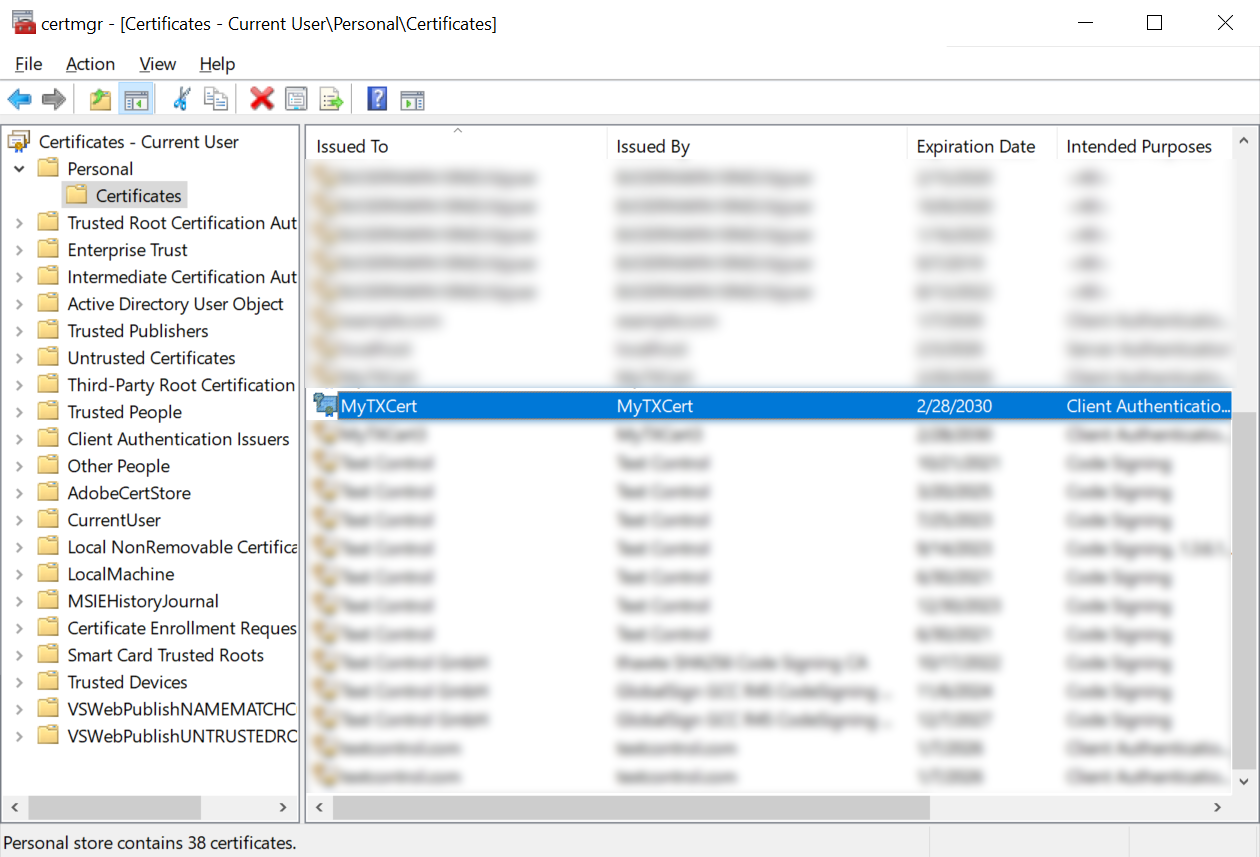
After you run the command, you can view the certificate in the Certificate Manager (certmgr.msc) under Personal > Certificates.
Exporting the Certificate to a PFX File
To use the certificate for digital signing, export it to a Personal Exchange Format (PFX) file. Run the following command in PowerShell:
$Password = ConvertTo-SecureString -String "123" -Force -AsPlainText

Export-PfxCertificate `
    -Cert "Cert:\CurrentUser\My\$($cert.Thumbprint)" `
    -FilePath "C:\Path\To\Certificate.pfx" `
    -Password $Password
This command exports the certificate to a PFX file. Here is a description of the parameters used:
| Parameter | Description |
|---|---|
| ConvertTo-SecureString | Securely defines the password for the PFX file. |
| Export-PfxCertificate | Exports the certificate with the private key. |
| FilePath | Path to the PFX file. |
| Password | Password to protect the PFX file. |
After you run the command, you can view the PFX file in the specified location.
Signing a PDF with the Certificate
Now that we have a PFX file, we can use it to sign a PDF document. In a .NET-based application, such as one that uses TX Text Control .NET, you can apply the digital signature using the Digital
The following code snippet shows how to sign a PDF document using a PFX file:
using System.Security.Cryptography.X509Certificates;
using TXTextControl;

// Define the certificate password and path
const string password = "123";
const string certificatePath = "certificate.pfx";

var cert = new X509Certificate2(certificatePath, password, X509KeyStorageFlags.Exportable);

// Initialize TXTextControl to create and save a document with the digital signature
using (var tx = new ServerTextControl())
{
    tx.Create();
    tx.Text = "Hello, World!";

    // Prepare the digital signature for the document
    var saveSettings = new SaveSettings
    {
        DigitalSignature = new DigitalSignature(cert, null)
    };

    // Save the document as a PDF with the digital signature
    tx.Save("result.pdf", StreamType.AdobePDF, saveSettings);
}
Conclusion
Creating a self-signed certificate is a simple process using PowerShell. This certificate can be used for testing or internal purposes before obtaining a trusted certificate from a CA. The certificate can be exported to a PFX file and used to digitally sign PDF documents in a .NET-based application.
ASP.NET
Integrate document processing into your applications to create documents such as PDFs and MS Word documents, including client-side document editing, viewing, and electronic signatures.





- Angular
- Blazor
- React
- JavaScript
- ASP.NET MVC, ASP.NET Core, and WebForms
Related Posts
ASP.NETASP.NET CoreE-Invoicing
Why Structured E-Invoices Still Need Tamper Protection using C# and .NET
ZUGFeRD, Factur-X, German e-invoicing rules, and how to seal PDF invoices with TX Text Control to prevent tampering. Learn how to create compliant e-invoices with C# and .NET.
Create Fillable PDFs from HTML Forms in C# ASP.NET Core Using a WYSIWYG Template
Learn how to generate PDFs from HTML forms in ASP.NET Core using a pixel-perfect WYSIWYG template. Extract form fields from a document, render a dynamic HTML form, and merge the data server-side…
Why HTML to PDF Conversion is Often the Wrong Choice for Business Documents…
In this article, we explore the challenges of HTML to PDF conversion for business documents in C# .NET and present alternative solutions that offer better performance and reliability. Discover why…
A Complete Guide to Converting Markdown to PDF in .NET C#
Learn how to convert Markdown to PDF in .NET C# using Text Control's ServerTextControl component. This guide covers setup, conversion process, and customization options for generating high-quality…
ASP.NETASP.NET CoreDocument Creation
Why PDF Creation Belongs at the End of the Business Process
This article discusses why placing PDF creation at the end of the business process is important for ensuring accuracy and efficiency. The most scalable systems delay PDF generation until the…