


MailMerge Class Settings Explained

The MailMerge class provides four properties to control merge output: RemoveEmptyFields, RemoveEmptyLines, RemoveEmptyBlocks, and RemoveEmptyImages. Each property handles unmatched or missing data by removing the corresponding elements from the final merged document output.


The TXText
We will look into four different switches:
- TXText
Control. Document Server. Mail Merge. Remove Empty Fields property - TXText
Control. Document Server. Mail Merge. Remove Empty Lines property - TXText
Control. Document Server. Mail Merge. Remove Empty Blocks property - TXText
Control. Document Server. Mail Merge. Remove Empty Images property
To show the various settings, the same data source basis and template is used and will be slightly changed to illustrate different scenarios. The following JSON is used as the data source:
[
  {
    "Id": 1,
    "Name": "Sales Report",
    "Customer": {
      "Id": 1,
      "Name": "Text Control, LLC",
      "Street": "6926 Shannon-Willow Rd",
      "ZipCode": "28226",
      "City": "Charlotte",
      "Country": "United States"
    },
    "Contacts": [
      {
        "Name": "Paulsen",
        "FirstName": "Carl",
        "Email": "sales@textcontrol.com",
        "Phone": "7045447445"
      },
      {
        "Name": "Franklin",
        "FirstName": "Paul",
        "Email": "support@textcontrol.com",
        "Phone": "7045447445"
      }
    ]
  }
]
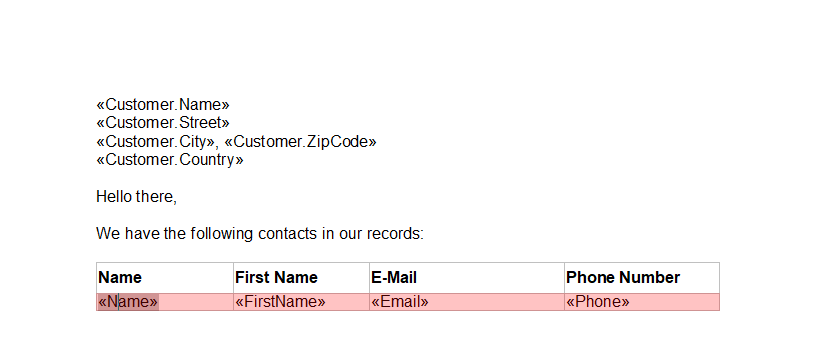
The following screenshot shows the simple template with text fields and a merge block highlighted in red:
Removing Empty Fields
In the first scenario, we would like to remove fields that are empty. This happens, if no data field can be found in the data source that matches the field name in the template. By default, the RemoveEmptyFields property is true, so that the text of empty fields is removed automatically.
The following code is used to merge the template with the sample JSON data source:
textControl1.Load("template.tx", TXTextControl.StreamType.InternalUnicodeFormat);
string data = System.IO.File.ReadAllText("data.json");

using (TXTextControl.DocumentServer.MailMerge mailMerge =
       new TXTextControl.DocumentServer.MailMerge())
{
    mailMerge.TextComponent = textControl1;
    mailMerge.MergeJsonData(data);
}
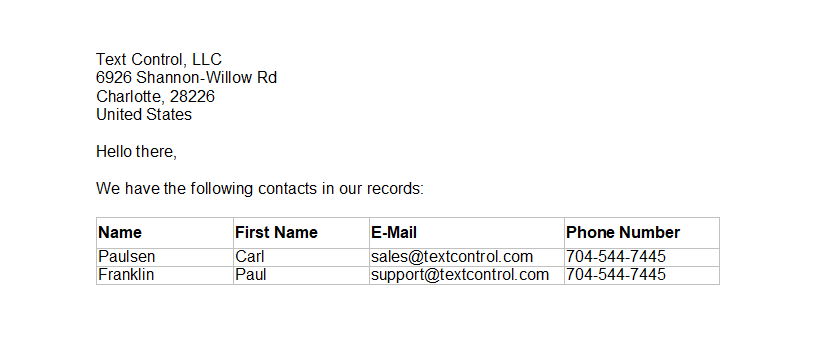
When passing all field values from the data source, the results would look similar to the following screenshot:
Now, we will remove one field Street from the data source:
[
  {
    "Id": 1,
    "Name": "Sales Report",
    "Customer": {
      "Id": 1,
      "Name": "Text Control, LLC",
      "ZipCode": "28226",
      "City": "Charlotte",
      ...
In code, the RemoveEmptyFields property is set to false:
textControl1.Load("template.tx", TXTextControl.StreamType.InternalUnicodeFormat);
string data = System.IO.File.ReadAllText("data.json");

using (TXTextControl.DocumentServer.MailMerge mailMerge = new TXTextControl.DocumentServer.MailMerge())
{
    mailMerge.TextComponent = textControl1;

    mailMerge.RemoveEmptyFields = false;
    mailMerge.MergeJsonData(data);
}
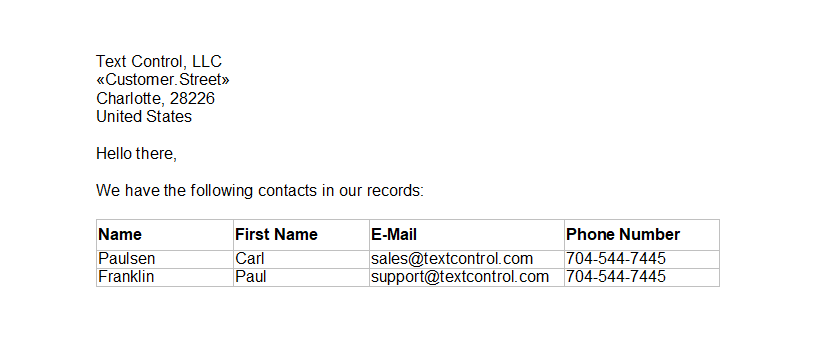
The resulting document is shown in the next screenshot:
Removing Empty Lines
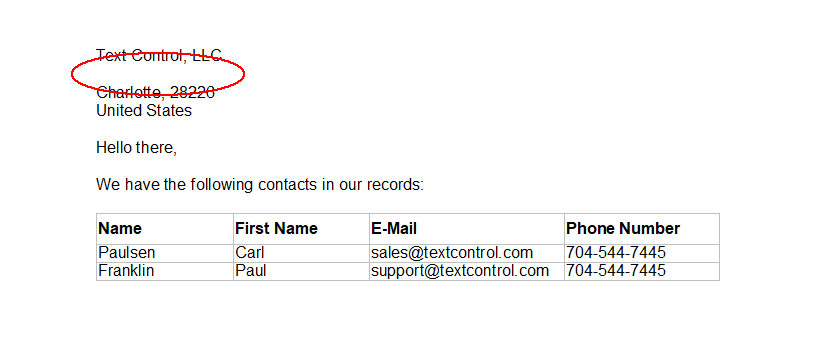
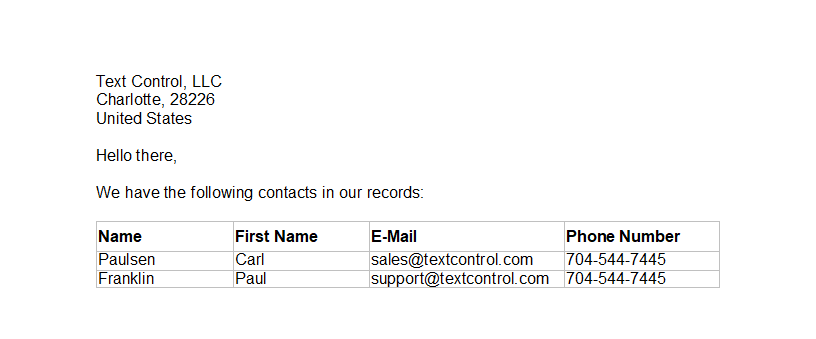
Based on the previous example, we keep the Street field deleted from the data source and the RemoveEmptyFields is not set (by default true). The resulting document would contain an empty line where the empty field was:
By setting the RemoveEmptyLines property to true, the complete empty line will be removed. This is done, if no other content exists in the same line and an empty line would be created:
textControl1.Load("template.tx", TXTextControl.StreamType.InternalUnicodeFormat);
string data = System.IO.File.ReadAllText("data.json");

using (TXTextControl.DocumentServer.MailMerge mailMerge = new TXTextControl.DocumentServer.MailMerge())
{
    mailMerge.TextComponent = textControl1;
    mailMerge.RemoveEmptyLines = true;
    mailMerge.MergeJsonData(data);
}
Removing Empty Blocks
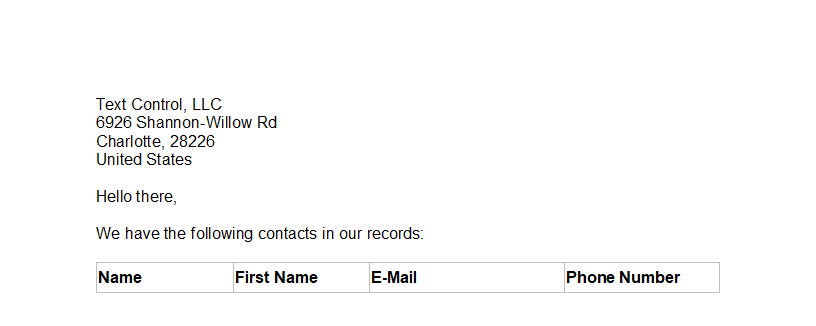
In case, the data is missing a block, the RemoveEmptyBlocks property can be used to determine whether a block should be removed from the document completely. This concept can be used to conditionally remove content from a document.
In our data source, we will remove the complete merge block data:
[
  {
    "Id": 1,
    "Name": "Sales Report",
    "Customer": {
      "Id": 1,
      "Name": "Text Control, LLC",
      "Street": "6926 Shannon-Willow Rd",
      "ZipCode": "28226",
      "City": "Charlotte",
      "Country": "United States"
    }
  }
]
The following code is used to create the document and to set the RemoveEmptyBlocks to true:
textControl1.Load("template.tx", TXTextControl.StreamType.InternalUnicodeFormat);
string data = System.IO.File.ReadAllText("data.json");

using (TXTextControl.DocumentServer.MailMerge mailMerge = new TXTextControl.DocumentServer.MailMerge())
{
    mailMerge.TextComponent = textControl1;
    mailMerge.RemoveEmptyBlocks = true;
    mailMerge.MergeJsonData(data);
}
The complete block part is removed. In our sample, the table header is still visible. In order to remove the table header as well, the header should be part of the merge block or should be part of a hierarchical nested block. If the data of the parent table is missing, the complete merge blocks (including child blocks) are removed.
Removing Empty Images
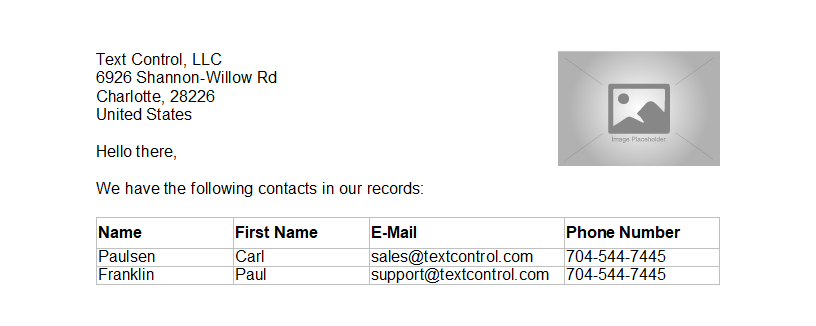
For the next sample, we will insert an image placeholder into the template. If merged without any settings, the image placeholder will be still part of the template, even if there is no explicit data in the data source matching the image placeholder name:
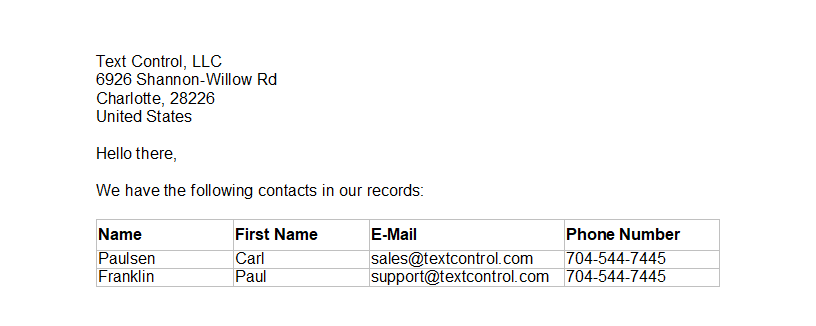
When setting the RemoveEmptyImages property to true, the image will be removed after the merge process, if no associated data field has been found in the data source:
textControl1.Load("template.tx", TXTextControl.StreamType.InternalUnicodeFormat);
string data = System.IO.File.ReadAllText("data.json");

using (TXTextControl.DocumentServer.MailMerge mailMerge = new TXTextControl.DocumentServer.MailMerge())
{
    mailMerge.TextComponent = textControl1;
    mailMerge.RemoveEmptyImages = true;
    mailMerge.MergeJsonData(data);
}
Test this on your own with any .NET product of TX Text Control. The MailMerge class is available for all platforms including Windows Forms, WPF and ASP.NET.
Also See
This post references the following in the documentation:
- TXText
Control. Document Server. Mail Merge Class - TXText
Control. Document Server. Mail Merge. Remove Empty Blocks Property - TXText
Control. Document Server. Mail Merge. Remove Empty Fields Property - TXText
Control. Document Server. Mail Merge. Remove Empty Images Property - TXText
Control. Document Server. Mail Merge. Remove Empty Lines Property
ASP.NET
Integrate document processing into your applications to create documents such as PDFs and MS Word documents, including client-side document editing, viewing, and electronic signatures.





- Angular
- Blazor
- React
- JavaScript
- ASP.NET MVC, ASP.NET Core, and WebForms
Related Posts
MailMerge: Conditional Table Cell Colors using Filter Instructions
The TX Text Control MailMerge FieldMerged event exposes TableCell instances during merge for conditional formatting. A CellFilterInstructions class parses filter rules from merge field names and…
MailMerge: Using Filters to Remove Unwanted Rows
TX Text Control merge block filters remove unwanted rows from repeating data during the mail merge process without modifying the underlying source. Filter conditions applied to merge blocks…
Different Ways to Create Documents using Text Control Products
Text Control offers four document creation paths: building from scratch via the ServerTextControl API, merging pre-designed templates with MailMerge using IEnumerable or DataSet sources, editing…
MVC: Adding an Electronic Signature to Documents in Web.TextControl
An MVC sample uses the MailMerge class to populate a signature template with the signer name and image, then inserts it into a named text frame in a contract document. An async controller method…
MVC: Loading a Data Source from a View Model
When merging templates with business objects, the Reports ribbon drop-downs in Web.TextControl can be populated from a serialized view model. The controller serializes a class model with the…