


TX Text Control X9 Preview: Out-of-the-Box Context Menus

TX Text Control X9 includes built-in contextual menus that activate based on the cursor position within a document. Separate menus appear for text, headers, footers, tables, and images. All menu items are fully customizable and work without writing any additional configuration code.

One of the new helpful features in the next version X9 of TX Text Control are the ready-to-use contextual menus we are currently working on. These dynamic menus are available by default and usable without any additional programming.
The following steps are required to create a fully-featured word processing application using TX Text Control that gives you full access to these new context menus - without writing a single line of code.
-
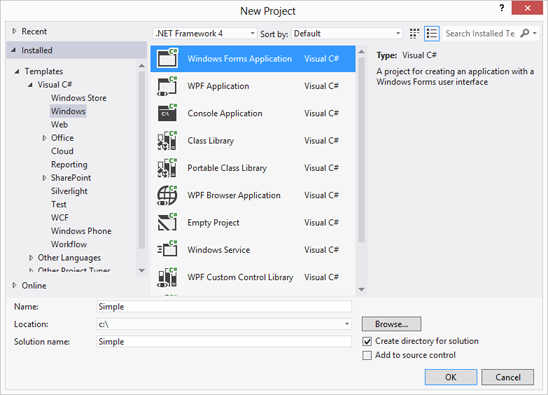
Open Visual Studio and create a new project.
Select Windows Forms Application from the Windows templates, choose a name, select a location and confirm with OK.
-
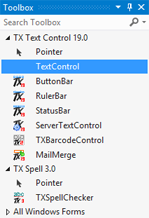
Find TextControl in the toolbox and drag and drop an instance onto the form.
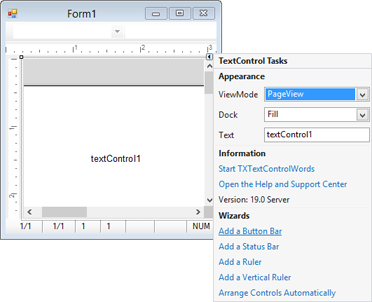
Visit the SmartTag in the upper right corner of TextControl and add a button bar, a status bar, a ruler bar and a vertical ruler using the available Wizards. Finally, arrange and connect the controls by clicking Arrange Controls Automatically.
-
Start the application.
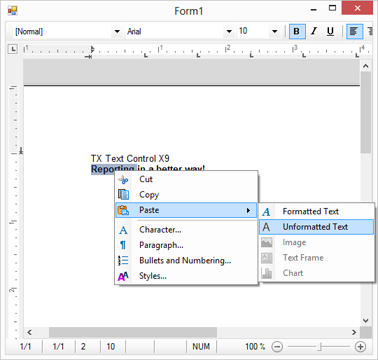
You can immediately start typing text, use the button bar to do some formatting or to zoom using the status bar. Here is the new part: You can right-click everywhere in the document which opens contextual menus dependent on whether the mouse is over normal text, header or footer area or in a table.
Context Menus for Page Settings, Tables, Images and Text Frames
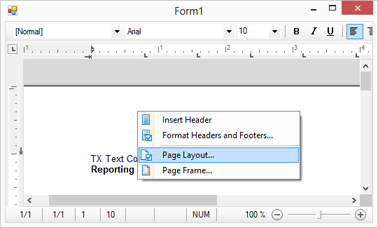
You can use the context menu to insert headers and footers or to adjust the page layout or borders:
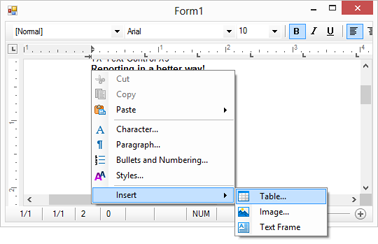
The following screenshot shows a context menu that is shown when no text is selected:
When the input position is inside a table, the following context menu options are available:
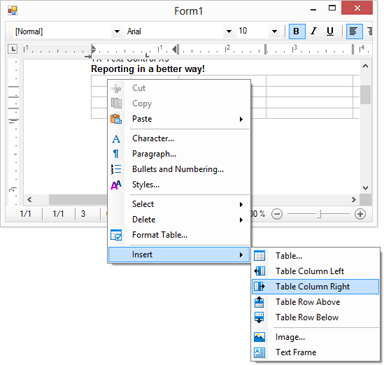
There are many more menu options available for all kind of situations in a document. The ready-to-use context menus contain pre-defined icons that matches the icons in our Ribbon demo. You will have access to more than 350 different icons that can be used in your applications.
The context menus are fully customizable and you can add, remove or change menu items from the context menus.
This is just another great new feature of TX Text Control X9. Stay tuned for more!
Related Posts
Announcing TX Text Control DS Server 5.0
We are excited to announce the release of TX Text Control DS Server 5.0. This release focuses on extensibility, plugin integration, and developer productivity while continuing to improve the…
TX Text Control 34.0 SP2 is Now Available: What's New in the Latest Version
TX Text Control 34.0 Service Pack 2 is now available, offering important updates and bug fixes for all platforms. If you use TX Text Control in your document processing applications, this service…
TX Text Control 34.0 SP1 is Now Available: What's New in the Latest Version
TX Text Control 34.0 Service Pack 1 is now available, offering important updates and bug fixes for all platforms. If you use TX Text Control in your document processing applications, this service…
Introducing TX Text Control 34.0: Your Next Leap in Document Processing
We are happy to announce the release of TX Text Control 34.0. This version is packed with new features and enhancements that will elevate your document processing experience. This version…
PDF/UA vs. PDF/A-3a: Which Format Should You Use for Your Business Application?
In this blog post, we will explore the differences between PDF/UA and PDF/A-3a, helping you choose the right format for your business needs. We will discuss the key features, benefits, and use…