


Programmatically Fill, Flatten, and Export DOCX Form Templates to PDF in C# .NET

Learn how to fill, flatten and export DOCX form templates to PDF programmatically in C# .NET. This article provides a step-by-step guide on how to use the TX Text Control library to achieve this, along with code examples and best practice recommendations for working with DOCX templates and PDF exports.

Documents are rarely created from scratch. Instead, they are based on Microsoft Word templates that contain predefined form fields. These templates can be automatically filled with application data and exported as finalized PDF documents.
Typical workflows include:
- Generating contracts or agreements from templates
- Populating HR documents with employee data
- Creating invoices or application forms
- Converting completed templates into non-editable PDF documents
A common workflow looks like this:
- Start with a DOCX template containing form fields
- Use MailMerge to populate the fields with application data
- Either:
- pre-select the form fields so users can still edit the document, or
- replace the form fields with actual content to flatten the document
- Export the result to PDF
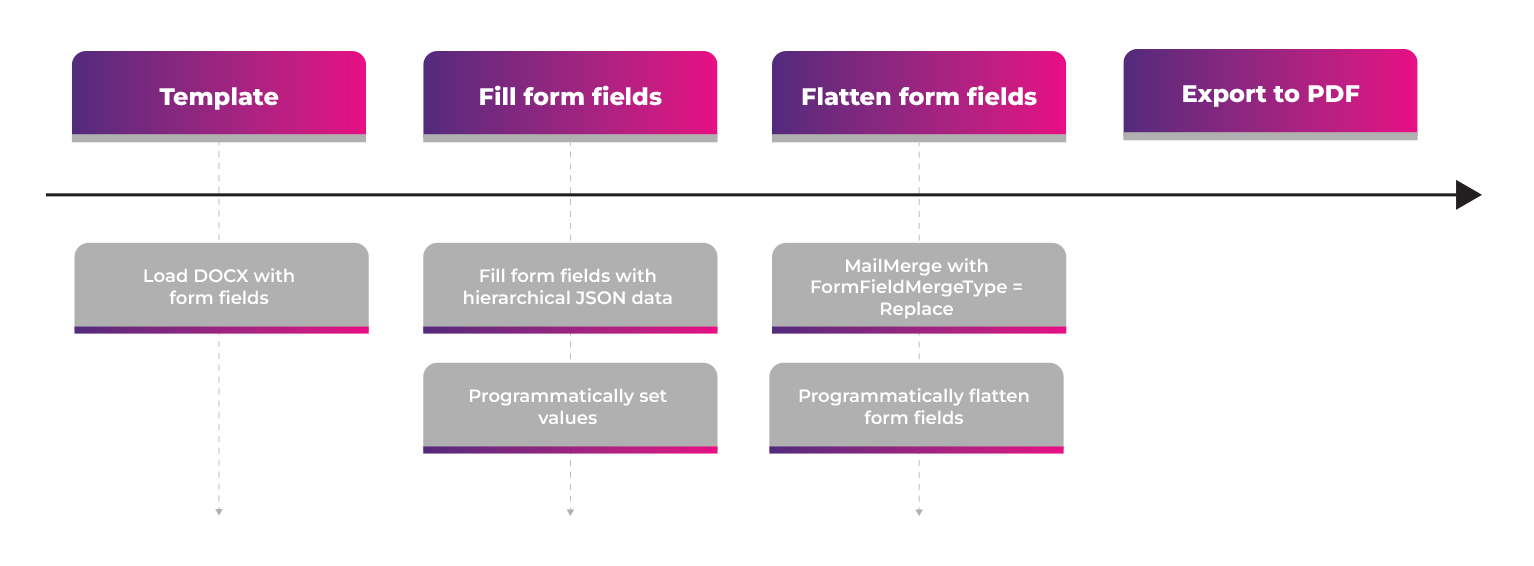
TX Text Control supports this workflow through the Mail
Installing the Required NuGet Package
To implement this workflow in a .NET application, install the TXTextControl.TextControl.Core.SDK package. In your environment, this package is available either from the Text Control private NuGet feed or from the offline package source created during setup installation.
Learn more
The Text Control private NuGet feed lets developers install licensed TX Text Control .NET packages with automatic license injection. Authentication uses API tokens tied to assigned serials. The feed integrates with Visual Studio and CI/CD pipelines on GitHub, GitLab, and Azure DevOps.
Using the NuGet Package Manager Console:
Install-Package TXTextControl.TextControl.Core.SDKAfter installing the package, you can use TXText
Why is MailMerge Important Here?
The key feature of this workflow is that the form fields are not filled in manually, one by one. Instead, they are merged automatically using the MailMerge engine. As the referenced Text Control article explains, the MailMerge class merges object or JSON data with form fields, and the merge behavior is controlled by FormFieldMergeType.
This is especially useful when your template contains:
- Many form fields that need to be filled
- Complex templates with conditional content
- Dynamic data sources that can change frequently
By using MailMerge, you can automate the process of filling out the form fields based on your application's data, which saves time and reduces the risk of errors compared to manual filling.
Scenario 1: Pre-Select Form Fields
In the first scenario, the template is populated with known values, but the form should still be editable. This is useful when you want to help a user by pre-filling out a document, but still allow them to review or complete it later. In this case, set the FormFieldMergeType to Preselect. This will populate the form fields with the provided data; however, the fields will remain active and editable in the resulting document.
using TXTextControl;
using TXTextControl.DocumentServer;

public class ContractData
{
    public string customer_name { get; set; }
    public string company_name { get; set; }
    public DateTime contract_date { get; set; }
    public bool approved { get; set; }
    public string contract_type { get; set; }
}

using (ServerTextControl tx = new ServerTextControl())
{
    tx.Create();

    // Load the DOCX template with form fields
    tx.Load("template.docx", StreamType.WordprocessingML);

    ContractData data = new ContractData()
    {
        customer_name = "John Doe",
        company_name = "Example Corporation",
        contract_date = DateTime.Today,
        approved = true,
        contract_type = "Standard"
    };

    using (MailMerge mm = new MailMerge())
    {
        mm.TextComponent = tx;

        // Pre-populate the form fields, but keep them editable
        mm.FormFieldMergeType = FormFieldMergeType.Preselect;
        mm.MergeObject(data);
    }

    // Export as editable PDF form
    tx.Save("preselected-form.pdf", StreamType.AdobePDF);
}
This approach is ideal when the generated PDF should behave like a form. The original article uses this exact pattern: load the template, set the FormFieldMergeType to Preselect, merge the object, and save the result as a PDF. The resulting PDF will have the form fields pre-filled but still editable, allowing users to make changes if needed.
Scenario 2: Replace Form Fields to Flatten the Document
In the second scenario, the result should not be an editable form anymore. Instead, the merged values should become fixed document content. This is the flattening step.
The article describes flattening as replacing the form field with the selected form field value and removing the form field itself. It also demonstrates how to use FormFieldMergeType.Replace to replace form fields with database content during the merge process.
using TXTextControl;
using TXTextControl.DocumentServer;

public class ContractData
{
    public string customer_name { get; set; }
    public string company_name { get; set; }
    public DateTime contract_date { get; set; }
    public bool approved { get; set; }
    public string contract_type { get; set; }
}

using (ServerTextControl tx = new ServerTextControl())
{
    tx.Create();

    // Load the DOCX template with form fields
    tx.Load("template.docx", StreamType.WordprocessingML);

    ContractData data = new ContractData()
    {
        customer_name = "John Doe",
        company_name = "Example Corporation",
        contract_date = DateTime.Today,
        approved = true,
        contract_type = "Standard"
    };

    using (MailMerge mm = new MailMerge())
    {
        mm.TextComponent = tx;

        // Replace form fields with actual content
        // This effectively flattens the template content
        mm.FormFieldMergeType = FormFieldMergeType.Replace;
        mm.MergeObject(data);
    }

    // Export the flattened result to PDF
    tx.Save("flattened-contract.pdf", StreamType.AdobePDF);
}
This is the more important workflow when the final document is intended for:
- Archiving or record-keeping
- Sharing with external parties
- Ensuring the content cannot be modified after generation
Since the form fields are replaced during the merge process, the resulting PDF is a finalized document with the merged content as static text, not an editable form. This is ideal for contracts, agreements, and any other document where it is important that the content remain unchanged after generation.
Pre-Select vs Replace: Which One to Use?
Both approaches have their uses, and your choice should depend on your application's specific requirements and the intended use of the generated PDF. The practical difference is straightforward:
| Preselect | Replace |
|---|---|
| Form fields are filled with known values but remain editable. | Form fields are replaced with merged content, resulting in a flattened document. |
| Ideal for documents that may require further editing or review. | Ideal for finalized documents that should not be modified after generation. |
So if your workflow is:
DOCX with form fields → fill out → flatten → export to PDF
then FormFieldMergeType.Replace is the most direct and clean MailMerge-based implementation.
Filling Form Fields Programmatically
If you want to programmatically fill out the form fields without using MailMerge, you can do so by iterating through the form fields in the document and setting their values directly. While this approach gives you more control over the process, it requires more code to handle each field individually.
After loading the template, the form fields can be populated with application data.
foreach (FormField field in tx.FormFields)
{
    if (field.Name == "customer_name")
        field.Text = "John Doe";

    if (field.Name == "customer_company")
        field.Text = "Example Corporation";

    if (field.Name == "contract_date")
        field.Text = DateTime.Today.ToShortDateString();
}
Flattening the Form Fields Programmatically
To flatten the document programmatically, you can iterate through the form fields and replace them with their values. The Remove method of the Form
private void FlattenFormFields(ServerTextControl textControl) {
  int fieldCount = textControl.FormFields.Count;

  for (int i = 0; i < fieldCount; i++) {
    TextFieldCollectionBase.TextFieldEnumerator fieldEnum =
      textControl.FormFields.GetEnumerator();
    fieldEnum.MoveNext();

    FormField curField = (FormField)fieldEnum.Current;
    textControl.FormFields.Remove(curField, true);
  }
}
Conclusion
When generating documents from Word templates in .NET, MailMerge provides a clean way to handle form fields programmatically.
Use FormFieldMergeType.Preselect when you want to create a PDF form that is already filled but still editable. Use FormFieldMergeType.Replace when you want to flatten the template by replacing all form fields with their merged values before exporting to PDF. This distinction, and the sample workflow around it, is documented in the referenced Text Control article.
TX Text Control is a great choice for automating document generation in .NET applications thanks to its powerful features for working with DOCX templates and exporting to PDF.
Frequently Asked Questions
You can generate PDFs from Microsoft Word (DOCX) templates by loading the template into a document processing engine, filling its form fields with application data, and exporting the result as a PDF. With TX Text Control, this workflow can be automated using the ServerTextControl class to load the template and the MailMerge class to merge business data into the form fields before exporting the document to PDF.
To convert a Word template to PDF in C#, load the DOCX template using ServerTextControl, populate the template fields using MailMerge or by setting form field values programmatically, and then export the document using the Save method with StreamType.AdobePDF. This allows applications to generate PDFs directly from Word-based templates.
The FormFieldMergeType property of the MailMerge class controls how form fields are handled during the merge process. Using Preselect fills the form fields with values but keeps them editable in the resulting document. Using Replace inserts the values and removes the form field itself, effectively flattening the document so the merged content becomes static text.
Flattening form fields means converting interactive fields into static document content. In TX Text Control, this can be achieved during MailMerge by setting FormFieldMergeType.Replace, which replaces the form field with the merged value. Alternatively, you can iterate through the FormFields collection and remove them programmatically after inserting their values.
Flattening form fields is useful when the generated document should no longer be editable. This is typically required for contracts, agreements, invoices, or archived documents. By replacing the form fields with their merged values, the final PDF contains fixed content that cannot be modified through form controls.
The required package can be installed using the NuGet Package Manager Console. Install the TXTextControl.TextControl.Core.SDK package using the following command:
Install-Package TXTextControl.TextControl.Core.SDKThe package is available through the Text Control private NuGet feed or through the offline package source that is created when installing the TX Text Control setup.
Yes. The MailMerge class supports merging data from .NET objects, JSON data, and other structured sources. This makes it easy to populate Word templates with data retrieved from databases, APIs, CRM systems, or other application services.
Yes. Form fields can also be filled programmatically by iterating through the FormFields collection and setting the values directly. However, MailMerge is typically the preferred approach when working with many fields or structured data sources because it reduces code complexity and simplifies template-based document generation.
Word templates allow business users to design and update document layouts without modifying application code. Developers can then populate the templates with data using MailMerge. This separation of layout design and application logic makes document generation workflows easier to maintain and scale.
Yes. By controlling the MailMerge behavior, developers can decide whether the resulting document remains editable or becomes a finalized document. Using FormFieldMergeType.Preselect keeps form fields editable, while FormFieldMergeType.Replace flattens the form fields so the exported PDF contains static content.
ASP.NET
Integrate document processing into your applications to create documents such as PDFs and MS Word documents, including client-side document editing, viewing, and electronic signatures.





- Angular
- Blazor
- React
- JavaScript
- ASP.NET MVC, ASP.NET Core, and WebForms
Related Posts
Create Fillable PDFs from HTML Forms in C# ASP.NET Core Using a WYSIWYG Template
Learn how to generate PDFs from HTML forms in ASP.NET Core using a pixel-perfect WYSIWYG template. Extract form fields from a document, render a dynamic HTML form, and merge the data server-side…
Designing the Perfect PDF Form with TX Text Control in .NET C#
Learn how to create and design interactive PDF forms using TX Text Control in .NET C#. This guide covers essential features and best practices for effective form design.
PDF Conversion in .NET: Convert DOCX, HTML and more with C#
PDF conversion in .NET is a standard requirement for generating invoices, templates, and accessible reports. This article provides an overview of PDF conversion capabilities using TX Text Control,…
Streamline Data Collection with Embedded Forms in C# .NET
Discover how to enhance your C# .NET applications by embedding forms for data collection. This article explores the benefits of using Text Control's ASP.NET and ASP.NET Core components to create…
Convert MS Word DOCX to PDF including Text Reflow using .NET C# on Linux
This article explains how to use TX Text Control .NET Server to convert a Microsoft Word DOCX document to a PDF file on a Linux system using .NET C#. This conversion process includes text reflow,…