


Azure DevOps with TX Text Control .NET Server 34.0: Private NuGet Feed and Azure Artifacts

TX Text Control now offers a private NuGet feed with enhanced support for automated build pipelines. For organizations already using Azure Artifacts, that option remains fully available. This guide covers both approaches, helping you choose the best fit for your team.
Important Note
This article explains how to use build servers for the following versions and requirements:
- TX Text Control .NET Server 34.0 (or later)
- .NET 8.0 or later
Continuous integration (CI) is a widely used development workflow where teams regularly push code changes to a shared repository, with each update automatically triggering a build and running tests to detect issues early.
Azure DevOps is Microsoft's platform for teams to collaborate on code, track work, and automate their projects. One of its powerful features is Azure Pipelines, which provides hosted build agents that automatically compile and test your code on every commit.
When your application uses TX Text Control, your CI pipeline needs a reliable way to pull in those packages without manually installing licenses on build agents. TX Text Control now offers a private NuGet feed with enhanced support for automated build pipelines. For organizations already using Azure Artifacts, that option remains fully available. This guide covers both approaches, helping you choose the best fit for your team.
How Licensing Works in CI Environments
TX Text Control products are licensed per developer. If you are using a build server, all developers who check in code that uses TX Text Control classes need their own license. The private NuGet feed authentication works directly against your TX Text Control subscription, whereas the Azure Artifacts approach requires packages to be uploaded from your licensed developer installation.
Approach 1: Using TX Text Control Private NuGet Feed
The required TX Text Control NuGet packages are installed directly from TX Text Control's private NuGet feed. For the simplest path to automated builds, start here.
Prerequisites
- Active TX Text Control license with assigned .NET Server product.
- API token from your TX Text Control account.
- Azure DevOps with permissions to create pipelines.
Step 1: Create a Variable Group in Azure DevOps
Store your TX Text Control credentials in a secure variable group, so your pipeline can reference them without exposing secrets in source control.
- In Azure DevOps, go to Pipelines → Library.
-
Click + Variable group.
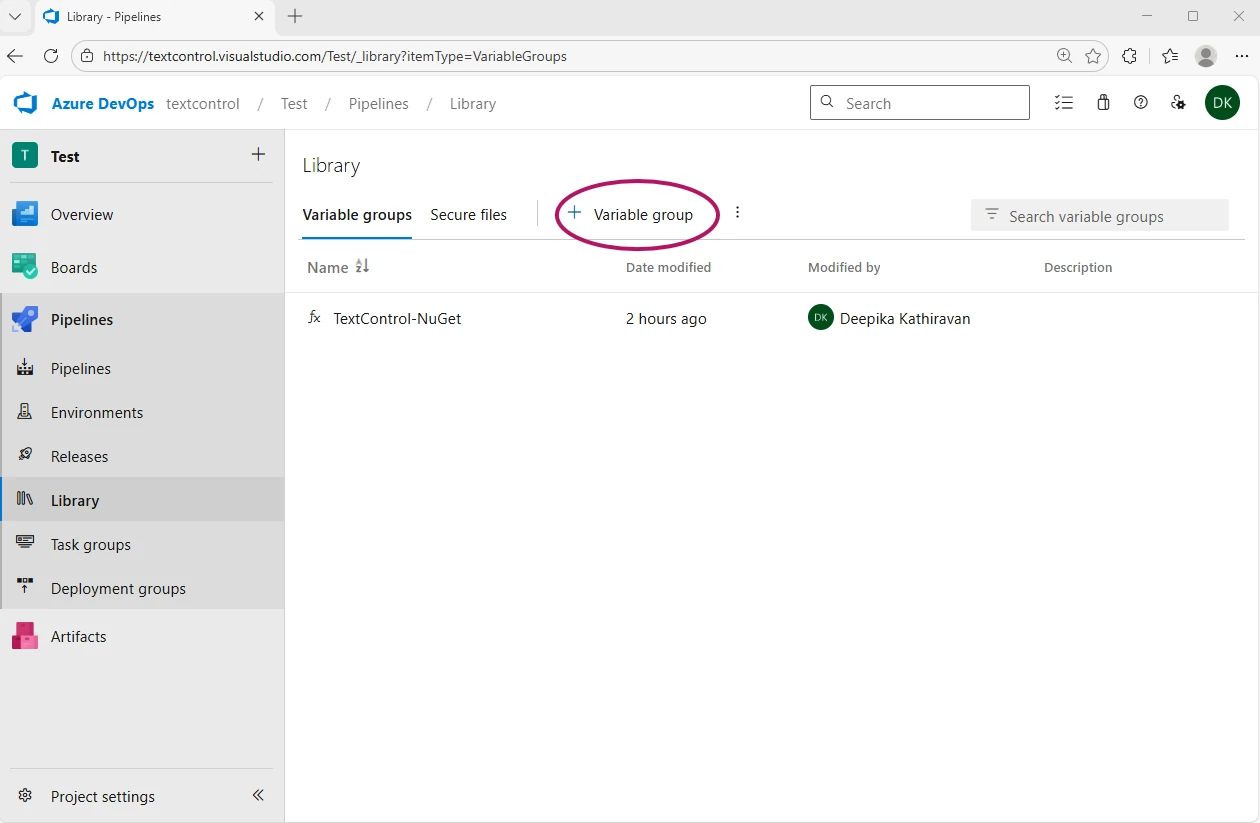
- Name the group (e.g., TextControl-NuGet).
-
Add the following variables:
- TEXTCONTROL_EMAIL: Your TX Text Control account email
- TEXTCONTROL_API_TOKEN: TX Text Control API token (click the lock icon to mark it as secret)
- TEXTCONTROL_FEED_URL: https://www.textcontrol.com/nuget/v3/index.json
- Click Save.
Step 2: Set Up and Run the Azure Pipeline
This guide assumes you already have a .NET project with TX Text Control .NET Server packages installed and pushed to GitHub. If you haven't set up the private NuGet feed yet, follow the Text Control Private NuGet Feed guide and then continue with the step below.
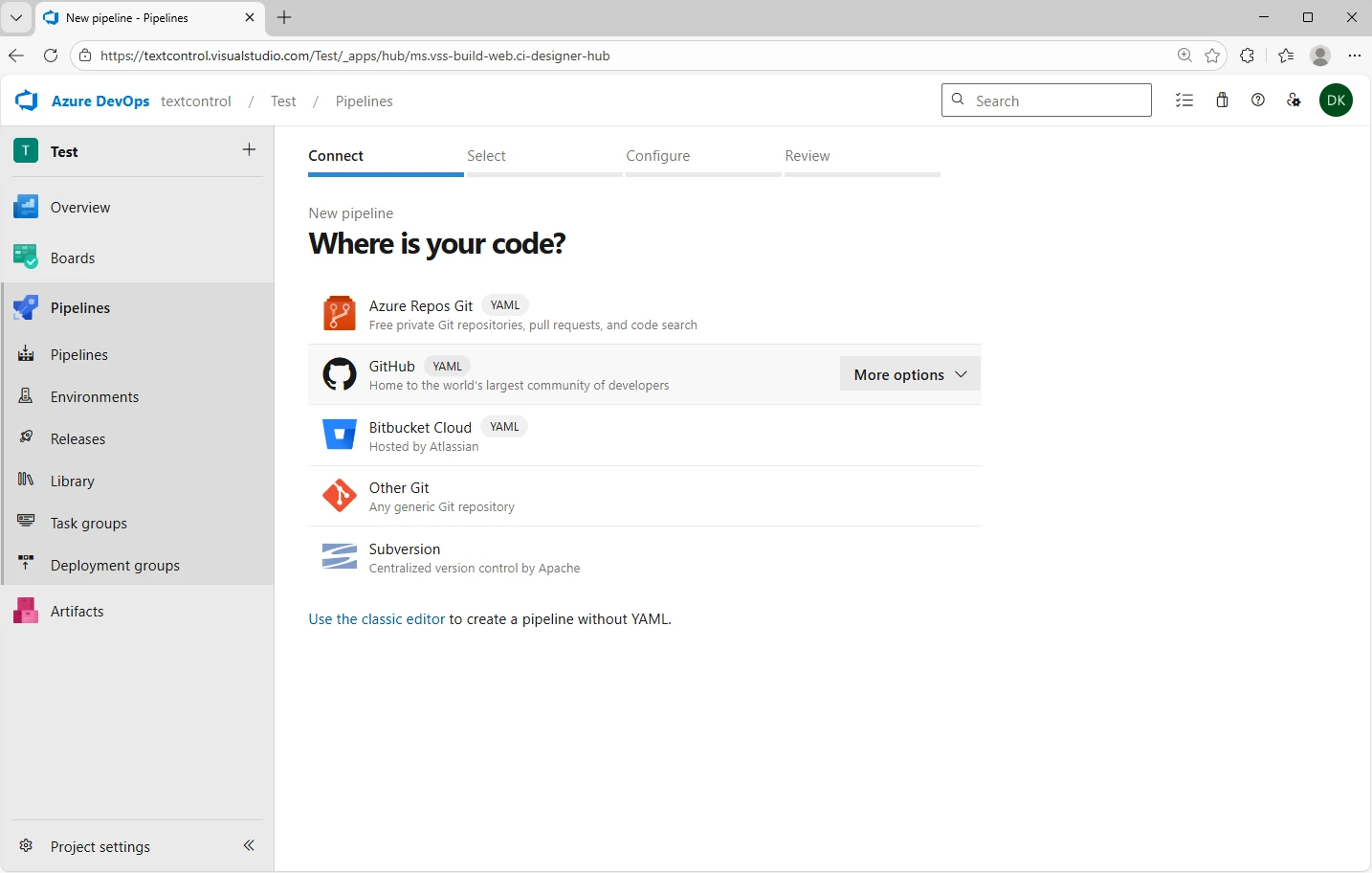
- In Azure DevOps, go to Pipelines → New pipeline.
-
Select GitHub, authorize, and choose your repository.
-
Replace the created pipeline YAML with the following:
# ASP.NET Core (.NET Framework)
# Build and test ASP.NET Core projects targeting the full .NET Framework.
# Add steps that publish symbols, save build artifacts, and more:
# https://docs.microsoft.com/azure/devops/pipelines/languages/dotnet-core

trigger:
  - main

pool:
  vmImage: 'windows-latest'

variables:
  - group: TextControl-NuGet
  - name: buildConfiguration
    value: 'Release'

steps:
  - task: UseDotNet@2
    displayName: 'Setup .NET SDK'
    inputs:
      version: '8.0.x'
      includePreviewVersions: false

  - pwsh: |
      @"
      <?xml version="1.0" encoding="utf-8"?>
      <configuration>
        <packageSources>
          <clear />
          <add key="nuget.org" value="https://api.nuget.org/v3/index.json" />
          <add key="TextControl" value="$(TEXTCONTROL_FEED_URL)" />
        </packageSources>
        <packageSourceCredentials>
          <TextControl>
            <add key="Username" value="$(TEXTCONTROL_EMAIL)" />
            <add key="ClearTextPassword" value="$(TEXTCONTROL_API_TOKEN)" />
          </TextControl>
        </packageSourceCredentials>
      </configuration>
      "@ | Out-File -FilePath nuget.config -Encoding utf8
    displayName: 'Create nuget.config'

  - task: DotNetCoreCLI@2
    displayName: 'Restore packages'
    inputs:
      command: 'restore'
      projects: '**/*.csproj'
      feedsToUse: 'config'
      nugetConfigPath: 'nuget.config'

  - task: DotNetCoreCLI@2
    displayName: 'Build solution'
    inputs:
      command: 'build'
      projects: '**/*.csproj'
      arguments: '--configuration $(buildConfiguration) --no-restore'

  - task: DotNetCoreCLI@2
    displayName: 'Run tests'
    inputs:
      command: 'test'
      projects: '**/*Tests.csproj'
      arguments: '--configuration $(buildConfiguration) --no-build'
The nuget.config file is generated dynamically at build time using the secure variables from your variable group. This keeps your feed URL, email, and API token out of source control entirely. The restore step then references this generated config to pull packages from both the public NuGet gallery and the TX Text Control feed.
Make sure that the NuGet restore command is using the feed (feedsToUse) from the created config file:
- task: DotNetCoreCLI@2 displayName: 'Restore packages' inputs: command: 'restore' projects: '**/*.csproj' feedsToUse: 'config' nugetConfigPath: 'nuget.config' - Click Save and run.
- When prompted, click Permit to allow access to the variable group.
Step 3: Verify the Build
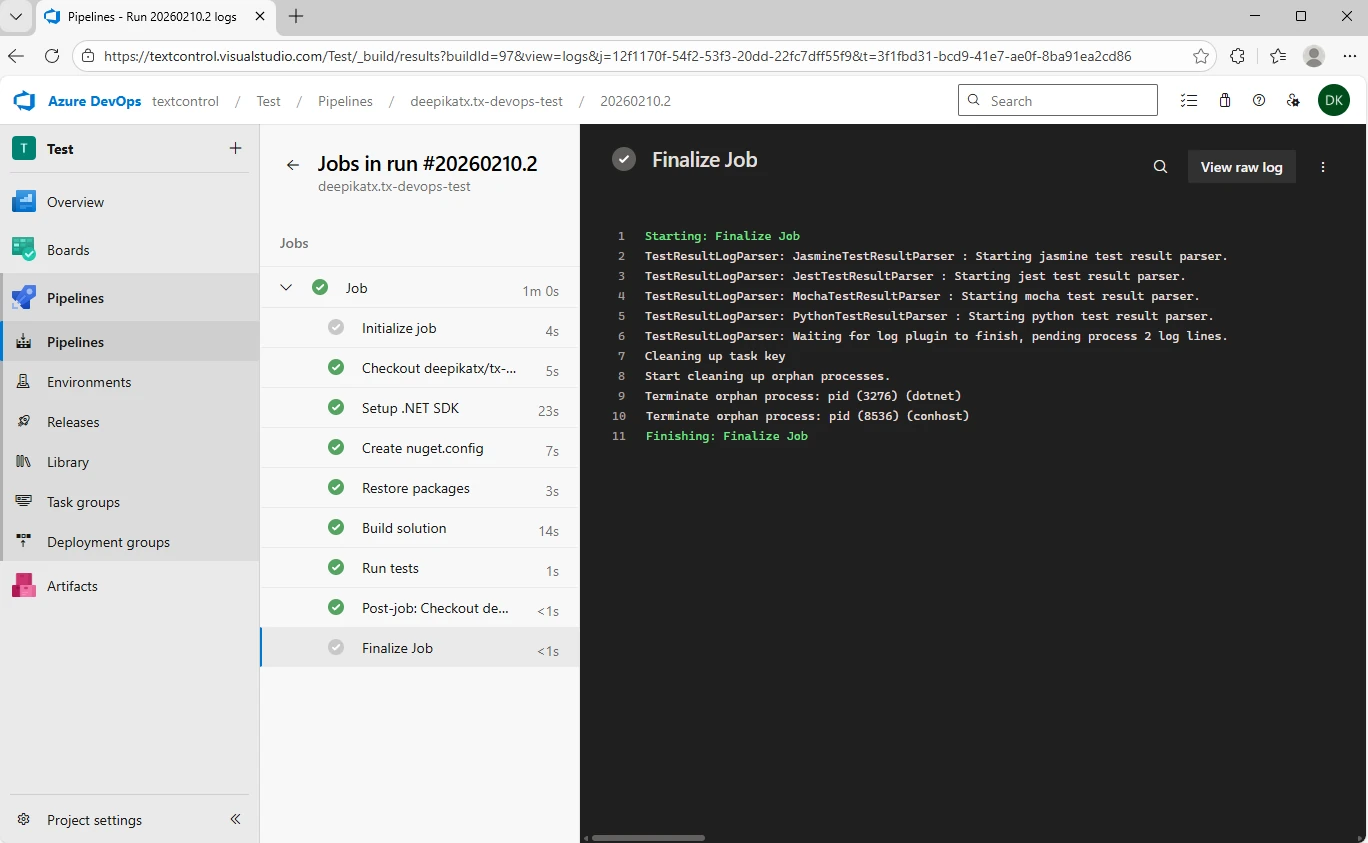
Once the run completes, check the Restore packages step in the logs. You should see both feeds listed as follows:
Feeds used:
https://api.nuget.org/v3/index.json
https://www.textcontrol.com/nuget/v3/index.json
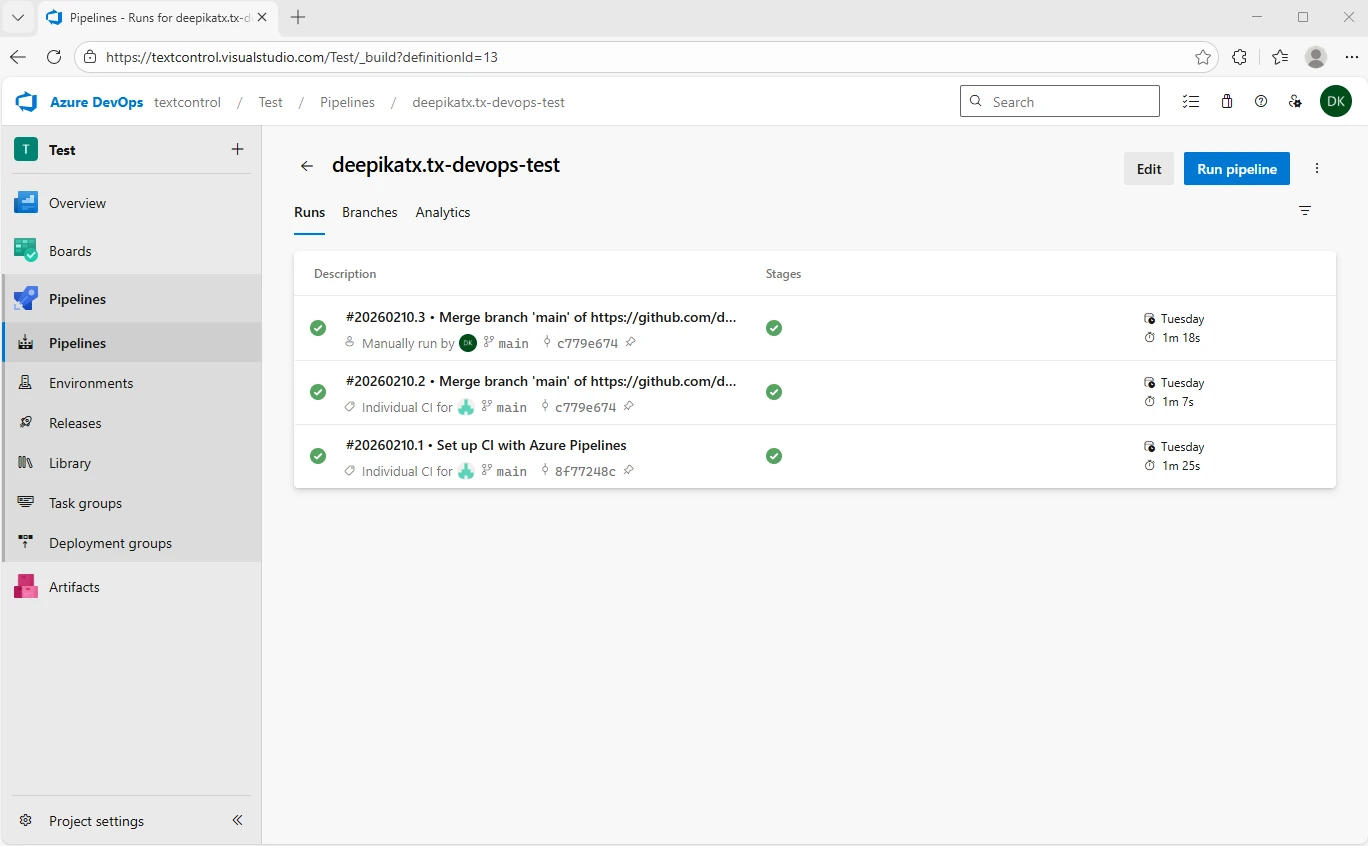
Your pipeline now pulls TX Text Control packages automatically, and every time you check in your code, a new run is performed:
Approach 2: Using Azure Artifacts
If your organization needs to host packages internally, Azure Artifacts gives you full control. You can upload TX Text Control packages to your own feed and point your pipeline at it.
Step 1: Create an Azure Artifacts Feed
-
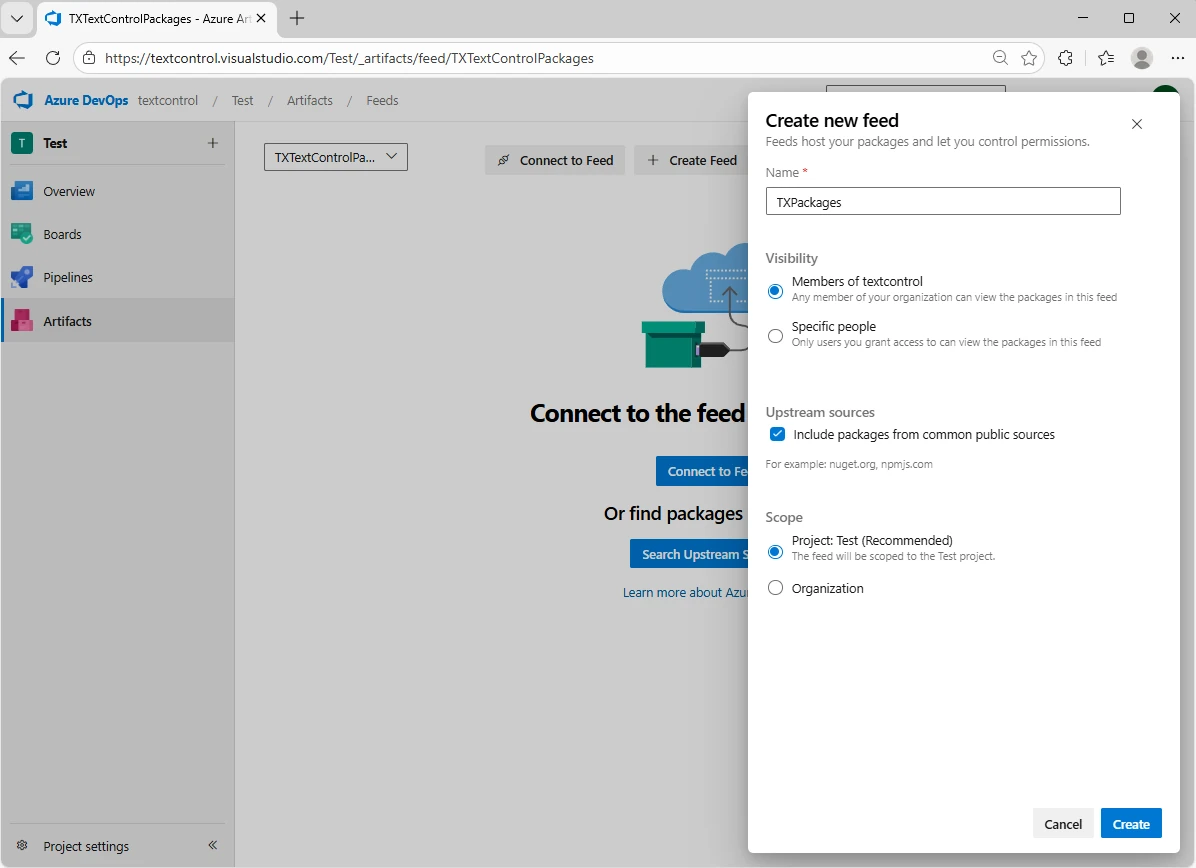
In Azure DevOps, go to Artifacts → Create Feed. Provide a name and set the required visibility, and click Create.
-
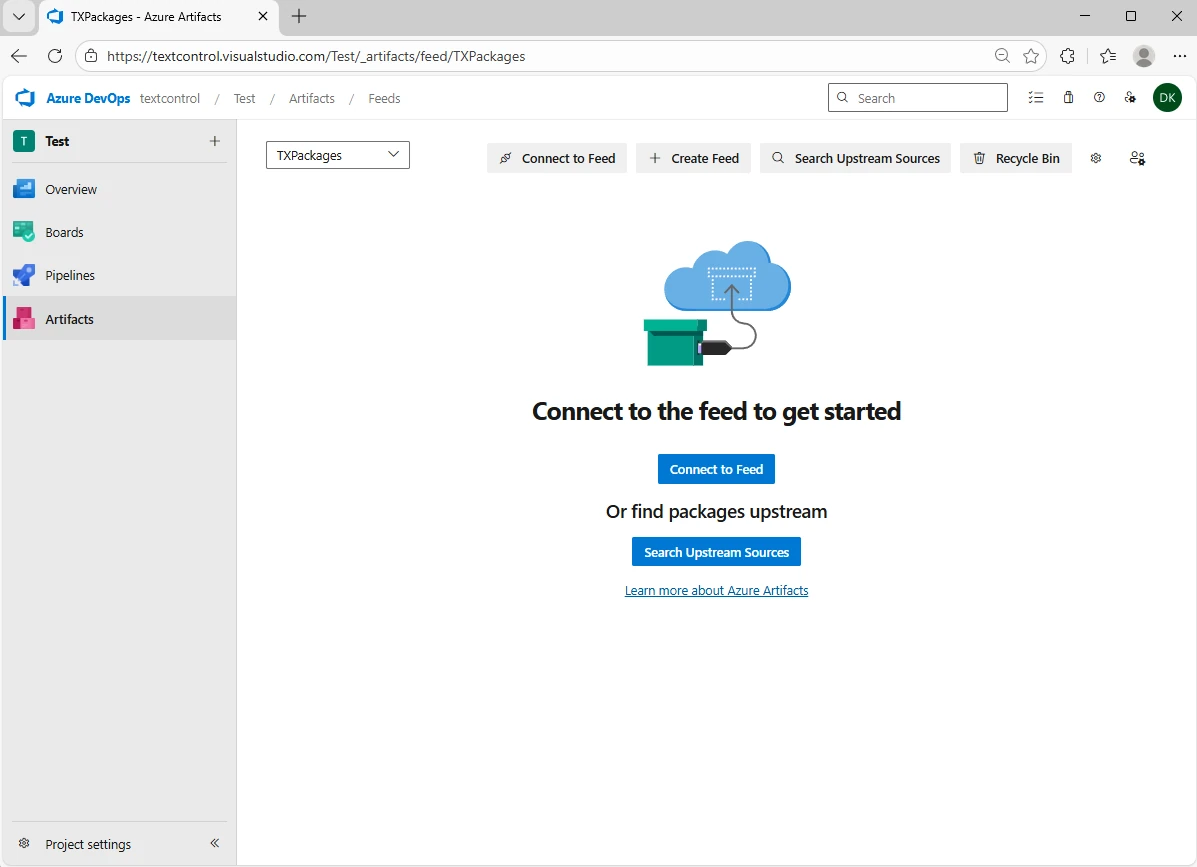
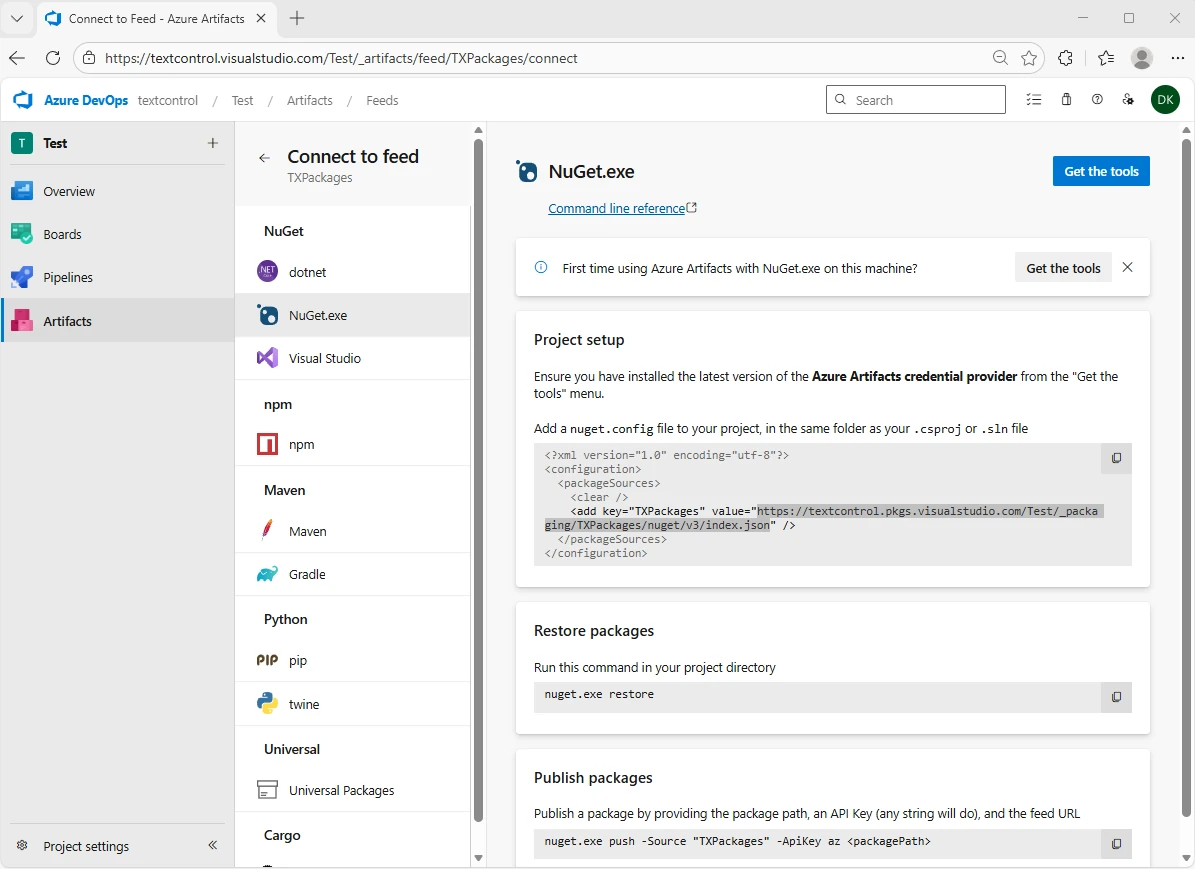
Select the newly created feed and click Connect to Feed:
-
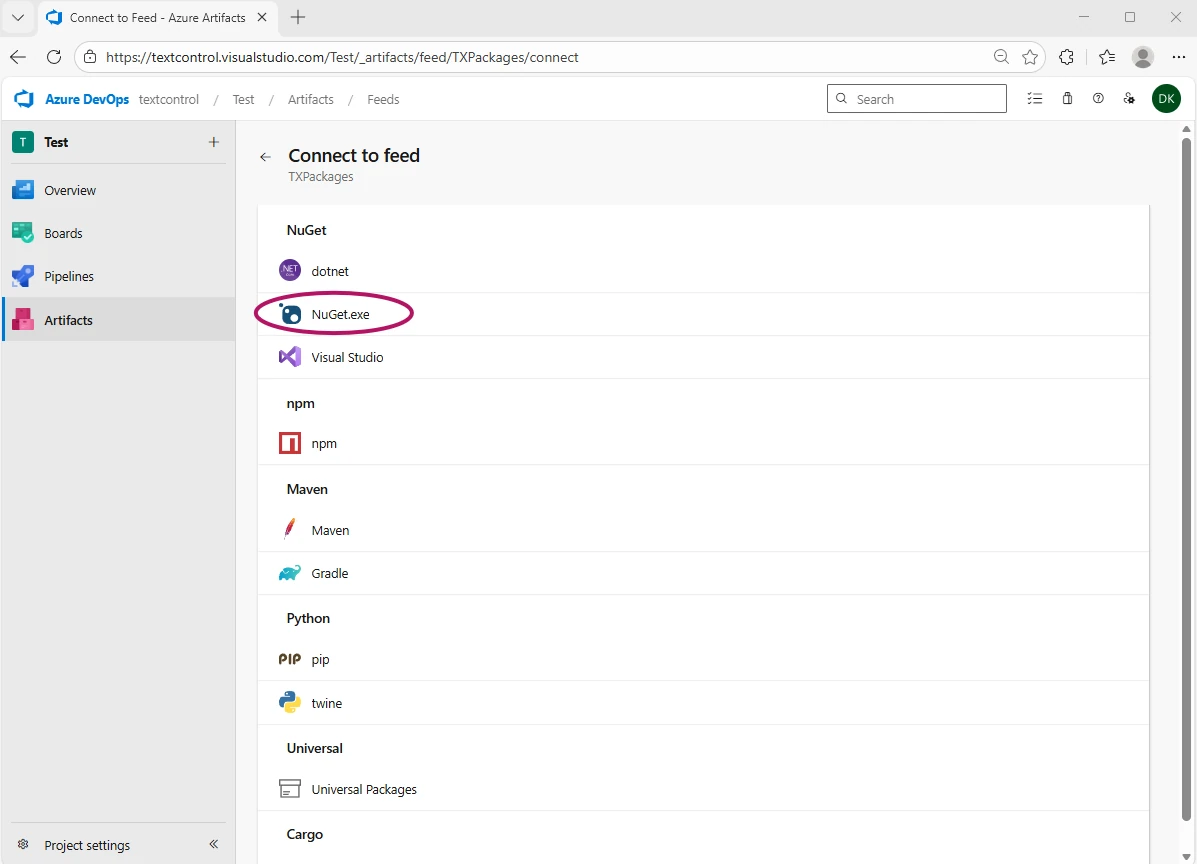
From the list, select NuGet.exe.
-
Copy the feed path from the shown config file; you'll need this in the next step.
Important
To use NuGet.exe with Azure Artifacts, you'll need a recent version of NuGet and the Azure Artifacts credential provider. If you've installed Visual Studio, including the Build Tools edition, you already have the credential provider. You should just download the latest NuGet to a directory on your PATH, outside of your repository.
Step 2: Upload TX Text Control Packages into Artifacts
TX Text Control NuGet packages are available through the "Text Control Offline Packages" source that comes with your developer license installation.
- Download the latest nuget.exe from nuget.org/downloads.
-
Open an elevated (Developer) Command Prompt and navigate to your Text Control offline packages folder. Use the following command to push the TX Text Control NuGet packages to your feed. Replace the src value with the feed path copied in the previous step, and the ApiKey value with a Personal Access Token created in Azure DevOps.
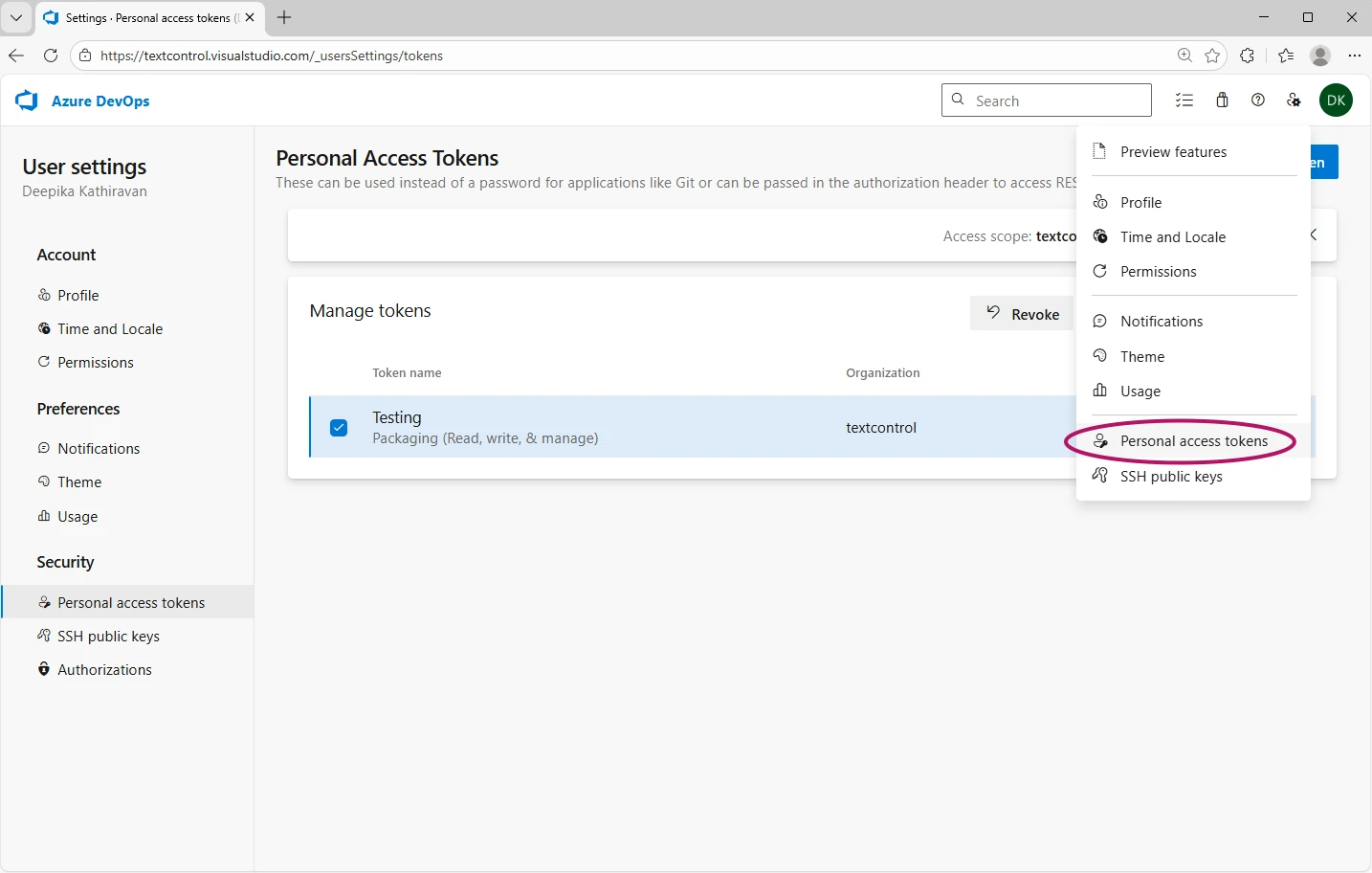
nuget.exe push "C:\Program Files (x86)\Text Control GmbH\NuGetPackages\TXTextControl.TextControl.Core.SDK.34.0.0.nupkg" -src "https://textcontrol.pkgs.visualstudio.com/Test/_packaging/TXPackages/nuget/v3/index.json" -ApiKey AzureDevOps
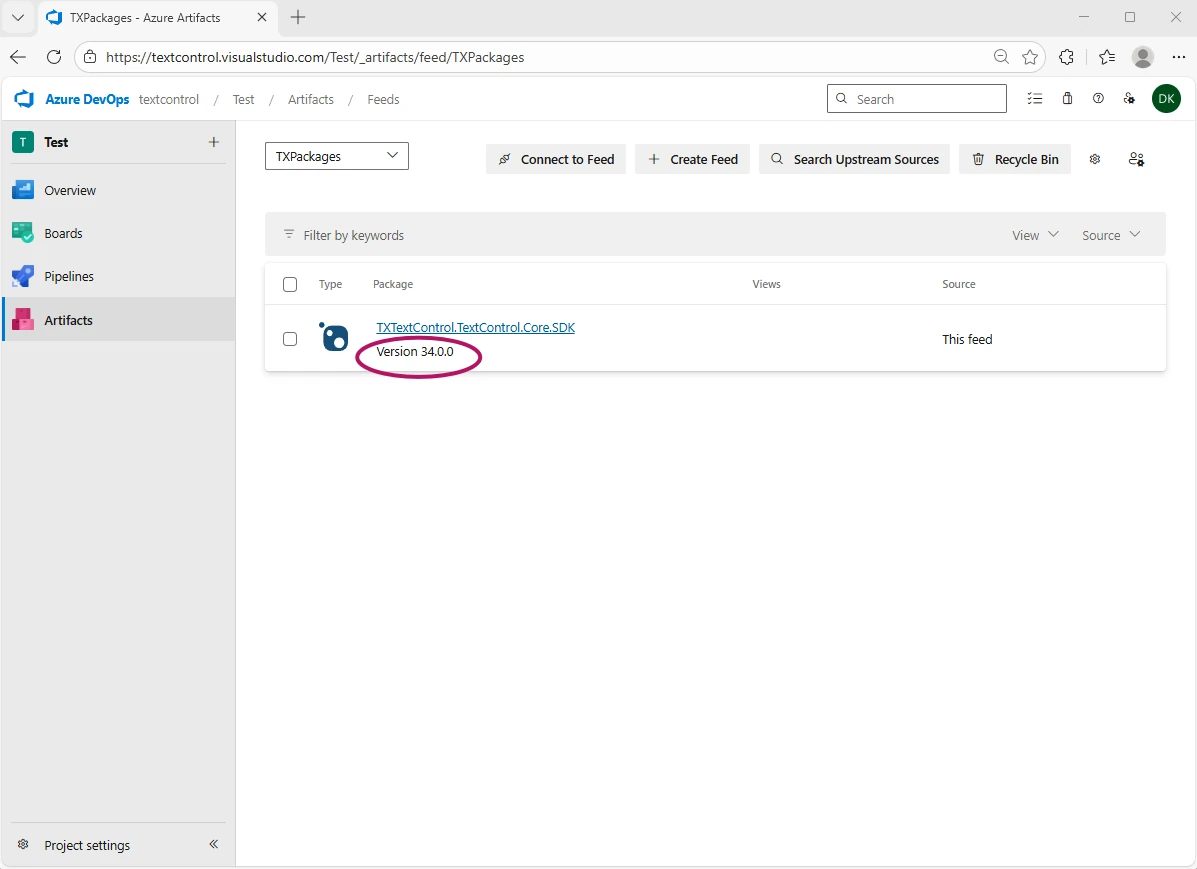
Once uploaded, the package should be visible in your Azure Artifacts feed:
Step 3: Update the Variable Group
Use the same variable group pattern from Approach 1, but swap in your Azure Artifacts values:
- TEXTCONTROL_EMAIL: Any value (e.g., your email)
- TEXTCONTROL_API_TOKEN: Your Azure DevOps Personal Access Token (mark as secret)
- TEXTCONTROL_FEED_URL: https://pkgs.dev.azure.com/yourorg/yourproject/_packaging/TXPackages/nuget/v3/index.json
Step 4: Create and Run the Azure Pipeline
Before creating the pipeline, make sure your project already references the TX Text Control .NET Server packages and is pushed to GitHub. Then create and run the pipeline as described in Approach 1. The same YAML pipeline from Approach 1 works here, no changes needed. The pipeline generates nuget.config dynamically from your variable group values, so it will restore packages from your Azure Artifacts feed.
Step 5: Verify the Build
After the run completes, check the Restore packages step in the logs to verify both feeds are listed.
Feeds used:
https://api.nuget.org/v3/index.json
https://pkgs.dev.azure.com/yourorg/yourproject/_packaging/TXPackages/nuget/v3/index.json
Conclusion
In this tutorial, we explored two approaches for integrating TX Text Control packages into Azure DevOps Pipelines. The private NuGet feed offers a streamlined setup. Configure your variable group and generate nuget.config dynamically. Your pipeline handles the rest. For organizations that need to host packages internally, Azure Artifacts provides that option using the same pipeline structure.
Both methods keep credentials secure through Azure DevOps variable groups. Once your pipeline is in place, every commit triggers an automated build and test cycle that gives your team fast feedback on every change. From here, extending into a full continuous deployment (CD) workflow is a straightforward next step.
ASP.NET
Integrate document processing into your applications to create documents such as PDFs and MS Word documents, including client-side document editing, viewing, and electronic signatures.





- Angular
- Blazor
- React
- JavaScript
- ASP.NET MVC, ASP.NET Core, and WebForms
Related Posts
ASP.NETASP.NET CoreDocument Editor
5 Layout Patterns for Integrating the TX Text Control Document Editor in…
When integrating a document editor into an ASP.NET Core application, the technical setup is only one part of the work. Just as important is the question of how the editor fits into the user…
ASP.NETASP.NET CoreTable Extraction
Extracting Structured Table Data from DOCX Word Documents in C# .NET with…
In this article, we build a domain-aware table extraction system using TX Text Control in C# .NET. The system automatically detects the table's domain, understands column semantics, and produces…
Introducing Text Control Agent Skills
Text Control Agent Skills are structured definitions that teach AI coding assistants how to build applications with the TX Text Control Document Editor. Each skill contains step-by-step…
ASP.NETApp ServicesASP.NET Core
Deploying the TX Text Control Document Editor from the Private NuGet Feed to…
This tutorial shows how to deploy the TX Text Control Document Editor to Azure App Services using an ASP.NET Core Web App. The Document Editor is a powerful word processing component that can be…
ASP.NETASP.NET CoreE-Invoicing
Why Structured E-Invoices Still Need Tamper Protection using C# and .NET
ZUGFeRD, Factur-X, German e-invoicing rules, and how to seal PDF invoices with TX Text Control to prevent tampering. Learn how to create compliant e-invoices with C# and .NET.