


Building a TX Text Control Project with GitHub Actions and the Text Control NuGet Feed

This tutorial provides a step-by-step guide to setting up a clean, reproducible environment using GitHub Actions. It starts with a brand-new project and ends with a fully automated build and test pipeline. The tutorial uses the private Text Control NuGet feed, available to customers with an active maintenance agreement.
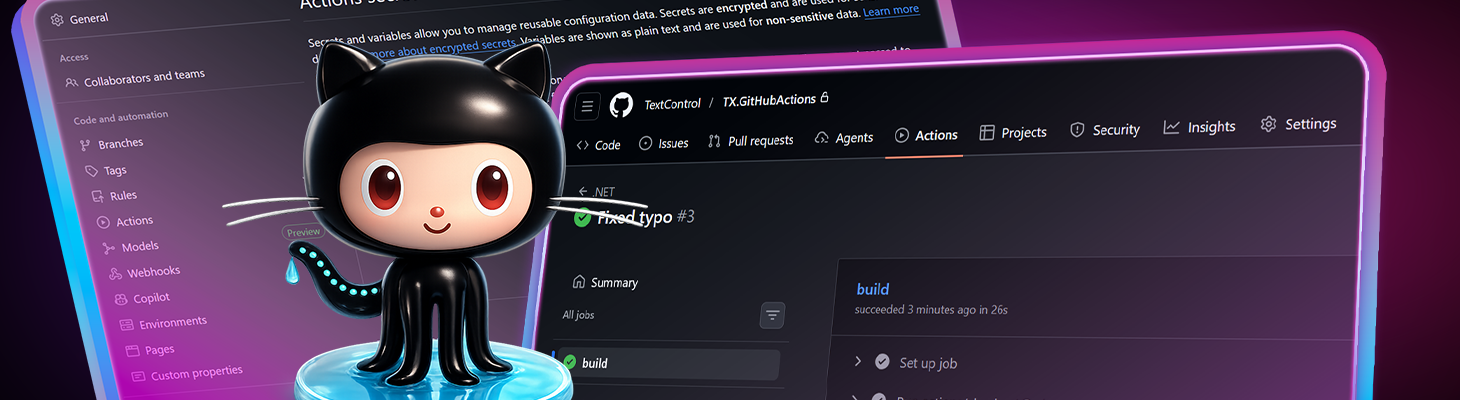
Continuous Integration (CI) should be boring. Push code, build, test, done.
When working with TX Text Control, an additional requirement comes into play: packages must be installed from a private NuGet feed. This means that authentication must be handled correctly in automated builds. This tutorial provides a step-by-step guide to setting up a clean and reproducible environment using GitHub Actions. It starts with a brand-new project and ends with a fully automated build and test pipeline.
Prerequisites
To follow this tutorial, you will need:
- A GitHub account
- Access to the Text Control Private NuGet Feed
- A TX Text Control-based .NET project
- Visual Studio or another code editor
Step 1: Create a new TX Text Control Project
Begin by creating a new .NET project in Visual Studio and referencing the TX Text Control packages. This tutorial doesn't explain how to create the application, which can be learned in other tutorials. Rather, it explains how to add GitHub Actions to existing projects. Follow the tutorial below to learn how to create an application using NuGet packages that can be used to add workflows.
Tutorial
This article demonstrates how to create a Document Editor ASP.NET Core application using the Text Control Private NuGet Feed. We will build a basic web application that enables users to edit documents directly in their web browser with the Document Editor component from Text Control. The backend is powered by the Private NuGet Feed, which provides seamless licensing and eliminates the need for setup.
ASP.NET Core Document Editor with Backend via the Text Control Private NuGet Feed
At this point:
- The project builds locally
- Packages restore successfully using your local credentials
- No CI/CD is configured yet
Run the project once to ensure everything works before moving on.
Step 2: Create a GitHub Repository
Next, create a new repository on GitHub and push your local project to it. This repository will serve as the foundation for our CI/CD pipeline.
- In Visual Studio, select Git > Create Git Repository.
-
Select GitHub as the hosting service, set a name for your repository, and click Create and Push.
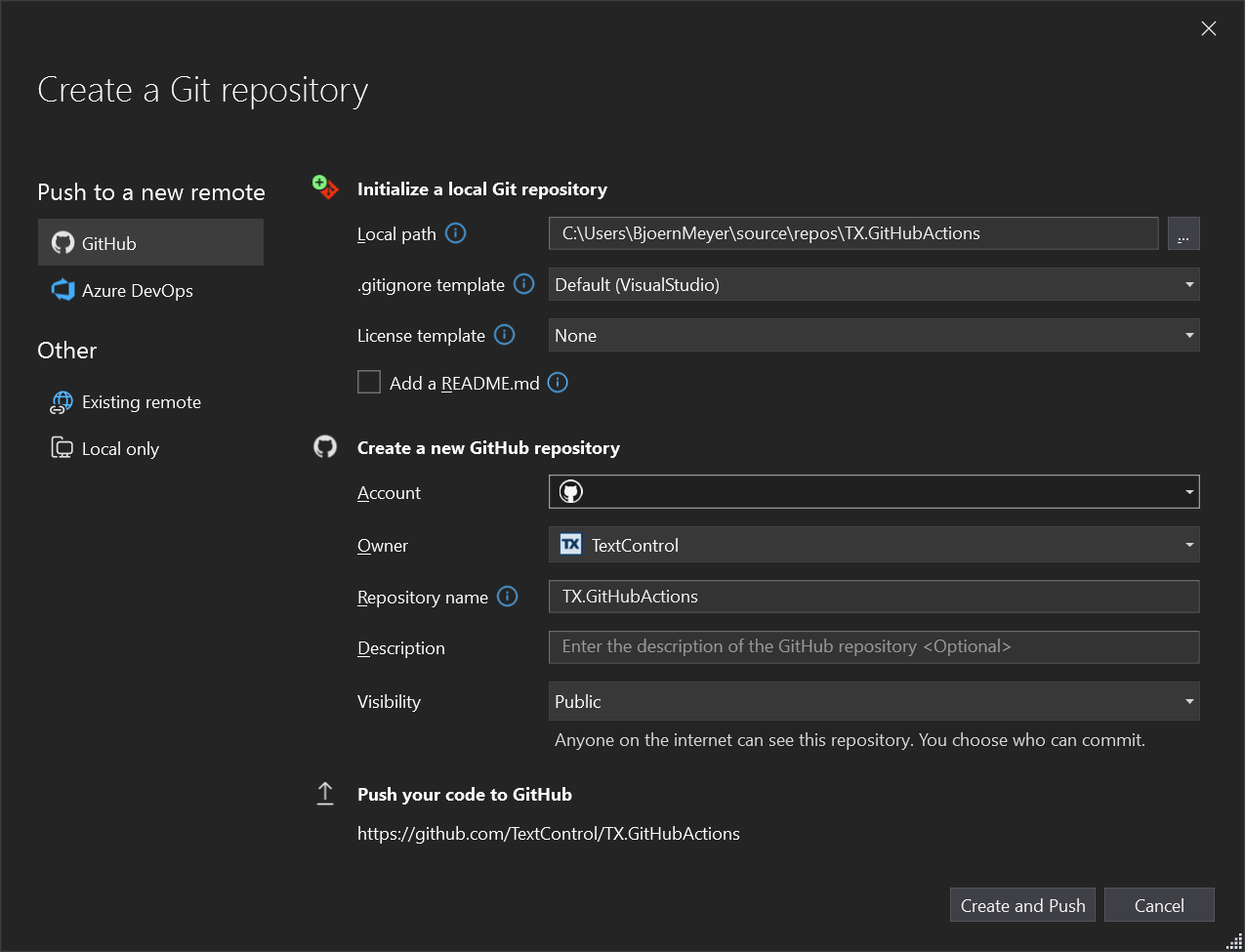
- Once the push is complete, navigate to your repository on GitHub to confirm that your code has been uploaded.
Step 3: Use the Official .NET Workflow on GitHub.com
GitHub provides an official workflow for .NET projects that can serve as a starting point. This workflow includes steps for restoring dependencies, building the project, and running tests. We will use this template as a basis and adapt it to use the TX Text Control private NuGet feed.
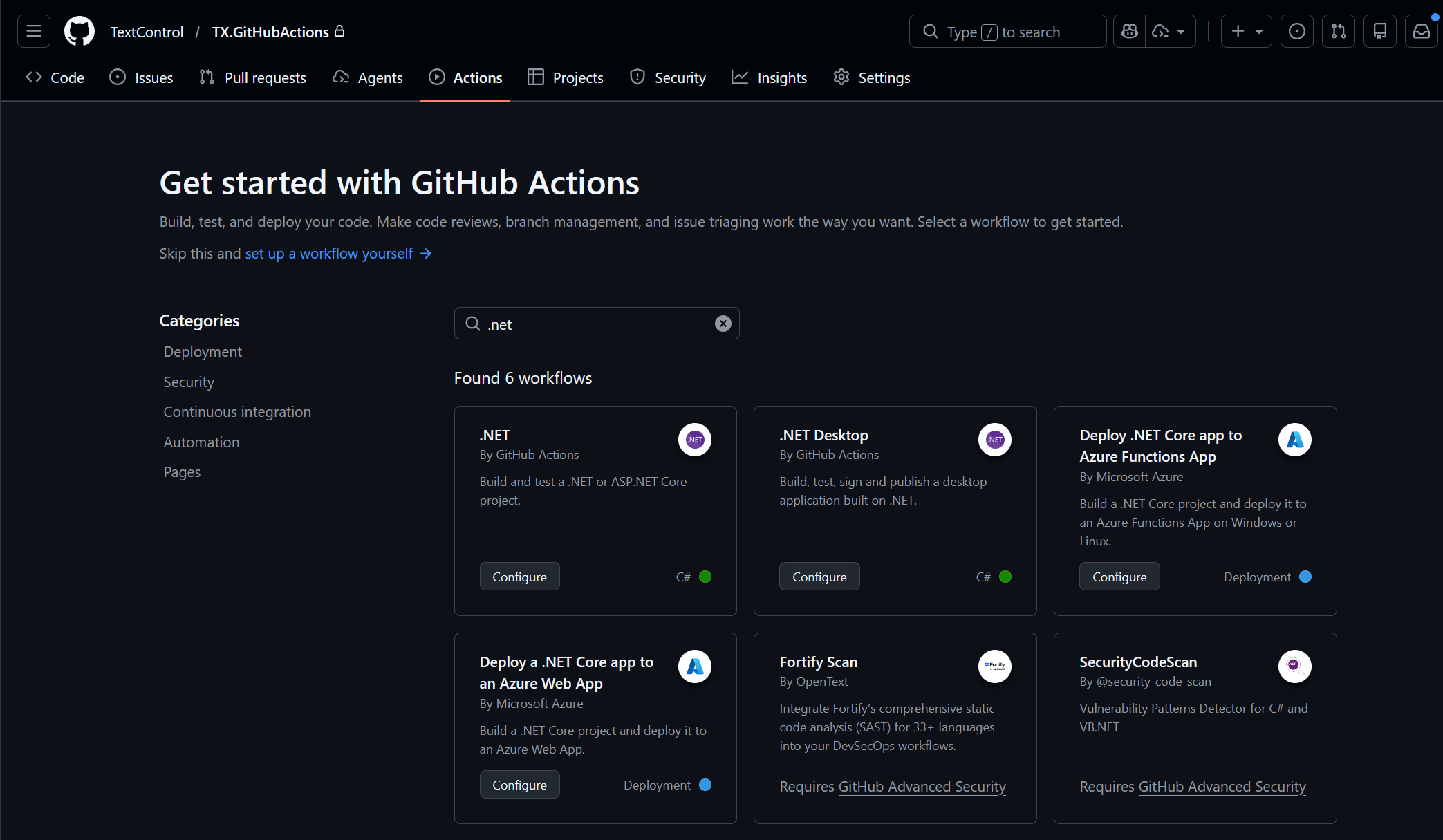
- In your GitHub repository, click on the Actions tab.
-
Search for ".NET" in the workflow templates.
-
Click Configure on the ".NET" workflow template.
-
GitHub will create a new workflow file in your repository with a default configuration. This file is located in the
.github/workflowsdirectory and is named something likedotnet.yml. Replace the content with the following:# This workflow will build a .NET project # For more information see: https://docs.github.com/en/actions/automating-builds-and-tests/building-and-testing-net name: .NET on: push: branches: [ "master" ] pull_request: branches: [ "master" ] jobs: build: runs-on: ubuntu-latest steps: - uses: actions/checkout@v4 - name: Setup .NET uses: actions/setup-dotnet@v4 with: dotnet-version: 8.0.x - name: Create nuget.config shell: pwsh run: | $content = @" <?xml version="1.0" encoding="utf-8"?> <configuration> <packageSources> <clear /> <add key="nuget.org" value="https://api.nuget.org/v3/index.json" /> <add key="TextControl" value="${{ secrets.TEXTCONTROL_FEED_URL }}" /> </packageSources> <packageSourceCredentials> <TextControl> <add key="Username" value="${{ secrets.TEXTCONTROL_EMAIL }}" /> <add key="ClearTextPassword" value="${{ secrets.TEXTCONTROL_API_TOKEN }}" /> </TextControl> </packageSourceCredentials> </configuration> "@ Set-Content -Path "nuget.config" -Value $content -Encoding utf8 - name: Restore dependencies run: dotnet restore - name: Build run: dotnet build --no-restore - name: Test run: dotnet test --no-build --verbosity normal -
Commit the new workflow file to your repository.
This workflow is configured to run on pushes to the main branch and pull requests. It includes steps for checking out the code, setting up .NET, restoring dependencies, building the project, and running tests.
Step 4: Add secrets for the Private Text Control NuGet Feed
In order to authenticate with the private NuGet feed, we must add secrets to our GitHub repository. These secrets will be used by the workflow to securely access the feed. The above YAML file references these secrets to ensure that the workflow can restore packages from the private feed without exposing sensitive information.
- In your GitHub repository, click on the Settings tab.
-
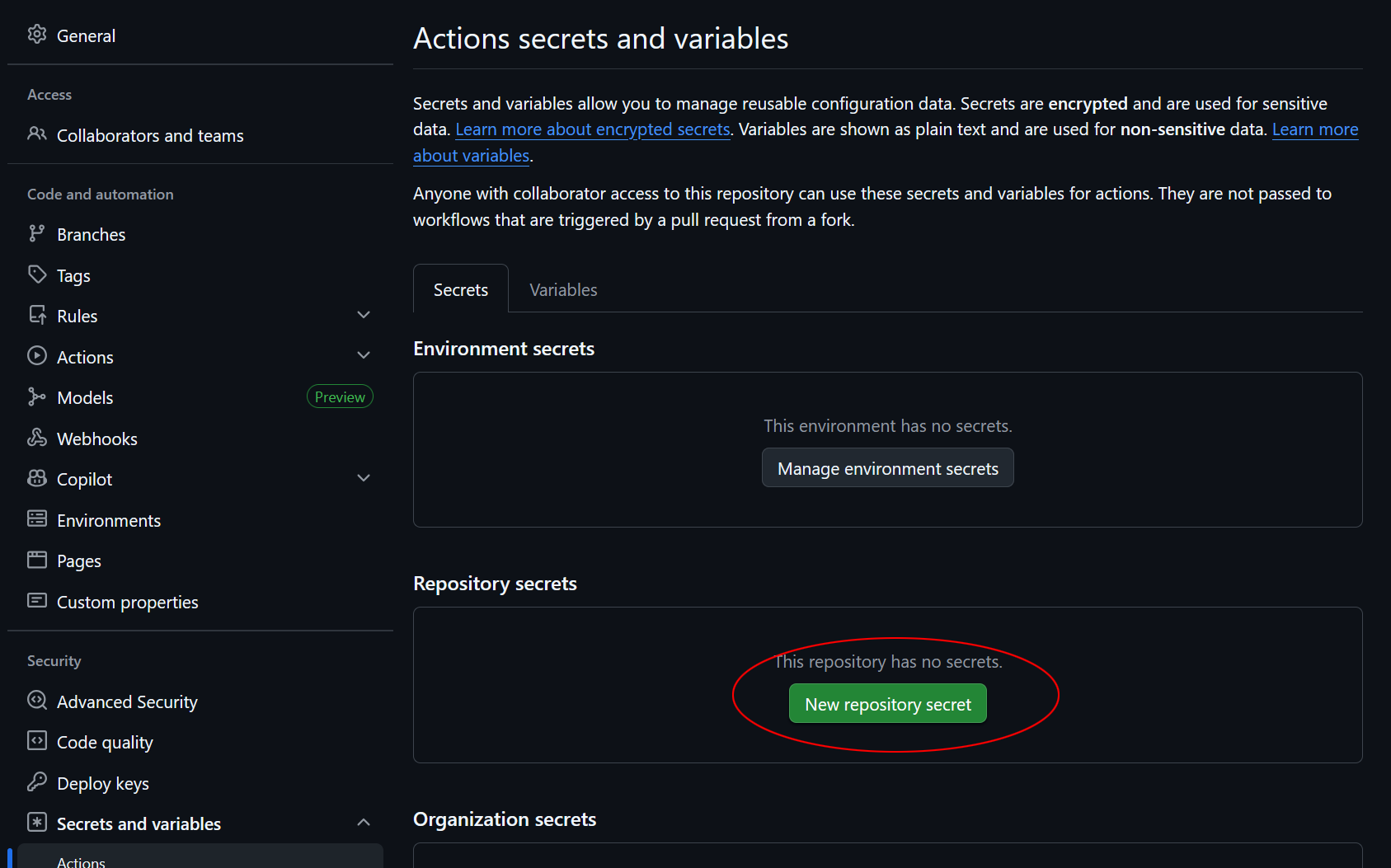
In the left sidebar, under Security, click on Secrets and variables and then Actions.
-
Click on New repository secret.
-
Add the following secrets:
Secret Name Description TEXTCONTROL_FEED_URLThe URL of the Text Control private NuGet feed. TEXTCONTROL_EMAILYour email address for the private NuGet feed (e-mail you received). TEXTCONTROL_API_TOKENYour API key for the private NuGet feed (starts with ngt_). 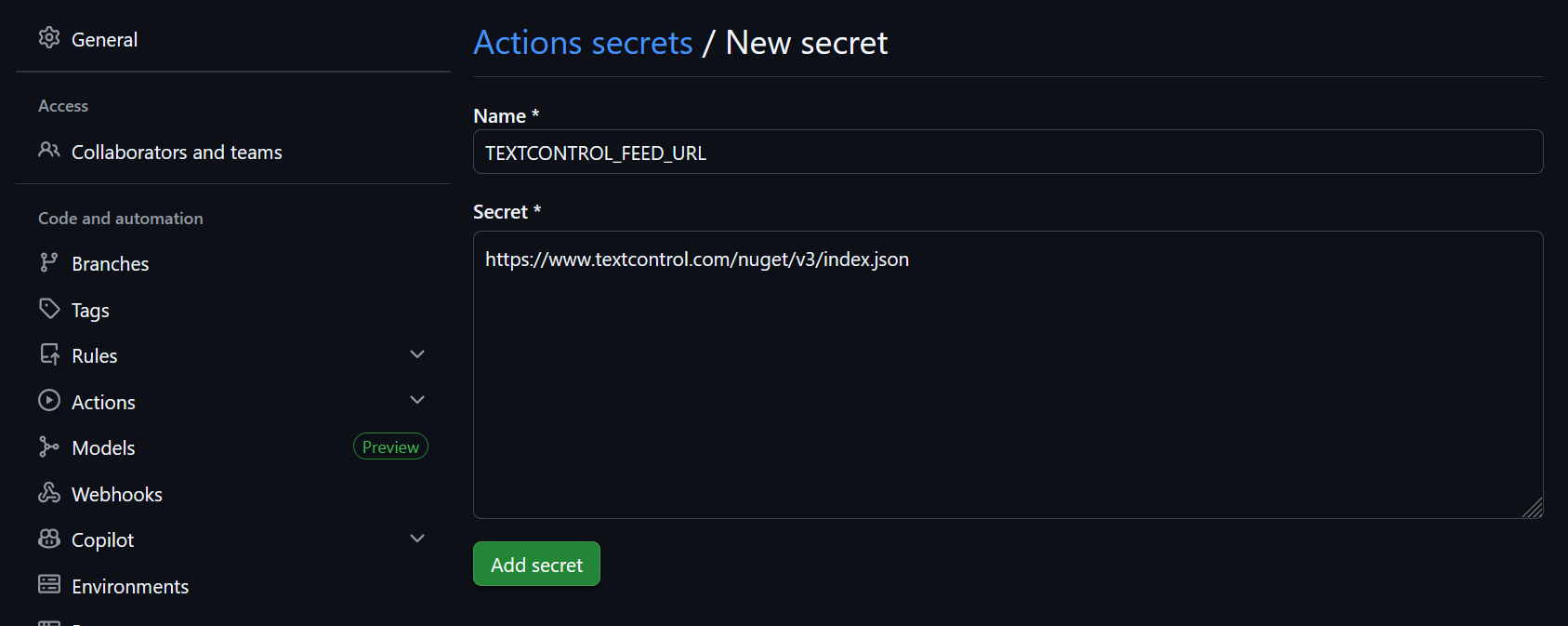
These values can be found in the email with the subject line "Your Serial Number, Installation File, and NuGet File for..." If you have an active maintenance agreement, you should have received this email when the account holder assigned your email address to a valid serial number. If you cannot find the email, please contact the account holder or reach out to our support team for assistance.
The credentials will remain on GitHub and be used by the workflow to authenticate with the private NuGet feed during the restore step. Your sensitive information will remain secure because they will never be part of a repository's source code or logs.
Step 5: Test the Workflow
To test the workflow, push a new commit to the main branch or create a pull request. This will trigger the workflow, which you can then monitor in the Actions tab of your GitHub repository.
You should see the workflow run through the steps of checking out the code, setting up .NET, restoring dependencies (including from the private NuGet feed), building the project, and running tests. If everything is configured correctly, the workflow should complete successfully.
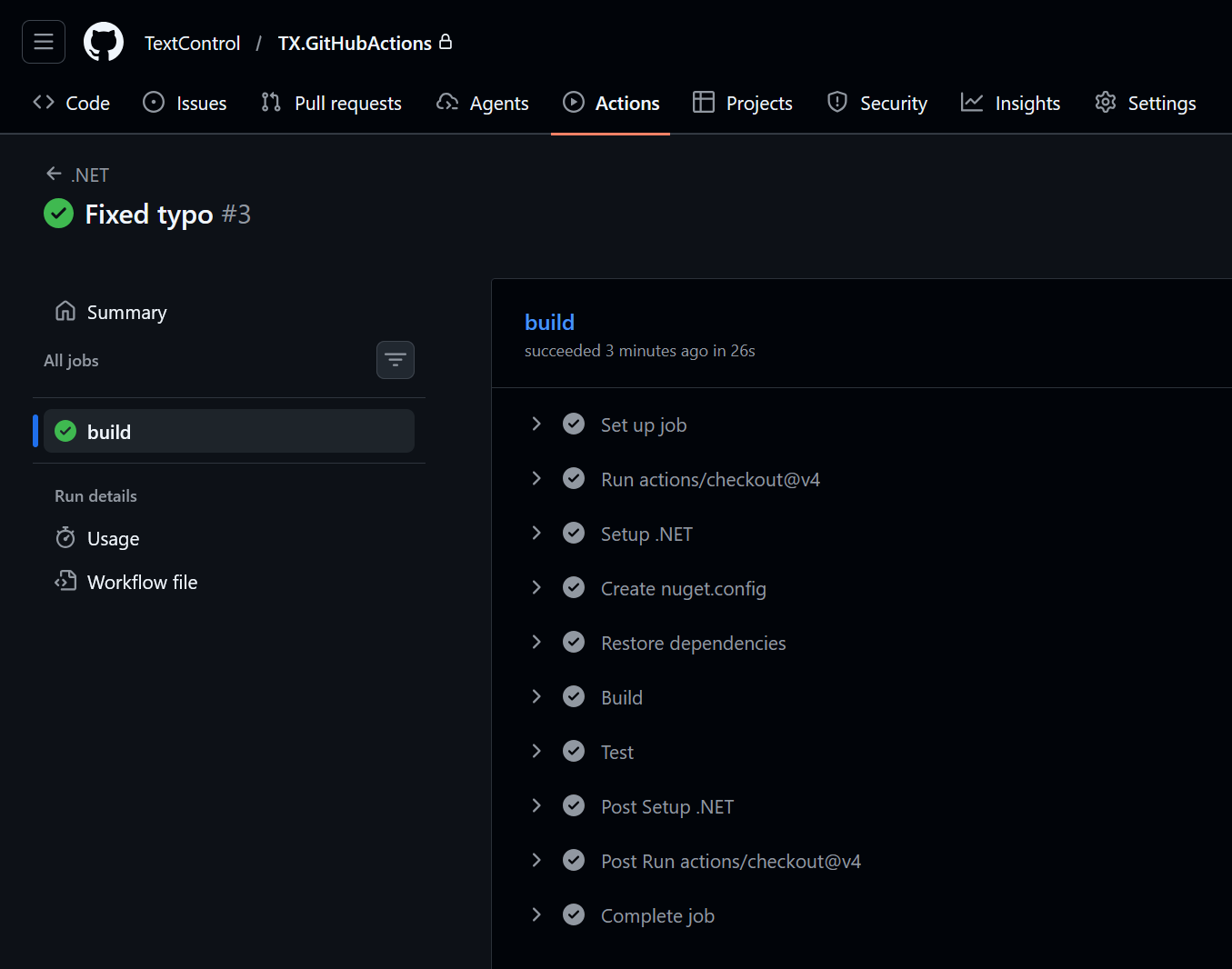
Final Result
With the workflow set up and secrets configured, you now have a CI pipeline that automatically builds and tests your TX Text Control project whenever you push code to GitHub. This setup ensures that your builds are always up-to-date and that any issues are caught early in the development process. Here are the key benefits of this setup:
- A clean TX Text Control project
- A GitHub-hosted repository
- An official .NET GitHub Actions workflow
- Secure access to the private NuGet feed without exposing credentials
- Automated builds and tests on every push and pull request
With this foundation in place, you can customize your workflow further by adding steps such as code analysis, deployment, and notifications. The possibilities are endless, and you can tailor the CI/CD pipeline to fit your project's specific needs.
ASP.NET
Integrate document processing into your applications to create documents such as PDFs and MS Word documents, including client-side document editing, viewing, and electronic signatures.





- Angular
- Blazor
- React
- JavaScript
- ASP.NET MVC, ASP.NET Core, and WebForms
Related Posts
ASP.NETASP.NET CoreDocument Editor
ASP.NET Core Document Editor with Backend via the Text Control Private NuGet…
This article demonstrates how to create a Document Editor ASP.NET Core application using the Text Control Private NuGet Feed. We will build a basic web application that enables users to edit…
Text Control Private NuGet Feed
The Text Control private NuGet feed lets developers install licensed TX Text Control .NET packages with automatic license injection. Authentication uses API tokens tied to assigned serials. The…
Using a Private NuGet Feed to Build and Restore .NET Apps for Docker Deployment
Learn how to set up a private NuGet feed for your .NET applications and use them in Docker containers. This guide covers the steps to create a private NuGet feed with GitHub, configure your .NET…
Creating a .NET Console Application with Visual Studio Code and TX Text…
This article describes how to create a .NET console application using Visual Studio Code and TX Text Control on Linux. It covers installing the .NET SDK, creating a new project, and adding TX Text…
Version 33.0 Preview: NuGet Packages Explained and Why we Minimize Dependencies
This article explains the new NuGet packages for TX Text Control .NET Server and ASP.NET Core. We also explain why we minimize dependencies in our packages.