


Convert HTML to PDF in .NET (C#): Real-World Scenarios, PDF Standards, and Best Practices

Learn how to convert HTML to PDF in .NET (C#) through practical scenarios, adherence to PDF standards, and best practices to achieve optimal results. Learn how to efficiently create high-quality PDFs from HTML content.
HTML is ideal for displaying content in a browser. It's flexible, responsive, and quick to produce.
However, when organizations need documents that must be consistent, compliant, archivable, and legally defensible, HTML alone is usually insufficient.
This is why many enterprise applications convert HTML to PDF, especially for workflows involving invoices, reports, contracts, healthcare documents, HR letters, and customer communications.
In this article, you'll learn:
- Why PDF is often a better long-term format than HTML
- Real-world scenarios in which HTML-to-PDF conversion is essential
- How to convert HTML to PDF in ASP.NET Core with C# using TX Text Control.
- How to produce PDFs that support archiving and accessibility standards, such as PDF/A and PDF/UA.
Why Convert HTML to PDF?
HTML is a presentation format. It is designed to render content on many different devices. The final output depends on the browser engine, how CSS is interpreted, installed fonts, external resources, screen size, and the layout engine in use.
PDF, on the other hand, is a document format. It is self-contained and built for consistent layout. The goal is for the same document to look identical everywhere, on any device, both today and years from now.
For businesses generating documents, that level of consistency matters.
Convert HTML to PDF in .NET 10 using TX Text Control
TX Text Control is a .NET document processing library that supports HTML-to-PDF conversion. It can be integrated into .NET applications to programmatically generate PDFs from HTML content.
Preparing the application
For the purposes of this demo, a .NET 10 console application is built.
Prerequisites
The following tutorial requires a trial version of TX Text Control .NET Server.
-
In Visual Studio, create a new Console App using .NET 10.
-
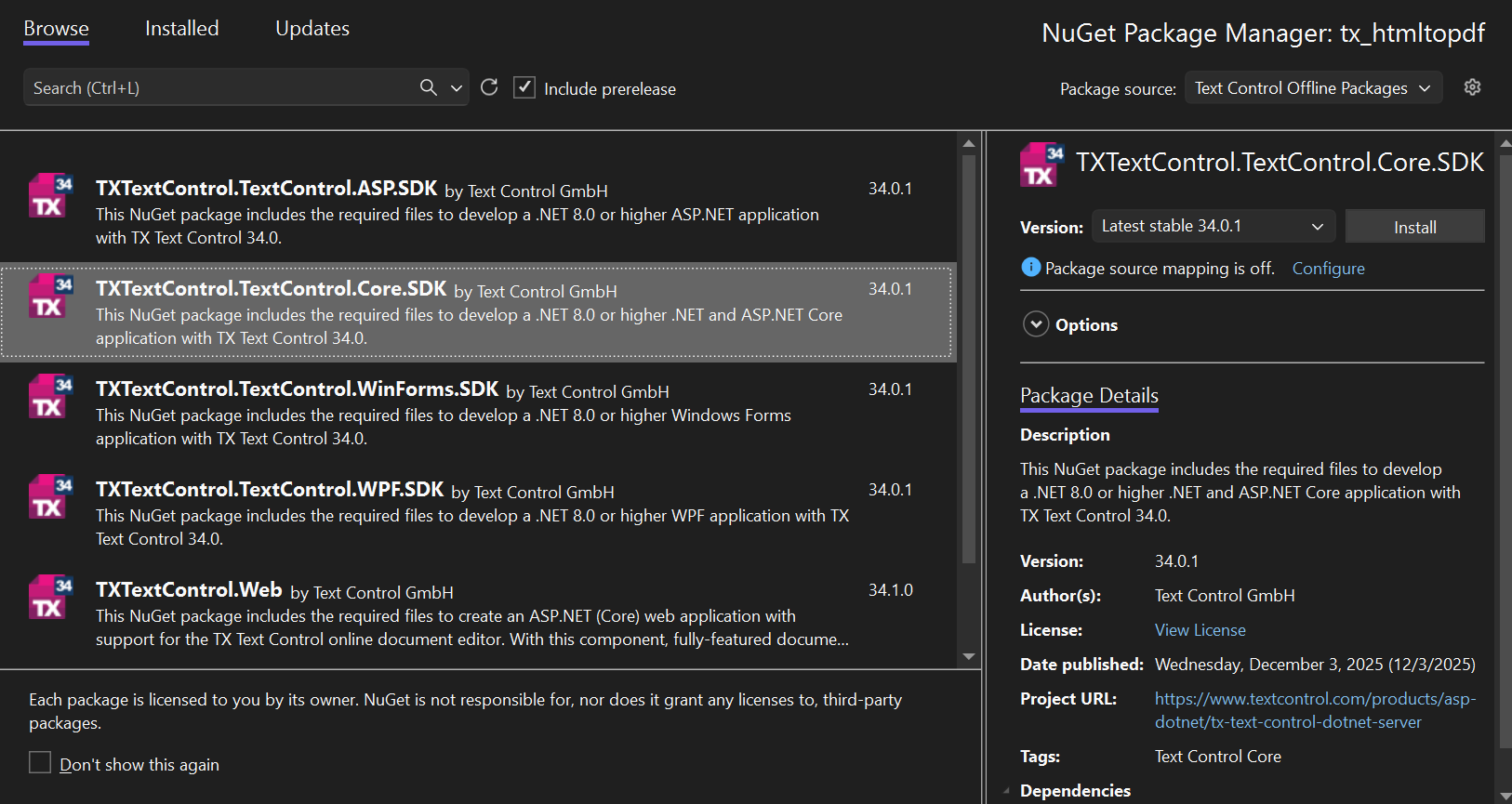
In the Solution Explorer, select your created project and choose Manage NuGet Packages... from the Project main menu.
Select Text Control Offline Packages from the Package source drop-down.
Install the latest versions of the following package:
- TXTextControl.TextControl.Core.SDK
Adding the Code
-
Open the Program.cs file and add the following code:
using System;
using System.IO;
using TXTextControl;

internal static class Program
{
    static void Main()
    {
        string html =
            """
            <!doctype html>
            <html>
            <head>
                <meta charset="utf-8" />
                <style>
                    body { font-family: Arial; font-size: 11pt; margin: 40px; }
                    h1   { font-size: 20pt; margin: 0 0 16px 0; }
                    p    { margin: 0 0 10px 0; }

                    /* paragraph style for a bordered "box" */
                    p.box {
                        border: 1px solid #cfcfcf;
                        padding: 10px;
                        margin: 0 0 12px 0;
                    }
                </style>
            </head>
            <body>
                <h1>HTML to PDF</h1>

                <p class="box">
                    This PDF was generated from <b>HTML</b> using TX Text Control.
                </p>

                <p>
                    Generated at: <i>{{timestamp}}</i>
                </p>
            </body>
            </html>
            """;

        html = html.Replace("{{timestamp}}", DateTime.Now.ToString("u"));

        byte[] pdfBytes = ConvertHtmlToPdf(html);

        string outputPath = Path.Combine(Environment.CurrentDirectory, "output.pdf");
        File.WriteAllBytes(outputPath, pdfBytes);

        Console.WriteLine("PDF created:");
        Console.WriteLine(outputPath);
    }

    public static byte[] ConvertHtmlToPdf(string html)
    {
        using var serverTextControl = new ServerTextControl();
        serverTextControl.Create();

        serverTextControl.Load(html, StringStreamType.HTMLFormat);

        serverTextControl.Save(out byte[] pdfBytes, BinaryStreamType.AdobePDF);
        return pdfBytes;
    }
}
Running the Application
-
Run the application and check the output folder for the generated PDF document.
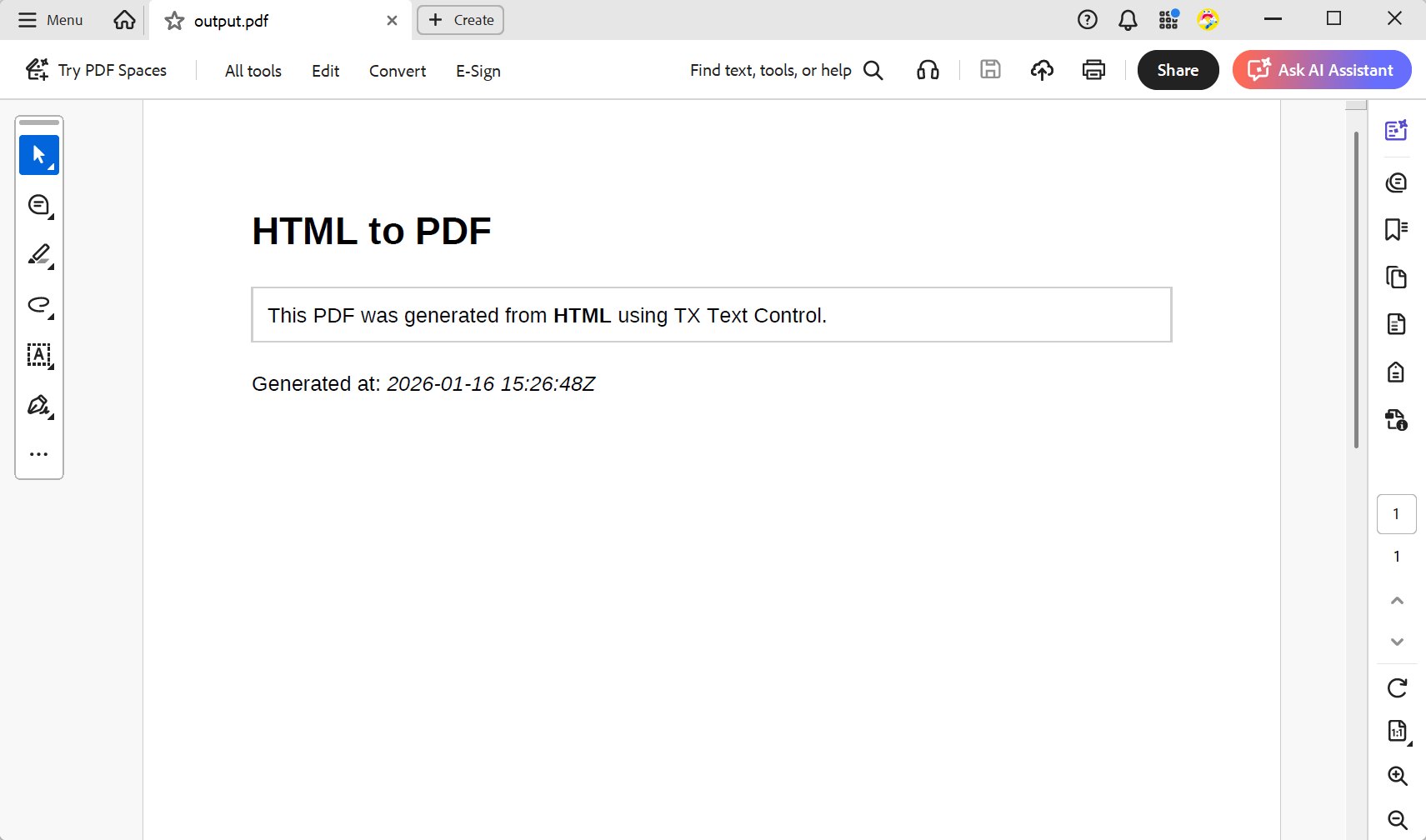
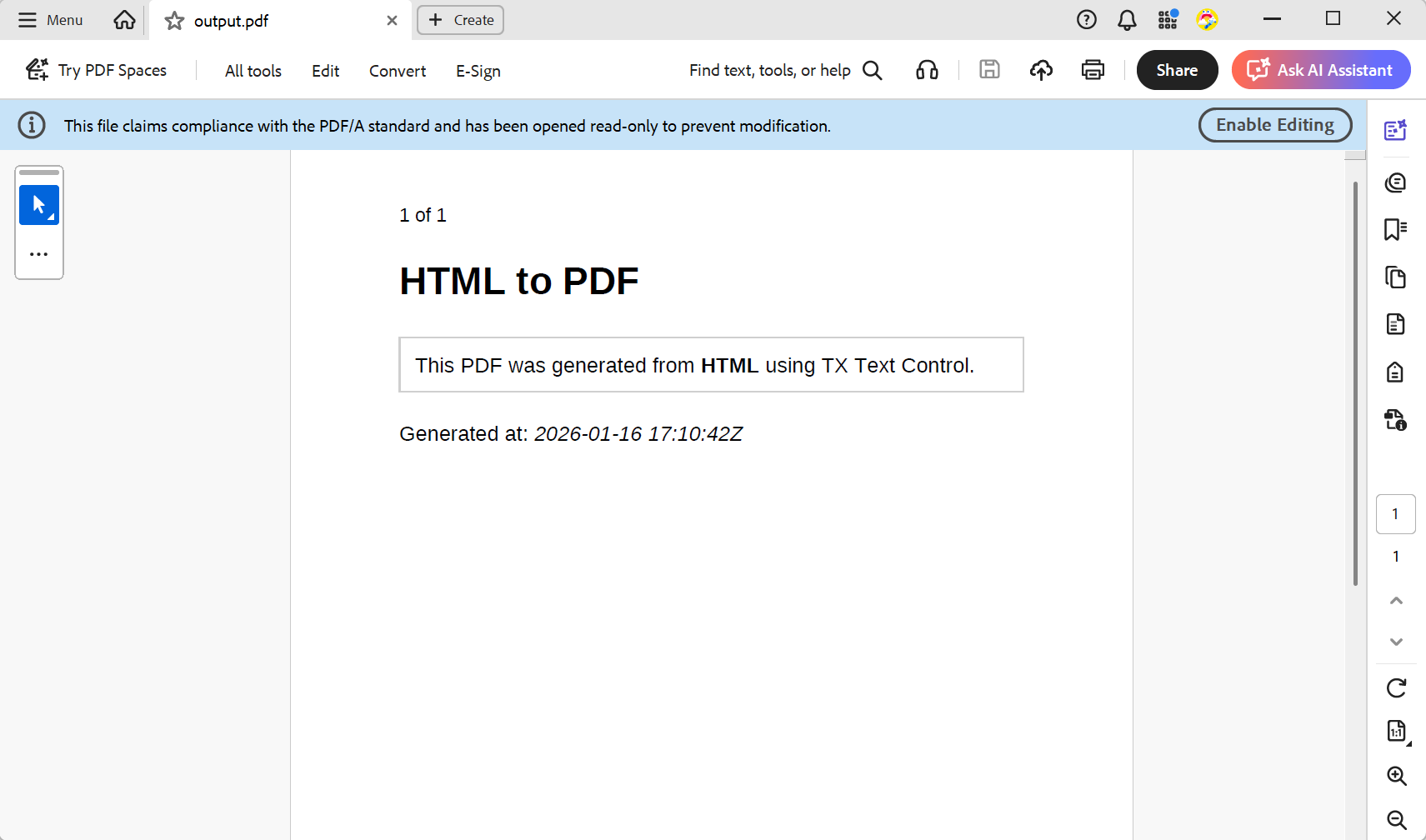
The generated PDF should look similar to this:
Exporting to PDF/A and PDF/UA
TX Text Control also supports exporting to PDF/A and PDF/UA standards, which are essential for archiving and accessibility compliance.
To export to PDF/A, modify the code as follows:
serverTextControl.Save(out byte[] pdfBytes, BinaryStreamType.AdobePDFA);This exports the document to PDF/A-3a format, ensuring long-term archiving compliance including tagged PDF structure for accessibility compatible to PDF/UA standards.
The PDF/A-3a output should look like this in Acrobat Reader:
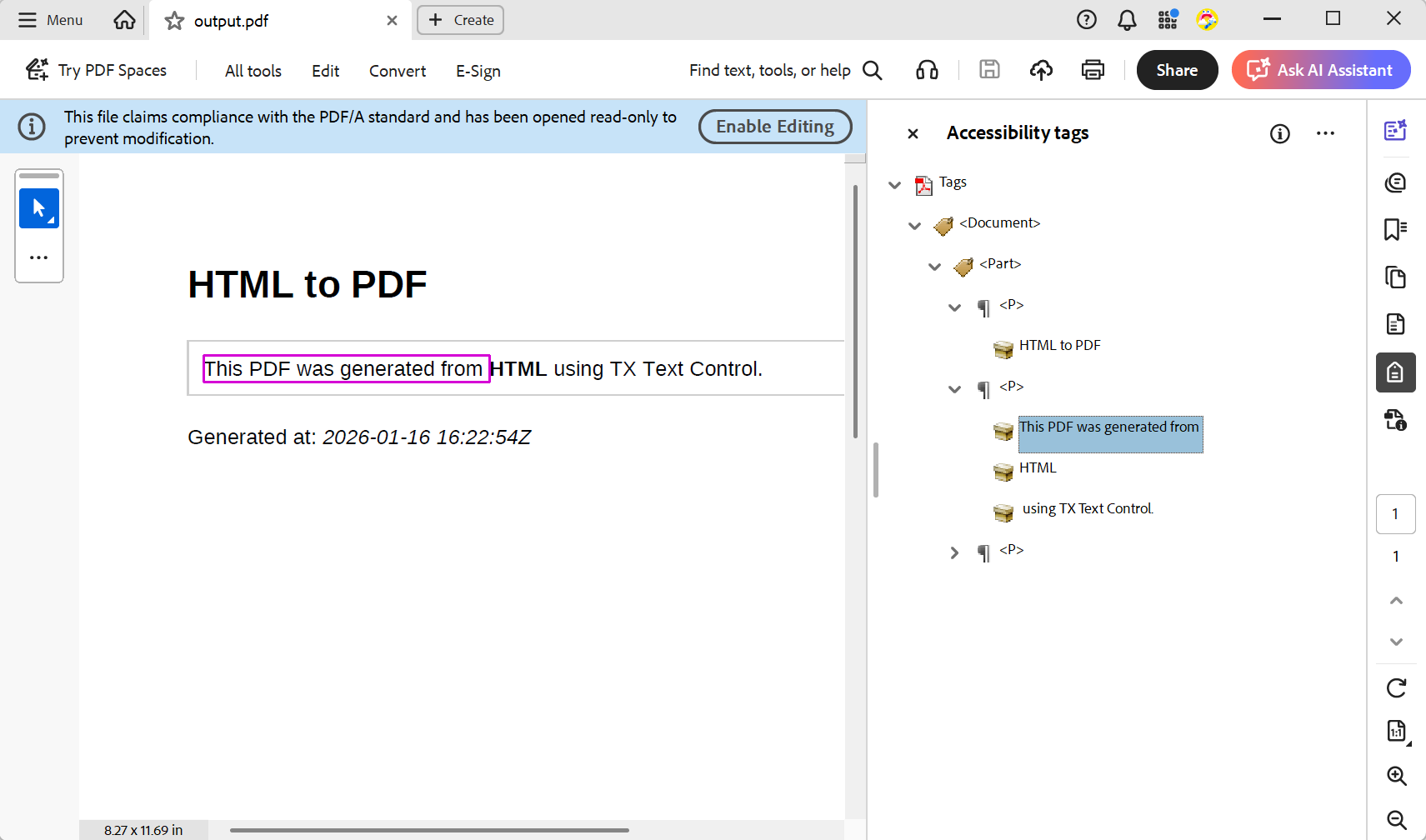
You can see the tagged structure in the Accessibility tags panel of Acrobat Reader, which is essential for screen readers and other assistive technologies.
Add PDF document features before conversion (headers, footers, page settings)
One of the biggest limitations of HTML is that it is not truly page-oriented.
It is designed for continuous scrolling and responsive layout. Even when using print CSS, the result is heavily dependent on the rendering engine, making it difficult to control standard business document requirements, such as:
- Repeating headers and footers
- Consistent page numbering
- Defined page sizes and orientations
Predictable page breaks and printable layout rules are also difficult to achieve. These issues arise when HTML content is used to generate documents such as invoices, contracts, clinical letters, and exportable reports.
Turn HTML into a real document first
With TX Text Control, you are not limited to "HTML in → PDF out".
Instead, you can treat HTML as the input format, load it into a real document model, and then apply classic document features before exporting the final PDF.
That means you can do things like:
- Add headers and footers that repeat on every page
- Insert dynamic page numbers and document metadata
- Define different margins for the first page vs. the rest of the document
- Create landscape sections for wide tables or charts
- Apply standardized page sizes and print-ready formatting
Example: Adding a header and footer
Below is an example of how to add headers and footers to a document before exporting it as a PDF.
public static byte[] ConvertHtmlToPdf(string html)
{
    using var serverTextControl = new ServerTextControl();
    serverTextControl.Create();

    serverTextControl.Load(html, StringStreamType.HTMLFormat);

    serverTextControl.Sections[1].Format.PageSize = new PageSize(612, 792); // 8.5 x 11 inches
    serverTextControl.Sections[1].HeadersAndFooters.Add(HeaderFooterType.Header);

    HeaderFooter header = serverTextControl.Sections[1].HeadersAndFooters.GetItem(HeaderFooterType.Header);

    var current = new PageNumberField(1, NumberFormat.ArabicNumbers);
    header.PageNumberFields.Add(current);

    header.Selection.Text = " of ";

    var total = new PageNumberField();
    total.ShowNumberOfPages = true;
    header.PageNumberFields.Add(total);

    serverTextControl.Save(out byte[] pdfBytes, BinaryStreamType.AdobePDFA);
    return pdfBytes;
}
This code snippet adds a header containing a dynamic page number and count, as well as setting the page size to US Letter.
Real-world scenarios where HTML-to-PDF is needed
Here are some common scenarios where converting HTML to PDF is essential.
- Invoices and Billing Statements: Businesses often create invoices in HTML format for online viewing, but they need to convert them to PDF format for emailing or printing. PDFs ensure consistent layouts across different devices and printers.
- Reports and Analytics: Many applications generate HTML reports for interactive viewing. However, to ensure they are easily accessible and printable, it is best to convert these reports to PDF for official documentation or sharing with stakeholders.
- Contracts and Legal Documents: Legal documents often require a fixed format to maintain their integrity. Converting HTML contracts to PDFs ensures the formatting remains intact and the documents are protected from unauthorized edits.
- Healthcare Documents: In the healthcare industry, patient records, prescriptions, and discharge summaries are often created in HTML, but must be converted to PDF to ensure compliance with regulations and enable easy sharing among providers.
- HR Letters and Communications: Although HR departments may create offer letters, policy documents, and other communications in HTML, they often convert them to PDF for official distribution to employees.
Why PDF is better than HTML for archiving and compliance
PDF is a better fit than HTML for long-term archiving and regulatory compliance because it is designed to preserve documents exactly as they were created and distributed.
HTML is inherently risky for long-term retention. Documents rendered in a browser can change over time because external CSS may become unavailable, fonts and linked resources may disappear, and rendering rules may differ between browser versions or evolve in the future. PDF/A was created specifically to solve this problem. It is a standardized archival format built for reliability and long-term preservation, making it ideal for storing documents for years, or even decades.
Accessibility is another key area where PDF has a major advantage in regulated environments. Many industries can no longer treat accessibility as optional. PDF/UA defines a clear compliance model for accessible PDF documents by requiring proper tagging of headings, lists, tables, and other structures. PDF/UA also ensures that documents remain readable by screen readers, navigable through document structure, and usable with assistive technologies. While HTML can also be accessible, PDF/UA provides a standardized approach that can be validated and trusted once content needs to be distributed as a document.
Finally, PDF provides document integrity and a defensible "what was sent" record. A PDF is an exact snapshot of the final output with a fixed layout, explicit pages, and content that does not reflow based on the device or screen size. PDFs can be shared as single, self-contained files, making them ideal for audits, legal scenarios, and compliance processes where consistency and traceability matter.
Conclusion
Many enterprise applications require converting HTML to PDF, especially for generating invoices, reports, contracts, healthcare documents, and HR communications.
PDF is often a better long-term format than HTML because of its consistent layout, archiving capabilities (PDF/A), accessibility compliance (PDF/UA), and features that ensure document integrity. Using TX Text Control in .NET applications allows developers to easily convert HTML to PDF and add essential features like headers, footers, and page settings.
ASP.NET
Integrate document processing into your applications to create documents such as PDFs and MS Word documents, including client-side document editing, viewing, and electronic signatures.





- Angular
- Blazor
- React
- JavaScript
- ASP.NET MVC, ASP.NET Core, and WebForms
Related Posts
From Legacy Microsoft Office Automation to a Future-Ready Document Pipeline…
In this article, we will explore how to transition from traditional office automation to a modern document pipeline using C# and .NET. We will discuss the benefits of adopting a future-ready…
We are Gold Partner at Techorama Belgium 2026
Text Control has officially signed the contract to become a Gold Partner of Techorama Belgium 2026! Techorama is one of the largest and most prestigious technology conferences in Belgium,…
Text Control Sponsors & Exhibits at BASTA! Spring 2026 in Frankfurt
Text Control is proud to announce that we will be sponsoring and exhibiting at BASTA! Spring 2026 in Frankfurt. We will be showcasing our latest products and features, and we look forward to…
ASP.NETASP.NET CoreAzure DevOps
Azure DevOps with TX Text Control .NET Server 34.0: Private NuGet Feed and…
TX Text Control now offers a private NuGet feed with enhanced support for automated build pipelines. For organizations already using Azure Artifacts, that option remains fully available. This…
TX Text Control 34.0 SP2 is Now Available: What's New in the Latest Version
TX Text Control 34.0 Service Pack 2 is now available, offering important updates and bug fixes for all platforms. If you use TX Text Control in your document processing applications, this service…