


How to Extend the Default Style Mapping when Converting DOCX to Markdown in .NET C#

Learn how to customize the default style mapping when converting DOCX documents to Markdown format using Text Control's .NET C# libraries. This article provides step-by-step instructions and code examples to help you achieve precise control over the conversion process.

Converting a Microsoft Word (.docx) file to a Markdown (.md) file creates cleaner, AI-friendly text that can be used for documentation, blogs, static websites, publishing pipelines and RAG (retrieval-augmented generation) workflows. Although TX Text Control automatically maps default Word styles (e.g. Title → #, Heading 2 → ##), real-world documents often use custom styles, such as "Subtitle", or localised style names, such as "Untertitel", as well as project-specific headings. Without explicit mapping, these styles may be ignored or output as plain text, resulting in a loss of structural meaning.
In this article, we will show you how to extend the default mapping to include custom styles. We will provide ready-to-use code samples, SEO-friendly headings and ideas for advanced customisation.
TX Text Control Markdown package for .NET C#
TX Text Control provides a dedicated Markdown export package as part of its document processing stack to enable high-quality DOCX-to-Markdown conversions in .NET. This package is specifically designed for semantic, structure-preserving Markdown generation, rather than just plain text export.
Built on top of TX Text Control .NET Server, the Markdown functionality integrates seamlessly into existing ASP.NET, ASP.NET Core and backend processing pipelines. It enables developers to convert Word documents into clean, standards-compliant Markdown while retaining headings, lists, tables, formatting and, most importantly, style semantics.
Learn more
We are happy to announce the release of TXTextControl.Markdown.Core, a powerful new component that enables seamless import and export of Markdown files in TX Text Control. This addition enhances the versatility of TX Text Control, allowing developers to easily work with Markdown content in their applications.
Introducing TXTextControl.Markdown.Core: Import and Export Markdown in TX Text Control
Why custom style mapping matters
Word documents often contain a variety of styles in addition to the default ones. These can include:
- Custom headings (e.g. "Subtitle", "Section Title")
- Localized styles (e.g. "Untertitel" in German)
- Project-specific styles (e.g. "Chapter Heading", "Subsection")
When converting to Markdown, it is essential to map these styles correctly in order to preserve the structure and meaning of the document. Without proper mapping, important sections may be omitted or misrepresented in the output.
- Ensure that all relevant sections are included in the Markdown output.
- Maintain the hierarchical structure of the document.
- Improve readability and usability of the converted content.
Extending the default mapping ensures that your Markdown output retains its meaningful structure and that custom styles are consistently mapped to the appropriate heading levels.
How the default mapping works
TX Text Control uses a built-in style map to convert Word paragraph styles into Markdown heading levels. The default mapping is as follows:
var headingMap = new HeadingStyleMap(new Dictionary<int, IEnumerable<string>>
{
    { 1, new[] { "Title", "Heading 1", "H1" } },
    { 2, new[] { "Heading 2", "H2" } },
    { 3, new[] { "Heading 3", "H3" } },
    { 4, new[] { "Heading 4", "H4" } },
    { 5, new[] { "Heading 5", "H5" } },
    { 6, new[] { "Heading 6", "H6" } },
});
This handles the default Word styles, but not custom or localised names.
Extending the style mapping
Rather than overriding the default map, you can extend it to treat additional styles as specific Markdown heading levels. This is done by adding new entries to the style map dictionary.
Example: Mapping custom headings
Suppose documents contain a style named "Subtitle" or "Sub-Title" that you want to map to a third-level heading (### ...) in Markdown. Here is how you do it:
using var tx = new TXTextControl.ServerTextControl();
tx.Create();

tx.Load("test_word_document.docx", StreamType.WordprocessingML);

var options = new MarkdownOptions
{
    HeadingMap = HeadingStyleMap.Default.Extend(new Dictionary<int, IEnumerable<string>>
    {
        { 3, new[] { "Subtitle", "Sub-Title" } }      // treat these as H3
    })
};

string md = tx.SaveMarkdown(options);

File.WriteAllText("out.md", md);
In this example, we check if the paragraph style is "Subtitle" or "Sub-Title" and map it to heading level 3. You can add as many custom styles as needed by following this pattern.
- This keeps all default mappings intact
- Adds your custom paragraph styles to H3
- Boosts structure for readability
The resulting output will show the subtitle converted into an H3 heading, thereby preserving the document's Markdown hierarchy. This is particularly useful for documents with multiple custom styles that need to be accurately represented in Markdown format.
Handling localized or multi-language styles
When working with documents in different languages, you may encounter localised style names. For example, the German equivalent of 'subtitle' is 'untertitel'. You can extend the mapping to include these localised styles as well.
var options = new MarkdownOptions
{
    HeadingMap = HeadingStyleMap.Default.Extend(new Dictionary<int, IEnumerable<string>>
    {
        { 1, new[] { "Title","Heading 1","Header 1","H1","Titel","Überschrift 1","Ueberschrift 1","Titre","Titre 1","Título","Titulo","Encabezado 1","Titolo","Intestazione 1","Cabeçalho 1","Cabecalho 1","Título 1","Titulo 1","Titel 1","Kop 1","Rubrik 1","Overskrift 1","Nagłówek 1","Naglowek 1" } },
        { 2, new[] { "Heading 2","Header 2","H2","Überschrift 2","Ueberschrift 2","Titre 2","Encabezado 2","Intestazione 2","Cabeçalho 2","Cabecalho 2","Título 2","Titulo 2","Kop 2","Rubrik 2","Overskrift 2","Nagłówek 2","Naglowek 2" } },
        { 3, new[] { "Heading 3","Header 3","H3","Überschrift 3","Ueberschrift 3","Titre 3","Encabezado 3","Intestazione 3","Cabeçalho 3","Cabecalho 3","Título 3","Titulo 3","Kop 3","Rubrik 3","Overskrift 3","Nagłówek 3","Naglowek 3" } },
        { 4, new[] { "Heading 4","Header 4","H4","Überschrift 4","Ueberschrift 4","Titre 4","Encabezado 4","Intestazione 4","Cabeçalho 4","Cabecalho 4","Título 4","Titulo 4","Kop 4","Rubrik 4","Overskrift 4","Nagłówek 4","Naglowek 4" } },
        { 5, new[] { "Heading 5","Header 5","H5","Überschrift 5","Ueberschrift 5","Titre 5","Encabezado 5","Intestazione 5","Cabeçalho 5","Cabecalho 5","Título 5","Titulo 5","Kop 5","Rubrik 5","Overskrift 5","Nagłówek 5","Naglowek 5" } },
        { 6, new[] { "Heading 6","Header 6","H6","Überschrift 6","Ueberschrift 6","Titre 6","Encabezado 6","Intestazione 6","Cabeçalho 6","Cabecalho 6","Título 6","Titulo 6","Kop 6","Rubrik 6","Overskrift 6","Nagłówek 6","Naglowek 6" } },
    })
};
The screenshot below shows what happens when you extend the default style mapping when converting a Microsoft Word document to Markdown. The first screenshot shows the original Word document, which uses a combination of standard and localised heading styles across multiple levels.
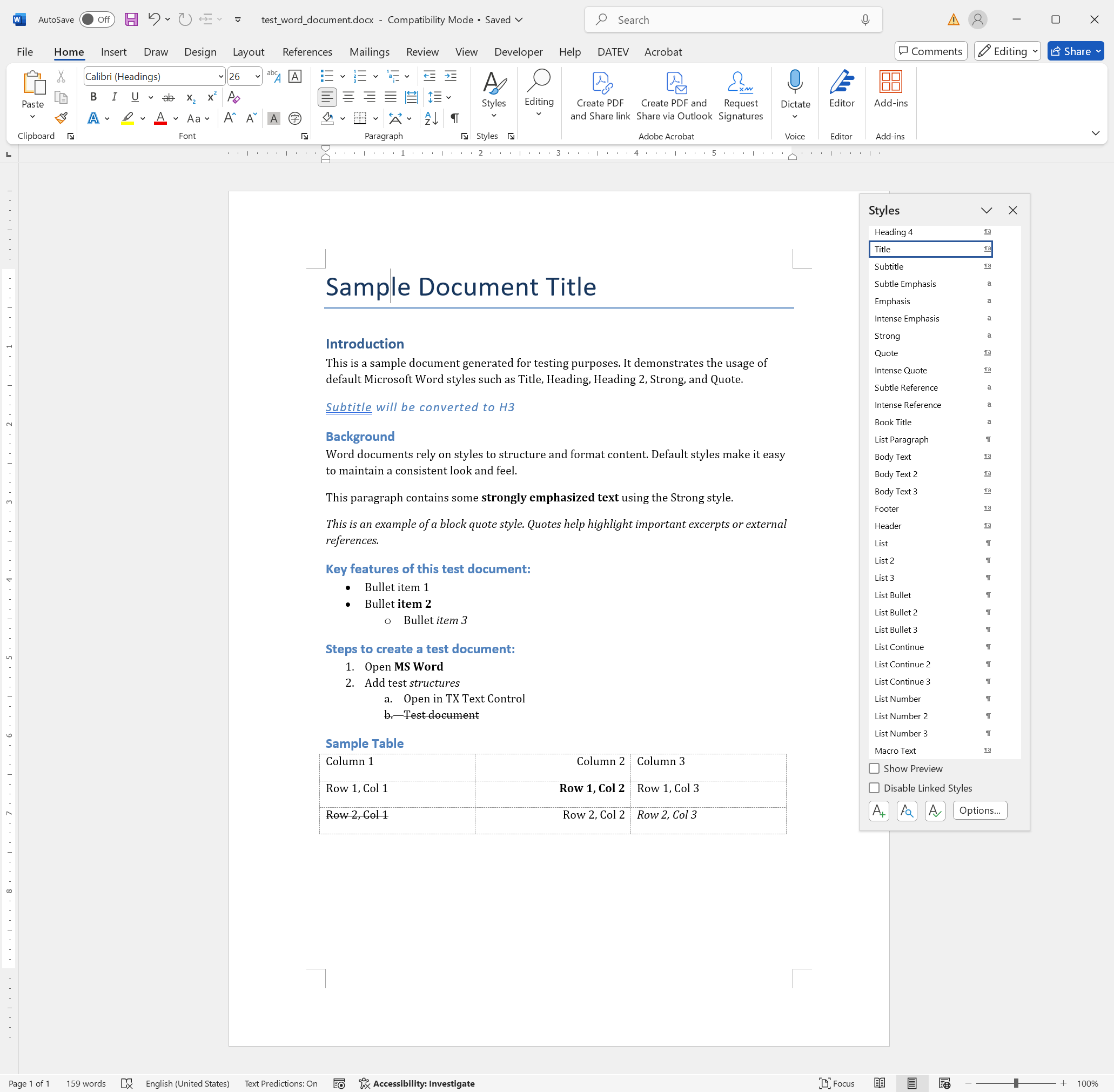
After conversion, the generated Markdown preserves the full structural hierarchy of the document:
- Top-level titles are correctly converted to # headings
- Subsections appear as ##, ###, and deeper levels as expected
- No headings are flattened or lost due to unmapped or localised style names
- The Markdown output is clean, readable, and free of unnecessary markup
# Sample Document Title

# Introduction

This is a sample document generated for testing purposes. It demonstrates the usage of default Microsoft Word styles such as Title, Heading, Heading 2, Strong, and Quote.

### Subtitle will be converted to H3

## Background

Word documents rely on styles to structure and format content. Default styles make it easy to maintain a consistent look and feel.

This paragraph contains some **strongly emphasized text** using the Strong style.

This is an example of a block quote style. Quotes help highlight important excerpts or external references.

## Key features of this test document:

- Bullet item 1
- Bullet **item 2**
    - Bullet *item 3*

## Steps to create a test document:

1. Open **MS Word**
2. Add test *structures*
    1. Open in TX Text Control
    2. ~~Test document~~

## Sample Table

| Column 1 | Column 2 | Column 3 |
| ----- | ----: | ----- |
| Row 1, Col 1 | **Row 1, Col 2** | Row 1, Col 3 |
| ~~Row 2, Col 1~~ | Row 2, Col 2 | *Row 2, Col 3* |
As the style mapping is explicit and deterministic, the conversion result is predictable and reproducible, even when documents are authored by different teams in different languages or using different Word templates.
This is a key advantage of extending the default style mapping rather than relying on implicit or heuristic-based conversions: You retain full control over how document structure is expressed in Markdown while benefiting from sensible defaults.
ASP.NET
Integrate document processing into your applications to create documents such as PDFs and MS Word documents, including client-side document editing, viewing, and electronic signatures.





- Angular
- Blazor
- React
- JavaScript
- ASP.NET MVC, ASP.NET Core, and WebForms
Related Posts
DOCX Meets Markdown: Preparing Enterprise Documents for AI
Discover why Markdown is a game-changer for document creation in the age of AI. Explore how this lightweight markup language can enhance collaboration, version control, and integration with AI…
Converting MS Word (*.docx) to Markdown (*.md) in .NET C#
Learn how to convert MS Word documents (*.docx) to Markdown files (*.md) in .NET C# using the TX Text Control .NET Server for ASP.NET. This tutorial provides a step-by-step guide to implement the…
A Complete Guide to Converting Markdown to PDF in .NET C#
Learn how to convert Markdown to PDF in .NET C# using Text Control's ServerTextControl component. This guide covers setup, conversion process, and customization options for generating high-quality…
Bringing MailMerge Power to Markdown: Fluid Placeholders in TX Text Control…
The latest beta version of the TX Text Control Markdown NuGet package introduces support for fluid placeholders, also known as Mustache or Handlebars syntax. This powerful feature enables…
Convert Markdown to PDF in a Console Application on Linux and Windows
Learn how to convert Markdown files to PDF in a console application on Linux and Windows using TX Text Control .NET Server for ASP.NET. This tutorial provides step-by-step instructions and code…