


Designing the Perfect PDF Form with TX Text Control in .NET C#

Learn how to create and design interactive PDF forms using TX Text Control in .NET C#. This guide covers essential features and best practices for effective form design.

Designing an effective PDF form requires more than just considering its appearance. A professional form should look the same in every viewer, be straightforward to complete and accessible to all users. It should also be structured in such a way that the entered data can be extracted reliably at a later date. TX Text Control excels in this area.
With TX Text Control's extensive range of form field features, creating interactive PDF forms is easy. The following screenshot shows an example of a PDF form designed using TX Text Control within a .NET C# application:
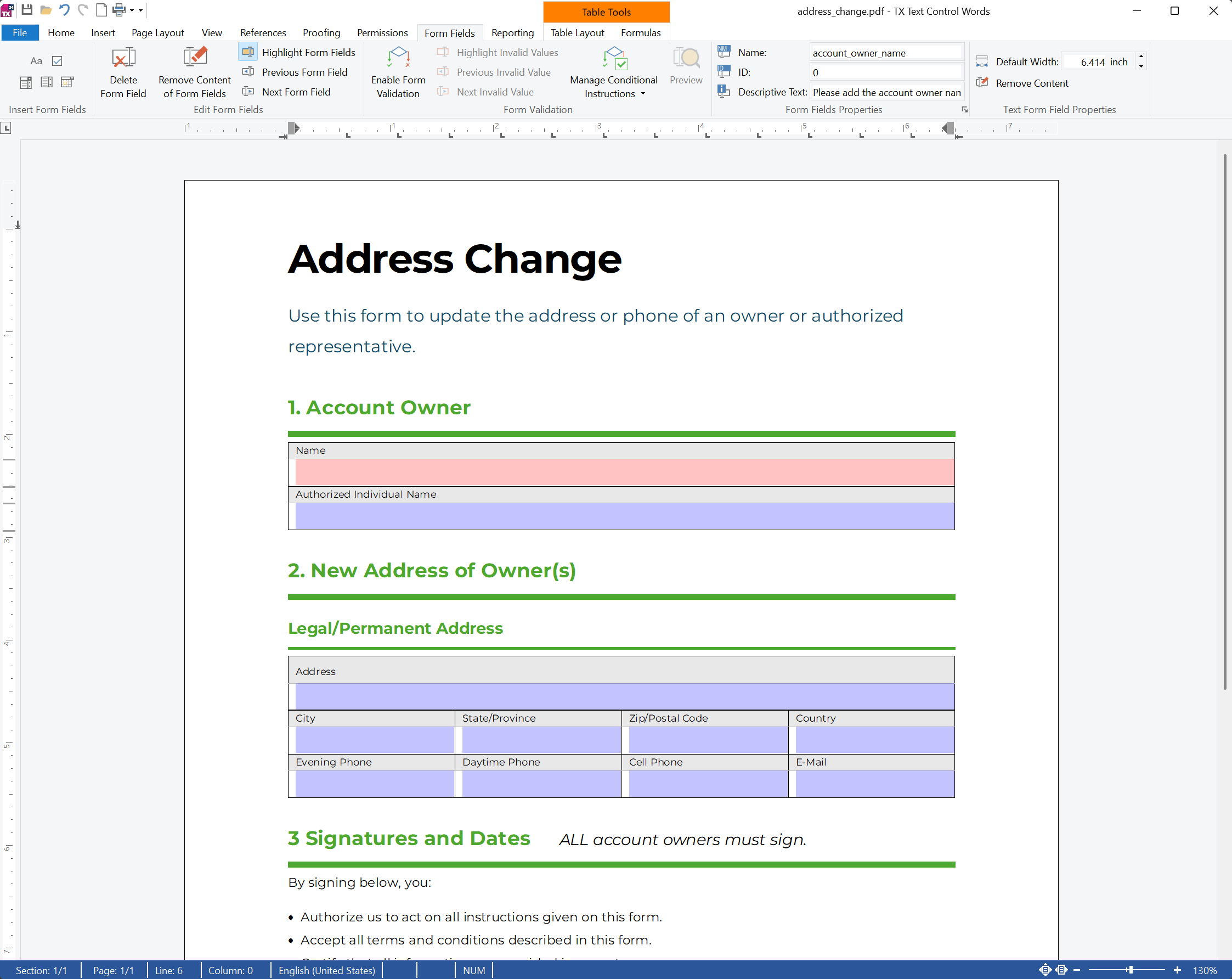
The form maintains its layout and structure when opened in different PDF viewers. Below is a screenshot of the same form in Adobe Acrobat Reader:
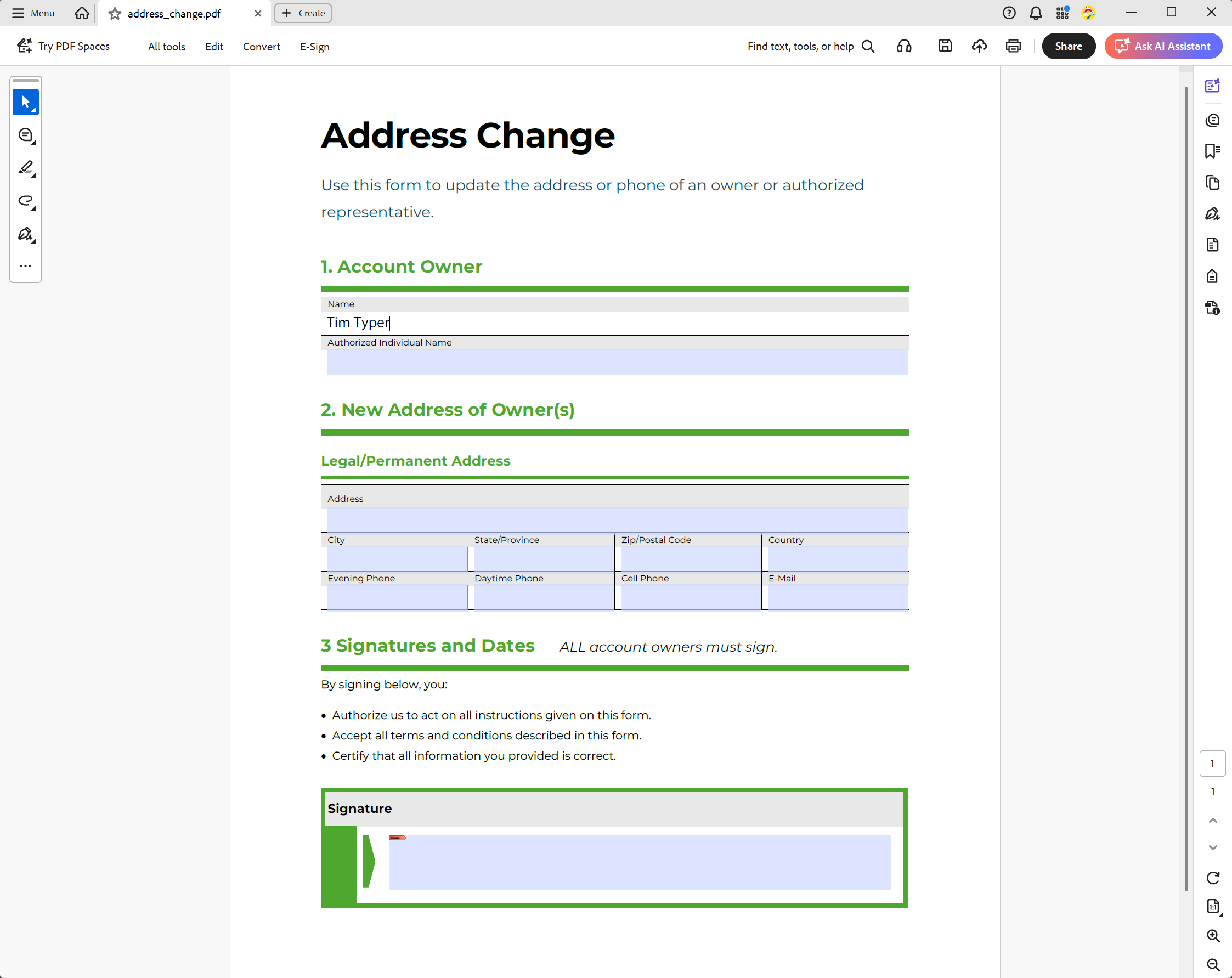
Notably, nothing changes. The field sizes, alignment, spacing and overall layout all remain perfectly stable. This consistency is no accident, but the result of designing the document with structure in mind from the outset.
Techniques for stable form design
One key technique is to place form fields inside well-defined tables. Unlike floating fields, which depend on rendering engines or font metrics, tables provide precise boundaries for each input element. When a field is contained within a table cell, its size and position are clear. Acrobat Reader respects these dimensions precisely, meaning users never see clipped text, oversized input areas or shifting layouts when zooming or typing. What you design in TX Text Control is exactly what the end user sees.
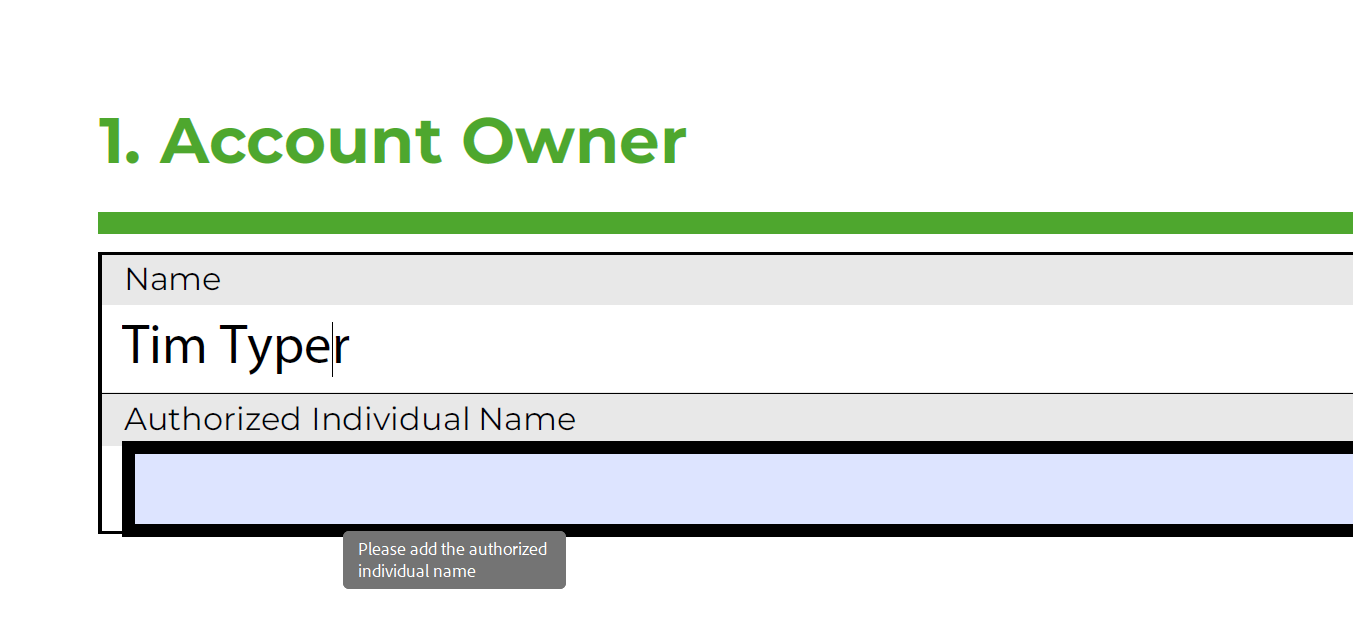
Accessibility plays a central role as well. Forms created with TX Text Control can be exported as fully tagged PDF/UA documents, including logical reading order, proper structure, and alternative text where required. This makes the form usable with assistive technologies while also improving overall document quality. A well-tagged, accessible document is easier to validate, easier to maintain, and increasingly important for automation and AI-based processing.
As you can see in the screenshot above, each form field includes a descriptive tooltip. These tooltips provide users with additional context, guiding them on what information to enter. This small but significant detail improves the usability of complex forms in particular.
Generating dynamic Bootstrap forms
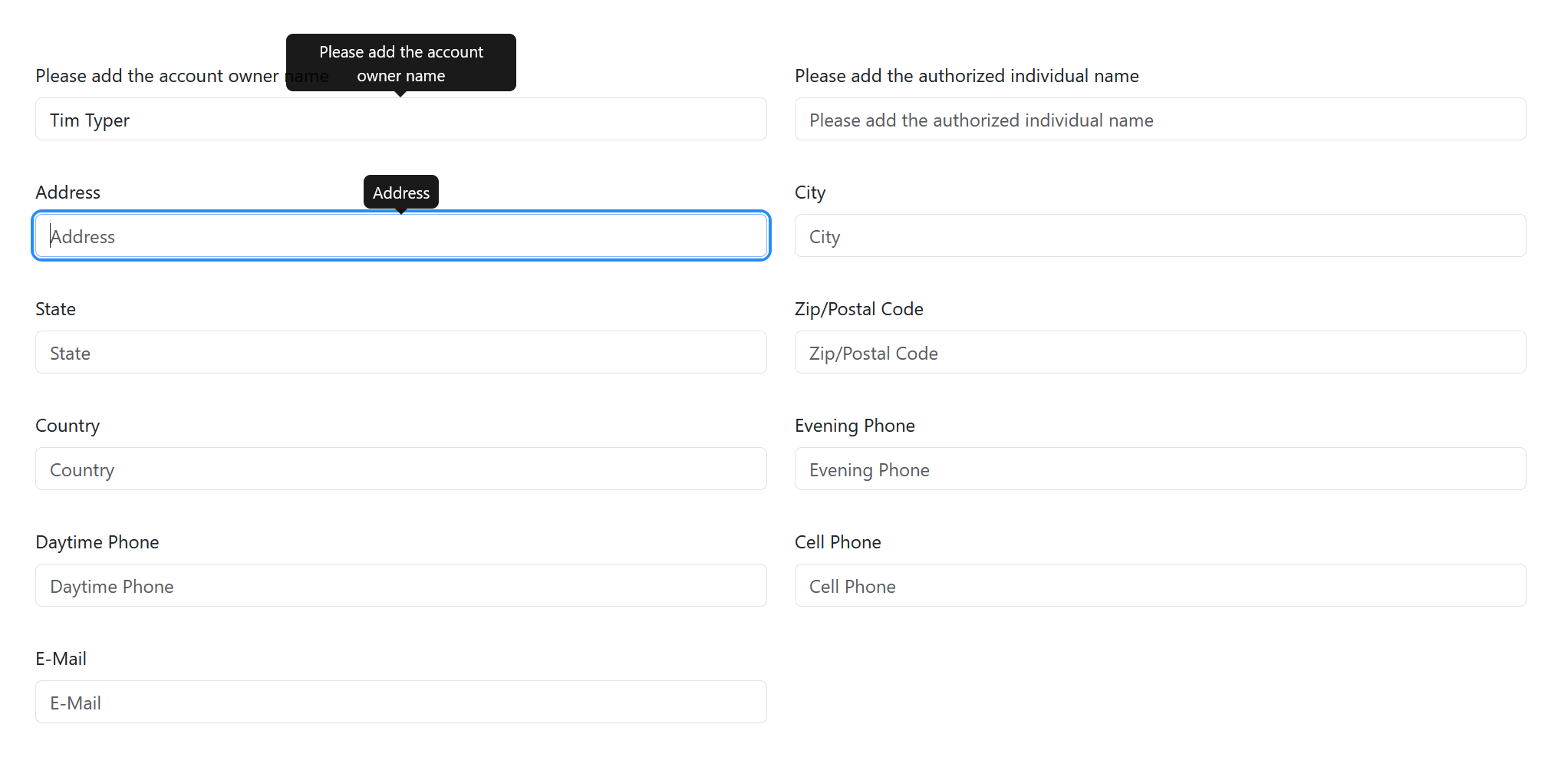
Another advantage of designing forms with clear structures and descriptive text is that the same fields can be used to automatically generate HTML forms with Bootstrap styling, for example. The following code shows how HTML form elements can be created dynamically based on the inserted form fields.
using (TXTextControl.ServerTextControl tx = new TXTextControl.ServerTextControl())
{
    tx.Create();
    tx.Load("address_change_form.tx", TXTextControl.StreamType.InternalUnicodeFormat);

    int index = 0;

    foreach (FormField formField in tx.FormFields)
    {
        string helpId = $"help-{formField.Name}";
        string tooltipText = !string.IsNullOrWhiteSpace(formField.DescriptiveText)
            ? formField.DescriptiveText
            : $"Enter {formField.DescriptiveText}";

        string labelHtml =
            $"<label for='{formField.Name}' class='form-label'>{formField.DescriptiveText}</label>";

        string inputHtml =
            $"<input type='text' class='form-control' " +
            $"id='{formField.Name}' name='{formField.Name}' " +
            $"value='{formField.Text}' " +
            $"placeholder='{formField.DescriptiveText}' " +
            $"data-bs-toggle='tooltip' data-bs-placement='top' " +
            $"title='{tooltipText}' " +
            $"aria-describedby='{helpId}'>";

        string helpHtml =
            $"<div id='{helpId}' class='visually-hidden'>{tooltipText}</div>";

        string formGroupHtml =
            $"<div class='mb-3'>{labelHtml}{inputHtml}{helpHtml}</div>";

        string columnHtml =
            $"<div class='col-6'>{formGroupHtml}</div>";

        // Start a new row for every two fields
        if (index % 2 == 0)
        {
            ViewData[$"row-{index}"] = "<div class='row mb-3'>" + columnHtml;
        }
        else
        {
            ViewData[$"row-{index - 1}"] += columnHtml + "</div>";
        }

        index++;
    }

    // Close last row if field count is odd
    if (index % 2 != 0)
    {
        ViewData[$"row-{index - 1}"] += "</div>";
    }
}
The resulting HTML form looks as follows, with each field styled using Bootstrap classes for a modern appearance:
@foreach (var key in ViewData.Keys.Where(k => k.StartsWith("row-")))
{
    @Html.Raw(ViewData[key])
}
Meaningful field names for reliable data extraction
It is equally important to consider how the form fields are named. In TX Text Control, fields are not anonymous technical objects, but rather part of a clear data model. Meaningful field names ensure that values can be reliably extracted and directly mapped to backend systems, databases or workflows later on. Rather than dealing with generic identifiers, developers and systems work with semantic names that reflect the business meaning of each field. This transforms the PDF form into a reliable source of data rather than a purely visual document.
The following code first uses the TX Text Control Get
var fields = TXTextControl.DocumentServer.PDF.Forms.GetAcroFormFields("address_change.pdf");

foreach (var field in fields)
{
    var textValue = field is TXTextControl.DocumentServer.PDF.AcroForms.FormTextField { Value: { Length: > 0 } value }
        ? $", Value: {value}"
        : string.Empty;

    Console.WriteLine(
        $"Name: {field.FieldName}, Type: {field.AlternateFieldName}{textValue}"
    );
}
The following output is produced by this code, showing the name, type and current value of each field:
Name: account_owner_name, Type: Please add the account owner name, Value: Tim Typer
Name: account_owner_individual, Type: Please add the authorized individual name
Name: address_new_address, Type: Address
Name: address_new_city, Type: City
Name: address_new_state, Type: State
Name: __ff6, Type: State
Name: address_new_country, Type: Country
Name: address_new_eveningphone, Type: Evening Phone
Name: address_new_daytimephone, Type: Daytime Phone
Name: address_new_cell, Type: Cell Phone
Name: address_new_email, Type: E-Mail
Viewer-independent forms for seamless workflows
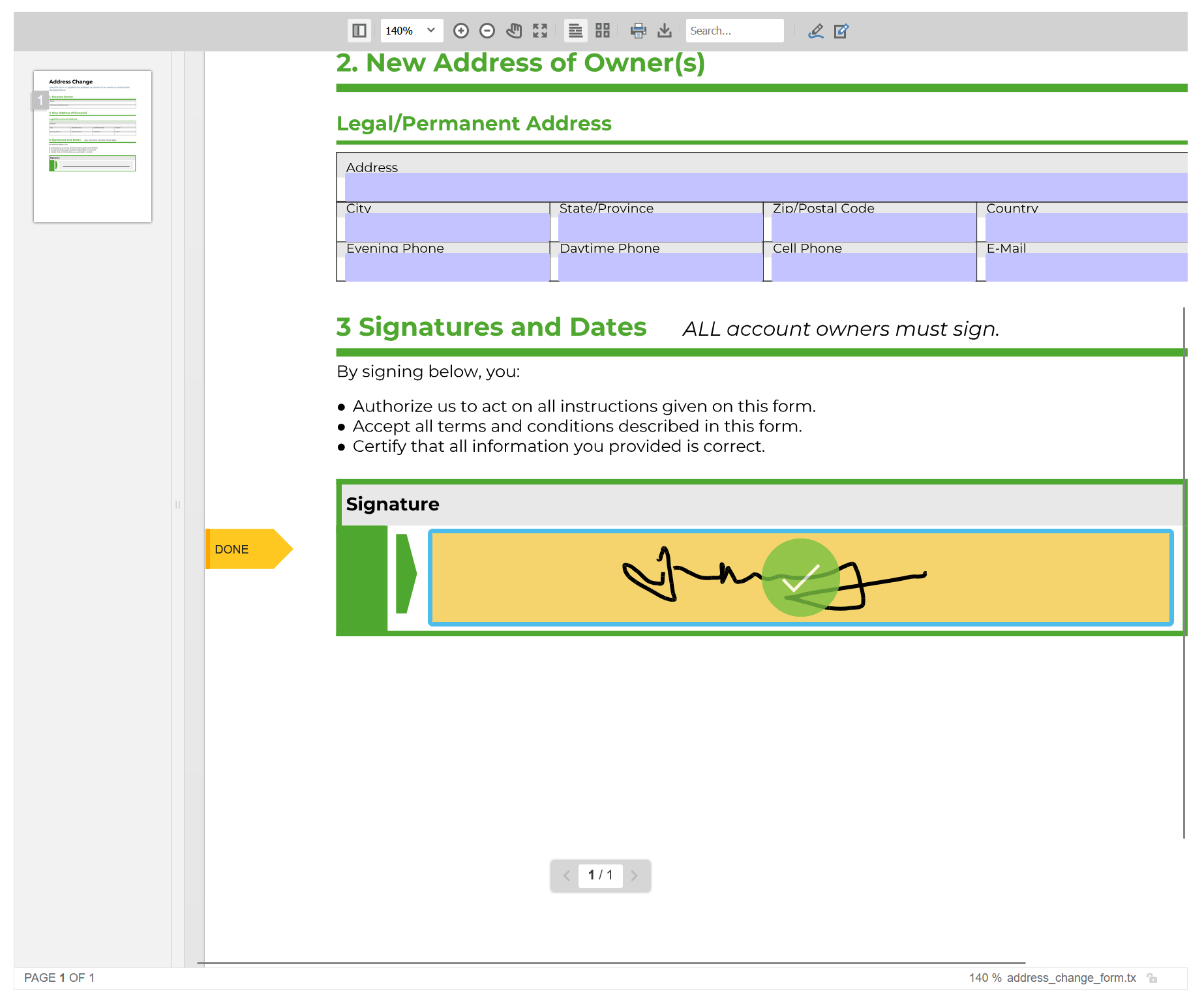
Another advantage of this approach is that it is viewer-independent. The same PDF that works flawlessly in Acrobat Reader can also be filled in and signed directly in the TX Text Control Document Viewer. Users can fill in fields, apply signatures and submit documents without having to leave your application or switch tools. There is no need for separate templates or viewer-specific adjustments. One document covers creation, completion, signing and downstream processing.
Conclusion
A clear structure ultimately benefits everyone involved. Users experience stable and predictable forms. Developers gain clean, extractable data. Organisations can meet accessibility and compliance requirements without having to make changes to existing systems. Most importantly, the document becomes future-proof. It behaves consistently across platforms, viewers and workflows.
Designing the perfect PDF form is not just about visual polish. It's about structure, semantics and intent. TX Text Control builds these principles directly into the document design process, enabling you to design once and trust the result everywhere.
ASP.NET
Integrate document processing into your applications to create documents such as PDFs and MS Word documents, including client-side document editing, viewing, and electronic signatures.





- Angular
- Blazor
- React
- JavaScript
- ASP.NET MVC, ASP.NET Core, and WebForms
Related Posts
Streamline Data Collection with Embedded Forms in C# .NET
Discover how to enhance your C# .NET applications by embedding forms for data collection. This article explores the benefits of using Text Control's ASP.NET and ASP.NET Core components to create…
Convert MS Word DOCX to PDF with Form Fields in C# .NET: Preserve or Flatten…
TX Text Control converts DOCX to PDF while preserving or flattening form fields, ensuring accurate import and export. Its flexible API simplifies form field handling for seamless document processing.
Export and Import Adobe PDF XFDF XML Files in .NET C#
This article shows how to export and import Adobe PDF XFDF XML files in .NET C# using the TX Text Control .NET Server component. Form fields from PDF documents are exported to XFDF XML files and…
Why HTML to PDF Conversion is Often the Wrong Choice for Business Documents…
In this article, we explore the challenges of HTML to PDF conversion for business documents in C# .NET and present alternative solutions that offer better performance and reliability. Discover why…
A Complete Guide to Converting Markdown to PDF in .NET C#
Learn how to convert Markdown to PDF in .NET C# using Text Control's ServerTextControl component. This guide covers setup, conversion process, and customization options for generating high-quality…