









Visualizing Extracted PDF Content in a PDF.js Viewer Using TX Text Control in C# ASP.NET Core

Learn how to visualize extracted PDF content in a PDF.js viewer using TX Text Control in a C# ASP.NET Core application. This tutorial guides you through the process of extracting text from a PDF document and displaying them in a web application.

Document workflows often require more than just displaying PDFs in an application. Developers need access to the semantic structure of PDFs, including text lines, bounding regions, placeholders, fields, and layout information. This data powers intelligent workflows, including template debugging, quality assurance (QA) validation, form detection, and data extraction.
TX Text Control offers a robust, fully integrated document viewer component that can display and interact with extracted content.
In real-world scenarios, however, developers sometimes work in environments where PDF.js is part of the technology stack or where existing systems and frameworks require it as the rendering engine.
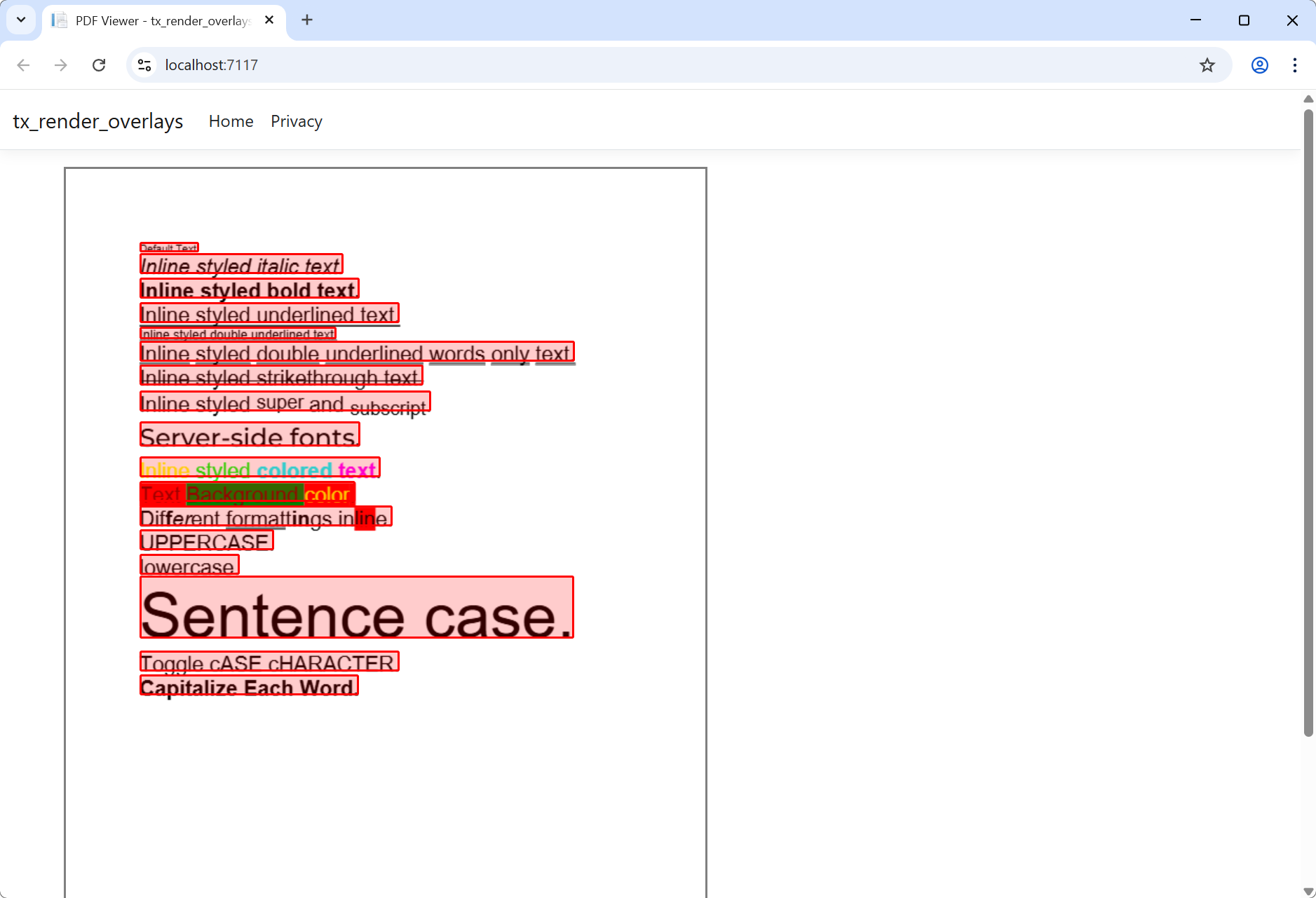
In these situations, the ability to combine the PDF understanding of TX Text Control with the client-side rendering capabilities of PDF.js to create a hybrid, highly interactive PDF experience becomes extremely valuable.
This article demonstrates how to extract PDF text metadata using PDF.
Extracting PDF Line Coordinates with TX Text Control
The TX Text Control DocumentServer namespace offers a specialized PDF content analyzer. With the PDF.
[HttpGet]
public IActionResult GetLines()
{
    TXTextControl.DocumentServer.PDF.Contents.Lines lines =
        new TXTextControl.DocumentServer.PDF.Contents.Lines("demo.pdf");

    return Json(lines);
}
The returned JSON contains:
- page: The page number where the text line occurs
- text: The actual textual content
- rectangle: The bounding box of the text line
- x, y, width, height: In twips (1/1440 inch)
Rendering PDFs with PDF.js
PDF.js is a popular, open-source JavaScript library that renders PDF documents in web browsers. It offers a robust set of features for displaying and interacting with PDFs on the client side.
<div id="pdf-container">
    <canvas id="pdf-canvas"></canvas>
    <div id="annotation-layer"></div>
</div>
PDF.js draws the PDF into a <canvas> element. Above the canvas, we create a div called "annotation-layer" that is absolutely positioned. This layer is ideal for drawing overlays, tag outlines, and highlight boxes.
Converting Twips to PDF.js Viewport Coordinates
Text Control reports coordinates in twips, measured from the top left of the page. PDF.js uses PDF user units, which are typically 1/72 of an inch and measured from the bottom left.
To map between the two:
-
Convert twips to PDF units:
pdfUnits = twips / 20 -
Flip the Y-axis using the page height (from PDF.js viewport):
y_pdf = pageHeight - y_topBased
We convert to PDF units and then let PDF.js transform them into pixel coordinates on the canvas. This approach guarantees that our overlays will align perfectly with the rendered PDF content, regardless of the zoom level or page rotation.
Drawing Overlays in the Annotation Layer
The following JavaScript code loads the PDF, fetches the TX Text Control metadata, converts the coordinates, and draws the rectangles.
import * as pdfjsLib from "/lib/pdf.js/pdf.mjs";

pdfjsLib.GlobalWorkerOptions.workerSrc = "/lib/pdf.js/pdf.worker.mjs";

const PDF_URL = "/pdfs/demo.pdf";
const LINES_URL = "Home/GetLines";
const SCALE = 2;
const TWIPS_PER_PDF_UNIT = 20;

async function getLines() {
    const resp = await fetch(LINES_URL);
    const json = await resp.json();
    return json.contentLines || [];
}

async function renderPageWithAnnotations(pageNumber = 1) {
    const [pdf, lines] = await Promise.all([
        pdfjsLib.getDocument(PDF_URL).promise,
        getLines()
    ]);

    const page = await pdf.getPage(pageNumber);
    const viewport = page.getViewport({ scale: SCALE });

    const canvas = document.getElementById("pdf-canvas");
    const ctx = canvas.getContext("2d");
    const annotationLayer = document.getElementById("annotation-layer");
    const container = document.getElementById("pdf-container");

    canvas.width = viewport.width;
    canvas.height = viewport.height;

    container.style.width = `${viewport.width}px`;
    container.style.height = `${viewport.height}px`;

    annotationLayer.style.width = `${viewport.width}px`;
    annotationLayer.style.height = `${viewport.height}px`;

    await page.render({ canvasContext: ctx, viewport }).promise;

    const pageLines = lines.filter(line => line.page === pageNumber);
    renderTwipRectangles(annotationLayer, viewport, pageLines);
}

function renderTwipRectangles(layer, viewport, lines) {
    layer.innerHTML = "";
    const pageHeightPdf = viewport.viewBox[3];

    lines.forEach(line => {
        const rect = line.rectangle;

        const left   = rect.left   / TWIPS_PER_PDF_UNIT;
        const top    = rect.top    / TWIPS_PER_PDF_UNIT;
        const width  = rect.width  / TWIPS_PER_PDF_UNIT;
        const height = rect.height / TWIPS_PER_PDF_UNIT;

        const pdfRect = [
            left,
            pageHeightPdf - top + height,
            left + width,
            pageHeightPdf - top
        ];

        const [vx1, vy1, vx2, vy2] = viewport.convertToViewportRectangle(pdfRect);

        const div = document.createElement("div");
        div.className = "annotation-rect";
        div.style.left   = `${Math.min(vx1, vx2)}px`;
        div.style.top    = `${Math.min(vy1, vy2)}px`;
        div.style.width  = `${Math.abs(vx2 - vx1)}px`;
        div.style.height = `${Math.abs(vy2 - vy1)}px`;

        layer.appendChild(div);
    });
}

renderPageWithAnnotations(1);
Styling the Overlays
The rectangles are styled with CSS to ensure clear visibility.
#pdf-container {
    position: relative;
    display: inline-block;
    background: #f5f5f5;
    border: 1px solid #ddd;
    border-radius: 4px;
    overflow: hidden;
}

#pdf-canvas {
    display: block;
}

#annotation-layer {
    position: absolute;
    left: 0;
    top: 0;
    pointer-events: none;
    z-index: 10;
}

.annotation-rect {
    position: absolute;
    border: 2px solid rgba(255, 0, 0, 0.7);
    background-color: rgba(255, 0, 0, 0.15);
    border-radius: 3px;
}
This CSS applies a semi-transparent red border and a light fill color to the overlay rectangles, making them easily distinguishable from the PDF content.
Conclusion
Developers can create rich, interactive PDF experiences in web applications by combining the powerful PDF content extraction capabilities of TX Text Control with the versatile rendering features of PDF.js. This hybrid approach enables precise visualization of extracted content, thereby enhancing user engagement and facilitating advanced document workflows.
To unlock the full potential of PDF manipulation and visualization in your applications, explore the provided code samples and adapt them to your specific use cases.

Download and Fork This Sample on GitHub
We proudly host our sample code on github.com/TextControl.
Please fork and contribute.
Requirements for this sample
- TX Text Control .NET Server for ASP.NET 34.0
- Visual Studio 2022
Related Posts
Reliable Document AI in .NET: LLM Tool Calling vs. LLM-Generated Files
Reliable document AI needs a deterministic engine. With LLM tool calling, the LLM decides what the document should contain, and TX Text Control generates the file.
ASP.NETASP.NET CoreDocument Generation
Building a Production-Ready PDF Generation Pipeline in C# with ASP.NET Core
Learn how to build a reliable PDF generation pipeline with TX Text Control and ASP.NET Core. Use durable background jobs, idempotency, renewable leases, PDF validation, and private artifact…
BASTA! 2026: Why AI Makes Deep Technology More Important Than Ever
This week, we exhibited our latest products and engaged with the developer community at BASTA! 2026. This conference highlighted the importance of AI in driving deep technology forward.
WeAreDevelopers World Congress North America 2026: A Strong Start in the…
This week marked the beginning of the WeAreDevelopers World Congress North America 2026, showcasing innovative technologies and networking opportunities for developers. We exhibited our latest…
Building Legal Document AI with TX Text Control: From RAG and Contract…
Learn how TX Text Control uses AI, RAG, and deterministic document processing to create intelligent workflows for analyzing, summarizing, and reviewing legal documents. Learn how AI can analyze…