


Advanced Smart Search with Regular Expressions in .NET C#

This article shows how to extend the smart search feature of TX Text Control .NET with regular expressions. This allows you to search for complex patterns in documents such as email addresses, phone numbers, or dates.

In digital document processing environments, efficient text searching is a critical function. Simple keyword searches often fall short when users need to find complex patterns or variations of words. This is where intelligent search with regular expressions (regex) comes into play. By integrating regex-based search capabilities into TX Text Control, developers can offer powerful text analysis, extraction, and validation within their applications.
By leveraging the power of regular expressions, smart find extends traditional search capabilities. Regular expressions are sequences of characters that define search patterns, allowing for highly flexible and dynamic text retrieval. Unlike simple string matching, regex allows developers to find variations, patterns, and even validate text structures within documents.
Typical Applications of Smart Search
Smart search with regular expressions is a powerful tool for a wide range of applications. Here are a few common use cases:
- Document data extraction: Extract structured information such as dates, email addresses, and invoice numbers.
- Text validation: Validate text patterns such as phone numbers, postal codes, and URLs.
- Error detection and correction: Find and correct spelling errors, formatting inconsistencies, and other text issues.
- Advanced search and navigation: Find complex patterns, variations, and sequences of text within documents.
Integrating Smart Search with TX Text Control
Here is a simple implementation of a Find() method that searches for a regex pattern within a selection in the TX Text Control:
using System.Text.RegularExpressions;

namespace TXTextControl
{
    public static class SmartSearchExtension
    {
        /// <summary>
        /// Finds all occurrences of a given pattern in the selection's text and returns their start index and length.
        /// </summary>
        /// <param name="selection">The TXTextControl.Selection object containing the text to search.</param>
        /// <param name="pattern">The regex pattern to search for.</param>
        /// <returns>A list of tuples where each tuple contains the start index and length of a match.</returns>
        /// <exception cref="ArgumentNullException">Thrown if the selection is null.</exception>
        /// <exception cref="ArgumentException">Thrown if the pattern is null or empty.</exception>
        public static List<(int Start, int Length)> Find(this TXTextControl.Selection selection, string pattern)
        {
            // Ensure the selection object is not null.
            if (selection == null)
                throw new ArgumentNullException(nameof(selection), "Selection cannot be null.");

            // Ensure the regex pattern is not null or empty.
            if (string.IsNullOrWhiteSpace(pattern))
                throw new ArgumentException("Pattern must not be null or empty.", nameof(pattern));

            // Normalize line endings to avoid discrepancies in index calculations.
            var input = selection.Text?.Replace("\r\n", "\n") ?? string.Empty;

            // If input text is empty, return an empty list.
            if (string.IsNullOrEmpty(input))
                return new List<(int, int)>();

            // Initialize the list to store match positions.
            var matches = new List<(int Start, int Length)>();

            // Use compiled regex for improved performance in repeated searches.
            var regex = new Regex(pattern, RegexOptions.Compiled);

            // Iterate through all regex matches and store their start index and length.
            foreach (Match match in regex.Matches(input))
            {
                matches.Add((match.Index, match.Length));
            }

            // Return the list of found matches.
            return matches;
        }
    }
}
The Find method extends the TX Text Control's Selection class and can be called directly from an instance of the current selection. It accepts a pattern to search for in the selected text. It will return a list of the start and length indexes that match the pattern you are looking for.
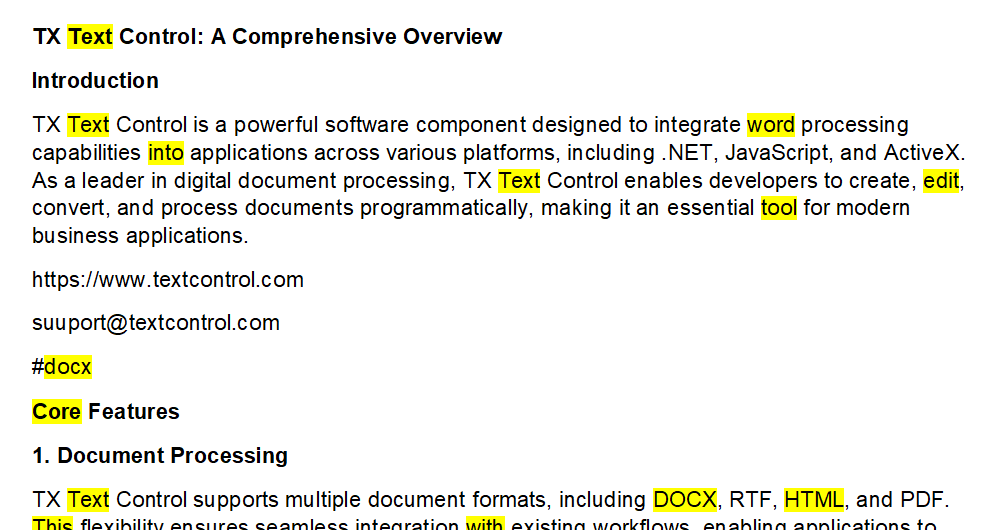
The following code shows how to highlight all words in a text of exactly four characters.
string pattern4chars = "\\b\\w{4}\\b";

textControl1.Load("txtextcontrol.docx", StreamType.WordprocessingML);

var results = textControl1.Selection.Find(patternUrl);

foreach (var match in results)
{
    textControl1.Select(match.Start, match.Length);
    textControl1.Selection.TextBackColor = Color.FromArgb(0, Color.Yellow);
}
Typical Regular Expressions
Here are some typical regular expressions commonly used by document processing applications.
- Email addresses: ^[a-zA-Z0-9._%+-]+@[a-zA-Z0-9.-]+\.[a-zA-Z]{2,}$
- URLs: https?://[a-zA-Z0-9.-]+\.[a-zA-Z]{2,}
- Phone numbers: \d{3}-\d{3}-\d{4}
- Postal codes: [A-Z]\d[A-Z] \d[A-Z]\d
- Dates: \d{2}/\d{2}/\d{4}

Conclusion
Integrating intelligent search with regular expressions into your document processing applications can greatly enhance text analysis, extraction, and validation capabilities. By harnessing the power of regex, developers can provide users with advanced search and navigation capabilities that go beyond simple keyword searches. With TX Text Control, you can easily implement regex-based search functionality to create powerful and intelligent word processing applications.
ASP.NET
Integrate document processing into your applications to create documents such as PDFs and MS Word documents, including client-side document editing, viewing, and electronic signatures.





- Angular
- Blazor
- React
- JavaScript
- ASP.NET MVC, ASP.NET Core, and WebForms
Related Posts
ASP.NETASP.NET CoreInline Styling
RegEx Based Inline Styling in TX Text Control Using JSON Rules
In this article, we demonstrate how to apply inline styling to text in TX Text Control using regular expressions defined in JSON format. This approach allows for dynamic and flexible text…
ASP.NETApp ServicesASP.NET Core
Deploying the TX Text Control Document Editor from the Private NuGet Feed to…
This tutorial shows how to deploy the TX Text Control Document Editor to Azure App Services using an ASP.NET Core Web App. The Document Editor is a powerful word processing component that can be…
ASP.NETASP.NET CoreE-Invoicing
Why Structured E-Invoices Still Need Tamper Protection using C# and .NET
ZUGFeRD, Factur-X, German e-invoicing rules, and how to seal PDF invoices with TX Text Control to prevent tampering. Learn how to create compliant e-invoices with C# and .NET.
ASP.NETAccessibilityASP.NET Core
AI Generated PDFs, PDF/UA, and Compliance Risk: Why Accessible Document…
Ensuring that PDFs are accessible and compliant with standards like PDF/UA is crucial. This article explores the risks of non-compliance and the importance of integrating accessible document…
ASP.NETASP.NET CoreDocument Repository
File Based Document Repository with Version Control in .NET with TX Text Control
In this article, we will explore how to implement a file-based document repository with version control in .NET using TX Text Control. This solution allows you to manage and track changes to your…