


5 Layout Patterns for Integrating the TX Text Control Document Editor in ASP.NET Core C#

When integrating a document editor into an ASP.NET Core application, the technical setup is only one part of the work. Just as important is the question of how the editor fits into the user interface. In this article, we will explore 5 common layout patterns for integrating the TX Text Control document editor into ASP.NET Core applications. Each pattern has its own advantages and use cases, and we will discuss how to implement them effectively.

When integrating a document editor into an ASP.NET Core application, the technical setup is just one aspect of the process. It is equally important to consider how the editor fits into the user interface.
- Should the editor take up the entire screen for focused editing?
- Should it open in a modal dialogue box for quick updates?
- Should it reside alongside other application panels in a business workflow?
- Alternatively, should users be able to switch between multiple open documents in tabs?
The TXTextControl.DocumentEditor.Views sample project provides the answers to these questions. It demonstrates five practical layout patterns for embedding the TX Text Control Document Editor in ASP.NET Core MVC applications. One of these is an advanced tabbed pattern which remembers the current input position and restores the visible viewport when switching tabs, as well as persisting document content.
Learn how to create an ASP.NET Core document editing application
This article demonstrates how to create a Document Editor ASP.NET Core application using the Text Control Private NuGet Feed. We will build a basic web application that enables users to edit documents directly in their web browser with the Document Editor component from Text Control. The backend is powered by the Private NuGet Feed, which provides seamless licensing and eliminates the need for setup.
ASP.NET Core Document Editor with Backend via the Text Control Private NuGet Feed
Why Layout Patterns Matter
In real business applications, documents rarely exist in isolation. Instead, they form part of workflows such as contract generation, document review, CRM processes, case management or template-based correspondence.This means that it is the editor that must adapt to the application, not the other way around. The repository shows five different approaches.
- Full Screen Editor
- Modal Popup Editor
- Sidebar Panel Editor
- Split Panel Editor
- Tabbed Document Editor
This sample is especially useful because the views are self-contained. Each example includes its own HTML structure, embedded CSS and JavaScript, as well as TX Text Control integration code. This makes the sample easy to copy into a real application or use in tutorials. The project targets ASP.NET Core MVC on .NET 10 and uses Bootstrap Icons 1.11.3.
Common TX Text Control Integration Pattern
All layouts in the sample use the same core rendering approach: a container with an explicit size and a TX Text Control editor rendered with the Dock
Basic Razor Integration
This is the key pattern used throughout the sample. DockStyle.Fill ensures that the editor fills the containing element, and the surrounding HTML and CSS define the available layout space.
@using TXTextControl.Web.MVC

<div id="text-control-container">
    @Html.TXTextControl().TextControl(settings => {
        settings.Dock = TXTextControl.Web.DockStyle.Fill;
    }).Render()
</div>
Why the Container Matters
One of the most important implementation details is that the editor requires an actual, calculable height.
#text-control-container {
    width: 100%;
    height: calc(100vh - 6rem);
}
The sample repeatedly emphasizes this point for all layouts. Good values are fixed pixel heights, calc(...), or height: 100% only when the parent chain already has explicit heights. The README explicitly warns against height: auto and percentage heights without a defined parent height.
The Sample Application
The sample application provides an overview page containing links to the five layout patterns. Each pattern is implemented in a separate Razor view and the project includes a shared CSS file for common styles. Designed to be easy to understand and extend, the application is a valuable resource for developers looking to integrate the TX Text Control Document Editor into their own ASP.NET Core applications.
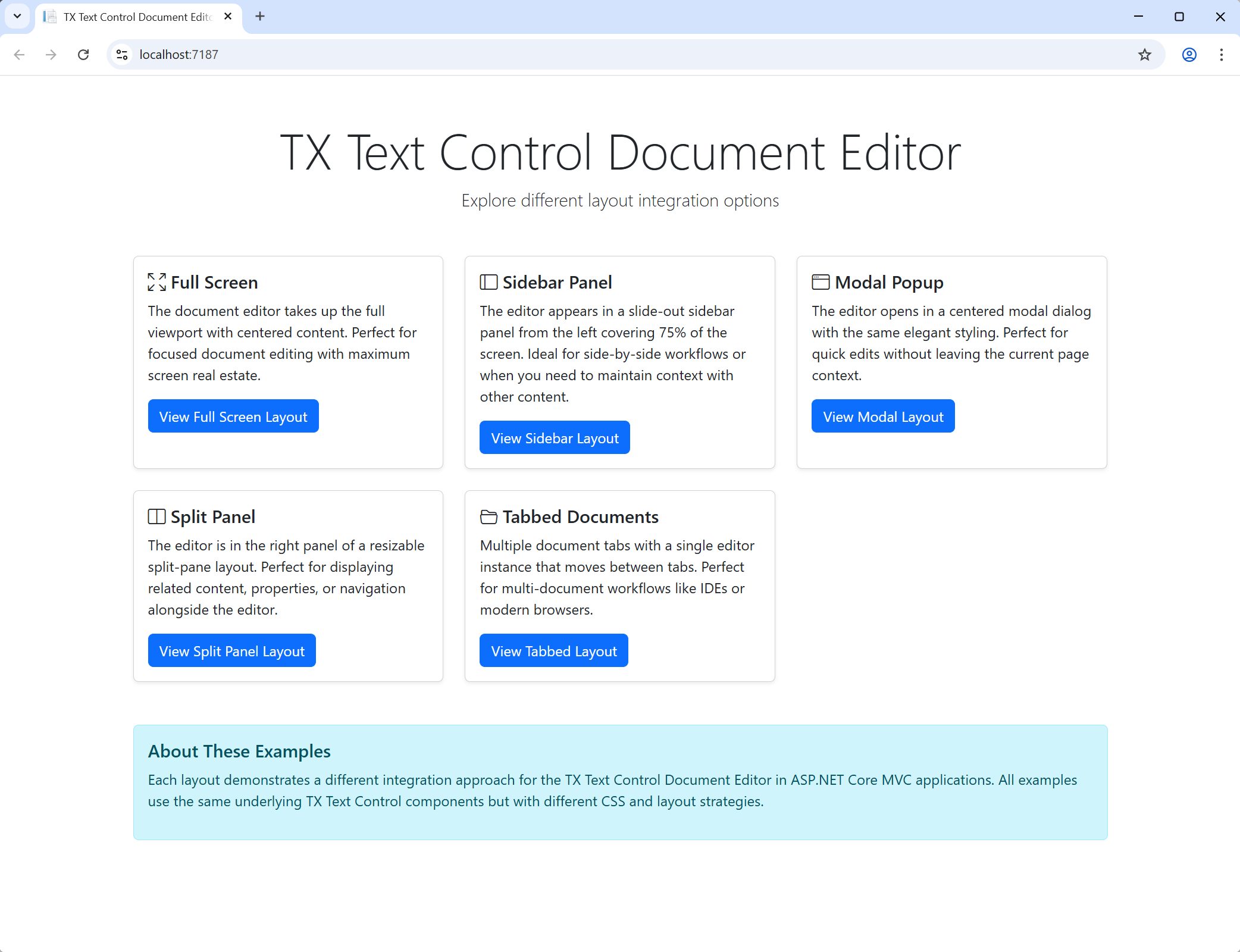
Full Screen Editor
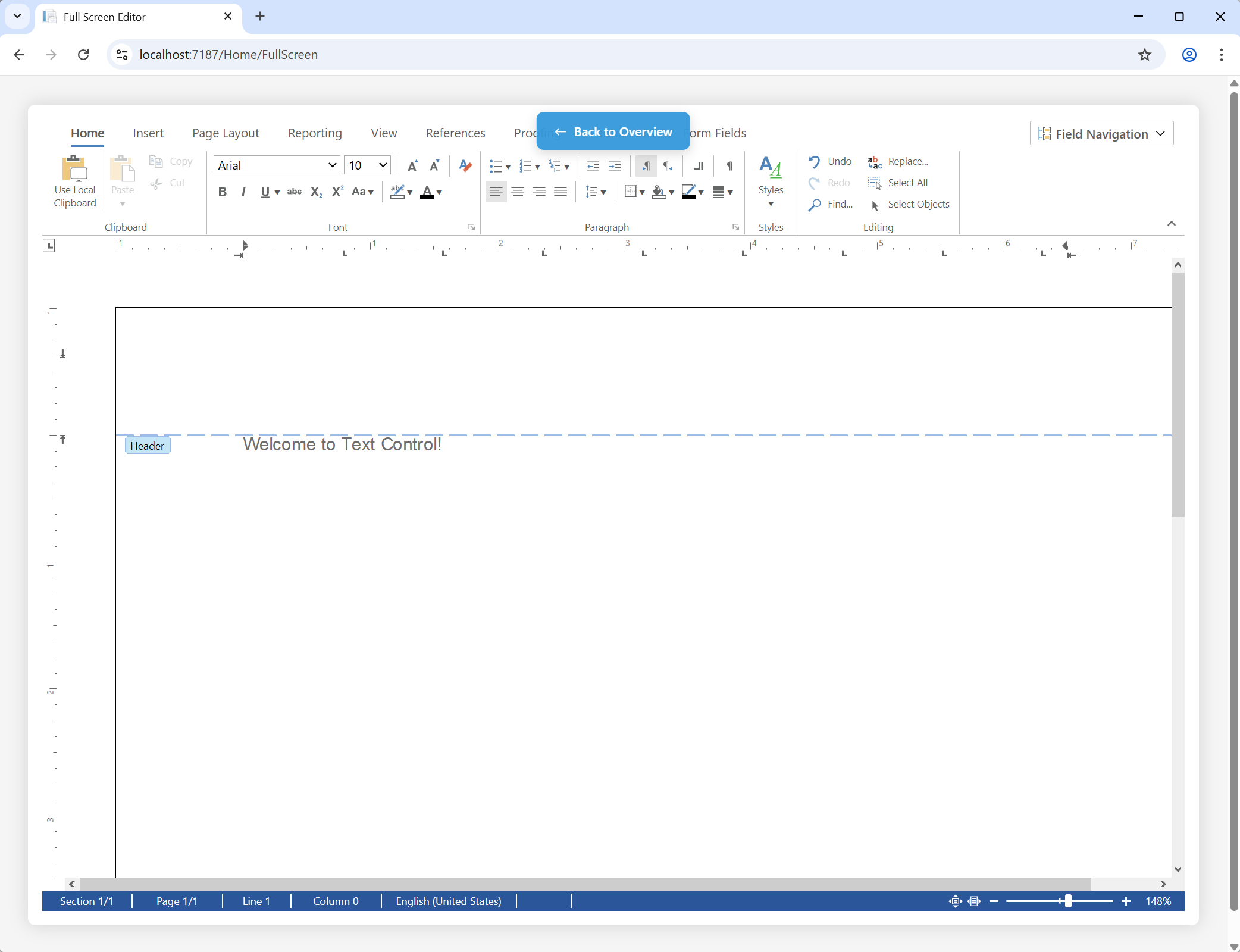
This pattern dedicates the entire screen to the editor, providing a distraction-free environment for focused editing. It is ideal when document editing is the primary purpose of the page.
Razor View
@using TXTextControl.Web.MVC

<div class="editor-page">
    <div id="text-control-container">
        @Html.TXTextControl().TextControl(settings => {
            settings.Dock = TXTextControl.Web.DockStyle.Fill;
        }).Render()
    </div>
</div>
CSS Styles
.editor-page {
    padding: 1.5rem;
}

#text-control-container {
    height: calc(100vh - 6rem);
    width: 100%;
}
In this layout, the editor is placed within a container that fills the entire viewport. The CSS code ensures that the container takes up the full height of the screen, enabling the editor to expand accordingly. This setup is ideal for applications where users need to focus solely on editing documents without distractions from other UI elements. The following screenshot shows the full-screen editor layout in action.
Modal Popup Editor
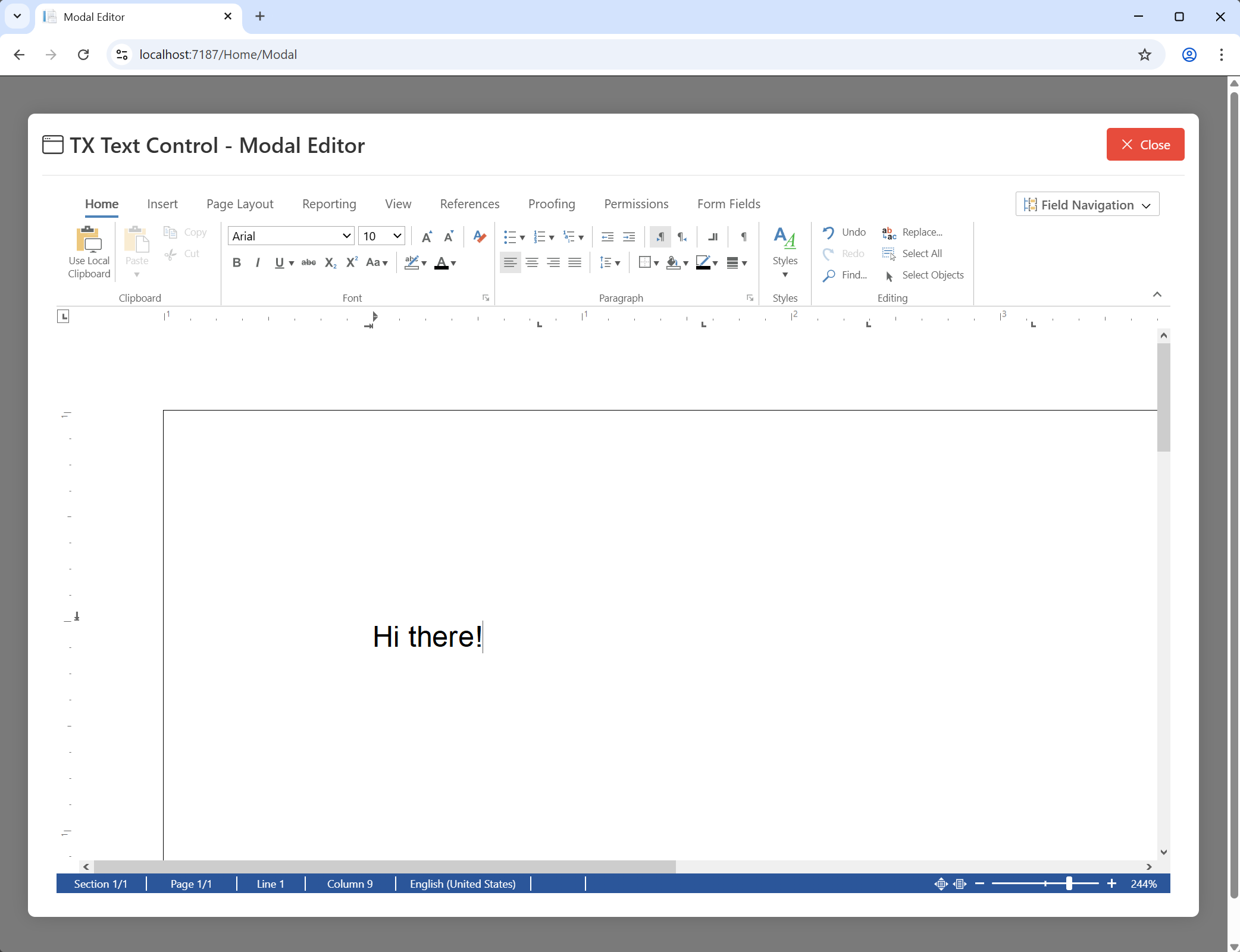
The modal pattern is useful when users need to temporarily edit a document without leaving the current application context. It allows for quick edits and is ideal for scenarios where the document is a secondary element of the workflow.
HTML Structure
<button id="openModalBtn">Open Editor</button>

<div class="modal-overlay" id="modalOverlay">
    <div class="modal-dialog">
        <div class="modal-header">
            <h2>Edit Document</h2>
        </div>

        <div id="text-control-container">
            <!-- TX Text Control renders here -->
        </div>
    </div>
</div>
Razor View
<div id="text-control-container">
    @Html.TXTextControl().TextControl(settings => {
        settings.Dock = TXTextControl.Web.DockStyle.Fill;
    }).Render()
</div>
CSS Styles
.modal-overlay {
    position: fixed;
    inset: 0;
    width: 100%;
    height: 100%;
    display: none;
    opacity: 0;
    z-index: 9999;
    background-color: rgba(0, 0, 0, 0.5);
    transition: opacity 0.3s ease;
}

.modal-overlay.show {
    display: flex !important;
    opacity: 1;
}

#text-control-container {
    height: calc(100% - 80px);
    width: calc(100% - 2rem);
    margin: 0 auto;
}
JavaScript Code
openModalBtn.addEventListener('click', function () {
    modalOverlay.style.display = 'flex';

    setTimeout(() => {
        modalOverlay.classList.add('show');
    }, 10);
});
The sample illustrates two practical points: firstly, the modal is initially hidden using the display: none property; secondly, the height of the TX Text Control container is calculated to leave room for the modal header. The repository also notes that no special refresh logic is required for this scenario. The following screenshot shows the modal popup editor layout in action.
Sidebar Panel Editor
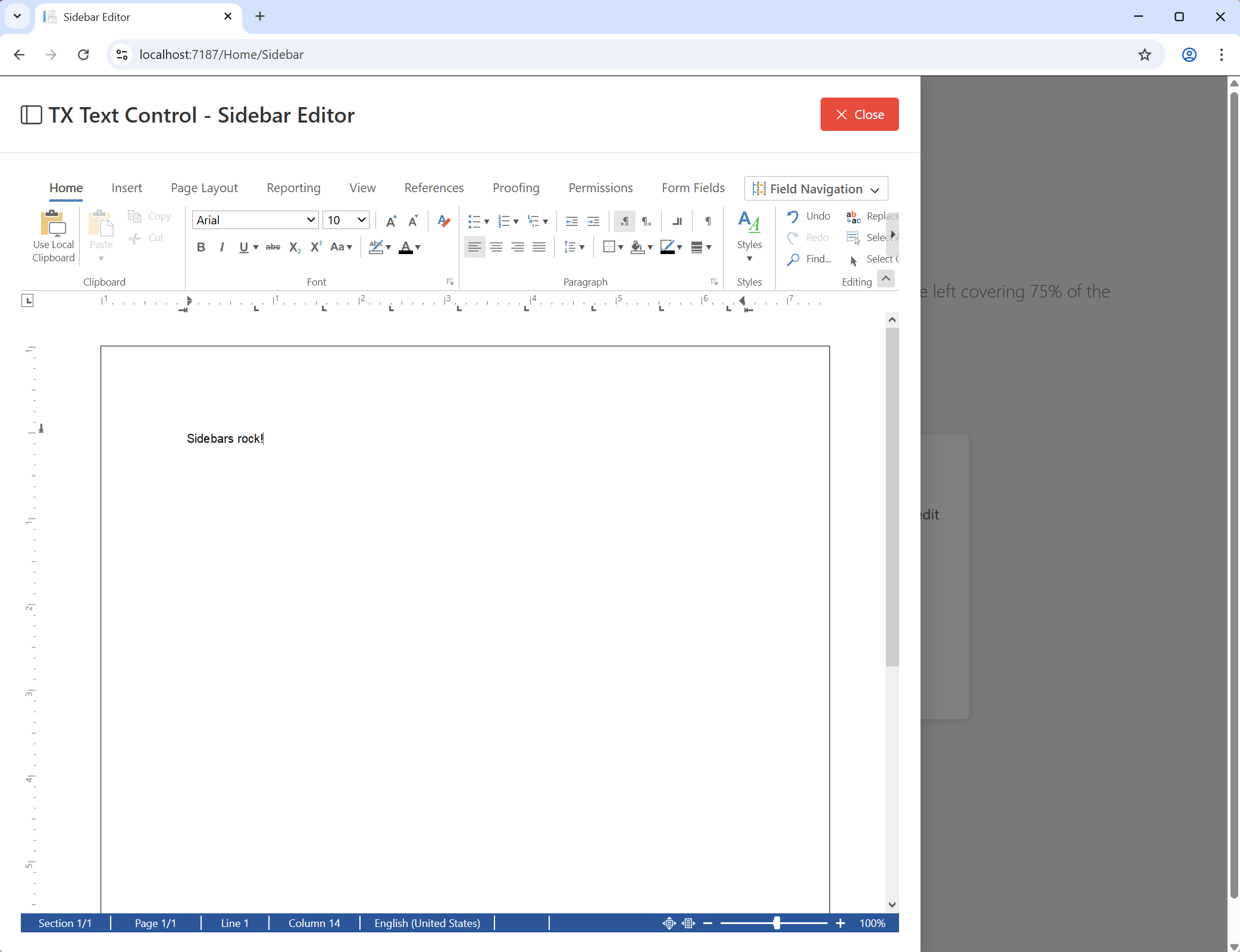
The sidebar layout is ideal for situations where document editing is just one aspect of a larger screen, such as when it is displayed alongside customer data, case metadata or workflow details. It allows users to edit documents while still having access to other relevant information.
HTML Structure
<div class="sidebar-overlay" id="sidebarOverlay">
    <div class="sidebar-container">
        <div class="sidebar-header">
            <h2>Document Editor</h2>
        </div>

        <div id="sidebar-text-control-container">
            <!-- TX Text Control renders here -->
        </div>
    </div>
</div>
Razor View
<div id="sidebar-text-control-container">
    @Html.TXTextControl().TextControl(settings => {
        settings.Dock = TXTextControl.Web.DockStyle.Fill;
    }).Render()
</div>
CSS Styles
.sidebar-container {
    position: fixed;
    top: 0;
    left: -75%;
    width: 75%;
    height: 100vh;
    transition: left 0.3s ease;
}

.sidebar-overlay.show .sidebar-container {
    left: 0;
}

#sidebar-text-control-container {
    flex: 1;
    width: calc(100% - 3rem);
    height: calc(100vh - 100px);
    margin: 1.5rem;
}
JavaScript Code
openSidebarBtn.addEventListener('click', function () {
    sidebarOverlay.style.display = 'block';

    setTimeout(() => {
        sidebarOverlay.classList.add('show');
    }, 10);
});
The sample illustrates this pattern using a slide-out sidebar that covers 75% of the viewport. The TX Text Control-specific requirement is that the container should be explicitly sized, with the editor filling the available area. The following screenshot shows the sidebar panel editor layout in action.
Split Panel Editor
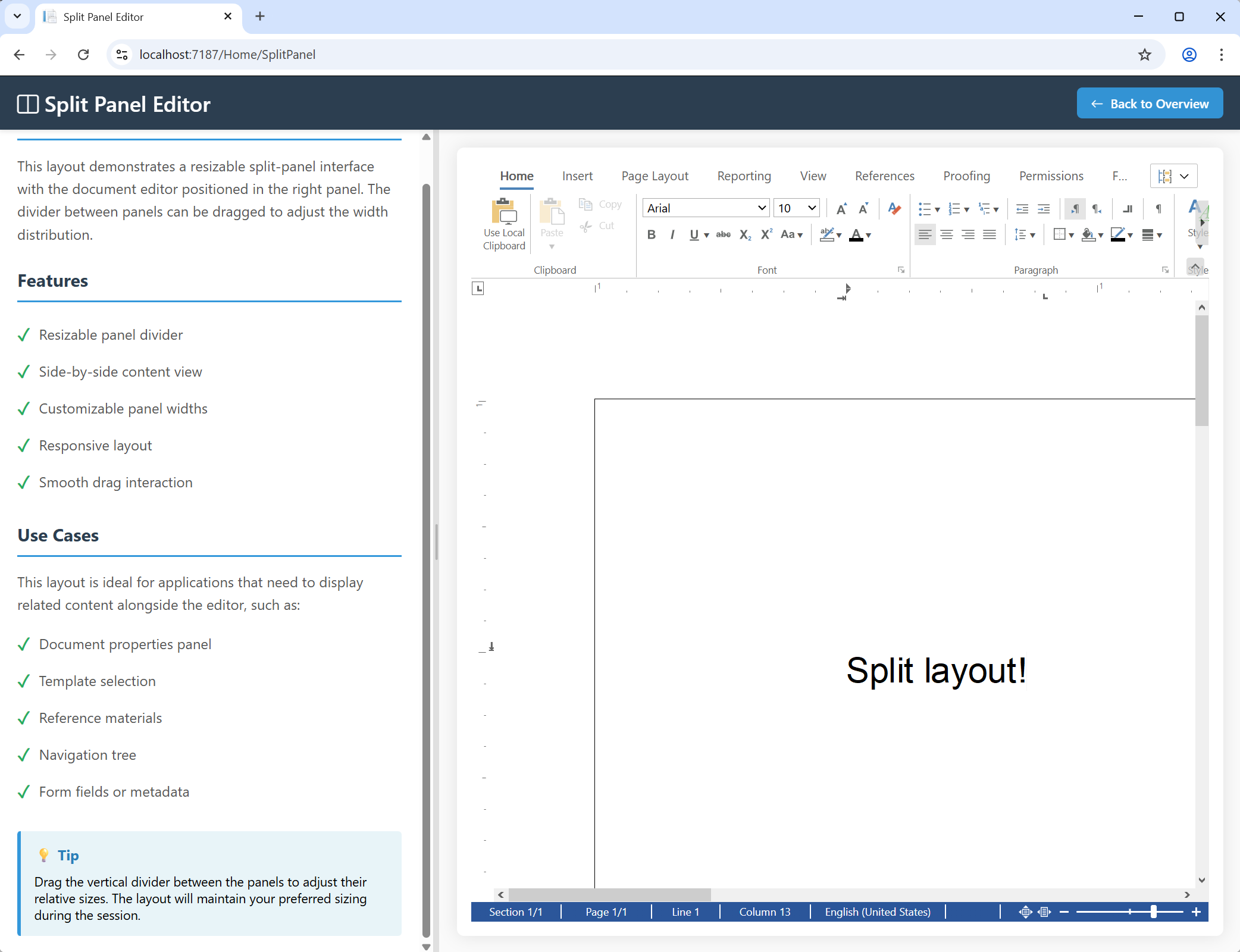
Split view is ideal for displaying a document alongside related content, such as a properties panel, navigation tree, template selection or contextual business data.
HTML Structure
<div class="split-container" id="splitContainer">
    <div class="left-panel" id="leftPanel">
        <!-- Related content -->
    </div>

    <div class="resizer" id="resizer"></div>

    <div class="right-panel">
        <div id="text-control-container">
            <!-- TX Text Control renders here -->
        </div>
    </div>
</div>
CSS Styles
.split-container {
    display: flex;
    height: calc(100vh - 60px);
    overflow: hidden;
}

.left-panel {
    flex: 0 0 35%;
    min-width: 200px;
}

.resizer {
    flex: 0 0 6px;
    cursor: col-resize;
}

.right-panel {
    flex: 1;
    min-width: 300px;
}

#text-control-container {
    height: 100%;
    width: 100%;
}
JavaScript Code
let isResizing = false;

resizer.addEventListener('mousedown', () => {
    isResizing = true;
});

document.addEventListener('mousemove', (e) => {
    if (!isResizing) return;

    const containerRect = splitContainer.getBoundingClientRect();
    const newLeftWidth = e.clientX - containerRect.left;
    const containerWidth = containerRect.width;

    const minLeftWidth = containerWidth * 0.15;
    const maxLeftWidth = containerWidth * 0.70;

    if (newLeftWidth >= minLeftWidth && newLeftWidth <= maxLeftWidth) {
        const leftPercentage = (newLeftWidth / containerWidth) * 100;
        leftPanel.style.flex = `0 0 ${leftPercentage}%`;
    }
});

document.addEventListener('mouseup', () => {
    isResizing = false;
});
In this layout, TX Text Control automatically adjusts to flexbox-driven size changes, meaning that no special refresh call is required for the split panel implementation. The following screenshot shows the split panel editor layout in action.
Tabbed Document Editor
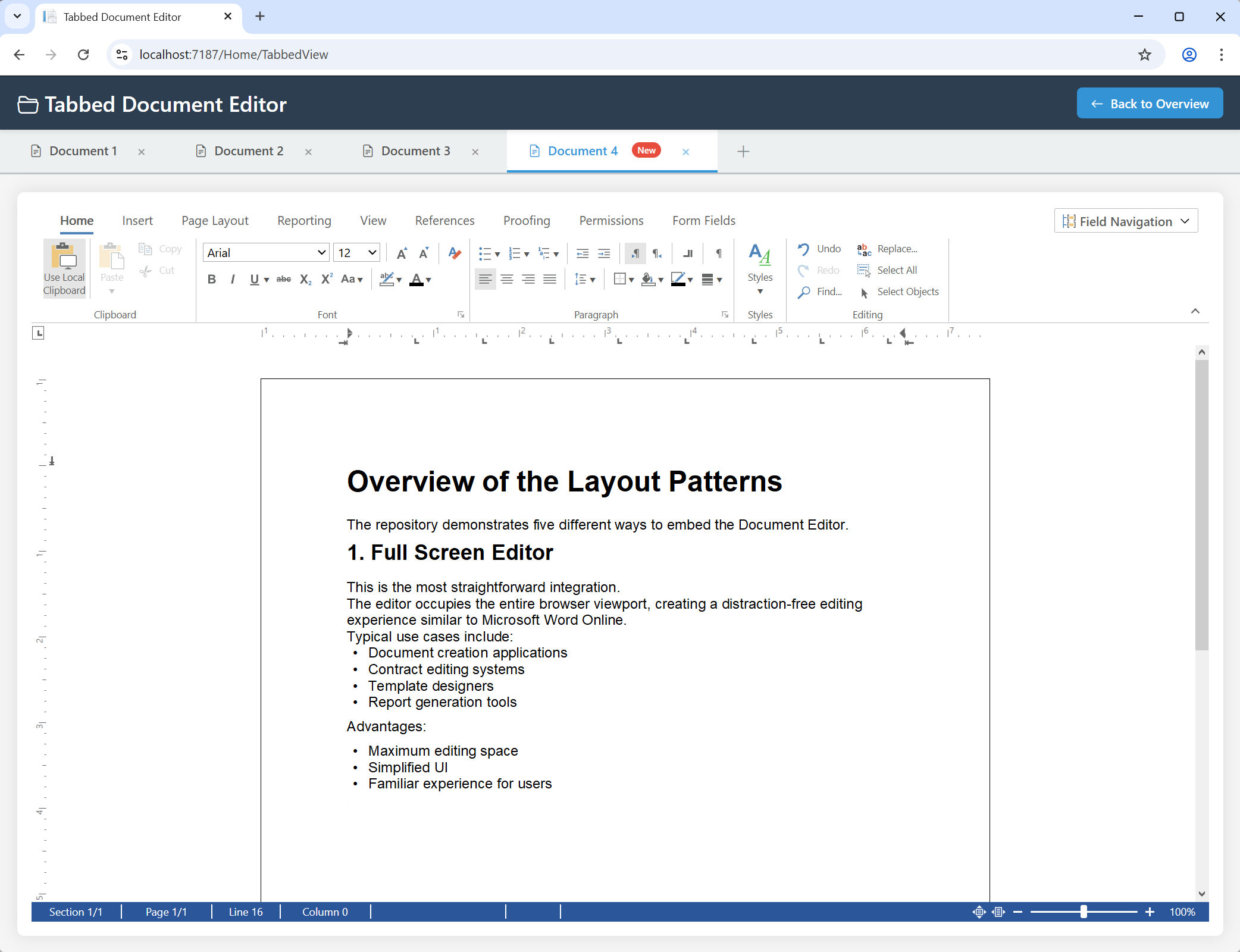
The most interesting feature of the sample is the tabbed document editor. Rather than creating multiple editor instances, the sample uses one TX Text Control editor instance and moves it between tab panes in the Document Object Model (DOM). This is the recommended singleton pattern because it is more efficient and consistent, and avoids the licensing and performance issues associated with multiple instances.
This implementation also preserves:
- the current document per tab
- the input position per tab
- the visible scroll position around that input position per tab
- the editing focus after switching tabs
HTML Structure
<div class="tabs-shell">
    <div class="tabs" id="tabs">
        <button class="tab active" data-tab="tab1">Document 1</button>
        <button class="tab" data-tab="tab2">Document 2</button>
        <button class="tab" data-tab="tab3">Document 3</button>
    </div>

    <div class="tab-content">
        <div class="tab-pane active" id="tab1">
            <div class="editor-wrapper" id="editor-wrapper-tab1"></div>
        </div>

        <div class="tab-pane" id="tab2">
            <div class="editor-wrapper" id="editor-wrapper-tab2"></div>
        </div>

        <div class="tab-pane" id="tab3">
            <div class="editor-wrapper" id="editor-wrapper-tab3"></div>
        </div>
    </div>
</div>

<div id="text-control-container">
    <!-- One TX Text Control instance only -->
</div>
CSS Styles
#text-control-container {
    height: 100%;
    width: 100%;
    padding: 1em;
    opacity: 1;
    transition: opacity 0.2s ease;
}

#text-control-container.fading {
    opacity: 0;
}

.tab-pane {
    display: none;
    height: 100%;
    width: 100%;
    padding: 20px;
    position: absolute;
}

.tab-pane.active {
    display: block;
}
The fade effect is important because it prevents visible flickering when the single editor instance is moved between panes.
JavaScript Storage for Documents and Positions
const tabDocuments = {};
const tabPositions = {};
let activeTabId = 'tab1';
The sample stores each document in memory, as well as storing the text position of the cursor separately for each tab. For this temporary save and restore mechanism, the sample specifically uses InternalUnicodeFormat because it preserves formatting and embedded content well.
Saving the Current Document and Input Position
function saveCurrentDocument(tabId, callback) {
    TXTextControl.inputPosition.getTextPosition(function (position) {
        tabPositions[tabId] = position;

        TXTextControl.saveDocument(
            TXTextControl.StreamType.InternalUnicodeFormat,
            function (e) {
                tabDocuments[tabId] = e.data;
                if (callback) callback();
            }
        );
    });
}
This is one of the most valuable parts of the sample. First, the editor retrieves the current text position using Input
Loading a Document for a Tab
function loadDocumentForTab(tabId, editorWrapper) {
    const savedDocument = tabDocuments[tabId];
    const savedPosition = tabPositions[tabId];
    const editorContainer = document.getElementById('text-control-container');

    if (savedDocument) {
        TXTextControl.loadDocument(
            TXTextControl.StreamType.InternalUnicodeFormat,
            savedDocument,
            function () {
                editorWrapper.appendChild(editorContainer);

                setTimeout(() => {
                    editorContainer.classList.remove('fading');

                    if (savedPosition) {
                        restorePosition(savedPosition);
                    } else {
                        TXTextControl.focus();
                    }
                }, 50);
            }
        );
    } else {
        TXTextControl.resetContents(function () {
            editorWrapper.appendChild(editorContainer);

            setTimeout(() => {
                editorContainer.classList.remove('fading');
                TXTextControl.focus();
            }, 50);
        });
    }
}
This code uses TXText
Restoring the Input Position and Scrolling It into View
function restorePosition(position) {
    TXTextControl.setInputPositionByTextPosition(
        position,
        TXTextControl.TextFieldPosition.OutsideTextField,
        function () {
            TXTextControl.inputPosition.scrollTo(
                TXTextControl.InputPosition.ScrollPosition.Top,
                function () {
                    TXTextControl.focus();
                }
            );
        }
    );
}
This is where the tabbed view becomes more than just a save and load demo. The sample restores the saved text position using TXText
Switching Tabs Smoothly with a Fade Effect
function switchTab(tabId) {
    if (activeTabId === tabId) return;

    const editorContainer = document.getElementById('text-control-container');
    const newTab = document.querySelector(`.tab[data-tab="${tabId}"]`);
    const newPane = document.getElementById(tabId);
    const targetWrapper = newPane.querySelector('.editor-wrapper');

    editorContainer.classList.add('fading');

    setTimeout(() => {
        saveCurrentDocument(activeTabId, function () {
            document.querySelectorAll('.tab').forEach(t => t.classList.remove('active'));
            document.querySelectorAll('.tab-pane').forEach(p => p.classList.remove('active'));

            newTab.classList.add('active');
            newPane.classList.add('active');

            loadDocumentForTab(tabId, targetWrapper);
            activeTabId = tabId;
        });
    }, 200);
}
The process goes like this: fade out; save the current document and cursor position; switch the tab UI; load the next document; move the editor in the DOM; restore the input position; scroll it into view; fade back in; and focus the editor again. It is this sequence that makes the experience feel stable rather than fragile. The following screenshot shows the tabbed document editor layout in action.
When to Use Each Pattern
The right layout for your application depends on its purpose. For instance, a full-screen editor would be ideal for a dedicated document editing application, whereas a sidebar panel would be more suitable for a CRM system, where the document is just one part of the workflow. Modal pop-ups are great for quick edits, while split panels work well when you need to display related information alongside the document. The tabbed editor is ideal for applications requiring you to work with multiple documents simultaneously.
| Application Type | Recommended Layout |
|---|---|
| Document creation tools | Full screen editor |
| Workflow systems | Modal editor |
| Business applications | Sidebar editor |
| Review and approval systems | Split panel |
| Document management systems | Tabbed editor |
By decoupling document editing capabilities from application layout, TX Text Control allows developers to create document workflows that feel native to their applications. The TXTextControl.DocumentEditor.Views sample demonstrates the flexibility of this integration and offers a practical starting point for designing professional document editing experiences in ASP.NET Core.
Feel free to explore the sample repository, experiment with the various layouts and customise the code to suit your application's specific requirements. These layout patterns will help you create an intuitive and efficient user experience, whether you are building a simple document editor or a complex business application.
Frequently Asked Questions
The TXTextControl.DocumentEditor.Views sample demonstrates five practical layout patterns for integrating the TX Text Control Document Editor into ASP.NET Core MVC applications. These include a full screen editor, modal popup editor, sidebar editor, split panel editor, and a tabbed multi-document editor. The project focuses specifically on user interface integration patterns rather than backend document processing.
The sample includes five common integration patterns used in real-world business applications: a full screen editor for focused document editing, a modal popup editor for temporary editing tasks, a sidebar editor for workflow-driven applications, a split panel editor for side-by-side document and metadata views, and a tabbed editor for working with multiple documents simultaneously.
The editor is integrated using the TX Text Control MVC helper. In Razor views, developers render the editor inside a container element using @Html.TXTextControl().TextControl(settings => { settings.Dock = TXTextControl.Web.DockStyle.Fill; }).Render(). The editor then fills the surrounding container, allowing developers to control layout using standard HTML and CSS.
The TX Text Control Document Editor must be rendered inside a container with a defined height. If the container uses automatic sizing or percentage heights without a defined parent height, the editor cannot calculate its layout correctly and may appear collapsed or invisible. Using fixed heights, viewport calculations such as calc(100vh - ...), or properly defined flex layouts ensures reliable rendering.
The tabbed editor pattern uses a single TX Text Control instance that is dynamically moved between tab panes in the DOM. When switching tabs, the current document is saved in memory, the cursor position is stored, and the editor instance is relocated to the target tab container. The saved document is then reloaded and the cursor position restored, creating the appearance of multiple editors while maintaining only one active instance.
When a tab switch occurs, the sample saves the current document using the JavaScript API TXTextControl.saveDocument() with the InternalUnicodeFormat stream type. The resulting document data is stored in memory. When the user returns to the tab, the content is restored using TXTextControl.loadDocument(), ensuring the document state remains intact.
The current cursor position is retrieved using TXTextControl.inputPosition.getTextPosition() before saving the document. When the document is reloaded, the saved position is restored using TXTextControl.setInputPositionByTextPosition(). This allows the editor to return the user to the exact location where they previously left off.
After restoring the cursor position, the sample scrolls the editor viewport so the cursor becomes visible again. This is done using TXTextControl.inputPosition.scrollTo(). Combined with restoring the input position, this ensures a seamless user experience when switching between tabs or documents.
Using a single editor instance improves performance, reduces memory consumption, and simplifies application architecture. Creating multiple editor instances for each tab can increase resource usage and complicate state management. The singleton approach used in the sample keeps the application lightweight while still supporting multi-document workflows.
Yes. The patterns shown in the sample represent common integration scenarios used in enterprise applications such as document management systems, CRM platforms, contract management systems, and workflow-based business applications. Developers can use the provided layouts as a starting point and adapt them to their own user interface frameworks and workflows.

Download and Fork This Sample on GitHub
We proudly host our sample code on github.com/TextControl.
Please fork and contribute.
Requirements for this sample
- TX Text Control .NET Server for ASP.NET 34.0
- Visual Studio 2026
ASP.NET
Integrate document processing into your applications to create documents such as PDFs and MS Word documents, including client-side document editing, viewing, and electronic signatures.





- Angular
- Blazor
- React
- JavaScript
- ASP.NET MVC, ASP.NET Core, and WebForms
Related Posts
Introducing Text Control Agent Skills
Text Control Agent Skills are structured definitions that teach AI coding assistants how to build applications with the TX Text Control Document Editor. Each skill contains step-by-step…
ASP.NETApp ServicesASP.NET Core
Deploying the TX Text Control Document Editor from the Private NuGet Feed to…
This tutorial shows how to deploy the TX Text Control Document Editor to Azure App Services using an ASP.NET Core Web App. The Document Editor is a powerful word processing component that can be…
Build a Custom Backstage View in ASP.NET Core with TX Text Control
This article shows how to build a custom backstage view with a File tab to load your multi-format documents using TX Text Control for ASP.NET Core applications.
ASP.NETASP.NET CoreDocument Editor
ASP.NET Core Document Editor with Backend via the Text Control Private NuGet…
This article demonstrates how to create a Document Editor ASP.NET Core application using the Text Control Private NuGet Feed. We will build a basic web application that enables users to edit…
ASP.NETASP.NET CoreDocument Automation
Why Document Processing Libraries Require a Document Editor
A document processing library alone cannot guarantee reliable and predictable results. Users need a true WYSIWYG document editor to design and adjust templates to appear exactly as they will after…