


Create PDF File with .NET C#

This article explains how to use the TX Text Control to create PDF documents in .NET applications, including ASP.NET Core and Windows applications. It covers setting up a console project in Visual Studio, adding the necessary NuGet package, and writing C# code to generate PDFs with paragraphs, tables, headers, and footers.

PDFs (Portable Document Format) are widely used and incredibly useful in a business application environment. PDFs retain the same format and layout regardless of operating system or device, whether viewed on Windows, MacOS, Linux, or mobile platforms. PDFs preserve the layout, fonts, images, and structure of the original document, making them ideal for distributing read-only documents where format and appearance must be maintained, such as contracts, resumes, and official forms.
Creating or generating PDF documents can be a complex task and you should carefully choose the right libraries to create them. It is very important to have full flexibility when creating PDF documents and also to generate the correct format, including long-term archiving formats such as PDF/A.
TX Text Control allows you to create a PDF file in any .NET application, including ASP.NET Core, console applications, or Windows applications.
Creating the Application
To demonstrate how easy this is with the TX Text Control library, we will use a .NET console application.
Make sure that you downloaded the latest version of Visual Studio 2022 that comes with the .NET 6 SDK.
Prerequisites
The following tutorial requires a trial version of TX Text Control .NET Server.
-
In Visual Studio 2022, create a new project by choosing Create a new project.
-
Select Console App as the project template and confirm with Next.
-
Choose a name for your project and confirm with Next.
-
In the next dialog, choose .NET 8 (Long-term support) as the Framework and confirm with Create.
Adding the NuGet Package
-
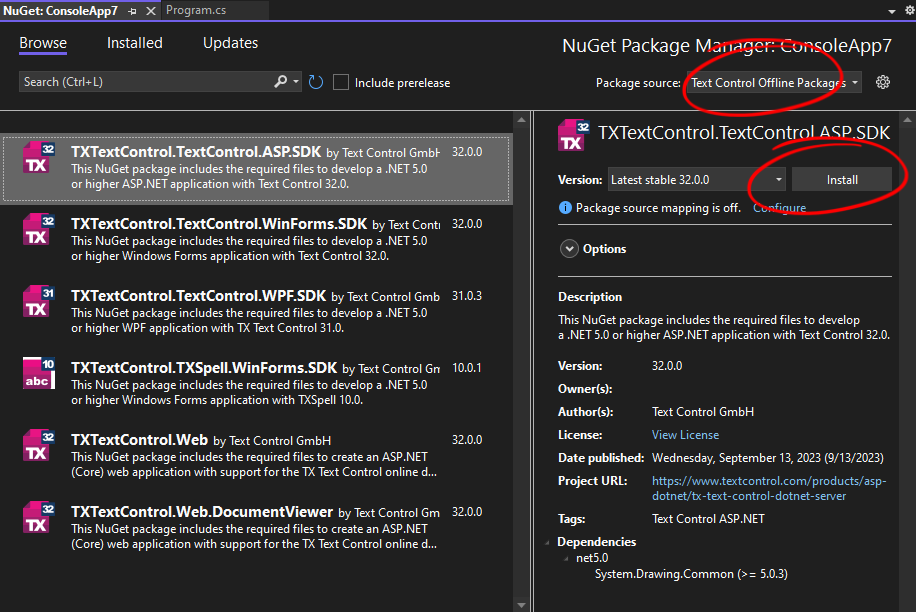
In the Solution Explorer, select your created project and choose Manage NuGet Packages... from the Project main menu.
Select Text Control Offline Packages from the Package source drop-down.
Install the latest versions of the following package:
- TXTextControl.TextControl.ASP.SDK
Creating a PDF Document
-
Open the Program.cs file and add the following code:
using TXTextControl;

using (TXTextControl.ServerTextControl tx = new TXTextControl.ServerTextControl())
{
    tx.Create();

    // Add a paragraph to the document
    TXTextControl.Selection selection = new TXTextControl.Selection(0, 0);
    selection.Text = "Hello, World!";

    // Set the paragraph format
    selection.ParagraphFormat = new ParagraphFormat()
    {
        Alignment = HorizontalAlignment.Center,
        BackColor = System.Drawing.Color.LightGray,
        Frame = Frame.BottomLine,
        FrameLineColor = System.Drawing.Color.Red,
        FrameStyle = FrameStyle.Double,
        FrameLineWidth = 10
    };

    // Set the font format
    selection.FontSize = 240; // 240 twips = 12 pt
    selection.FontName = "Arial";
    selection.Bold = true;

    // Apply the changes to the document
    tx.Selection = selection;

    // Save the document
    tx.Save("results.pdf", TXTextControl.StreamType.AdobePDF);
}
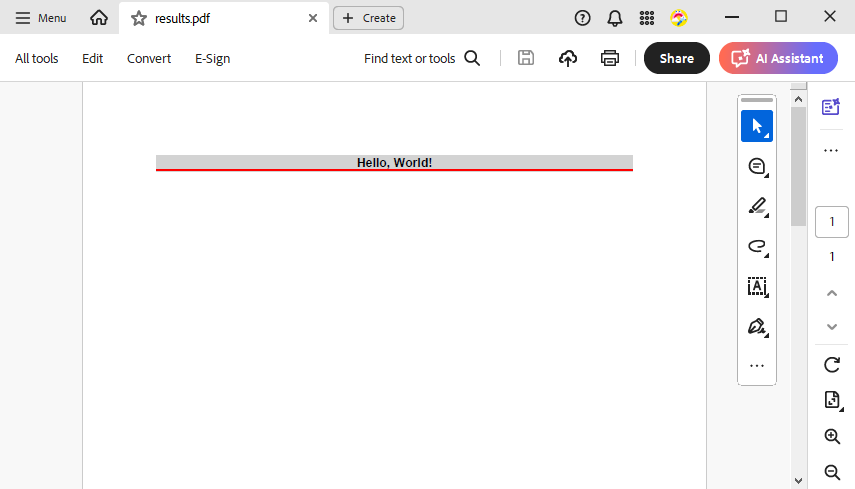
This creates a new document and adds a paragraph with a specific paragraph format, including a border, alignment, and character style. Finally, the document is saved as a PDF file.
Adding Tables
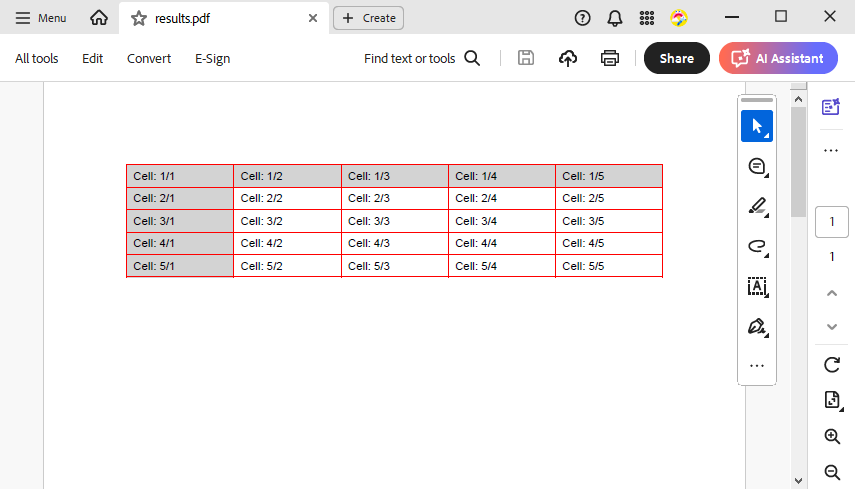
Adding tables to a document is as easy as adding text. The following code snippet adds a table and formats cells with borders and background colors.
using TXTextControl;

using (TXTextControl.ServerTextControl tx = new TXTextControl.ServerTextControl())
{
    tx.Create();

    tx.Tables.Add(5,5,10);

    // Set the table border style
    Table table = tx.Tables.GetItem(10);

    // Set the table border style
    TableCellFormat cellFormat = new TableCellFormat() {
        BottomBorderWidth = 1,
        BottomBorderColor = System.Drawing.Color.Red,
        TopBorderWidth = 1,
        TopBorderColor = System.Drawing.Color.Red,
        LeftBorderWidth = 1,
        LeftBorderColor = System.Drawing.Color.Red,
        RightBorderWidth = 1,
        RightBorderColor = System.Drawing.Color.Red,

        BottomTextDistance = 80,
        TopTextDistance = 80,
        LeftTextDistance = 120,
        RightTextDistance = 120
    };

    // Loop through all cells and set the cell format
    foreach (TableCell cell in table.Cells)
    {
        cell.CellFormat = cellFormat;
        cell.Text = $"Cell: {cell.Row}/{cell.Column}";
    }

    // Highlight the first column and row
    TableCellFormat highlightCellFormat = new TableCellFormat()
    {
        BackColor = System.Drawing.Color.LightGray
    };

    table.Columns.GetItem(1).CellFormat = highlightCellFormat;
    table.Rows.GetItem(1).CellFormat = highlightCellFormat;

    // Save the document
    tx.Save("results.pdf", TXTextControl.StreamType.AdobePDF);
}
When opened in Adobe Acrobat Reader, the PDF document looks like this:
Adding Headers and Footers
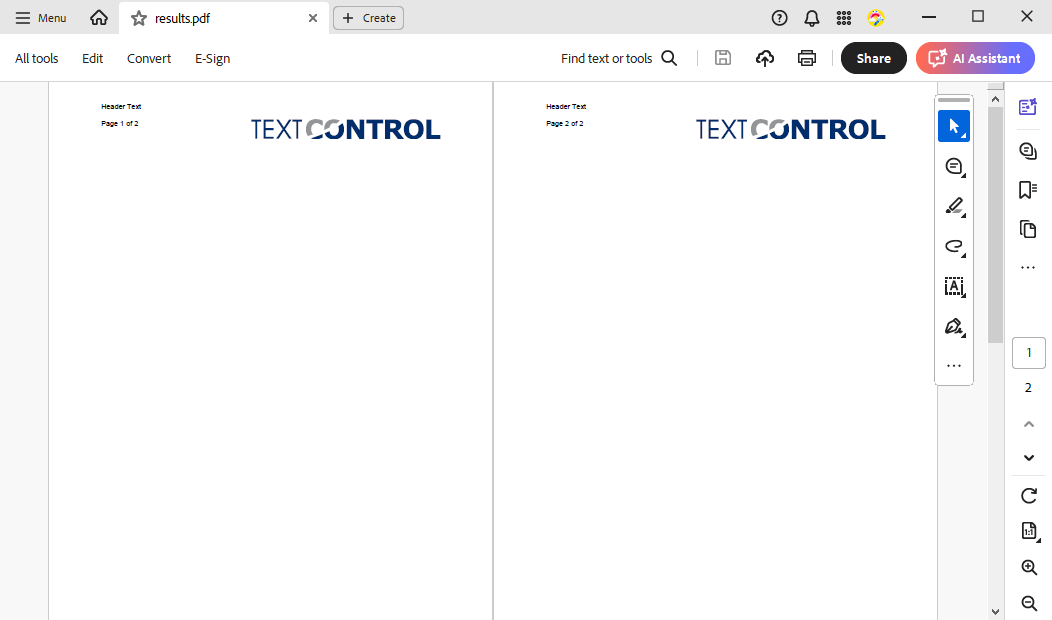
Headers and footers can be added to a document using the Headers
using TXTextControl;

using (ServerTextControl tx = new ServerTextControl())
{
    tx.Create();

    // Add a header
    tx.Sections.GetItem().HeadersAndFooters.Add(HeaderFooterType.Header);

    // Get the header/footer object
    HeaderFooter headerFooter = tx.Sections.GetItem().HeadersAndFooters.GetItem(HeaderFooterType.Header);

    // Add an image to the header
    Image image = new Image("tx_logo.svg", 0);
    headerFooter.Images.Add(image, HorizontalAlignment.Right, 1, ImageInsertionMode.AboveTheText);

    // Add a text to the header
    headerFooter.Selection.Text = "Header Text\r\n\r\n";

    // Add a page number field to the header
    headerFooter.Selection.Text = "Page ";
    headerFooter.PageNumberFields.Add(new PageNumberField());
    headerFooter.Selection.Text = " of ";
    headerFooter.PageNumberFields.Add(new PageNumberField() { ShowNumberOfPages = true });

    // Add a new page
    tx.Selection.Text = "\f";

    // Save the document
    tx.Save("results.pdf", StreamType.AdobePDF);
}
When you open the PDF document in Adobe Acrobat Reader, it looks like this:
Additional PDF Settings
TX Text Control provides additional settings for PDF documents such as encryption, compression, and PDF/A compliance. The following code snippet shows how to create a PDF document with encryption and PDF/A compliance.
TXTextControl.SaveSettings settings = new TXTextControl.SaveSettings();
        X509Certificate2 cert = new X509Certificate2("test.pfx", "123");
        settings.DigitalSignature = new TXTextControl.DigitalSignature(cert, null);

        textControl1.Save("results.pdf", TXTextControl.StreamType.AdobePDF, settings);
In Acrobat Reader, an information bar informs the user about the PDF/A conformity and the digital signatures can be verified in the signature sidebar.
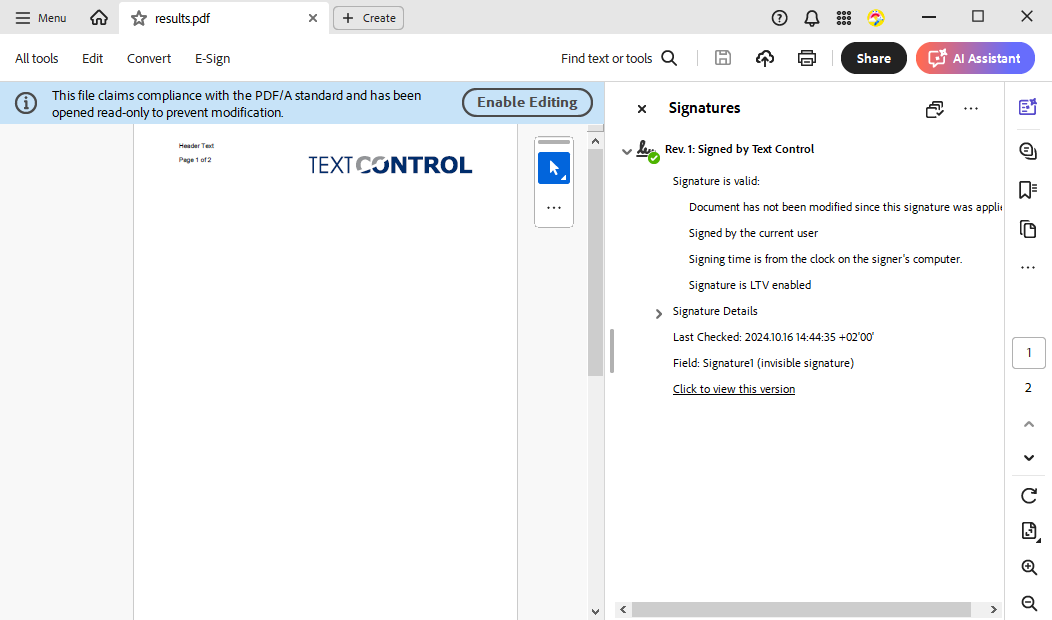
In addition, TX Text Control can embed documents in PDF files by creating PDF/A-3 compliant documents. Using the Save
Learn More
This article shows how to convert MS Word DOCX documents to PDF in .NET C# using the ServerTextControl component. The example shows how to load a DOCX file from a file or from a variable and how to save it as an Adobe PDF file.
Programmatically Convert MS Word DOCX Documents to PDF in .NET C#
Conclusion
TX Text Control provides a powerful API to create and manipulate PDF documents in .NET applications. The library supports all features of the PDF format, including encryption, compression, and PDF/A compliance. The library is available for ASP.NET Core, Windows Forms, and WPF applications.
Download the Trial Version of TX Text Control .NET Server and start creating PDF documents in your .NET applications.
ASP.NET
Integrate document processing into your applications to create documents such as PDFs and MS Word documents, including client-side document editing, viewing, and electronic signatures.





- Angular
- Blazor
- React
- JavaScript
- ASP.NET MVC, ASP.NET Core, and WebForms
Related Posts
PDF is Dead, Long Live PDF: Why PDF Remains Relevant in a Changing Digital World
Despite being on the market for more than 30 years, the Portable Document Format (PDF) remains a dominant force in industries such as legal, healthcare, and finance. This blog post addresses the…
A Complete Guide to Converting Markdown to PDF in .NET C#
Learn how to convert Markdown to PDF in .NET C# using Text Control's ServerTextControl component. This guide covers setup, conversion process, and customization options for generating high-quality…
ASP.NETASP.NET CoreDocument Creation
Why PDF Creation Belongs at the End of the Business Process
This article discusses why placing PDF creation at the end of the business process is important for ensuring accuracy and efficiency. The most scalable systems delay PDF generation until the…
Designing the Perfect PDF Form with TX Text Control in .NET C#
Learn how to create and design interactive PDF forms using TX Text Control in .NET C#. This guide covers essential features and best practices for effective form design.
Why Defining MIME Types for PDF/A Attachments Is Essential
The PDF/A standard was created to ensure the long-term reliable archiving of digital documents. An important aspect of the standard involves properly handling embedded files and attachments within…